Some links on this page are affiliate links: if you buy through them we may earn a commission, at no extra cost to you.
If your phone, tablet, or computer dims, locks, or goes to sleep during a documentary, the right fix depends on what you actually need. To keep subtitles and pictures visible, temporarily lengthen the device’s screen timeout or Auto-Lock setting. To keep audio playing with the display off, use supported background playback or a sleep timer instead. On computers, adjust display-off and system-sleep settings separately.
Use the app’s own playback behavior first, then make a temporary system-level change if necessary. Restore your normal timeout afterward to reduce battery drain and protect your privacy.
First decide what should stay awake
“Keep the screen on” can describe several different goals:
The Tool Desk
Outbyte Driver Updater FREEScan for outdated or missing drivers - takes under a minuteDriver Scan →Outbyte PC Repair FREERepair Windows errors before they cause bigger problemsFix Now →- Keep the display visible: Useful for subtitles, exercise videos, recipes, lectures, presentations, and security-camera feeds.
- Keep the entire device awake: Necessary for some downloads, casting, remote-monitoring tasks, or uninterrupted computer activity.
- Keep playback running with the screen off: Usually best for podcasts, music, meditation, lectures, or a documentary you are treating as audio.
- Prevent the device from locking: Convenient, but it leaves an unlocked account and open content visible to anyone who can access the device.
A video continuing to play does not necessarily mean the display will remain lit. An app may request that the operating system keep the screen awake, but it may also allow the display to turn off while playback continues. Streaming services can impose their own background-playback limits or inactivity prompts.
Popular on Amazon
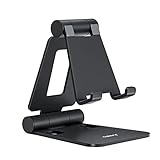
- Universal Compatbility: This phone stand works with all 4-8" Smartphones and e-readers, such as iPhone 18 17 16 15 14 13 12 11 Pro Max Xs Xr X 8 7 6, Switch, Samsung Galaxy S10 /S10+/S9 /S9+/S8 /S8+, Google Nexus, Kindle.
- Adjustable & Portable: The phone cradle is fully collapsible, it can be easily adjusted to ideal position, which is a good desk accessories while watching video, playing games, making phone call, viewing recipes, using Facetime.
- Sturdy & Protective: The cell phone stand is made of high quality premium aluminum, it stays firmly in place, hold your phone steadily, no worry any wobble at all. The rubber pads can protect your phone from any scratching and sliding.
- Case Friendly: The hook width of the stand is 18mm, no need to remove your phone case, which is long enough to hold your device with HEAVY CASE on, please make sure the thickness of your device is no more than 18mm (0.71").
- Warm Tips: Please set your device(4"-6") in landscape or portrait mode, and set the device (6"-8") in landscape mode, which will provide more stability.
Quick answer by device
| Device or situation | Best first step |
|---|---|
| Android phone or tablet | Settings > Display (or a similar section) > Screen timeout, Screen sleep, or Sleep. |
| iPhone | Settings > Display & Brightness > Auto-Lock. |
| iPad | Settings > Display & Brightness > Auto-Lock. |
| Windows 10 or 11 | Settings > System > Power & battery > Screen, sleep, & hibernate timeouts. |
| Mac | Apple menu > System Settings > Lock Screen; adjust display-off intervals. |
| Audio-only viewing | Turn the display off and use background playback, picture-in-picture, a downloaded file, or a sleep timer where supported. |
Labels and available choices vary by operating-system version, Android manufacturer, language, device model, battery mode, and work or school policy.
Keep an Android screen on while watching
- Open Settings.
- Tap Display, Display & touch, or a similarly named section.
- Choose Screen timeout, Screen sleep, or Sleep.
- Select a longer interval, such as 10 or 30 minutes, if your device offers it.
- Start the video and check that the display remains active.
- Restore your usual shorter interval when you finish.
Samsung, Google Pixel, Motorola, OnePlus, Xiaomi, and other Android devices can use different menu names or locations. Use Settings search for screen timeout or sleep if you cannot find the option.
Why the app may already keep the screen awake
Android allows an app to request an active display with FLAG_KEEP_SCREEN_ON or the android:keepScreenOn="true" layout attribute. This is an app-controlled behavior, not a universal Android switch. The request can apply only while the relevant activity is active and playback is genuinely occurring. Android’s documentation recommends clearing the request when it is no longer needed and warns that prolonged screen-on time can drain the battery quickly. See Android’s screen-on guidance.
Advanced workaround: Stay awake
Some Android devices include Stay awake in Developer options. When available, it keeps the display on while the device is charging. Treat this as a temporary, device-wide workaround rather than the normal solution. It may not exist on every Android build, and it can leave the display active in other apps as well.
Avoid installing random “wakelock” or accessibility utilities merely to change a timeout. Such apps may request broad permissions and can increase battery use. Built-in settings and the player’s own behavior are safer starting points.
Keep an iPhone screen on
- Open Settings.
- Tap Display & Brightness.
- Tap Auto-Lock.
- Choose a longer duration that covers the video.
- Play the video and confirm that the display stays visible.
Apple documents this path and warns that delaying or preventing Auto-Lock can increase power consumption. Apple’s iPhone guide explains Auto-Lock and Always-On display behavior.
Also popular on Amazon
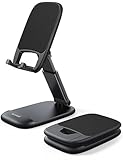
- Height & Angle Adjustable - The universal adjustable phone stand can be titled to vertical, and height can be extended up to 3.2 inches. It allows you to get a more comfortable viewing angle and height. Reduce the frequency of looking down at the phone screen to avoid hurting your back and neck. A perfect desktop accessory that frees your hands to watch online class, do live stream.
- Thick Case Friendly - This cellphone stand work for phone with thick case up to 0.71 inches thick. The enlarged & thickened anti-slip & anti-scratch silicone mats on the backrest, hooks and base feet protect your moilephone from sliding and scratching. Durable materials and the high-precision smooth surface prevent this phone stand from scratch and break even after long-term use.
- Full Foldable & Portable - This portable phone stand is easy to carry by anyone. Bi-folding design allows this foldable mobile stand to be pocket-sized. Simply fold it up to a small size anytime and carry around into a handbag, backpack wherever you travel or business trip. Necessary office desk accessories & workspace organizers, office supplies, cell phone accessories.
- Weighted Metal Base - As to ensure the stability, the telescopic rod and the base of this mobile phone stand are made of weighted excellent metal. The exquisite groove design of the base match with the strong adjustable rod allows your mobilephone to rest steadily on it, even with a thick case. It’s the best Thanksgiving Day, Christmas gift.
- Wide Compatibility - Universal table phone holder works for telephones and tablets between 4 - 8 inches, such as Apple iPhone Duo, iPhone 18 Pro, iPhone 18 Pro Max, iPhone 17, iPhone 17 Pro, iPhone 17 Pro Max, iPhone 17 Air, iPhone 16, iPhone 16 Pro, iPhone 16 Pro Max, iPhone 16 Plus, iPhone 15, iPhone 15 Pro, iPhone 15 Pro Max, iPhone 15 Plus, iPhone 14, 14 Pro, 14 Pro Max, 14 Plus, 13, 13 Pro, 13 Pro Max, 13 Mini, 12, 12 Pro, 12 Pro Max, 12 Mini, 11, 11 Pro, 11 Pro Max, XS, XS Max, XR, X, 8, 7, 7 Plus,SE, SE2, android, Galaxy S22, S22 Ultra, S21 Ultra, S21, S20, A72, A71, A52, A5. Compatible for Nintendo Switch 1 2. Best Christmas Gift.
Choose the shortest setting that comfortably covers the documentary. If Never is available and genuinely necessary, use it temporarily and switch it back afterward. If Auto-Lock is missing, unavailable, or forced to a short duration, check Low Power Mode, Screen Time restrictions, a work or school configuration profile, or other device-management policies.
Always-On display is not a video solution
On supported iPhones, Always-On display shows a dimmed Lock Screen. It does not keep a video fully visible. Apple says it can turn off in situations including Low Power Mode, when the phone is face down or obstructed, and under certain Focus or CarPlay conditions.
Keep an iPad screen on
- Open Settings.
- Tap Display & Brightness.
- Tap Auto-Lock.
- Select a longer duration and test the video.
Apple’s iPad guide uses the same general path and cautions that delaying or preventing Auto-Lock may increase power consumption.
Guided Access can help keep a child or user inside a video app, but it is primarily an app-restriction feature, not a guaranteed screen-on control. Screen Time, parental controls, or organizational management may prevent changes to Auto-Lock. For long playback, lower brightness, avoid direct sunlight, and keep the iPad on a hard surface rather than bedding to reduce heat.
Keep a Windows PC from turning off
Windows has two different controls:
- Turn the screen off: Controls when the display goes dark.
- Put the PC to sleep: Suspends the computer and can interrupt playback, downloads, casting, or other tasks.
On a current Windows 11 installation, use this route:
Free tools Windows power users keep installed
One-click scans. No signup required.
- Open Settings.
- Go to System and select Power & battery.
- Expand Screen, sleep, & hibernate timeouts.
- Adjust Turn my screen off after.
- Adjust Make my device sleep after.
- Set separate values for On battery power and When plugged in, where offered.
For a long documentary, increasing the plugged-in display and sleep intervals is usually more sensible than setting every situation to Never. Windows 10, manufacturer utilities, editions, and organization policies can place these controls elsewhere or override them.
Also popular on Amazon

- 100% LIFETIME PROTECTION: Enjoy reliable performance with lifetime coverage, guaranteeing your tripod is always protected against any defects or issues.
- Ultimate Materials & Engineerin: EUCOS's phone tripod utilizes modified Nylon PA6/6 for all-weather durability. The engineered polymer delivers exceptional crush/shear resistance and toughness, achieving optimal rigidity-flexibility balance.
- Rapid Extension Tripod for Phone: Glide the rod in a single, fluid motion to convert it from a compact tripod into a full 62" selfie stick. Achieve instant elevation for dynamic filming.
- Studio-Grade Phone Rig: Safely harness phones from 2.2" to 3.6" wide with pro-level clamping and effortless framing. Built-in cold shoe expands your creative options with lights and mics.
- Hands-Free Control: The Wireless remote enables instant pairing with smartphone and remote capture from up to 33ft/10m. Ensures rock-solid stability for blur-free photography and Start/Stop video recordings effortlessly—all without device contact.
Windows problems that look like a timeout issue
- The laptop lid closes: The lid action can trigger sleep regardless of whether a video is playing.
- A screen saver appears: It is separate from the display timeout and may have its own behavior.
- An external monitor turns off: Check the monitor’s own power controls, dock, and graphics settings.
- The computer sleeps during playback: The browser may have paused or suspended the tab, or a corporate power policy may override your setting.
- Battery Saver is active: It may shorten available screen or sleep intervals.
If you only need to keep the computer awake for a temporary presentation, download, or cast, a reputable presentation or media utility can be an alternative to changing permanent power settings. It is not required, and native settings should be tried first.
Keep a Mac screen on
- Open the Apple menu.
- Choose System Settings.
- Select Lock Screen.
- Adjust Turn display off on battery when inactive.
- Adjust Turn display off on power adapter when inactive.
On a Mac laptop, open Battery > Options if you need the setting Prevent automatic sleeping on power adapter when the display is off. Apple notes that available choices vary by Mac model and that delaying sleep can increase power consumption. See Apple’s Mac sleep and wake settings.
To keep a video visible, increase the appropriate Turn display off interval. To let a task continue while the display is dark, address system sleep instead; preventing system sleep does not automatically keep the display lit. For hours of playback, connect a laptop to power and use a reasonable brightness level.
Quick wins for a faster PC:
Repair Windows errors before they cause bigger problemsFix Now →Scan for outdated or missing drivers - takes under a minuteDriver Scan →Clear out junk files and repair common Windows errorsFree Scan →YouTube: Autoplay is not a screen-on setting
YouTube’s Autoplay switch determines whether another video starts after the current one ends. It does not guarantee that the device display remains on. You can control Autoplay on the video player and in the YouTube app settings on Android and iOS. YouTube explains its Autoplay controls.
Autoplay is device-specific, so enabling it on one device does not necessarily enable it everywhere. YouTube’s documented inactivity limits—up to 30 minutes on mobile data and four hours on Wi-Fi in the situations it describes—concern Autoplay behavior, not the operating system’s screen timeout.
If you do not want unattended videos to continue, turn Autoplay off. For bedtime listening or a defined viewing period, use YouTube’s Sleep Timer, which pauses playback after a selected interval. YouTube’s Sleep Timer guide covers the feature.
Also popular on Amazon

- Adjustable Angle Viewing: Multiple Angles could be adjusted (270 degree rotating) to meet your different viewing demand. Makes you hands-free to enjoy your games, videos and Facetime.
- Superior Stability: We adopt thicker (3mm) aluminum material and bigger size (4.1*3*4.4 inch) to guarantee the stability.
- Heavy Case Compatible: The hook is long enough to hold your device (all size cell phones) with HEAVY CASE on. And no need to take off the case when charging.
- Anti- Scratch & Anti- Slippery: It is equipped with larger silicone pads to protect your device from slipping or scratch.
- Excellence on Details: Similar CNC technology as Macbook adopts, you could enjoy the comfortable sense of touch even on the edge.
Netflix: screen lock, Auto-Lock, and interruptions
Netflix provides an in-player screen lock control on Android phones and tablets, iPhones, and iPads. It prevents accidental touches while watching; it does not replace the operating system’s Auto-Lock or screen-timeout setting. Netflix documents its screen-lock feature.
What’s actually slowing this PC down?
Pick the symptom - the matching free tool is one click away.
Netflix can also show an “Are you still watching?” prompt during extended viewing. Netflix says the timing depends on the device: on TVs and TV-connected devices, it can appear after three episodes and 90 minutes of uninterrupted watching; on other devices, it may appear after three episodes without using player controls. Check Netflix’s current explanation of the prompt.
Autoplaying the next episode is a separate profile setting. It can be changed through My Netflix > profile name > Manage Profiles or the account’s playback settings on the web. Netflix explains its next-episode Autoplay setting.
If you want to watch while using another app, picture-in-picture may be a better option than leaving the full screen active. Availability depends on the device, operating system, plan, and region. Netflix says supported Android phones and tablets require Android 8.0 or later, while iPhone and iPad availability depends on device and plan support. See Netflix’s picture-in-picture requirements.
Independent reader supportYour contribution helps us test, update, and keep practical guides available for everyone.If you want playback with the screen off
Leaving the display lit is usually the most power-hungry way to listen. Try these alternatives:
Recommended Free Tools
- Use supported background playback: Some apps and subscription tiers continue audio after the screen locks. Availability varies by service, content, plan, and device.
- Use picture-in-picture: Where supported, the video can remain in a small floating window while you use another app. It may still require the display to remain active.
- Download the video: A local file may avoid network interruptions. Use a player whose behavior matches your operating system’s power settings.
- Use a sleep timer: This is preferable for bedtime listening or meditation because playback stops automatically.
VLC for Android includes a sleep timer that can close video playback after a selected period. It does not universally prevent every device from sleeping; results depend on the operating system, app version, power settings, and whether playback is in the foreground. Read VLC’s Android video-player documentation.
Also popular on Amazon

- Ergonomic & Adjustable Design: Fight "text neck" and improve your posture. Designed for comfort, it offers an adjustable height (7.1in-8.5in) (1.4in adjustable range) and angle (5°-85°) Please note: cell phone stand is only 9 inches tall—the length of a standard pencil
- Without blocking subtitles Perfect for office desk Tiktok Face Time Zoom video—this is the ultimate kitchen desk essential for phones! Perfect viewing experience while reducing neck back strain, A must-have for gamers streamers desk, and anyone who values both style and support!
- Sleek & Stable Design fits Otterbox Case: Say goodbye to bent cables, tangles, and tip-overs! LISEN’s stylish adjustable desk phone holder features a built-in charging hole and smart cable management, keeping your phone secure and your workspace clutter-free cool gadgets for men
- ANTI-SLIP DESIGN free hands: The under 10.00 items easy gadgets back and the bottom of this kitchen essentials for women are fully covered by anti-skid silicone, which LISEN stand up desk decor can provide maximum protection device from any scratches and slides
- Your Perfect Viewing Companion:If your product arrives damaged or breaks within 365 days, reach out to LISEN for a quick and hassle-free solution. Struggling with assembly, like tightening the screw? We’ve got your back! Your experience matters to us. (Product including: phone Holder stand*1, screw*1, hexagon screwdriver*1, specification*1)
Browser playback and downloaded files
If a browser video stops when the screen turns off, test the service’s native app first. Also check that:
- Battery Saver or Low Power Mode is not restricting playback.
- The browser tab has not been suspended by memory-saving features.
- The video is actively playing rather than paused at an ad, buffering screen, end screen, or inactivity prompt.
- You have not closed the tab or entered a mode that pauses background media.
- The device is connected to power for unusually long sessions.
On Mac Safari, autoplay permissions determine whether videos begin automatically on a website. They are not a general keep-screen-on setting. Safari allows autoplay permissions per site or for all websites. Apple’s Safari guide explains autoplay permissions.
Troubleshooting: the screen still turns off
- Confirm active playback. Check for buffering, a paused player, an ended video, an advertisement, or a service prompt.
- Identify the real goal. If you only need sound, use background playback or a sleep timer instead of forcing the display to stay lit.
- Change the correct control. Use Screen timeout on Android, Auto-Lock on iPhone and iPad, and both display-off and sleep settings on Windows or Mac.
- Temporarily disable battery-saving modes. Re-enable them after testing.
- Keep the device plugged in. This will not override every policy, but it can prevent battery-related restrictions.
- Try the native app. App behavior can differ from browser behavior.
- Check restrictions. Screen Time, parental controls, work profiles, school management, and corporate power policies can limit available settings.
- Test another video or player. A local file can reveal whether the problem belongs to the streaming service.
- Restart or update the app. A stuck player may not be maintaining its normal active-playback state.
- Restore normal settings. Return to your usual timeout when viewing ends.
When “Never” is unavailable
Some devices do not offer Never, or hide it when Low Power Mode, Battery Saver, parental controls, or management policies are active. Use the longest available interval, keep the device active manually, or choose a player that properly signals active video playback. Do not assume the missing option indicates a hardware fault.
Do these 3 things before closing this tab:
1Repair Windows errors before they cause bigger problems2Scan for outdated or missing drivers - takes under a minute3Clear out junk files and repair common Windows errorsBattery, heat, and display concerns
Any display left on at high brightness uses more power. A phone, tablet, or laptop can also become hot during long playback, especially while charging, in direct sunlight, inside a case, or on soft bedding. Use moderate brightness, remove a thick case if appropriate, keep the device on a hard surface, and stop playback if it becomes unusually hot.
Static elements such as a paused menu, subtitle bar, channel logo, or streaming interface are more concerning for image retention than continuously changing video. On some OLED displays, prolonged static images can contribute to image retention or burn-in. A sleep timer, screen saver, or automatic stop is preferable to leaving an unattended static frame displayed for hours.
Security and privacy
Disabling Auto-Lock can expose messages, notifications, streaming accounts, photos, browser tabs, work documents, and payment information. Someone nearby may also be able to interact with the open app or make account changes. Use temporary settings on a shared, public, or work device, and lock the device as soon as viewing ends.
The least disruptive solution
For visible viewing, let the app keep the screen awake if it supports that behavior. If it does not, temporarily extend the device’s screen timeout or Auto-Lock interval—preferably only for the plugged-in profile. On Windows and Mac, adjust display-off and system-sleep controls independently. If the content is mainly audio, turn the display off and use supported background playback or a sleep timer. This approach solves the immediate problem without permanently weakening battery, heat, or security settings.






Say something about this film