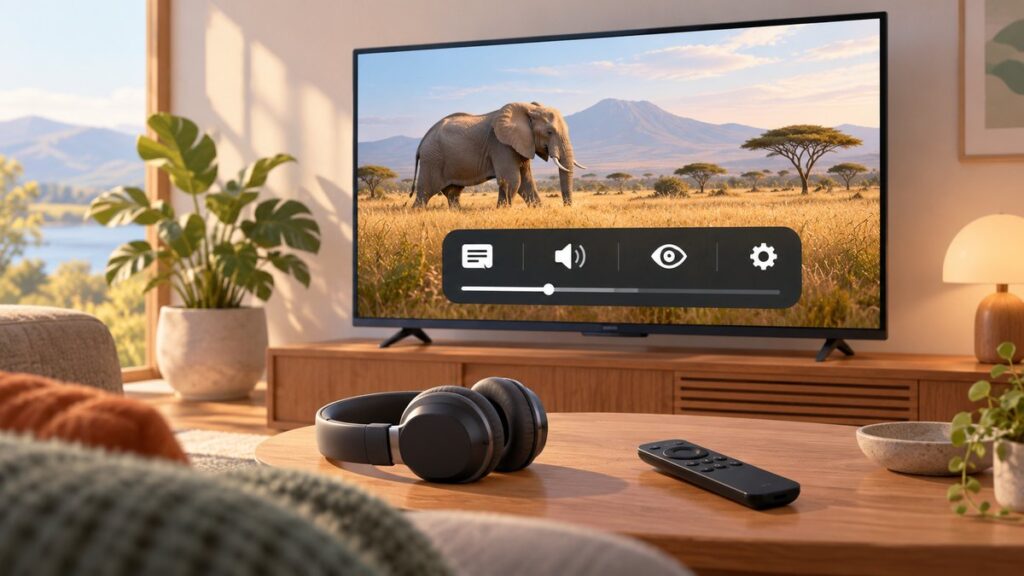
Start the movie, episode, or live program, open the player’s Audio, Audio & Subtitles, or Language menu, and select the track labeled Audio Description or AD. If that track is not listed, check the TV or connected streaming device’s Accessibility settings, then confirm that the specific title, episode, language, and region actually provide audio description.
What audio description does
Audio description is a spoken narration track that explains important visual information while the normal dialogue and sound effects continue. A narrator may identify an action, facial expression, costume, setting, on-screen text, or scene change that cannot be understood from the soundtrack alone. Some interfaces call the same feature described video or video description.
It is different from captions and subtitles. Captions and subtitles display spoken dialogue and other audio information as text; audio description adds spoken information about what is happening visually. A title can offer captions without offering an audio-description track, or provide both as separate choices. Netflix describes the feature as optional narration of on-screen action in its Audio Description for shows and movies guide.
Audio description is selected per audio track, not by changing the volume or turning on captions. A regular English track is usually not the described track; look for the words Audio Description or the abbreviation AD.
Quick wins for a faster PC:
Scan for outdated or missing drivers - takes under a minuteDriver Scan →Clear out junk files and repair common Windows errorsFree Scan →Fix the driver behind crashes, sound loss and screen glitchesFind Drivers →#1 Best Overall

- HD streaming made simple: With America’s number 1 TV streaming platform,* exploring popular apps—plus tons of free movies, shows, and live TV—is as easy as it is fun. *Based on hours streamed—Hypothesis Group
- Compact without compromises: The sleek design of Roku Streaming Stick won’t block neighboring HDMI ports, and it even powers from your TV alone, plugging into the back and staying out of sight. No wall outlet, no extra cords, no clutter.
- No more juggling remotes: Power up your TV, adjust the volume, and control your Roku device with one remote. Use your voice to quickly search, play entertainment, and more.
- Shows on the go: Take your TV to-go when traveling—without needing to log into someone else’s device.
- TV, simplified: With setup that only takes minutes, a simple-to-navigate Home Screen, and an uncluttered remote control that does all you need—Roku makes it easier to watch the TV you love.
The usual method inside a streaming player
- Start playback. Open the movie, episode, or live program instead of staying on its title page. The audio choices normally appear only while the program is playing.
- Show the playback controls. Press the remote’s select, OK, or equivalent button, or tap the screen if you are using a phone, tablet, or computer.
- Open the audio menu. Look for Audio, Audio & Subtitles, Language, a speech-bubble icon, or a similar control. Names and icons differ by service, device, software version, and region.
- Choose the described track. Select the language entry that explicitly includes Audio Description or AD. Selecting ordinary English, English 5.1, or another standard-language track will not add narration unless that entry is specifically marked as described.
- Resume playback and listen for the narrator. The description is mixed with the program’s dialogue and sound effects. If you hear no narration, reopen the menu and verify the selected track rather than simply raising the volume.
- Test another title if the option is missing. Availability is not universal. A service may provide description for one show, season, or episode but not another, and the offered languages can differ by region.
This player-level choice generally affects the title or service session you are watching. It is separate from a device-wide accessibility setting, which may apply to compatible apps or broadcasts. When the app choice does not work, check both places.
How to enable it on specific services
Netflix
While a title is playing, open the Audio & Subtitles menu and select the language track marked Audio Description. Netflix says that the availability of described audio varies by title and can differ between seasons or individual episodes. Its help page also supports searching for titles that include audio description: Netflix Audio Description for shows and movies.
If you select a described track and want Netflix to remember that choice for the profile, Netflix instructs you to keep the title playing for at least five minutes. That five-minute requirement is Netflix-specific guidance, not a universal rule for every service or device. The setting may still be overridden when a different title, profile, language, or region has different audio options.
For an offline Netflix download, enabling description after the download was created may not change the existing file. Netflix’s troubleshooting instructions say to delete the downloaded title and download it again after audio description is enabled: Audio descriptions won’t turn on.
What’s actually slowing this PC down?
Pick the symptom - the matching free tool is one click away.
Disney+
Start the program, open the player controls, and use the audio or language control to select an available track labeled Audio Description. Disney+ documents these controls in Player controls and settings and lists described titles and availability in Content with Audio Description on Disney+.
If the label does not appear, the title may not have a described track in your selected language or location. Do not assume that the absence of the control means the television is defective; first test another Disney+ title known to offer described audio.
Prime Video
During playback, open the player’s audio or language choices and select an alternative track identified as Audio Description when one is offered. Prime Video’s instructions are provided in Select Alternative Audio Tracks or Audio Descriptions. The exact control placement can vary between the Prime Video app, a web browser, and a connected television device.
Rank #2

- Ultra-speedy streaming: Roku Ultra is 30% faster than any other Roku player, delivering a lightning-fast interface and apps that launch in a snap.
- Cinematic streaming: This TV streaming device brings the movie theater to your living room with spectacular 4K, HDR10+, and Dolby Vision picture alongside immersive Dolby Atmos audio.
- The ultimate Roku remote: The rechargeable Roku Voice Remote Pro offers backlit buttons, hands-free voice controls, and a lost remote finder.
- No more fumbling in the dark: See what you’re pressing with backlit buttons.
- Say goodbye to batteries: Keep your remote powered for months on a single charge.
If no described track appears, check another episode or title and verify the language and region. A standard-language track and an audio-description track are separate entries even when both use the same spoken language.
Free tools Windows power users keep installed
One-click scans. No signup required.
Device-wide settings
Some televisions and streaming boxes expose audio description as an accessibility preference in addition to the app’s own audio menu. A device setting and an app track are not interchangeable in every setup: the app must still have a compatible described stream, and the device setting may affect broadcasts or apps differently.
Apple TV 4K
Apple documents two ways to reach the feature. While a program is playing, open the playback controls and choose the audio-description option if the title supplies one. For a device-level setting, go to Settings → Accessibility → Audio Descriptions. Apple describes the feature as “an audible narration of important onscreen action and content in movies and TV shows on Apple TV 4K.” The Apple guide is Use audio descriptions on Apple TV 4K.
Apple notes that availability can vary by country or region and by hardware model. If the setting is present but a particular program has no narration, return to the player’s audio menu and check the title’s tracks. If an app’s track does not activate, use both the Apple TV accessibility setting and the app-level selection when troubleshooting.
LG televisions
For applicable models in the United States, LG’s support path is All Settings → General → Accessibility → Audio Description. Select the option to enable or disable it, then return to the program and test playback. LG also documents Video Description under paths that depend on the television’s webOS generation, so the labels and location may not match exactly on another model or software version. Use the instructions for the actual model rather than assuming every LG menu is identical. See LG TV – How to Enable Audio Description.
LG’s separate troubleshooting guidance explains that a set-top box can be the source when descriptions continue after the television’s own Video Description setting has been turned off. If you receive television through a cable, satellite, or other external box, open that box’s accessibility or audio menu as well as the LG menu. The LG article is How Do I Turn Video Description (Audio Description) Off?.
Where the control applies
| Control location | What it changes | What must also be true |
|---|---|---|
| Streaming app playback menu | The audio track for the title currently playing | The title must offer Audio Description or AD in the selected language and region |
| Streaming-device Accessibility menu | A device-level preference for compatible playback or broadcasts | The app or channel must provide a compatible described track; availability can depend on device model and region |
| Television Accessibility menu | The television’s handling of supported audio-description or video-description signals | The source device or broadcast must send the description; an external set-top box may control the final result |
| External set-top box | The box’s own audio-description selection before the signal reaches the TV | The box must have the feature and the program must carry a described track |
Use the player menu first when you want narration for one streaming title. Use the device or television accessibility menu when you need a broader preference or when the app’s control does not behave as expected. In a mixed setup, the app, streaming device, television, and set-top box can each expose a different audio control.
Rank #3

- 4K streaming made simple:With America’s number 1 TV streaming platform,* exploring popular apps—plus tons of free movies, shows, and live TV—is as easy as it is fun. *Based on hours streamed—Hypothesis Group
- 4K picture quality: With Roku Streaming Stick Plus, watch your favorites with brilliant 4K picture and vivid HDR color.
- Compact without compromises: Our sleek design won’t block neighboring HDMI ports, and it even powers from your TV alone, plugging into the back and staying out of sight. No wall outlet, no extra cords, no clutter.
- No more juggling remotes: Power up your TV, adjust the volume, and control your Roku device with one remote. Use your voice to quickly search, play entertainment, and more.
- Shows on the go: Take your TV to-go when traveling—without needing to log into someone else’s device.
Why the Audio Description option is missing
The title does not include a described track
The most common explanation is content availability. Services do not provide audio description for every title, season, episode, or language. Check a different title before changing equipment. Netflix specifically warns that availability can vary across shows, seasons, and episodes.
Your language or region is different
A title may have description in one language but not another, or be available in one country and absent in another. Confirm the selected app language and profile settings, then check the audio list again. Apple also notes that audio-description availability can vary by country or region and hardware model.
You are looking in the title page instead of the player
Many services reveal audio tracks only after playback begins. Start the program, display the controls, and open the audio or language menu. On some remotes the controls disappear after a few seconds, so press the select or OK button again.
The app and device use different controls
An accessibility switch on the television cannot manufacture a described track that the streaming service does not supply. Conversely, selecting a track in the app may not resolve a device-level setting that is filtering or overriding audio. Check the app and the relevant device menu in sequence.
When description will not turn on
- Confirm the selected entry. Reopen the audio list and verify that the highlighted language explicitly says Audio Description or AD, not merely English or another standard language.
- Check the device setting. Open the television or streaming box’s Settings → Accessibility area. On Apple TV 4K, use Settings → Accessibility → Audio Descriptions; on applicable United States LG models, use All Settings → General → Accessibility → Audio Description.
- Try another supported title. If narration works elsewhere, the original program is the likely limitation rather than the hardware.
- Check an external box. If your signal passes through a cable, satellite, or other set-top box, inspect its audio-description setting. LG notes that the box can remain the source even when the TV setting is off.
- For Netflix, save the preference correctly. After selecting the track, play the title for at least five minutes so Netflix can save the choice to the profile, following Netflix’s specific instruction.
- For a Netflix download, replace the file. Delete the existing download and download the title again after enabling audio description.
When narration will not turn off
Turn it off at the same layer that turned it on. First open the streaming app’s audio menu and select the ordinary audio track. If narration continues, inspect the television’s Accessibility menu, then the streaming player and any external set-top box. LG’s guidance specifically warns that a set-top box may continue supplying Video Description after the television’s own setting has been disabled.
After changing a device-wide setting, stop and restart playback so the new audio selection is applied. If only one app continues to narrate, return to that app’s title-level audio menu; if every source narrates, investigate the television or set-top box instead.
How to check availability before changing settings
- Look for an audio entry explicitly labeled Audio Description, AD, described video, or video description.
- Check the exact episode and season, not only the series page.
- Verify the desired spoken language; description may be offered in fewer languages than dialogue.
- Consider the account region and the physical location of the device.
- Test a second title that the service identifies as having audio description.
- Remember that a television or streaming box cannot add narration to a source that contains no described track.
A reliable setup routine
For a new television or streaming service, use this order so you can identify which component controls the audio:
Rank #4

- Stunning 4K and Dolby Vision streaming made simple: With America’s number 1 TV streaming platform,* exploring popular apps—plus tons of free movies, shows, and live TV—is as easy as it is fun. *Based on hours streamed—Hypothesis Group
- Breathtaking picture quality: Stunningly sharp 4K picture brings out rich detail in your entertainment with four times the resolution of HD. Watch as colors pop off your screen and enjoy lifelike clarity with Dolby Vision and HDR10+.
- Seamless streaming for any room: With Roku Streaming Stick 4K, watch your favorite entertainment on any TV in the house, even in rooms farther from your router thanks to the long-range Wi-Fi receiver.
- Shows on the go: Take your TV to-go when traveling—without needing to log into someone else’s device.
- Compact without compromises: Our sleek design won’t block neighboring HDMI ports, so you can switch from streaming to gaming with ease. Plus, it’s designed to stay hidden behind your TV, keeping wires neatly out of sight
- Choose a title with confirmed audio-description availability.
- Start playback and select the described track in the app.
- Listen for narration during the next scene containing visible action.
- If the track is absent or silent, open the playback device’s Accessibility menu and enable its audio-description option if available.
- Recheck the app’s selected track after changing the device setting.
- If an external set-top box is connected, test the same program through that box and inspect its audio settings.
- Record which layer solved the problem: app, streaming device, television, or set-top box. That makes future troubleshooting faster when switching sources.
Do you need new equipment?
Enabling audio description is normally a settings and playback task. The support instructions for Netflix, Disney+, Prime Video, Apple TV 4K, and LG televisions do not require buying a new television, streaming player, remote, repair part, or physical media. First use the controls on the equipment and service you already have. If a specific device lacks the setting, or the service has no described track for the program, changing hardware would not create narration that the source does not provide.
What can differ after an update
Menu wording and placement can change after an app update, a television firmware update, a webOS revision, or a change in regional catalog. The same service can also present different controls in a browser, mobile app, connected-TV app, or streaming box. Look for the concepts—Audio, Language, Audio & Subtitles, and Accessibility—rather than relying on a single universal button sequence. The exact paths documented for Apple TV 4K and applicable LG models are useful starting points, not a promise that every model has identical menus.
Menu names and paths change with app updates, television models, webOS generations, hardware revisions, and regional catalogs. When a documented path does not match your screen, stay within the current Accessibility and Audio menus for the device or app rather than selecting a nearby setting at random.
Recommended Free Tools
Frequently Asked Questions
Is audio description the same as captions or subtitles?
No. Captions and subtitles show dialogue and other audio information as text. Audio description is a spoken track that narrates meaningful visual details such as actions, expressions, settings, costumes, scene changes, or on-screen text.
Why can I see captions but not Audio Description?
The two features are separate tracks. A service may provide captions for a title without providing described audio, or may offer description only for a particular episode, season, language, region, or device.
Where is the Audio Description button?
Start playback first, open the player controls, and look under Audio, Audio & Subtitles, Language, or a speech-bubble menu. Choose the entry explicitly marked Audio Description or AD; an ordinary English track is not necessarily described.
Does a TV accessibility switch add narration to every program?
No. A television or streaming-device setting can control compatible streams or broadcasts, but the source must still contain a described track. App-level and device-level controls are separate in some setups.
PC Slower Than It Used to Be?
A free scan shows the junk files, broken settings and background clutter dragging Windows down - then fixes them in one click.Free scan · Windows 10 & 11Outdated Drivers Are Slowing You Down
One free scan finds every outdated or missing driver and matches the right update for your exact hardware.Free scan · exact hardware matchBest Value

- The Google TV Streamer (4K) delivers your favorite entertainment quickly, easily, and personalized to you[1,2]
- HDMI 2.1 cable required (sold separately)
- See movies and TV shows from all your services right from your home screen[2]; and find new things to watch with tailored recommendations for everyone in your home based on their interests and viewing habits
- Watch live TV and access over 800 free channels from Pluto TV, Tubi, and more[3]; if you find an interesting show or movie on your TV, mobile app, or Google search, you can easily add it to your watchlist, so it’s ready when you are[2]
- Up to 4K HDR with Dolby Vision delivers captivating, true-to-life detail[4]; and you can connect speakers that support Dolby Atmos for more immersive 3D sound
Why is Netflix not remembering my choice?
Netflix instructs viewers to keep the selected title playing for at least five minutes so the audio-description preference can be saved to the profile. This five-minute step is Netflix-specific and does not establish a rule for other services.
Why does a downloaded Netflix title still lack narration?
Netflix says to delete the existing download and download the title again after enabling audio description. The earlier file may not be updated automatically.
How do I turn narration off when the TV setting is already off?
Select the ordinary audio track in the streaming app first. If narration continues, check the TV or streaming-device Accessibility menu and then any cable, satellite, or other set-top box. LG notes that an external box can remain the source of Video Description.
Do I need to buy a new TV or streaming device?
The documented setup steps use existing app, television, streaming-device, and set-top-box menus. No new purchase is identified as necessary. First verify the title’s availability and check each control layer.
Do these 3 things before closing this tab:
1Scan for outdated or missing drivers - takes under a minute2Clear out junk files and repair common Windows errors3Fix the driver behind crashes, sound loss and screen glitchesWhy does the Apple TV 4K path look different on my device?
Apple notes that availability can vary by country or region and hardware model. The documented device path is Settings → Accessibility → Audio Descriptions, while a title-level option appears in playback controls when the program supplies a track.
What is the LG TV path?
On applicable United States models, LG documents All Settings → General → Accessibility → Audio Description. Other LG models and webOS generations may use a Video Description label or a different path, so follow the instructions for the actual model.
The Bottom Line
Start the program, open its Audio, Audio & Subtitles, or Language menu, and select the track marked Audio Description or AD. If it is absent or does not work, test another episode or title, verify language and region, then check Accessibility settings on the streaming device, TV, and any external set-top box. The feature depends on a compatible described track, so a missing option does not automatically indicate faulty equipment.
Quick Recap
Product prices and availability are accurate as of the date/time indicated and are subject to change. Any price and availability information displayed on Amazon at the time of purchase will apply.






Say something about this film