Free tools Windows power users keep installed
One-click scans. No signup required.
To turn subtitles on in Paramount+, start playing a movie, episode, or live program, open the video controls, select the speech-bubble, CC, or Subtitles and Audio button, and choose a track under Subtitles. Choose Off, or select the active track again, to remove them. The exact control and menu labels depend on your device, app version, title, and region.
For most devices, the Paramount+ player is the best place to choose a subtitle language. Device accessibility settings are mainly useful for turning captions on by default or changing their appearance.
The universal Paramount+ method
- Open the movie, episode, or live program you want to watch.
- Start playback.
- Reveal the controls by tapping or clicking the video, or pressing the center/select button on a remote.
- Choose the speech-bubble icon, CC button, or a similarly named Subtitles and Audio control.
- Under Subtitles, select the language or caption track you want.
- To disable subtitles, select Off or select the currently active track again.
The same menu may contain an Audio section for alternate audio tracks and audio description. Audio description is not a subtitle mode: it is spoken narration describing important visual information, and it is available only on some titles. Paramount+ says most of its programming includes subtitles, while audio description is less widely available. See Paramount+’s accessibility and subtitle guidance.
Subtitles, closed captions, SDH, and audio description
- Subtitles generally show spoken dialogue, often translated into another language.
- Closed captions can include dialogue as well as sound effects, music cues, or speaker identification, depending on the track.
- SDH is an accessibility-oriented caption format intended for deaf and hard-of-hearing viewers.
- Audio description adds spoken narration about visual events. It must be selected under Audio, not under ordinary subtitle tracks.
These choices are title-dependent. A particular movie may have English subtitles but no other language, or may offer captions without audio description. If a language or accessibility option is missing, that does not necessarily indicate a problem with your device.
Quick wins for a faster PC:
Fix the driver behind crashes, sound loss and screen glitchesFind Drivers →Clear out junk files and repair common Windows errorsFree Scan →Scan for outdated or missing drivers - takes under a minuteDriver Scan →#1 Best Overall

- 2026 Latest Batch from Mediasonic Store. The new improvements included LARGE Remote Control, 5 ft HDMI Cable, Front Display Panel, Support hard drive up to 2TB, reception sensitivity, and 12 hr. AM / PM feature.
- Clear QAM function can be used with cable provider to watch unscrambled cable channels. The channel must be UN-Encrypted signal
- Front Display to show Channel number and sub-channel, and show Clock in standby mode.
- Receive Over-The-Air ATSC Digital Broadcast to your Analog and Digital TV, Projector, and Computer Monitor.
- Record and Pause Live TV: You won’t miss your favorite show. (Requires USB 2.0 or USB 3.0 external hard drive up to 2TB connect to this unit; USB flash drive is not recommended)
How to manage subtitles by device
Computer or web browser
- Start the video on Paramount+.
- Move the mouse over the video if the controls are hidden.
- Click the speech-bubble icon, usually near the upper-right area of the player.
- Choose a language under Subtitles.
- Select the active option again or choose Off to remove captions.
Paramount+ also provides Subtitle Settings in the player for caption characteristics such as font style and size. If the speech-bubble control does not appear, reveal the controls, try a different title, and make sure the browser and Paramount+ website or app are up to date. Those steps may help, but they cannot create a subtitle track that the title does not provide.
iPhone and iPad
- Play the Paramount+ title.
- Tap the screen to show the playback controls.
- Tap the speech-bubble icon.
- Choose a subtitle language under Subtitles, or choose Off.
When available, audio description appears under Audio. For broader Apple caption preferences, open Settings > Accessibility > Subtitles & Captioning. You can enable Closed Captions + SDH and choose a style there. The Paramount+ player still determines whether the title’s available track is active. Apple notes that captions and related features vary by video, hardware, country, and region; its caption and subtitle guidance explains the platform-level settings.
Android phones and tablets
- Start playback in the Paramount+ app.
- Tap the video to reveal the controls.
- Tap the speech-bubble icon.
- Select a language under Subtitles, or choose Off.
For system-level caption preferences, use your phone or tablet’s Settings > Accessibility > Captions menu when that path is available. Menu names vary between Android versions and manufacturers. Google warns that system caption preferences may not apply to every app, so use the Paramount+ player control when it is present.
Apple TV
During playback: swipe up on the Apple TV remote, select Subtitles, and choose a track.
You can also open Settings > General > Accessibility > Subtitles and Captioning > Closed Captions and SDH and turn the feature on. While watching, you can press and hold the Siri button and ask Siri to turn on closed captioning. Apple TV also provides style choices through its subtitle controls. Not every video includes captions, and available features can vary by device and region.
Android TV and Google TV
For Paramount+ on Android TV:
- Begin streaming.
- Press the controller’s center button to display the video controls.
- Select the settings icon in the upper-right area.
- Choose the closed-caption option and select the available track.
Paramount+ lists the system styling path as Settings > Device Preferences > Accessibility > Captions. On Google TV, the platform-level route is Settings > Accessibility > Captions; turn on Display and select the available options. Google specifically warns that device caption preferences might not apply to certain apps, so the Paramount+ in-player control is preferable when available. See Google’s Google TV captions instructions.
Rank #2

- Digital TV Converter Box: 2026 OWERSLYN Mini Digital Converter Box for TV receives ATSC broadcast signals from an antenna and outputs them to a TV, Projector, or a Monitor, allowing you to watch TV programs with ease. its compact design lets you conveniently hide it behind your TV.
- 75% smaller than normal ATSC tuner that can be plugged into your TV’s HDMl port and powered by TV’s USB or 5V USB Charger, can tuck neatly behind your TV. IR infrared sensor and 2-in-1 Remote control with learning function so you don't have to use the old remote control as well. Note: CH3/CH4 channel switching is not supported.
- TV converter box features an HDMI output that supports 1080P HD resolution and offers three video output options: HDMI, 3RCA, and component. Both HDMI and 3RCA cables are included in the package, so there's no need to buy additional video cables—just plug and play. *Note: Not compatible with TVs that only have an RF input.
- You can play video,music and view photos, or recorded TV shows from your USB storage device.Real-time DVR recording of digital converter box allows you to record TV shows for future watch, timer setting can be scheduled recording at any time you want. (Incompatible with streaming programs)
- What You Get: 1 x TV Tuner Stick,1 x 2 in1 Remote Control,1 x HDMI Cable, 1 x 3RCA Cable, 1 x USB to DC Cable, 1 x lR Receiver with display, 1 x Manual.📞 Enjoy lifetime support, one-year warranty, and quick responses within 24 hours. Important Note: This device receives Over-The-Air signals via an antenna. It does NOT work as a replacement for a Cable Box. An external antenna (sold separately) is required.
Amazon Fire TV
- Start the Paramount+ program.
- Press the controller’s center or menu control to show video controls.
- Select the settings icon in the upper-right area.
- Choose the closed-caption or audio option.
For appearance and default behavior, open Settings > Accessibility > Closed Captions. Paramount+ says Fire TV can provide controls for text size, color, font, text background, and window background. Use the Paramount+ player when you need to select the specific language track for the title.
Roku and Roku TV
To enable captions from Roku’s device settings:
- Press Home on the Roku remote.
- Open the Roku device’s Settings; this is not necessarily a Paramount+ submenu.
- Choose Accessibility > Captions Mode. Some models label this menu simply Captions.
- Select On.
- For appearance, open Settings > Accessibility > Caption style and adjust the available font, size, color, and related options.
During playback, press the remote’s Asterisk/Star button, choose Accessibility and Language, and then select Captions or Audio Track when those options appear.
To turn captions off, return to Settings > Accessibility (or Captions) and set Captions Mode to Off, or use the in-playback menu. Roku cautions that some streaming apps use their own caption controls, and menu labels vary by Roku model. Its official closed-captioning instructions explain this limitation.
LG televisions
The most direct method is to play the title, select the Paramount+ speech-bubble icon, and choose the closed-caption option.
You can also press the LG remote’s Settings button, open Accessibility, and set Closed Captions to On. Caption styling is available through the television’s caption settings. Exact labels can differ by LG model and webOS version.
Samsung televisions
Samsung’s Paramount+ instructions provide a quick route using the remote’s CC button next to Watch Now.
Rank #3

- Easily connects between your HD TV and HD satellite, HD cable, U-verse, FiOS, DirecTV, Dish Network, Xfinity, 1080p Upconverting DVD Player, Tivo HD (up to two connections)
- Seven Filter Settings: Tolerant, Moderate, Strict, Off, And Word Specific Control For: D**m and H**l, Religious Programming, Sexual References
- Choose from four different quick-change Audience Settings: Kids, Family, Parents, and Others
- No Annual or Reoccurring Fees and One Year Limited Manufactures Warranty
- Online streaming like Netflix, Amazon Instant Video, or Hulu is NOT supported.
For styling, open the Paramount+ app’s left-side menu and choose Settings > Closed Captions. Depending on the app and TV model, options can include font size, color, type, and background. If audio description is available, select it under Settings > Audio.
Vizio televisions
Start playback and select the speech-bubble icon, then choose a subtitle option. Alternatively, open the Vizio SmartCast menu, choose Closed Captions, and select the desired subtitle or audio option. Some Vizio remotes have a dedicated CC button.
Because Vizio menu layouts and remotes vary, use the in-player speech-bubble control first when it is visible.
Portal TV
- While the program is streaming, select the round button at the top of the Portal TV controller.
- Choose CC.
- Select an option under Subtitles.
Paramount+ lists Settings > Accessibility on Portal TV for caption customization.
PC Slower Than It Used to Be?
A free scan shows the junk files, broken settings and background clutter dragging Windows down - then fixes them in one click.Free scan · Windows 10 & 11Outdated Drivers Are Slowing You Down
One free scan finds every outdated or missing driver and matches the right update for your exact hardware.Free scan · exact hardware matchXbox
For live TV, Paramount+ documents a shortcut using the controller’s View button to enable captions.
For on-demand video or live TV, the more general system route is:
Rank #4
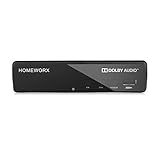
- Receive Over-The-Air Digital Broadcast to your Analog and Digital TV, Projector, and Computer Monitor. Antenna Out Analog Pass Through, Favorite Channel List, Parental Control Function
- HDMI 1080P Output / Composite Out / Coaxial Output, Closed Caption, Auto Tuning, Timing Start Up & Shut Down.
- Real-Time Recording & Programmed Time Recording, recording require user to connect a USB 2.0 or 3.0 2.5" / 3.5" External Hard Drive via USB (Up to 2TB, MBR format) (USB Flash Drive Not recommended)
- USB Multimedia function play back Video, Music, Photo from USB Drive
- The latest Firmware is V4.1
Xbox button > System > Settings > Ease of Access > Closed captioning
Turn captions on. To customize their appearance, choose On using custom style and adjust the available options.
PlayStation 4 and PlayStation 5
Open the PlayStation Quick Menu and go to Accessibility > Closed Captions, then check Display Closed Captions. Paramount+ also describes a controller shortcut for live TV, but button behavior can depend on the controller and content type, making the system menu the safer general route.
Xfinity and other TV-provider interfaces
On Xfinity interfaces, use the remote’s CC button or the provider’s Settings > Closed Captions menu. Audio-description choices are generally found under the audio category. Paramount+ warns that some remotes, including the Flex remote, may not activate captions for live TV.
What to do when subtitles are missing or will not turn off
- Start playback first. The caption control may not appear on the title page. Tap, click, or press the center button to expose the controls.
- Look for alternate labels. The same function may be represented by a speech bubble, CC, Subtitles, or Subtitles and Audio.
- Try another title. If the menu or language is absent only for one movie or episode, the title may not include that track.
- Check both layers of settings. Review the Paramount+ player and the device’s accessibility menu. A global Roku, Google TV, or other system preference may not control every streaming app.
- Confirm the track type. “English,” “English CC,” SDH, translated subtitles, and audio description are different choices.
- Check the app and device software. Update Paramount+ and the operating system when the control is missing across multiple titles.
- Restart and sign in again. As general troubleshooting measures, restart the app or device, sign out, and sign back in.
- Contact Paramount+ support. If the control is absent for multiple titles after those steps, support can determine whether the issue is account-, app-, device-, or region-specific.
There is no reliable setting that can add a language or accessibility track Paramount+ has not supplied for a particular title. Availability can vary by title, device implementation, country, and region.
Independent reader supportYour contribution helps us test, update, and keep practical guides available for everyone.Do you need a separate streaming device?
No. You do not need to buy a streaming stick, new television, HDMI cable, or replacement remote simply to manage Paramount+ subtitles. The free in-player and device accessibility controls are sufficient when the app and hardware are supported.
What’s actually slowing this PC down?
Pick the symptom - the matching free tool is one click away.
Best Value

- Sleek Aesthetics & Centralized Hub: Featuring a 9-inch ultra-slim recessed design, this in wall media box centrally conceals streaming devices, TV connection boxes, and all cables within the wall for a seamless, integrated look. It functions as both a structured media enclosure and a hidden TV outlet, eliminating clutter and creating a clean, modern entertainment space.
- Broad Compatibility & Tidy Storage: Optimized to house mainstream streaming devices, this enclosure features pre-sized knockouts and a thoughtfully designed interior that keeps power cords, HDMI cables, and network wires neatly routed and out of sight. Eliminates cable clutter for a clean, minimalist setup.
- Wide Compatibility & Spacious Interior: Compatible with Roku, Apple TV, and Fire TV streaming players. The generous interior offers ample room for most mainstream media peripherals at a depth of only 3.8 inches, keeping your setup clean and organized.
- Durable & WiFi-Friendly Construction: Made from fire-retardant materials for long-term safe operation. The enclosure and its cover are designed with wireless signal transparency in mind, maintaining strong WiFi performance even when routers or streaming devices are placed inside.
- Modular Design for Easy Expansion: Equipped with multiple removable knockouts for flexible cable routing and optional power outlet installation (outlet sold separately). The tool-free, snap-on flat front cover opens easily and sits flush with the wall, simplifying maintenance and future upgrades while keeping a clean, professional appearance.
If your television does not have a convenient Paramount+ app, or its interface is difficult to navigate, an alternative streaming interface may be useful. For example, the Roku Streaming Stick 4K connects to a TV through HDMI, uses Wi-Fi, includes a voice remote, and supports Paramount+ in the Roku ecosystem. It is an optional way to access the service—not a guaranteed fix for a subtitle bug.
If an HDMI port is crowded or difficult to access, an HDMI extender may help with physical installation, but it is unrelated to subtitle availability. Likewise, a replacement Roku remote must be compatible with the specific Roku model.
Frequently Asked Questions
Why can I not find the subtitle button on Paramount+?
Start playback and tap, click, or press the center/select button to reveal the controls. Look for a speech-bubble, CC, or Subtitles and Audio control. If it is missing on only one title, that program may not provide the requested subtitle or accessibility track.
How do I turn off subtitles on Paramount+?
Open the playback caption menu and choose Off, or select the currently active subtitle track again. On Roku and some other devices, you may also need to turn off the platform-level caption setting.
The Tool Desk
Outbyte Driver Updater FREEFix the driver behind crashes, sound loss and screen glitchesFind Drivers →Outbyte PC Repair FREEClear out junk files and repair common Windows errorsFree Scan →Can I change subtitle size and color?
Usually. Paramount+ provides Subtitle Settings in its web player, while Apple, Roku, Fire TV, Xbox, and several smart TVs offer styling through their accessibility or caption menus. Available controls vary by device and app version.
Are subtitles available for every Paramount+ title and language?
No. Paramount+ says most programming includes subtitles, but available languages and accessibility tracks depend on the title, device, region, and platform implementation. Audio description is less widely available than subtitles.
What is the difference between subtitles and audio description?
Subtitles display dialogue or caption information as text. Audio description is a separate spoken track that narrates important visual information, and it is selected under Audio when available.
The Bottom Line
Use the Paramount+ player first: play the title, reveal the controls, open the speech-bubble or CC menu, and choose a subtitle track or Off. Use your phone, TV, console, Roku, Fire TV, or other device’s Accessibility menu for default behavior and styling—but remember that system caption settings do not control every app, and no device setting can create a track that the title or region does not offer.
Recommended Free Tools
Quick Recap
Product prices and availability are accurate as of the date/time indicated and are subject to change. Any price and availability information displayed on Amazon at the time of purchase will apply.



