Some links on this page are affiliate links: if you buy through them we may earn a commission, at no extra cost to you.
Messenger’s “Secret Conversations” are now best understood as end-to-end encrypted chats. If you can’t find a button with the old name, open a one-to-one chat and check its privacy or encryption details: Messenger may use its current encrypted-chat system instead. You can turn on Disappearing Messages in supported encrypted chats, but neither encryption nor a timer stops someone from saving or sharing what they see.
What Secret Conversations mean today
Meta’s current Messenger help material generally calls these end-to-end encrypted chats. “Secret Conversation” remains a term people may encounter in older instructions and Messenger privacy controls, but the separate button or old menu path is not available to every account or app version.


In a supported end-to-end encrypted chat, the message content is designed to be readable by the participants on their devices, rather than by Meta. That is different from archiving or hiding a chat, deleting it, receiving a message request, or locking your phone. Encryption also does not make messages disappear: expiry is a separate setting.
If you don’t see “Secret Conversation,” that alone does not prove your chat is unencrypted. Messenger’s labels and controls vary by device, account, and rollout. Check the conversation’s encryption information instead.
#1 Best Overall
Start or identify an encrypted chat
- Update Messenger from your device’s official app store.
- Open a one-to-one conversation with the person you want to contact. Some chat types, including certain group, business, and Marketplace conversations, may not support end-to-end encryption.
- Tap or click the person’s name, the information icon, or the conversation options.
- Look for End-to-end encryption, Privacy & support, or a security notice. Labels and placement can differ.
- Confirm that Messenger identifies the conversation as end-to-end encrypted, then send messages normally.
If your app explicitly offers a Secret Conversation option—sometimes shown with a lock—follow that account-specific prompt and confirm that the resulting chat is marked secret or encrypted. Do not rely on old instructions that promise a particular compose-screen button will appear.
Meta’s description of how encryption works and which chats are supported notes that some products and chat types are excluded, including Community Chats for Facebook groups, chats with businesses using business-messaging tools, and Marketplace chats. If the encryption label is absent, try a regular one-to-one chat in the Messenger mobile app; some browser interfaces offer fewer controls.
Turn on Disappearing Messages
Disappearing Messages are a timer for messages in supported end-to-end encrypted chats. They are not the same as encryption, one-time-view media, or the discontinued Vanish Mode. Meta’s current desktop instructions are:
What’s actually slowing this PC down?
Pick the symptom - the matching free tool is one click away.
- Open the end-to-end encrypted conversation on Messenger.com.
- Click the options button in the upper-right corner.
- Select Privacy & support, then Disappearing Messages.
- Choose when messages should disappear after being seen and click Done.
On mobile, open the encrypted chat’s details or privacy controls and look for Disappearing Messages. The exact path and availability may differ; if the setting is missing, update Messenger and check a supported one-to-one encrypted chat. Meta says any participant can change or reset the timer. It also says a message may disappear if it remains unread for 14 days. See Meta’s Disappearing Messages guidance for current details.
Rank #2
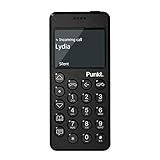
- Distraction Free: The MP02 4G cell phone makes it easier to be where you are—whether that’s a weekend away or an important business meeting. Keep what matters close with calls and SMS-first texting, without the constant onslaught of designed-for-addiction notifications.
- Privacy & Security Focused: Built with security in mind from the start, the MP02 is designed to help safeguard your information without requiring you to share more personal data than necessary. Enjoy peace of mind with a phone experience that prioritizes discretion and control.
- Carrier Compatibility & Connection: AT&T is supported (coverage verified, VoLTE supported). T-Mobile is supported, but VoLTE is not supported. Verizon is not supported. Many US carriers use VoLTE for voice calls - if VoLTE isn’t supported on your carrier, call performance may be limited even with signal. The MP02 supports 4G LTE across key bands (2G: 850/900/1800/1900 3G: WCDMA 1/2/4/5/6/8/19 4G: FDD LTE 1/2/3/4/5/7/8/12/17/19/20).
- Simple By Design: A minimalist interface keeps everyday actions straightforward. Call and text buttons provide quick access, while a streamlined menu helps you stay focused on essentials. Note: messaging is SMS-first (MMS group chats aren’t supported), helping to keep communication simple.
- Built for Everyday: Designed for comfortable one-handed use with a clean, minimalist silhouette. Reinforced glass fiber construction supports daily use, while the lightweight shape makes it easy to carry anywhere.
A timer is not a guarantee that content cannot be kept. A recipient can take a screenshot, record the screen, copy text, photograph the display with another device, or share the content before it expires. Messenger may alert participants when it detects a screenshot or recording, but Meta warns it cannot detect every instance.
Check encryption keys and devices
For a stronger check, open the chat’s encryption details and use the key-checking feature if it is available. Meta says each device in an encrypted conversation has its own security key. You can compare the keys with the other participant through a trusted channel, such as in person or by voice. Don’t assume a changed key proves an attack: reinstalling Messenger, resetting a phone, clearing app data, or changing devices can cause keys to change. Review the devices associated with the conversation and log out devices you don’t recognize. Meta explains the process in its guide to checking Messenger encryption keys.
If you suspect someone has accessed your account, log out unknown sessions, change your Facebook account password, and enable account-level two-factor authentication. Then review the encrypted chat’s device and key information again.
Do these 3 things before closing this tab:
1Repair Windows errors before they cause bigger problems2Fix the driver behind crashes, sound loss and screen glitches3Clear out junk files and repair common Windows errorsKeep encrypted chat history when changing devices
Encrypted chat history may not automatically appear on a new phone or computer. New messages can arrive on active devices after they are added, while earlier history may need to be restored from Messenger’s secure storage. Without secure storage, losing or replacing a device can mean losing access to older encrypted messages.
On Messenger.com, Meta’s stated setup path is profile photo (lower-left) → Privacy & safety → End-to-end encrypted chats → Message storage → Turn on secure storage. Choose an available recovery method. Depending on your account and device, options may include a PIN, Apple account on supported Apple devices, Google account on supported Android devices, a 40-character code, or a one-time code. Availability can vary; consult Meta’s guides to secure storage and restoring encrypted chat history.
Keep your chosen PIN or recovery code somewhere safe and private. If you lose the recovery method, restoring the old encrypted history can be difficult or impossible. A new-device notice in a chat is not necessarily a sign of compromise, but it is a reason to check that the device belongs to you.
Messenger supports encrypted chats across multiple devices, but the experience is not identical everywhere. Meta lists Chrome and Microsoft Edge for encrypted chats on Messenger.com and Facebook.com; another browser may show incomplete history or fewer features. See its browser support information.
Windows Errors? Fix Them Before They Spread
Repair common Windows errors and clear accumulated junk for a smoother, more stable PC - no reinstall needed.Free scan · no reinstallCrashes, No Sound, or Screen Glitches?
Random freezes, missing sound and display glitches usually trace back to one bad driver. Find and replace yours safely.Free scan · under a minuteWhat encryption does—and does not—protect
- Message content: In supported encrypted chats, Meta says only people with the relevant keys can access the messages, and Meta cannot read them under normal operation. If you report a conversation, you may choose to share messages with Meta.
- Older messages: If a conversation was upgraded to encryption, messages and interactions from before the upgrade may not have the same end-to-end protection. Some actions involving those older messages may also be unavailable.
- Recipients and devices: Encryption cannot stop a recipient from disclosing a message, and it does not protect content displayed on an unlocked, compromised, monitored, or shared device.
- Other chat details: Not every feature or piece of information receives the same protection as message content. Meta says chat customizations such as nicknames, themes, and quick reactions are not end-to-end encrypted in the same way.
- Availability: Not every Messenger chat type supports encryption. Verify the status of the particular conversation rather than assuming every Messenger message is protected.
Meta maintains a separate guide to what can be sent in encrypted chats; supported features can differ from ordinary Messenger conversations.
Troubleshooting common problems
| Problem | What to check |
|---|---|
| No “Secret Conversation” option | Update Messenger, open a regular one-to-one chat, and check its encryption or privacy details. The current encrypted-chat system may have replaced the old label for your account. Business, Marketplace, and some group chats may be unsupported. |
| No Disappearing Messages control | Confirm that the conversation is end-to-end encrypted, check from the mobile app, and look under the chat’s privacy controls. Availability can vary by account and rollout. |
| Old messages are missing on a new device | Check whether secure storage was enabled and whether you can restore history with its PIN or other recovery method. A new device may not receive earlier encrypted history automatically. |
| A security key changed | Reinstalling the app, resetting a phone, clearing app data, or adding a device can change keys. Verify the device list and compare keys with the other participant through a trusted channel; treat an unknown device as a security concern. |
| Browser history or controls are incomplete | Try Chrome or Edge on Messenger.com or Facebook.com, which Meta lists for encrypted chats. If needed, use the updated mobile app. |
| A screenshot was taken without an alert | That can happen: screenshot and recording detection is not guaranteed. Disappearing messages cannot prevent recipients from preserving what they see. |
Is Messenger suitable for a sensitive conversation?
Messenger’s end-to-end encryption can protect message content in supported chats from routine interception and access by Meta under its stated model. It is convenient when both people already use Messenger. But exclusions, rollout-dependent controls, history-restoration requirements, and the recipient’s ability to copy or disclose messages matter. For a high-risk conversation, do not rely on a disappearing timer or encryption alone: secure your devices and account, verify the chat and devices, and consider whether a service with privacy protections that better fit your needs is more appropriate.
Quick Recap
Product prices and availability are accurate as of the date/time indicated and are subject to change. Any price and availability information displayed on Amazon at the time of purchase will apply.

