Some links on this page are affiliate links: if you buy through them we may earn a commission, at no extra cost to you.
HandBrake is the best free video converter for most desktop users in 2026. Its device presets, quality controls, preview, subtitle and chapter handling, hardware-encoder documentation, and queued jobs cover the everyday MP4, MKV, H.264, HEVC and device-export tasks without a subscription. Choose Shutter Encoder instead when you need an editor-oriented interface to FFmpeg, Adobe Media Encoder for Premiere Pro or After Effects automation, and Wondershare UniConverter when conversion is only one part of a broader paid toolbox. CloudConvert is the convenient browser option for occasional jobs, while FFmpeg and VLC suit users who prefer command-line or media-player workflows.
This guide compares seven named tools by format support, queues, automation, hardware encoding, subtitles, privacy, platform coverage, pricing, and limits. Prices and ratings that can change are dated so you can recheck them before buying.
Which video converter is best in 2026?
| Tool | Best for | Cost posture | Platforms or workflow | Main trade-off |
|---|---|---|---|---|
| HandBrake | Free batch conversion, compression and device presets | Free and open source | Windows, macOS and Linux documentation; queues and presets | Not a broad editing or disc-authoring suite |
| Shutter Encoder | Editors who want FFmpeg breadth with a visual interface | Free | Desktop editor workflow with render queue | Its large settings surface takes learning |
| Adobe Media Encoder | Premiere Pro and After Effects teams | Paid Adobe ecosystem | Desktop app with Watch Folders, presets and publishing | Value depends on an existing Adobe workflow |
| Wondershare UniConverter | Beginners wanting conversion plus recording, editing and DVD tools | Paid product with a trial path | Windows and macOS; broad format list | Paid licensing can be excessive for simple conversion |
| CloudConvert | Occasional browser-based jobs | Usage-based or subscription model | Browser-only workflow | Uploads require a privacy and bandwidth decision |
| FFmpeg | Automated, scriptable and highly customizable pipelines | Free command-line software | Runs wherever FFmpeg builds are available | No beginner-friendly graphical workflow |
| VLC media player | Simple one-off conversions for people who already use VLC | Free | Desktop media-player workflow | Conversion controls are less specialized than dedicated encoders |
For a normal desktop conversion, start with HandBrake. Shutter Encoder is the stronger free alternative when subtitle operations, trimming, analysis, cut detection or FFmpeg-level options matter. Adobe Media Encoder is a workflow tool rather than a casual converter: its advantage is ingest, proxies, watch folders and destination publishing. UniConverter is the paid all-in-one choice. CloudConvert trades local control for browser convenience.
1. HandBrake: best free default for desktop conversion
HandBrake is a free, open-source converter built around practical presets and queue-based desktop work. Its documentation covers device-oriented presets, quality controls, previewing, queued jobs, subtitles, chapters and hardware encoders. That combination makes it the safest starting point for converting camera, phone or screen-recording files to a playback-friendly format.
Popular on Amazon
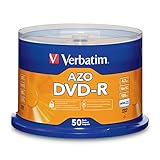
- 4.7GB OR 120-MINUTE CAPACITY: Each DVD-R disc stores up to 4.7GB of data or 120 minutes of DVD-quality video.
- UP TO 16X WRITE SPEED: Supports recording speeds up to 16X for fast, efficient burning with compatible DVD-R hardware.
- WIDE DVD COMPATIBILITY: Read compatible with most DVD-ROM drives and DVD video players for convenient recording and playback.
- AZO RECORDING DYE: Optimized recording dye provides reliable read/write performance for home movies, video clips, files, and backups.
- 50-PACK SPINDLE: Includes 50 branded-surface, write-once DVD-R discs and a Verbatim Limited Lifetime Warranty.
What it does well
- Presets provide a starting point for common devices and delivery targets.
- Constant-quality controls let you trade file size against visual quality instead of guessing a bitrate.
- You can preview a short section before committing to a long encode.
- Subtitle and chapter handling are documented, useful for documentary files with language tracks or chapter markers.
- Queueing lets you prepare multiple jobs and process them together.
- Hardware-encoder documentation helps you identify supported acceleration on your system.
Platforms, price and limits
HandBrake documentation covers Windows, macOS and Linux. The project describes the software as free. It is strongest at conversion and compression; it is not intended to replace a full editor, screen recorder, downloader or DVD-authoring suite. A dated October 2026 market report lists a 4.7/5 G2 rating from 155 reviews; that figure is directional rather than an independently audited score.
2. Shutter Encoder: best free choice for editors who need FFmpeg breadth
Shutter Encoder describes itself as a converter designed by video editors and uses FFmpeg for encoding. Its visual interface exposes an unusually broad set of operations without requiring you to write command lines.
Standout tools
- Conversion with broad codec coverage through FFmpeg.
- Trimming and lossless cutting for supported codecs.
- Subtitle embedding and burn-in.
- Analysis tools and cut detection for inspecting source material.
- A render queue for multiple jobs.
Platforms, price and limits
The vendor presents Shutter Encoder as free desktop software. The cited product details do not specify a complete operating-system matrix or paid tiers, so there is no subscription price to compare here. Its breadth is a benefit for editors but also its main limitation: users accustomed to a single “convert” button must learn what each FFmpeg-backed option changes.
Free tools Windows power users keep installed
One-click scans. No signup required.
3. Adobe Media Encoder: best for Adobe production pipelines
Adobe Media Encoder is designed for ingesting, transcoding, creating proxies and outputting to many formats alongside Premiere Pro and After Effects. Adobe documents presets, Watch Folders, Destination Publishing, Time Tuner, LUT correction and loudness correction.
Also popular on Amazon

- 4.7GB OR 120-MINUTE CAPACITY: Each DVD-R disc stores up to 4.7GB of data or 120 minutes of DVD-quality video.
- UP TO 16X WRITE SPEED: Supports recording speeds up to 16X for fast, efficient burning with compatible DVD-R hardware
- WIDE DVD COMPATIBILITY: Read compatible with most DVD-ROM drives and DVD video players and supports DVD-R drives from leading manufacturers.
- ADVANCED AZO RECORDING DYE: Optimized recording dye provides reliable read/write performance, recording quality, and archival life.
- 100-PACK SPINDLE: Includes 100 branded-surface, write-once DVD-R discs and a Verbatim Limited Lifetime Warranty.
Why production teams choose it
- Send sequences from Premiere Pro or compositions from After Effects into a separate encoding queue.
- Use Watch Folders to automate recurring transcodes as files arrive.
- Create proxy media for smoother editing on demanding footage.
- Apply saved presets across batches instead of configuring every export manually.
- Use Destination Publishing to route finished files to configured destinations.
- Time Tuner, LUT handling and loudness correction address delivery preparation beyond basic container conversion.
Platforms, price and limits
Adobe positions Media Encoder within its paid software ecosystem. The supplied product details do not establish a standalone price or trial allowance, so check Adobe’s current regional plan page for the edition you need. Its main limitation is economic and operational: it makes the most sense when your team already works in Adobe applications; it is difficult to justify solely to convert an occasional MP4.
4. Wondershare UniConverter: best paid all-in-one toolbox
UniConverter combines conversion with compression, editing, screen recording, downloading and DVD Burner functions. Wondershare lists support for common containers and codecs including MP4, MOV, MKV, AVI, WMV, WebM, HEVC and AV1 on Windows and macOS.
What is included
- Format conversion across the listed container and codec families.
- Compression when a smaller upload or archive file is needed.
- Basic editing alongside conversion.
- Screen recording and downloading tools in the same application.
- DVD Burner functionality for workflows that still deliver on disc.
Price, trial and limits
The product has a paid license and a trial path. A Rankite comparison dated October 19, 2026 listed annual pricing at $39.99 per year; treat that as a dated market listing and recheck the vendor’s regional checkout before purchase. Feature breadth is the trade-off: if all you need is a free MP4-to-MKV conversion, a dedicated free encoder is less costly and simpler. For DVD output, remember that the software and recordable DVD-R media are separate requirements.
Outdated Drivers Are Slowing You Down
One free scan finds every outdated or missing driver and matches the right update for your exact hardware.Free scan · exact hardware matchWindows Errors? Fix Them Before They Spread
Repair common Windows errors and clear accumulated junk for a smoother, more stable PC - no reinstall needed.Free scan · no reinstall5. CloudConvert: best for an occasional browser conversion
CloudConvert is the browser-only option in the dated comparison. It suits a user who has a small number of files, does not want to install desktop software, and accepts uploading source media to an online service.
Also popular on Amazon

- 4.7GB OR 120-MINUTE CAPACITY: Each DVD-R disc stores up to 4.7GB of data or 120 minutes of DVD-quality video.
- UP TO 16X WRITE SPEED: Supports recording speeds up to 16X for fast, efficient burning with compatible DVD-R hardware.
- WRITE-ONCE RECORDING: Provides reliable storage for photos, videos, documents, backups, and other important digital content.
- AZO AND HARDCOAT PROTECTION: AZO technology resists UV light, while the water-resistant HardCoat surface guards against scratches, fingerprints, dust, temperature, and humidity.
- 10-PACK MATTE SILVER DISCS: Includes 10 matte-silver DVD-R discs designed to last up to 100 years when stored properly and backed by a Verbatim Limited Lifetime Warranty.
When it fits
- Converting a file from a computer where installing software is restricted.
- Handling a one-off format change without learning a desktop queue.
- Using a browser on a system that cannot run a preferred local encoder.
Cost and privacy limits
The comparison describes CloudConvert as usage-based or subscription-based rather than a single perpetual purchase. Exact allowances and prices vary by date and plan. Uploading is the central limitation: consider the sensitivity of documentary footage, available bandwidth, retention terms and the time required to upload and download large files before choosing an online workflow.
6. FFmpeg: best for scripted and repeatable conversion
FFmpeg is the command-line foundation used by Shutter Encoder. It is appropriate when you need repeatable jobs, automation, batch processing driven by scripts, or precise control over codecs, streams and filters rather than a graphical interface.
Strengths and trade-offs
- Command-line operation fits scheduled jobs and large batches.
- Scripted settings make repeated deliveries reproducible.
- Its codec breadth is the reason visual tools such as Shutter Encoder build on it.
- There is no beginner-oriented preset screen in the command-line workflow; you must understand input, output and stream options.
FFmpeg is free command-line software. The supplied product details do not establish a commercial plan, trial limit or a single platform list for a particular build, so those values are not stated here. Choose it when automation matters more than convenience.
What’s actually slowing this PC down?
Pick the symptom - the matching free tool is one click away.
7. VLC media player: best for a quick conversion from an installed player
VLC is primarily a media player, but its desktop conversion workflow can be useful for a simple one-off transcode when VLC is already installed. It is a practical fallback rather than a replacement for HandBrake’s presets or Adobe’s production automation.
Also popular on Amazon

- 4.7GB OR 120-MINUTE CAPACITY: Each DVD-R disc stores up to 4.7GB of data or 120 minutes of DVD-quality video.
- UP TO 16X WRITE SPEED: Record a complete disc in approximately five minutes using compatible 16X DVD-R hardware.
- WIDE DVD COMPATIBILITY: Read compatible with most DVD-ROM drives and DVD video players and supports DVD-R writers from leading manufacturers.
- ADVANCED AZO RECORDING DYE: Optimized recording dye delivers reliable read/write performance, recording quality, and archival life.
- 25-PACK SPINDLE: Includes 25 branded-surface, write-once DVD-R discs and a Verbatim Limited Lifetime Warranty.
Where it helps
- Keeping playback and a basic conversion operation in one familiar application.
- Handling a quick file change without installing a separate encoder.
- Making a straightforward local conversion when advanced subtitle, chapter or queue controls are unnecessary.
Cost and limits
VLC is free. The supplied product details do not specify a plan, trial or complete platform matrix for its conversion function. Expect fewer specialized controls than a dedicated converter, particularly for quality targeting, batch management and delivery automation.
How do I choose a video converter?
Match the tool to the job before comparing feature counts. The right choice depends on whether files can leave your computer, how repeatable the workflow is, and whether you need conversion alone or a larger production toolbox.
Choose local or browser processing
- Use a local app for confidential interviews, rushes, unreleased films or very large files. HandBrake, Shutter Encoder, Adobe Media Encoder, UniConverter, FFmpeg and VLC keep the source on your machine.
- Use a browser service only when upload time and privacy terms are acceptable. CloudConvert removes installation but adds an upload and download step.
Choose by workflow
| Your priority | Best fit | Reason |
|---|---|---|
| Free, ordinary conversion | HandBrake | Presets, quality controls, preview and queues |
| Subtitle burn-in, trimming or analysis | Shutter Encoder | Editor-focused FFmpeg operations |
| Watch-folder automation | Adobe Media Encoder | Watch Folders, presets and publishing |
| Conversion plus recording, editing or DVD | Wondershare UniConverter | All-in-one feature set |
| One browser-based job | CloudConvert | No desktop installation |
| Repeatable scripted batches | FFmpeg | Command-line automation |
| Quick conversion from an existing player | VLC | Convenience for simple local jobs |
Check the technical requirements
- Container versus codec: MP4, MKV and MOV are containers; H.264, HEVC and AV1 are codecs. A converter may change one, the other, or both.
- Quality target: constant-quality controls are useful when you want predictable visual quality, while bitrate targets are useful when a delivery specification sets a file size or data rate.
- Hardware encoding: check whether your GPU or processor is supported and whether the chosen hardware encoder changes quality or file size for your target.
- Batch behavior: a queue is suitable for a prepared list; a Watch Folder is better when files arrive continuously from an ingest or production directory.
- Audio and subtitles: confirm that the tool can copy, convert, embed or burn in the tracks your documentary requires.
- Trial restrictions: verify watermarks, duration caps, output limits and expiration dates before committing to a paid workflow.
How do I convert MP4 to MKV without losing quality?
If the video and audio codecs are already suitable, remuxing changes the container without re-encoding and avoids an additional generation loss. When the streams are incompatible with your target, a true transcode is required; use a constant-quality setting or a delivery bitrate appropriate to the source rather than expecting a converter to create detail that was never recorded.
- Inspect the source’s video codec, audio codec, frame rate, resolution and subtitle or chapter tracks.
- Choose MKV as the output container.
- Copy compatible streams when the tool offers a pass-through or remux option.
- If conversion is necessary, select the target codec and preview a short section before queuing the full file.
- Open the result in the intended player and check sync, subtitles, chapters and audio language tracks.
Can I convert HEVC to H.264?
Yes. HEVC-to-H.264 is a transcode, not a lossless container change, because the video is decoded and encoded again. Use HandBrake for a straightforward preset-based job, Shutter Encoder or FFmpeg for deeper control, Adobe Media Encoder when the file belongs to a Premiere Pro or After Effects pipeline, or UniConverter when you also need its other tools.
Also popular on Amazon
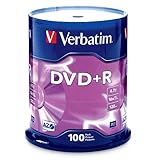
- 100 high-grade non-rewritable DVD+R discs with a one hundred year archival life and OEM drive certified
- Advanced AZO recording dye optimizes read/write performance allowing to record in approximately 5 minutes
- 4.7GB is ideal for storing digital images, music , video and more. Each DVD+R allows you to store up to 1550 photos or more than 120 minutes of 720p video
- Compatible with most DVD-R and DVD+R drives including Pioneer, Apple, Sony, Dell, LG, HP, Lenovo and others
- Verbatim has been a leader in data storage technology since 1969, and guarantees this product with a limited lifetime warranty and technical support
Can a video converter create a DVD?
Conversion alone does not guarantee a playable DVD. You need DVD-authoring behavior, a compatible disc image or video structure, and blank DVD-R media. UniConverter’s listed DVD Burner function addresses that subset of the workflow; a standard MP4-to-MKV or MP4-to-H.264 export does not automatically create a DVD-Video disc.
What should I do when a conversion fails?
- Unsupported codec or container: try a more broadly supported output such as H.264 video with AAC audio in MP4, or use Shutter Encoder or FFmpeg for more explicit stream controls.
- Audio or subtitle loss: inspect the track-selection settings and test a short sample before processing the entire documentary.
- Very slow encoding: check whether a supported hardware encoder is enabled, or accept a slower software encode when quality and compatibility take priority.
- Out-of-sync output: compare frame rate and audio sample-rate handling with the source, then test a short segment.
- Cloud upload failure: switch to a local queue for large or sensitive files.
Frequently Asked Questions
What is the best converter for batch processing?
HandBrake’s queue is the best free starting point for a prepared list of files. For recurring ingest, Adobe Media Encoder’s Watch Folders automate the handoff; FFmpeg is the better fit when a script must run the same settings unattended.
Which video converter works on both Mac and Windows?
HandBrake documentation covers both Windows and macOS, and Wondershare lists UniConverter for both platforms. Adobe Media Encoder also belongs to a desktop Adobe workflow, while browser-based CloudConvert avoids operating-system installation altogether.
Is an online video converter safe for documentary footage?
Safety depends on the service’s retention, transfer and deletion terms, which should be checked before upload. For interviews, embargoed cuts or other sensitive material, local conversion avoids sending the source to a third party and also removes upload time.
How do I convert video to DVD?
Use software with DVD-authoring or DVD Burner functionality, create the required disc structure, and burn it to compatible blank DVD-R media. Simply changing an MP4 container or codec will not produce a set-top-player DVD.
Does converting HEVC to H.264 make the file smaller?
Not necessarily. H.264 is often more compatible, but its bitrate and quality settings determine the resulting size; a compatibility transcode can be larger than the HEVC source while still losing some generation quality.






Say something about this film