
What’s actually slowing this PC down?
Pick the symptom - the matching free tool is one click away.
Some links on this page are affiliate links: if you buy through them we may earn a commission, at no extra cost to you.
Short answer: This message usually means the video’s uploader has turned off playback in embedded players on other websites. Viewers cannot override that choice. Open the video on YouTube, or ask the uploader to enable embedding. If you own the video, check its “Allow embedding” setting in YouTube Studio.
What the message means
“Other websites” refers to a YouTube player embedded in another site or app, rather than the video’s regular YouTube watch page. A link to YouTube is different: it takes the viewer to YouTube and does not, by itself, embed the player.
- Watching on YouTube: Playback on the video’s YouTube watch page.
- Embedding: Playback in a player placed on an external webpage, commonly using an iframe.
- Sharing a link: A route to the YouTube page, not permission to embed the video.
The message usually points to a video-level embedding restriction, not a fault with the website hosting the player. It is not permission to download or rehost the video; those are separate copyright and platform-policy questions.
Outdated Drivers Are Slowing You Down
One free scan finds every outdated or missing driver and matches the right update for your exact hardware.Free scan · exact hardware matchPC Slower Than It Used to Be?
A free scan shows the junk files, broken settings and background clutter dragging Windows down - then fixes them in one click.Free scan · Windows 10 & 11What viewers can do
There is no viewer-side setting or iframe parameter that turns embedding back on for someone else’s video.
Popular on Amazon
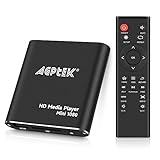
- 【Mini Portable Media player】-- Fits into the palm of your hand, It is a perfect travel partner for those short on space and sockets. Also compact and easy multifunction HD media player for office work and home entertainment;Aluminum alloy material, not easy to damage during carrying
- 【1080P MP4 Player】-- Full HD 1080p@60Hz supports most video decoding formats: RM, RMVB, AVI, DIVX, MKV, MOV, HD MOV, MP4, M4V, PMP, AVC, FLV, VOB, MPG, DAT, MPEG, TS, TP, M2TS, WMV, (H.264,H.263,WMV9/VC-1,MPEG1/2/4),Not support VPR files. Note: Please use our 4K player to play some videos taken with smart phones, ASIN: B07WPY8VKL
- 【HDMI or AV Output】-- Supports 1080p HDMI output, allowing you to transmit crisp, clear video and audio in a pure digital format to an HDTV; it also supports composite AV output for use with analog TVs. An analog AV cable is included. While using HDMI video output, you can also connect external speakers via the AV output. However, video cannot be output via both AV and HDMI at the same time.
- 【USB 2.0/3.0 Compability】-- Drive external USB 2.0/3.0 storage devices such as USB flash(up to 512G)/SD card(up to 128G) and hard drive(partition should be MBR, up to 8TB), you can also delete or copy files in the USB drive(FAT or FA32) directly, Also plays subtitle files as well as loop videos
- 【Support Multiple Formats of Files and Playback Modes&Multi-functional Remote Control】-- Supports most video, audio, and image formats on the market, supports random playback of video and image modes, and supports loop playback. Supports repeat, zoom, fast forward, fast rewind, rotation, breakpoint playback method, start from scratch playback method and time selection playback method. It is also equipped with a convenient remote control for easy navigation of menu screens (ASIN: B0C9PZPFL8)
- Select Watch on YouTube, or open the video’s YouTube watch-page link directly.
- Contact the uploader if you need the video to play on a particular website.
- If the video also fails on YouTube, or only fails on a particular network or device, investigate a separate availability or playback problem rather than assuming embedding is the only cause.
Browser extensions, unofficial proxy sites, downloader services, and modified embed URLs do not grant permission to embed. They are not recommended workarounds.
If you own the video: change its embedding setting
Enable embedding
- Sign in to YouTube Studio.
- Select Content from the left menu.
- Select the relevant video and open Details.
- Select Show more.
- Check Allow embedding, then select Save.
YouTube documents these steps in its embed videos and playlists help page. Studio labels can change and may vary slightly by account or language.
Disable embedding
To stop ordinary third-party website playback, use the same video setting: open YouTube Studio → Content → video → Details → Show more, uncheck Allow embedding, and save. This setting controls embedding; disabling it does not, by itself, make the video private or remove it from YouTube.
Allow only selected domains or apps
YouTube documents domain- and app-based embedding rules for partners using YouTube Studio Content Manager. Depending on the partner controls, rules can allow all domains, allow specified domains, block specified domains, or block all domains. This is not a standard control available to every creator. YouTube’s help page also says embedding restrictions cannot be applied to iOS apps; check the current partner guidance for details. YouTube’s Content Manager guidance describes these restrictions.
Trade-offs of allowing embeds
Allowing embedding makes a video easier to use in articles, courses, documentation, and community pages, while playback stays in the YouTube player. Eligible embedded playback may show ads, but YouTube says ad revenue from embedded videos goes to YouTube and the video owner—not the site displaying the player. The owner also has less control over which sites display an unrestricted embed. YouTube’s embedded-video advertising help page explains how that revenue is handled.
Also popular on Amazon
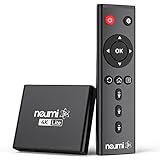
- 【SIMPLE, POWERFUL, COMPACT】- Easily play your owned videos, photos, and music files from USB drives, hard drives, and SD cards. Simple and intuitive to use with no complicated settings. Takes up very little space - it’s smaller than a deck of playing cards!
- 【4K/UHD VIDEO PLAYBACK】- Stunning HDMI video quality up to 2160p/60Hz with support for the latest video formats such as H.265/HEVC. Feeds digital surround sound to audio receivers or amplifiers for enhanced listening experience. Includes analog AV output for connecting to an older TV or for sending audio to a stereo system.
- 【READS USB DRIVES AND SD CARDS】- Reads USB flash drives and hard drives up to 8TB and SD cards up to 1TB. Supports FAT32, exFAT, and NTFS file systems. Automatic playback, continuous looping and repeat, and the ability to resume video playback from the last stop point.
- 【TRIGGER SENSOR INPUT】- Ability to loop one video continuously and play a different video when triggered by an optional push-button or motion sensor. Build an interactive digital signage display, art gallery or museum on-demand video player, or a Halloween special effect in just a few steps. Push-button and motion sensors sold separately.
- 【MEDIA FORMAT SUPPORT】 - Video: MP4, MKV, AVI, TS/TP, MOV, VOB, and M2TS files using H.265/HEVC, H.264/AVC, VC1, or MPEG2/4 codecs, up to 4096x2304p@30fps, 10-bit color, and 200mbps. Photos: JPG, JPEG, BMP, GIF (non-animated), PNG. Music: MP3, WMA, OGG, FLAC, APE, AAC
If embedding is enabled: diagnose the website or player
The same-looking playback problem can have causes other than the owner’s setting. For a website developer, check them in this order:
- Open the video on YouTube. If it fails there too, the problem is not simply third-party embedding.
- Confirm the video’s availability. Check whether it is public, age-restricted, or unavailable in the affected viewer’s region.
- Verify the owner’s setting. Ask the uploader to confirm that Allow embedding was saved for the correct video. If the channel uses Content Manager, check its domain or app rules.
- Generate the official embed code. On the video or playlist, choose Share → Embed, copy YouTube’s HTML, and paste it into the website’s HTML. Make sure the code uses the intended video ID. YouTube documents this flow on its embedding help page.
- Test inside a real webpage. Do not diagnose from an
/embed/VIDEO_IDURL opened directly in the address bar; that may lack the webpage context an embedded player needs. - Check the HTTP
Refererheader. YouTube says the embedded player requires it; a missing header can cause blocked playback and error 153, even when embedding is allowed. Inspect the browser’s network panel and console, and check whether the page’sReferrer-Policy, a privacy tool, or a security product strips the header. - Review site and network controls. Check Content Security Policy, firewall and DNS filtering, browser extensions, and managed-device restrictions. Test another browser, device, and network to narrow down where the block occurs.
- For apps or WebViews, verify the player implementation. Third-party apps must follow YouTube’s API Services Terms and developer policies; an unsupported player can behave differently from a normal website embed.
A basic iframe looks like this; replace VIDEO_ID with the actual ID, and prefer the code generated by YouTube’s Share → Embed flow:
The Tool Desk
Outbyte PC Repair FREEClear out junk files and repair common Windows errorsFree Scan →Outbyte Driver Updater FREEScan for outdated or missing drivers - takes under a minuteDriver Scan →<iframe
width="560"
height="315"
src="https://www.youtube.com/embed/VIDEO_ID"
title="YouTube video player"
frameborder="0"
allow="accelerometer; autoplay; clipboard-write; encrypted-media; gyroscope; picture-in-picture; web-share"
allowfullscreen>
</iframe>Changing youtube.com to youtube-nocookie.com is not a fix for a missing referrer. YouTube’s privacy-enhanced mode uses the youtube-nocookie.com hostname for a website embed and changes the player’s privacy behavior; it does not override embedding permission. A site or network may need to allow that hostname. The player remains subject to YouTube’s API Terms and developer policies. YouTube’s embedding guidance covers privacy-enhanced mode and player requirements.
Restrictions that embedding permission does not remove
Age-restricted videos
YouTube says age-restricted videos generally cannot be watched on most third-party websites and redirects viewers to YouTube. An uploader’s general embedding setting can therefore be enabled while an age restriction still prevents ordinary embedded playback. See YouTube’s embedding guidance.
Private videos
A private video is not an ordinary public embed; access depends on the uploader’s sharing settings and the viewer’s account permissions. For videos in embedded playlists, YouTube specifically warns that private videos will not play unless the uploader has shared them with the viewer. YouTube’s embedded-playlist help page explains that limitation.
Also popular on Amazon

- Ultra-speedy streaming: Roku Ultra is 30% faster than any other Roku player, delivering a lightning-fast interface and apps that launch in a snap.
- Cinematic streaming: This TV streaming device brings the movie theater to your living room with spectacular 4K, HDR10+, and Dolby Vision picture alongside immersive Dolby Atmos audio.
- The ultimate Roku remote: The rechargeable Roku Voice Remote Pro offers backlit buttons, hands-free voice controls, and a lost remote finder.
- No more fumbling in the dark: See what you’re pressing with backlit buttons.
- Say goodbye to batteries: Keep your remote powered for months on a single charge.
Regional unavailability
Licensing decisions or local legal requirements can make a video unavailable in some countries or regions, independently of its embed setting. Test the YouTube watch page from the same country or region as the affected viewer. YouTube’s regional availability guidance covers these cases.
Managed networks and apps
Schools, workplaces, libraries, network administrators, and security tools may block YouTube or parts of its player. YouTube recommends checking whether other sites work and contacting the network administrator or ISP if YouTube access is blocked. YouTube’s access troubleshooting page offers further guidance. In an app, an unsupported third-party player may also trigger an availability message; YouTube may direct users to its official app or website. See YouTube’s guidance for “The following content is not available on this app”.
Why common URL changes do not fix disabled embedding
Player parameters control playback behavior, not permission. For example, ?autoplay=1, ?start=90, and ?controls=0 can adjust autoplay, start time, or controls; none enables an embed the owner has disabled. Likewise, converting a watch URL to /embed/VIDEO_ID or switching to youtube-nocookie.com does not grant access. YouTube’s embedding help page documents player parameters and the embed requirements.
If the owner has disabled embedding, the legitimate options are to watch on YouTube or ask the owner to enable it. Reuploading someone else’s video is not a technical fix and may create copyright or policy problems.






Say something about this film