You can watch Netflix offline, but not on every device that supports Netflix streaming. Current Netflix downloads are handled inside the app on compatible Android phones and tablets, iPhone and iPad, Amazon Fire tablets, and Google Chromebooks with the Google Play Store installed. Windows computers can stream Netflix but do not currently offer the download feature.
Netflix offline viewing works through the Netflix app—not through every screen that can stream Netflix. You can currently download eligible movies and episodes on compatible Android phones and tablets, iPhone and iPad, Amazon Fire tablets, and Google Chromebooks with the Google Play Store installed. Windows computers, smart TVs, Roku and other streaming players, game consoles, and most TV-connected devices remain streaming destinations, but they are not current Netflix download destinations.
To watch Netflix without an internet connection, install or update the Netflix app on a supported device, sign in, choose a title with the Download icon, and later open the app’s Downloads section. Downloads are encrypted, app-managed viewing licenses—not ordinary video files that you can copy freely to another device.
Which devices support Netflix downloads?
| Device | Offline downloads? | Important requirement or limitation |
|---|---|---|
| Compatible Android phone or tablet | Yes | Use a current Android version and the latest Netflix app. Not every Android model is compatible. |
| iPhone or iPad | Yes | Download through the Netflix app. The specific model and iOS or iPadOS version must remain supported. |
| Amazon Fire tablet | Yes | Netflix identifies Fire OS 7 or later as the supported path. App availability and device support can change. |
| Google Chromebook | Yes, when applicable | The Chromebook must have the Google Play Store and the compatible Netflix app environment. |
| Windows PC | No, according to current Netflix guidance | Windows can stream Netflix, but the current Windows download feature is unavailable. |
| Smart TV, Roku, Fire TV Stick, console, or streaming player | Generally no | These devices can stream Netflix online, but Netflix’s offline-download list is narrower. |
Netflix’s supported-device policies can change as operating systems and app requirements change. If offline viewing is the deciding factor when buying hardware, verify the device’s current Netflix compatibility before purchasing.
How to download Netflix movies and episodes
- Install or update the Netflix app. Use the official app store for your device, then install any available Netflix and operating-system updates.
- Sign in to Netflix. You need to be signed in before going offline.
- Find a downloadable title. Look for the downward-pointing Download icon beside a movie or episode. In the app, you can also browse the section for titles available to download.
- Start the download. Open a movie and select Download. For a series, select the download control beside an individual episode or choose Download Season when Netflix offers it.
- Wait for completion. Wi-Fi is usually the best option because downloads can consume substantial mobile data. Keep enough storage free on the device or configured storage card.
- Watch offline. Open Netflix, go to Downloads, and select the saved movie or episode. Do not sign out before the trip or viewing session; the account must remain signed in to access downloads.
A downloaded title is tied to the device on which it was downloaded. You cannot normally download a movie to a phone and then transfer the resulting file to a laptop, USB drive, television, or another person’s device. Other Netflix profiles on the same device may be able to access downloads, subject to profile restrictions.
#1 Best Overall
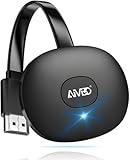
- 【WIRELESS 4K CASTING IN SECONDS】SOCLLLife Wireless HDMI Display Adapter wirelessly mirror 4K video and audio from small screen (Phone, i-Pad, MacBook, Android phones, tablet, laptop) to larger displays (TV/monitor/projector). You can experience 4K decoding & 1080P@60Hz output, low-latency casting on a big screen—no more cable clutter.
- 【PLUG & PLAY SETUP】Set up your wireless screen sharing in 3 simple steps—just plug the HDMI dongle into your TV, power it, and connect via your device’s screen mirroring function. No apps or drivers required, the seamless HD video and audio will display on your TV in minutes. (Note: iOS users need extra steps to connect to the dongle's wireless signal)
- 【POPULAR APP CASTING FROM ANDROID & WINDOWS】Instant cast all your favorite app content from Android or Windows (≤ Win 10, not supported on Win 11) devices to your TV, like Netfix, Prime Video, HULU, HBO Max, Sky Go, and more. Switch from small screen to larger one and enjoy high-definition series, movies, live sports, and shows with friends and family.
- 【HDCP LIMITATION FOR IOS MIRRORING】Our Wireless HDMI Dongle supports casting your Apple Phone (included Apple Phone17), i-Pad, or MacBook to a larger screen for web browsing, watching movies, presentations, and more. It works with YouTube, Instagram, TikTok, and other non-HDCP copyright-protected apps. (Note: Due to Apple’s HDCP restrictions, premium apps like Netfix and Prime Video are not supported.)
- 【MIRROR & EXTEND MODE】Switch between two display modes: Mirror Mode for real-time shared content casting and Extend Mode for dual-screen multitasking, supporting 4K decoding & output at 1080P@60Hz. You can enjoy casting HD videos to your TV while using your phone for other apps, texts, or browsing in flexible extended mode.
How to watch Netflix offline on Android
Netflix supports downloads on compatible Android phones and tablets. Because Android hardware varies widely, “Android device” does not mean every model is guaranteed to work.
- Update Android and install the latest Netflix app from the Google Play Store.
- Open Netflix and sign in.
- Choose a movie or episode displaying the Download icon.
- Tap Download, or select Download Season for a series when available.
- Open Downloads in the Netflix app to play the title without internet access.
If the Download icon never appears, check the title first. If other downloadable titles also lack the icon, the Android model, operating-system version, or Netflix app may not support downloads. Updating both the device and app is the first step; if that does not help, use another supported device.
Using an SD card for Netflix downloads on Android
Netflix documents an option to store future downloads on an installed SD card on some Android devices. In the Netflix app, look for the download-storage setting and select the SD card if the option is available. The exact menu wording can vary by app version and device.
This setting does not move titles that are already downloaded: previously saved content stays in its original location. Some Android devices or SD cards do not support Netflix’s storage option, so internal storage may still be required. A microSD card for Netflix downloads is therefore a possible accessory—not a universal requirement.
How to watch Netflix offline on iPhone or iPad
Netflix supports offline downloads on iPhone and iPad through the Netflix app.
- Install or update Netflix from the App Store.
- Sign in to your Netflix account.
- Browse for a movie or episode with the Download icon.
- Tap the icon and allow the download to finish, preferably over Wi-Fi.
- Open the app’s Downloads area when you are offline and select the title.
iPhone and iPad downloads use the device’s available storage. Unlike some compatible Android and Fire devices, iPhone and iPad do not provide a Netflix SD-card storage path. If storage is tight, remove completed or unwanted downloads from the Downloads screen and download only what you need for the journey.
How to watch Netflix offline on an Amazon Fire tablet
An Amazon Fire tablet is one of the clearest choices for Netflix offline viewing because Netflix specifically supports downloads on Fire tablets running Fire OS 7 or later. The Netflix app is obtained through the Amazon Appstore.
PC Slower Than It Used to Be?
A free scan shows the junk files, broken settings and background clutter dragging Windows down - then fixes them in one click.Free scan · Windows 10 & 11Crashes, No Sound, or Screen Glitches?
Random freezes, missing sound and display glitches usually trace back to one bad driver. Find and replace yours safely.Free scan · under a minute- Check the tablet’s Fire OS version and install available system updates.
- Open the Amazon Appstore, install or update Netflix, and sign in.
- Find a title with the Download icon.
- Tap Download, or download an individual episode or season where offered.
- Open Downloads in Netflix to watch without a connection.
Fire tablet model capabilities are not identical. Netflix’s Fire-tablet information identifies models such as the Fire Max 11, Fire HD 10, and Fire HD 8 as capable of Full HD streaming, but streaming resolution and download compatibility are separate questions. Check the tablet’s Fire OS version, current Amazon Appstore availability, and Netflix support before buying.
How to watch Netflix offline on a Chromebook
A Chromebook can download Netflix titles only when it has the applicable Google Play Store and Android-app support. The fact that a Chromebook can open Netflix in Chrome does not automatically make it download-capable.
- Check that the Chromebook has the Google Play Store enabled and installed.
- Update ChromeOS and the Netflix app.
- Install or open Netflix from the Play Store and sign in.
- Choose a downloadable title and select Download.
- Use the app’s Downloads area for offline playback.
If your Chromebook has no Google Play Store, it may still stream Netflix through a browser, but it should not be treated as a confirmed offline-download device. Chromebook support also varies by model and ChromeOS configuration.
Can you download Netflix on a Windows computer?
Not under Netflix’s current Windows guidance. Older articles may describe downloading through a previous Windows Netflix app, but Netflix currently says the download feature is unavailable on devices using Windows.
What’s actually slowing this PC down?
Pick the symptom - the matching free tool is one click away.
Windows remains useful for online Netflix streaming through a supported browser. For offline playback, Netflix directs users toward a compatible Android phone or tablet, iPhone or iPad, Amazon Fire tablet, or Google Chromebook with the Google Play Store.
Rank #2

- 【IMMERSE IN HD WIRELESS CASTING】Drymokini wireless HDMI adapter delivers breathtaking 4K picture quality, supporting 4K x 2K at 30Hz, 1080P at 60Hz, 1080P at 30Hz, and 3D/720P resolutions. Seamlessly cast your phone, laptop, or tablet to a TV, projector, or monitor for a cinematic viewing experience. Share memorable entertainment moments with family and friends.
- 【PLUG AND PLAY SIMPLICITY】Experience seamless connection with this wireless display adapter, simply plug it into your TV and power it via USB port. Click the Miracast function on your device and choose AMB-xxx—no extra apps, drivers, or complex settings needed. Start screen mirroring videos, presentations, and more instantly for work or play scenarios.
- 【COMPATIBLE WITH ANDROID & WINDOWS】Best for Android and Windows devices(≤ Win 10, not support Win 11), this adapter also supports encrypted casting apps. You can enjoy smooth playback of top series, movies, and live sports from video platforms like Netfix, Prime Video, Sky Go, BT Sport, TikTok, YouTube, DIRECTV, HULU, Comcast, XFINITY, Vudu, and Movistar.
- 【APP LIMITATIONS FOR IOS & MAC OS】Drymokini wireless HDMI dongle allows you to share movies, photos, and music from free apps like Safari, Office, YouTube, WhatsApp, Skype, Twitter, and Reddit onto a big screen. *Kindly note: Apple devices do not support HDCP-protected apps (e.g., Netfix, Amazon Video, Sky Go, HULU, etc.) due to copyright restrictions.
- 【FLEXIBLE DISPLAY MODES: MIRROR & EXTEND】This wireless display adapter supports mirroring or extending your screen. In Mirror Mode, easily share premium audio and video content with friends and family. In Extend Mode, use it as a secondary display—cast videos on the TV while multitasking on your phone simultaneously.
Can you download Netflix on a TV, Roku, Fire TV Stick, or game console?
Usually, no. Smart TVs, Roku devices, Fire TV Sticks, Apple TV-style streaming players, PlayStation systems, Xbox consoles, and similar equipment are designed primarily to stream Netflix while connected to the internet. They may support Netflix playback, but that does not mean they support Netflix’s mobile-style offline downloads.
The distinction is important:
- Streaming support means the device can play Netflix over an internet connection.
- Download support means the Netflix app can save an eligible title for later offline playback.
Do not buy a living-room streaming device expecting it to replace a download-capable phone, tablet, or Chromebook. If you need Netflix for a flight, hotel with unreliable internet, or travel without data, download to a supported personal device before leaving.
Why does a Netflix title have no Download button?
Device compatibility does not make every Netflix title downloadable. The Download icon is the decisive test for an individual movie or episode.
Do these 3 things before closing this tab:
1Scan for outdated or missing drivers - takes under a minute2Clear out junk files and repair common Windows errors3Fix the driver behind crashes, sound loss and screen glitchesNetflix says download availability can depend on:
- content-provider or studio licensing rights;
- exclusive rights held by another company;
- whether the rights holder permits offline downloads;
- regional or localized availability;
- the title’s popularity and cost; and
- seasonal or other licensing conditions.
Even a title described as a Netflix original may involve a studio that retains franchise or intellectual-property rights. Netflix may therefore have permission to stream it without having permission to offer an offline copy. A missing Download icon is not necessarily an app failure.
Netflix download limits by plan
Netflix’s current help guidance makes download limits plan-dependent, and these policies can change:
- Ad-free plans: Netflix says they can have up to 100 active downloads at a time per device, subject to the number of devices included with the subscription.
- Ad-supported plans: Netflix says they are limited to 15 total downloads per device per calendar month.
These are current Netflix guidance rather than permanent guarantees. Your plan, device count, country, and Netflix’s latest policy may affect what you can save. If Netflix reports that you have reached a limit, remove older downloads or wait for the relevant monthly limit to reset.
How long do Netflix downloads last?
Netflix downloads are temporary licenses, not permanent ownership. A download can expire after a period of time, and the exact period is not universal. Some titles also have limits on how many times they can be downloaded or renewed because of studio and licensing agreements.
Free tools Windows power users keep installed
One-click scans. No signup required.
If Netflix labels a title Expired, try deleting it and downloading it again. That will work only if the title is still available in your region and you have not reached a title-specific renewal or download limit. Downloading shortly before a trip is safer than saving a title weeks in advance.
If you cancel your Netflix membership, Netflix says the downloads on the device are deleted. Reactivating the membership does not restore those files; you must download the titles again.
Independent reader supportYour contribution helps us test, update, and keep practical guides available for everyone.Smart Downloads: automatic episode management
Netflix’s Smart Downloads tools can reduce manual work, but they do not remove the need to check title eligibility or storage:
- Download Next Episode can delete an episode after you watch it and download the next episode in the series.
- Downloads for You can automatically save recommended titles to the device.
Netflix says Smart Downloads is unavailable on ad-supported plans. Availability can also depend on the device and app. Treat it as a convenience feature for supported plans, not as a guarantee that every episode or recommended title can be downloaded.
Recommended Free Tools
Rank #3

- 📺 Cast screen to TV instantly with Wi-Fi connection
- 🔥 Supports Chromecast, Miracast, and Fire Stick
- 🎮 Mirror games and apps with ultra-low latency
- 📱 Works perfectly on Fire Tablet and Kindle
- 🌐 Web Video Cast browser for online streaming
Netflix offline-download troubleshooting
The Download icon is missing everywhere
- Confirm that you are using a supported download platform, not Windows, a smart TV, a Roku, or a game console.
- Update the Netflix app and device operating system.
- Try a different title known to display a Download icon.
- Sign out only as a last resort; remember that you must be signed in to use downloads offline.
Only one movie or episode cannot be downloaded
The title is probably not licensed for downloads in your location, or a title-specific limit may apply. Netflix does not make every streamable title downloadable. Check other titles before changing device settings.
The download will not start or stops partway through
- Switch to a reliable Wi-Fi connection.
- Check the device’s free internal storage.
- If you use Android or a Fire tablet, check whether the selected SD card is supported and has space.
- Update Netflix and the device software, then retry.
The download disappeared
Clearing Netflix app data, resetting the device, or uninstalling Netflix can delete download data. Downloads are not backed up as ordinary video files, so you may need to download the titles again. Also check whether the title expired, the membership was canceled, or the device lost Netflix support.
The device used to work but no longer does
Manufacturers eventually stop providing necessary operating-system updates, or older hardware may no longer support new Netflix features. Check for system and app updates first. If the device has lost support, use a currently supported Android device, iPhone or iPad, Fire tablet, or Google Chromebook with the Play Store.
Best device choice for offline Netflix
Choose based on the screen and ecosystem you already use:
The Tool Desk
Outbyte PC Repair FREERepair Windows errors before they cause bigger problemsFix Now →Outbyte Driver Updater FREEFix the driver behind crashes, sound loss and screen glitchesFind Drivers →- For the simplest inexpensive tablet route: consider a supported Amazon Fire tablet, checking for Fire OS 7 or later and current Netflix app availability.
- For a device you already own: a compatible Android phone or tablet is convenient, but confirm that its model supports Netflix downloads.
- For Apple users: an iPhone or iPad offers the official Netflix download workflow without needing an additional device category.
- For a keyboard and larger computer-style screen: use a Chromebook only if it has the Google Play Store and compatible app support.
- For expanded storage: consider a microSD card only for an Android or Fire device that exposes Netflix’s SD-card storage option.
No supported device makes Netflix downloads permanent, universally transferable, or available for every title. The most reliable travel routine is to update the app, download over Wi-Fi shortly before departure, open each title once while still online, and verify that it appears in Downloads before disconnecting.
Frequently Asked Questions
Which devices can download Netflix movies and shows?
Netflix offline viewing is supported on compatible Android phones and tablets, iPhone and iPad, Amazon Fire tablets running Fire OS 7 or later, and Google Chromebooks with the Google Play Store. Windows computers can stream Netflix but do not currently support the Netflix download feature. Smart TVs, Roku devices, streaming sticks, and game consoles are also generally streaming-only for Netflix.
Can I download every Netflix title for offline viewing?
No. A title must display the Download icon in the Netflix app. Licensing, regional rights, studio restrictions, and title-specific download or renewal limits can prevent an otherwise streamable movie or episode from being downloaded.
How long do Netflix downloads last?
Netflix downloads are temporary app-managed licenses. They expire according to title and licensing conditions, and some titles have limits on renewals. If a title expires, you may be able to delete and download it again if it is still available and the renewal limit has not been reached.
Can I transfer Netflix downloads to another device?
No. Netflix downloads remain managed inside the Netflix app and are available on the device used for downloading. They are not ordinary video files that can be copied to a USB drive, television, computer, or another device.
The Bottom Line
Bottom line: Netflix offline viewing is available in the app on compatible Android devices, iPhone and iPad, Amazon Fire tablets running Fire OS 7 or later, and Chromebooks with the Google Play Store. It is not currently a Windows download feature, and streaming devices such as smart TVs, Roku, consoles, and TV sticks should not be treated as offline-download destinations. Look for the Download icon on each title, keep the app signed in, and remember that downloads expire and remain tied to the downloading device.
Quick Recap
Product prices and availability are accurate as of the date/time indicated and are subject to change. Any price and availability information displayed on Amazon at the time of purchase will apply.