
What’s actually slowing this PC down?
Pick the symptom - the matching free tool is one click away.
Some links on this page are affiliate links: if you buy through them we may earn a commission, at no extra cost to you.
VLC can play a sequence of media continuously, but a YouTube playlist URL is not a reliably documented way to make VLC advance through every video. The yt-dlp documentation’s pipe-to-VLC example is for one video. For a more dependable sequence, make the items locally accessible and use VLC’s playlist or VLM workflow; if you want VLC to ingest YouTube URLs directly, treat that as version-dependent and test it first.
How do I stream a YouTube playlist continuously with VLC?
First decide what you mean by “stream.” You may want VLC to play a YouTube playlist on your own device, or you may want VLC to rebroadcast a sequence of media to other devices. These are different tasks. VLC’s documented VLM playlist example sequences multiple local media inputs and can broadcast them over HTTP; it does not document ingesting a YouTube playlist URL. VideoLAN’s VLC 3.0 VLM example shows how to keep a broadcast from breaking when one local file ends.
For a YouTube playlist URL opened directly in VLC, behavior depends on the current versions and YouTube compatibility. The available documentation does not establish a stable, guaranteed direct-playlist workflow. You can try it, but don’t assume that getting one video to play means VLC will advance through the whole playlist.
Option 1: Try direct YouTube URL playback
- Update or note your versions. Record the VLC version and, if using yt-dlp, its version. VLC’s general documentation covers desktop platforms at VideoLAN’s VLC User Documentation; the available sources do not provide a current cross-platform compatibility matrix for YouTube playlists.
- Test a short, public playlist. Open its URL in VLC using the normal Open Network Stream workflow for your platform. Confirm that more than the first item plays and that VLC advances to the next video without intervention. A successful single-video playback is not proof of playlist advancement.
- If it fails, separate the two possible failures. Check whether VLC cannot open the first video at all, or whether it plays one item but does not advance. Then check versions and test again; those symptoms do not establish the same cause.
VLC’s YouTube Lua integration has been change-prone. A January 6, 2026 post on the VideoLAN developer mailing list discusses a proposal to remove a broken youtube.lua script, while a contributor in that discussion reports success with their own YouTube live streams. That is a dated project discussion and an individual report, not a general compatibility guarantee or installation recipe.
Popular on Amazon

- [Smooth 4K Ultra HD Playback] This 4K@30Hz HDMI digital media player utilizes H.265/HEVC decoding technology, enabling playback of videos up to 4096×2304 resolution compared to H.264 or 1080P, delivering a clearer and smoother picture.
- [Plug and Play] The HD media player is easy to use, requiring no WiFi or app. It supports direct playback/copying/deletion of videos, music, photos, PPTs, and PDFs from USB storage devices or Micro SD cards. Equipped with dual USB ports, this media player can also connect to a mouse/keyboard or speakers.
- [HDMI RCA Optical Outputs] This media player connects to TVs, digital signage displays, or projectors via an HDMI port for crisp 4K video playback. The player also comes with analog RCA output to hook up legacy older TVs and monitors, plus built-in optical audio port to transmit lossless digital surround sound to soundbars, amplifiers and home theater audio systems, delivering immersive high-fidelity audio without signal loss.
- [TV Projector or Digital Signage] This 4K media player supports autoplay, loop playback, and shuffle playback, and supports both landscape and portrait display modes. HDMI media player can run continuously, making it ideal for TV projector or digital signage such as restaurant welcome videos, reception videos, and art and museum installations.
- [Extensive Compatibility] This media player for TV can play media files from USB hard drives up to 8TB in capacity or micro SD cards up to 1TB in capacity. Supported file systems include FAT32, exFAT, and NTFS. Supported formats include: H.265/HEVC (MKV, MOV, AVI), MPEG, FLV, RM, 3GP, MP4, WMV, RMVB, DAT, MPG, TS, M2TS, JPG, JPEG, BMP, GIF, PNG, MP3, OGG, FLAC, APE, AAC, WMA, etc.
Option 2: Use yt-dlp to send one video to VLC
yt-dlp documents sending media to standard output and having a player read it from standard input. Its FAQ gives this single-video pattern:
yt-dlp -o - "https://www.youtube.com/watch?v=VIDEO_ID" | vlc -
Replace VIDEO_ID with the individual video’s ID. This command demonstrates playback of one video through VLC; it is not a documented command for continuous playback of an entire YouTube playlist. Don’t treat the pipe as a playlist-autoplay solution.
Also popular on Amazon

- VLC for Kindle plays most local video and audio files, as well as network streams (including adaptive streaming), like the desktop version of VLC.
- VLC for Kindle has a media library for audio and video files, and allows to browse folders directly.
- VLC has support for multi-track audio and subtitles. It supports auto-rotation, aspect-ratio adjustments, hardware acceleration and gestures to control volume.
- It also includes a widget for audio control, supports audio headsets control, cover art and a complete audio media library.
Option 3: Build a local sequence for dependable advancement
If your priority is continuous sequencing rather than fetching each item directly from YouTube as it plays, arrange media files locally and add them to a VLC playlist. yt-dlp supports playlist processing, playlist-indexed output naming, and an archive of successfully handled video IDs. Those features can help organize a local-media workflow, but extracting items does not itself prove gapless playback or uninterrupted VLC advancement.
- Choose the items and output organization. Use yt-dlp’s playlist options and playlist-indexed output naming so files can be identified and kept in order. Consult the Debian trixie yt-dlp manpage for documented output patterns and stdout behavior. The exact options you need depend on your intended local workflow.
- Optionally track successful items. yt-dlp’s FAQ describes an archive of successfully handled video IDs, useful when processing a playlist again and avoiding already handled items. See the yt-dlp FAQ. An archive tracks processing; it does not control VLC’s playback order or guarantee that every playlist item is available.
- Load the resulting files into VLC as a playlist. Check the order before playback, then enable playlist repeat if you want the sequence to begin again at the end. Test the transition between files; continuous sequencing does not necessarily mean gapless audio or video.
Use this approach only in a way that is consistent with applicable platform terms and your rights to the media. The cited documentation explains tool behavior, not whether a particular use is permitted.
Rebroadcast local files with VLC VLM
If the goal is for another device on your network to receive a continuous stream, VLC’s VLM documentation describes a local-file playlist broadcast over HTTP. It configures multiple local media inputs on a VLM channel and uses sout-keep so the stream does not break when one song ends. The example’s source is local files—not YouTube URLs—and its receiver command is intended for the documented VLC 3.0 workflow.
Also popular on Amazon
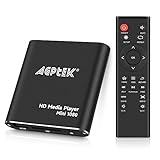
- 【Mini Portable Media player】-- Fits into the palm of your hand, It is a perfect travel partner for those short on space and sockets. Also compact and easy multifunction HD media player for office work and home entertainment;Aluminum alloy material, not easy to damage during carrying
- 【1080P MP4 Player】-- Full HD 1080p@60Hz supports most video decoding formats: RM, RMVB, AVI, DIVX, MKV, MOV, HD MOV, MP4, M4V, PMP, AVC, FLV, VOB, MPG, DAT, MPEG, TS, TP, M2TS, WMV, (H.264,H.263,WMV9/VC-1,MPEG1/2/4),Not support VPR files. Note: Please use our 4K player to play some videos taken with smart phones, ASIN: B07WPY8VKL
- 【HDMI or AV Output】-- Supports 1080p HDMI output, allowing you to transmit crisp, clear video and audio in a pure digital format to an HDTV; it also supports composite AV output for use with analog TVs. An analog AV cable is included. While using HDMI video output, you can also connect external speakers via the AV output. However, video cannot be output via both AV and HDMI at the same time.
- 【USB 2.0/3.0 Compability】-- Drive external USB 2.0/3.0 storage devices such as USB flash(up to 512G)/SD card(up to 128G) and hard drive(partition should be MBR, up to 8TB), you can also delete or copy files in the USB drive(FAT or FA32) directly, Also plays subtitle files as well as loop videos
- 【Support Multiple Formats of Files and Playback Modes&Multi-functional Remote Control】-- Supports most video, audio, and image formats on the market, supports random playback of video and image modes, and supports loop playback. Supports repeat, zoom, fast forward, fast rewind, rotation, breakpoint playback method, start from scratch playback method and time selection playback method. It is also equipped with a convenient remote control for easy navigation of menu screens (ASIN: B0C9PZPFL8)
Follow the VLM playlist broadcast example for the configuration and its HTTP broadcast and receive commands. Adapt its local input paths to your own files, and verify access from the receiving device. This is local-network rebroadcasting, not a method for turning a YouTube playlist URL into a continuous VLC source.
Do these 3 things before closing this tab:
1Repair Windows errors before they cause bigger problems2Fix the driver behind crashes, sound loss and screen glitches3Clear out junk files and repair common Windows errorsWhich approach fits?
| Approach | Setup and source | What is established | Best fit |
|---|---|---|---|
| Direct YouTube URL in VLC | Fewest steps; source stays on YouTube. | Compatibility is version-sensitive; no stable whole-playlist URL workflow is established. | A quick test when you are comfortable troubleshooting changes. |
| yt-dlp pipe to VLC | One command for a single video URL. | The documented FAQ example handles one video, not verified playlist autoplay. | Playing one supported video through VLC. |
| Local files in a VLC playlist | More preparation; media is locally accessible. | VLC supports sequencing local inputs; playlist processing by yt-dlp does not by itself guarantee uninterrupted playback. | Advancing through a prepared sequence on one device. |
| VLC VLM broadcast | Configure local inputs and an HTTP broadcast. | VLC 3.0 documentation demonstrates sequential local inputs and sout-keep. |
Rebroadcasting a local sequence to receivers on a network. |
Troubleshooting
- VLC will not open the first YouTube item: Check VLC and yt-dlp versions, if applicable, and test a short public playlist. Direct YouTube integration can change; the available sources do not establish a universal fix or plugin-installation path.
- The first video plays, but VLC does not advance: That is a playlist-handling issue rather than proof that single-video playback is broken. Test a locally arranged VLC playlist; the documented yt-dlp pipe command is for one video.
- The VLC playlist stops between local items: Check that each file is accessible and present in the playlist in the intended order. For VLM broadcasting, compare the configuration with VLC’s documented use of
sout-keepto keep the stream from breaking at the end of a song. - A recipient cannot view the VLM broadcast: Confirm that the broadcast is configured for the intended network and that the receiving VLC instance uses the documented HTTP receive workflow. The cited example does not establish that the stream is reachable beyond your network.
- You need actual gapless playback: Continuous advancement and gapless transitions are not the same guarantee. The cited sources do not promise gapless output; test the transitions using your files and setup.
Or let it run in the cloud
If your real goal is keeping a YouTube channel live with a repeating sequence of uploaded videos, StreamNeo is a different option from VLC: it plays uploaded videos as a YouTube live stream, rather than opening a YouTube playlist in VLC. Upload your recording or build a playlist, add your YouTube stream key once, and go live. StreamNeo loops it from the cloud, so nothing has to stay on at home. Any uploaded quality up to 4K 60fps streams as made at one flat price per slot, with automatic recovery if YouTube drops the stream. The first day is free with no card. Monthly is $9.99 per month. See StreamNeo, or start the free first day.
Frequently Asked Questions
Does the yt-dlp pipe command play every video in a YouTube playlist?
No. The documented FAQ command is an individual-video example; it is not a verified whole-playlist autoplay recipe.
Does VLC’s VLM playlist example take YouTube URLs as inputs?
No. The VLC 3.0 example documents sequential local media inputs and an HTTP broadcast.





Say something about this film