For a straightforward, room-to-room property tour, use YouTube’s mobile livestream from a phone; choose an encoder if you need external cameras, microphones, graphics, or multiple sources. First confirm the channel can go live, set up the event in YouTube Studio, rehearse the route and narration, and check the Live Control Room preview before inviting viewers.
Choose the right YouTube livestream method for your tour
YouTube offers mobile, webcam, and encoder livestream workflows. The best fit depends on whether you need to move through the property and how much production control you want.
| Method | Good fit | Trade-off |
|---|---|---|
| Mobile | A handheld walkthrough with one host and a phone. | It is the most direct setup for moving from room to room. Plan how to steady the image and keep narration clear. |
| Webcam | A computer-based introduction, property presentation, or Q&A. | Simple for a desk-based presentation, but a webcam alone does not provide a moving room-to-room view. |
| Encoder | A planned production using external cameras or microphones, graphics, or screen sharing. | Offers more production options but requires configuring the encoder and verifying its input in YouTube’s preview. |
YouTube describes these workflows in its guides to mobile live streaming and creating a live stream with an encoder. The tour-specific fits above are practical applications of those options, not a separate YouTube real-estate procedure.
Check eligibility before announcing the tour
Confirm livestream access well before the event. YouTube’s general eligibility guidance says the channel must be verified, have no livestreaming restrictions in the preceding 90 days, and the person livestreaming must be at least 16 years old. First-time live activation can take up to 24 hours.
Quick wins for a faster PC:
Repair Windows errors before they cause bigger problemsFix Now →Scan for outdated or missing drivers - takes under a minuteDriver Scan →Clear out junk files and repair common Windows errorsFree Scan →#1 Best Overall
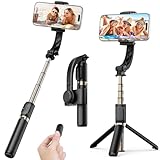
- Superior Image Stabilization – Equipped with a built-in sports gyroscope, this 1-Axis gimbal stabilizer reduces hand shake and delivers smooth, stable video footage. A reliable choice for vlogging, live video, TikTok, YouTube, live streaming, and action shots.
- Easy & App-Free Operation – No complicated apps required! COOVOAMAE gimbal features simple one-button control to switch between horizontal and vertical shooting, saving time on manual adjustments and letting you focus on capturing the moment.
- Lightweight & Portable Selfie Stick – Weighing only 0.49 lb and folding down to 7.5 inches, this stabilizer easily fits into a bag or pocket. The extendable 31.5-inch aluminum alloy rod and 360° rotating phone holder allow you to capture selfies, wide group shots, and creative angles effortlessly.
- Stable Tripod Mode – Instantly convert the gimbal into a tripod by opening the grip and placing it on any flat surface. The sturdy rod adjusts to the ideal height for hands-free video calls, watching videos, recording tutorials, or group photography.
- Wide Compatibility & Remote Control – Fits most smartphones 4.0-6.2 inches and can also connect with GoPro cameras via a 1/4" adapter. The included detachable Bluetooth remote works up to 32 ft away, making it easy to capture group photos and videos without holding the device.
Mobile livestreaming has an additional minimum of 50 subscribers. Check YouTube’s current mobile livestreaming requirements and general livestreaming eligibility for the channel you plan to use; requirements can affect whether the mobile option is available.
How do I livestream a house tour on YouTube?
- Check channel access. Sign in to the intended YouTube channel and confirm verification, eligibility, and livestream access. If this is the first activation, leave up to 24 hours for it to become available.
- Create or schedule the event. In YouTube Studio, create a livestream or schedule it for the tour time. Add the event details and choose its visibility: public, private, or unlisted. Review that setting again before the public broadcast.
- Choose the production workflow. Start a mobile stream for a simple handheld tour, use a webcam for a computer-based presentation, or set up an encoder if the production needs external hardware or several sources.
- Prepare the route and narration. Walk the planned route at the pace you expect to use on air. Check that your narration remains audible as you move, and note where you will pause for room details or viewer questions.
- Rehearse with representative movement and sound. Run a test stream using conditions similar to the tour. Listen for room noise and handling noise, watch for abrupt turns or an unsteady picture, and check the connection from the places where you will stop.
- For an encoder, connect YouTube to the encoder. Copy the stream URL and stream key from the YouTube stream setup into the encoder’s corresponding fields. Configure the camera and audio inputs in the encoder, then start sending the feed.
- Check the Live Control Room preview before going live. Wait for the encoder feed to appear and confirm the picture and sound. For an encoder event, YouTube advises starting at least 15 minutes before the announced time to check the preview and event access. Then select Go live in Live Control Room.
- Monitor the broadcast while walking. Keep an eye on audio and video quality. If you cannot safely watch chat while moving, arrange for a co-host or moderator to follow questions and alert you when needed.
- End the event cleanly. Stop the livestream in YouTube; if you used an encoder, stop sending its feed as well.
YouTube’s encoder instructions cover connecting the stream URL and key, checking the preview, and starting the event. Its computer livestreaming tips recommend a test stream and preparation before an event.
Can I do a property walkthrough live from my phone?
Yes, if the channel meets YouTube’s mobile eligibility requirements and mobile livestreaming is enabled. A phone is the simplest option for a solo, moving tour; test the route, picture stability, sound, and connection before broadcasting. A compatible external microphone can help when the built-in audio is not clear, but it is optional rather than a universal YouTube requirement.
Rank #2

- [Powerful and Versatile 3-Axis Foldable Gimbal Stabilizer for Smartphones.]More powerful than any other smartphone gimbal, works well and compatible with iPhones and most Android phones.Smart XE phone gimbal is equipped with versatile compatibility of smartphones. Suitable for vlogging, live-streaming, selfie, hiking, and sports scenarios. One-Click video button effortlessly switchs between horizontal and vertical portrait mode for quick TikTok video or YouTube shorts.
- [Portable Foldable Design, Compact and Lightweigh]Palm-size 3-axis foldable gimbal with a net weight of only 0.78pounds, but can carry a 250-gram payload. Innovative focus wheel and zoom slide empowers you to shoot like a professional filmmaker photographer, even without complicated filmmaking skills, with adjustable focus speed and 3 brushless motors that increase power to stabilize most big-screen smartphones and create smooth and steady video shots.
- [All-day Long Video Creation] 2600mAh big-capacity battery enables up to 10 hours of continuous shooting, making it perfect for food photography, beauty live-streaming, vlogging, YouTube and TikTok video creation. One-click video button to effortlessly switch from horizontal mode to vertical portrait mode, rapidly taking your TikTok shots in just a flash. Born for filmmakers, vloggers, TikToker, IGTV, and YouTuber to shoot professional videography.
- [AI Face Track 4.0 ]Guestual Control in our Intuitive AOCHUAN APP: Easily take any kind of shooting mode, including panorama, wide-angle, cinematic and movie mode, live-streaming, time-lapse, and motion-lapse, and optimize your phone's native camera settings. Tutorial videos available on our integrated app, product videos and YouTube channel.
- [SMART 7.0 Anti-Shake Smooth ]Equipped with the enhanced powerful brushless motors and 7.0 generation anti-shake algorithm for smooth and steady video output for professional videography. Start now to be a professional videographer with AOCHUAN SMART XE gimbal stabilizer. Package and support includes AOCHUAN SMART XE gimbal (phone not included), tripod, USB-C charging cable and user manual.
Use an unlisted or private event for a rehearsal if you do not want the test to be publicly visible. Before the actual tour, verify that the event has the intended visibility and that viewers can reach it from the relevant channel or watch page.
What equipment do I need to livestream a real-estate tour?
For a basic mobile tour, start with a phone and a tested connection; YouTube does not prescribe a real-estate-specific equipment list. Stability and intelligible narration matter more than adding gear that has not been tested with your device.
For an encoder production, use the camera, audio inputs, and other sources your setup requires. YouTube identifies microphones among typical external hardware for encoder streams. Check device compatibility and test the complete signal path in the encoder and Live Control Room before the event.
Rank #3

- Professional 3-axis gimbal with interchangeable mounts works with mobile phones, GoPro cameras and some compact point-and-shoot cameras
- Forward- or rear-facing AI subject tracker module locks onto a person's face or body to automatically track them in the frame with precision
- Integrated fill light helps balance the light in your shot for more professional results
- What’s Included: Gimbal, AI Tracking Module, Mobile Phone Mounting Bracket, GoPro Camera Mounting Bracket, GoPro Finger Adapter, Thumb Screw, Tripod Base, Gimbal USB-C Charging Cable, Camera USB-C Charging Cable, Zippered Case
- Compatibility: Mobile phones, GoPro cameras (Bluetooth functionality only with HERO9 Black, HERO10 Black, HERO11 Black, HERO12 Black and HERO13 Black), Select compact point-and-shoot cameras
- Mobile walkthrough: phone, planned route, and a rehearsal with movement and speech.
- Computer presentation: webcam and a quiet, well-framed presentation setup.
- Managed production: encoder, configured camera and audio inputs, and any graphics or additional sources you plan to use.
Audio, movement, visibility, and viewer access
Keep the picture and narration usable
Walk at a pace viewers can follow, avoid abrupt turns, and pause where a feature needs explanation. During rehearsal, listen for noisy rooms and handling sounds as well as checking how the camera responds to movement. These are practical production checks; YouTube’s guidance is to test representative audio and movement and monitor stream quality.
Choose visibility deliberately
YouTube supports public, private, and unlisted streams. Use a restricted setting for a rehearsal, then confirm the intended setting for the actual event before you start. A platform visibility setting controls YouTube access; it does not establish whether you have permission to record or show a particular property. Recording and broadcast requirements depend on the property, people involved, and applicable local rules, so check those separately.
Do these 3 things before closing this tab:
1Repair Windows errors before they cause bigger problems2Scan for outdated or missing drivers - takes under a minute3Clear out junk files and repair common Windows errorsPlan for questions
Tell viewers how to submit questions. If you are walking and cannot safely manage chat, ask a co-host or moderator to monitor it and relay questions at natural pauses.
Rank #4

- Upgraded AOCHUAN 3-Axis Stabilizer: The professionally upgraded stabilizer from AOCHUAN, known as Smart S2, enhances stability and fuels your creative ideas. Designed specifically with three orthogonal axes, this upgraded handheld stabilizer offers a greater pitch angle and an expansive shooting area. As a result, the lens of your smartphone remains unobstructed during rotation, allowing for unrestricted filming.
- Cold-Shoe Interface and Focus Wheel: The cold-shoe mount on the Smart S2 offers adaptability for additional devices such as microphones, fill lights, and monitors, providing greater convenience and flexibility in your filming setup. The focus wheel enables smooth focus adjustments, allowing you to achieve the iconic Hitchcock zoom effect with ease. This dolly zoom feature ensures seamless transitions between cinematic shots, capturing breathtaking moments effortlessly.
- 7th Generation Smart Tracking Performance: Equipped with the Smart 7.0 tracking technology, AOCHUAN Smart S2 gimbal ensures smooth and stable tracking of subjects and objects, keeping them centered in the frame at all times. This feature is suitable for vlogs, video recordings, and live streaming, ensuring you never miss those memorable moments. Additionally, AOCHUAN app offers a variety of master camera templates for you to explore and utilize in your projects.
- Versatile Mode with 360° Rotation: With its 3-axis capable of unlimited rotation, Smart S2 phone stabilizer empowers you to shoot creatively without constraints. The built-in fill light allows for shooting in low-light conditions without the need for extra equipment. An integrated 18 cm extension rod expands your field of view, while the stabilizer can easily transform into a selfie stick for group photos with friends, enhancing your shooting versatility.
- Smart App Ecosystem & Master Video Templates: Unlock unlimited creative possibilities through the intuitive AOCHUAN app. Feature-packed with smart shooting modes—including AI tracking, panoramic panoramas, motion timelapse, and customizable gesture controls—it puts professional cinematography at your fingertips. Built-in "Master Camera Templates" guide novice creators step-by-step to capture cinematic, high-production short videos and cinematic reels effortlesly without editing experience.
Should you make the tour a 360-degree livestream?
A standard walkthrough does not need 360 video. Consider the specialized format only if you have a 360-capable production and want viewers to explore an immersive view. YouTube’s 360-degree live streaming guidance specifies equirectangular projection and separate encoder configuration.
For a 360 stream, enable 360 video in the stream’s additional settings and configure the encoder accordingly. YouTube recommends the highest resolution and bitrate your setup supports, prefers 2160p or 1440p for live 360, and specifies 16:9 for best video quality. Test with sound and movement similar to the public stream and monitor quality and errors. Switching 360 on partway through changes the whole video to 360 format.
Common problems and fixes
| Problem | What to check | Fix |
|---|---|---|
| Livestreaming is not available on the channel. | Verification, restrictions in the preceding 90 days, first-time activation, and—on mobile—the subscriber minimum. | Confirm eligibility early and allow up to 24 hours for first-time activation. |
| The encoder feed does not appear in Live Control Room. | Whether the encoder is sending a feed and whether its stream URL and key match the event. | Check the encoder’s connection fields and input configuration, start the feed, and wait for the preview before selecting Go live. |
| Viewers cannot find or access the event. | The event’s public, private, or unlisted setting and the channel or watch-page access. | Confirm the event visibility and test access from the page or device viewers will use. |
| Speech is hard to hear during the walkthrough. | Room noise, microphone placement, handling noise, and sound while moving. | Rehearse the actual route and consider a compatible external microphone if the test shows the phone or camera audio is insufficient. |
| The picture becomes difficult to follow while moving. | Movement pace, abrupt turns, and image stability. | Slow the walkthrough, steady the device, and repeat the route during rehearsal. |
| A 360 stream looks wrong or changes unexpectedly. | Whether 360 is enabled in the stream settings and configured in the encoder, and whether the intended projection is used. | Test the complete 360 setup before the event; do not enable 360 partway through unless the entire video should use that format. |
Or let it run in the cloud
For an on-camera property tour, use the live phone or encoder workflow above. If you also want an uploaded video to keep a YouTube channel live between tours, StreamNeo is a separate cloud service: upload a recording or build a playlist, add your YouTube stream key once, and go live. It loops uploaded videos; it does not broadcast a live camera tour.
Free tools Windows power users keep installed
One-click scans. No signup required.
Best Value

- 【3-Axis Stabilization 8.0】The smart V8 phone gimbal stabilizer uses a 3-axis stabilization design and an 8.0 anti-shake algorithm,enhanced stability can ensure that it remains stable during shooting and captures smooth images.The 3-axis gimbal stabilizer for smartphones also has multiple shooting modes to better showcase your creative content.
- 【Built-in Extension Rod】The portable foldable 3-Axis phone gimbal is equipped with an integrated telescopic rod and tripod,the built-in aluminum alloy extension rod can be extended to 7.8 inches and used as a selfie stick to expand the shooting field of view and meet your video creation needs.
- 【OLED Full Screen】The phone stabilizer for video recording OLED LCD screen can clearly display the gear position, connection status, usage status,etc. It has 6 shooting mode to meet your diverse shooting needs.The flexible mobile phone clamp is compatible with 2.5-3.9-inch mobile phones.Please note that foldable screens are not suitable
- 【Trigger Button & S Mode】The Smart V8 phone gimbal stabilizer has a trigger button that allows you to quickly switch S mode and re-center the shooting. Long press to switch to S mode, designed for high-energy sports capture,whether skiing,cycling,or chasing wonderful moments.
- 【Multifunctional APP】This gimbal stabilizer for iphone needs to be connected to the AOCHUAN APP, providing multiple shooting modes such as panorama, live broadcast, time-lapse shooting and motion time-lapse shooting. It supports gesture control and AI intelligent tracking mode, with face tracking and object tracking.
Nothing has to stay on at home. Every slot streams the uploaded video as made, up to 4K 60fps, at one price per slot; it includes automatic recovery if YouTube drops the stream. The first day is free with no card. Monthly billing is $9.99 per month.
StreamNeo is YouTube-only. See StreamNeo for details, or start the free first day.
Quick Recap
Product prices and availability are accurate as of the date/time indicated and are subject to change. Any price and availability information displayed on Amazon at the time of purchase will apply.