To fix YouTube TV’s “Outside Your Home Area” error, first determine whether you are traveling. If you are, leave Home area unchanged and verify Current playback area. If you are at home, check location permissions, disable VPNs and proxies, test for an ISP location mismatch, and only change Home area after a permanent move.
The fastest way to fix the YouTube TV “Outside Your Home Area” error is to determine whether you are traveling or whether YouTube TV is detecting the wrong location. Then verify Current playback area, allow location access, disable any VPN or proxy, and retry. Change Home area only if your household has permanently moved.
Home area and Current playback area are different settings:
- Home area: the ZIP-code-based location tied to your residence and local-market relationship.
- Current playback area: the physical location where you are watching now. It can change when you travel.
Changing Home area just because you are on vacation can create a larger account problem. Work through the checks below in order.
The Tool Desk
Outbyte PC Repair FREERepair Windows errors before they cause bigger problemsFix Now →Outbyte Driver Updater FREEFix the driver behind crashes, sound loss and screen glitchesFind Drivers →#1 Best Overall

- UNIVERSAL TV ANTENNA COMPATIBILITY — Works with all TV and antenna brands and supports HDTV, VHF and UHF broadcasts as well as 1080p HD, 4K Ultra HD and NEXTGEN TV (ATSC 3.0) technologies
- PUREAMP SIGNAL BOOSTING — Integrated amplifier with built-in 4G/5G LTE filter helps reduce cell phone interference and improve reception quality for available HDTV, VHF and UHF channels
- LOW-NOISE SIGNAL AMPLIFIER — Helps offset cable loss, minimize reception dropouts and strengthen signals already being received by compatible over-the-air TV antennas
- QUICK, TOOL-FREE INSTALLATION — Connects easily between your antenna and TV using standard coaxial connections; includes AC power adapter for convenient indoor use
- NEXTGEN TV READY — Compatible with ATSC 3.0 technology to support current and future over-the-air television standards where available
1. Decide whether you are traveling
If you are temporarily outside your Home area but still in the United States, the message may reflect normal YouTube TV location rules rather than a broken account. YouTube TV can provide local networks for the place you are visiting, while nationally available programming and recordings from your Home area generally remain available subject to program restrictions.
Local channels and sports rights vary by location. Local programming available during a trip cannot simply be recorded as though it were programming from your Home area.
For a frequent traveler, YouTube TV requires periodic use in the Home area—generally at least once every three months. MLB viewers may need to use YouTube TV in the Home area at least once every 30 days to help avoid MLB-related viewing restrictions. YouTube TV programming access is not supported during international travel.
If you are only traveling: do not replace your Home area with the hotel, vacation rental, second home, or family member’s location. Verify your Current playback area instead.
Free tools Windows power users keep installed
One-click scans. No signup required.
2. Update Current playback area
Current playback area is the correct setting to check when you are away from home or YouTube TV thinks you are somewhere else.
On a computer
- Open YouTube TV and sign in to the subscribing account.
- Select your profile picture.
- Choose Location.
- Select Update next to Current playback area.
- Complete the location verification prompt.
If YouTube TV cannot identify your location, follow the verification instructions at tv.youtube.com/verify. The phone, tablet, or browser used for verification must be allowed to access its physical location.
On a smart TV or streaming device
- Open the YouTube TV app.
- Select your profile picture.
- Choose Location.
- Select Current Playback Area.
- Follow the instructions to finish verification on a phone or computer.
Many televisions and streaming devices do not have built-in GPS. In that situation, the important location check may happen on the mobile device used for verification rather than on the television itself.
Rank #2
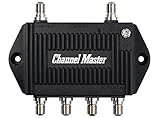
- Enhanced Replacement for Ulta-Mini Model CM-3414
- 4 Output Ports - Splits TV Antenna Signals to Four Rooms While Boosting Signals. (Replaces standard four-way splitters and improves signal)
- Works With All Indoor or Outdoor TV Antennas - Can Be Installed Indoor, Outdoor or in Attic Due to its Compact Size and Heavy-Duty Weatherproof Housing.
- Designed and Optimized Exclusively for TV Antennas (Not Compatible with Cable and Satellite TV Signals)
- Improves Signal Strength, Decreases Pixelation and May Increase Number of Channels
3. Check location permissions
A correct physical location is not enough if the browser, phone, or tablet is blocking location access.
Do these 3 things before closing this tab:
1Clear out junk files and repair common Windows errors2Fix the driver behind crashes, sound loss and screen glitches3Repair Windows errors before they cause bigger problemsBrowser
Open the browser’s site permissions for YouTube TV and make sure Location is set to Allow. Close and reopen YouTube TV after changing the permission, then repeat the verification.
Phone or tablet
Open the device’s app permissions and allow YouTube TV—or the browser being used for verification—to access location. If the device offers a choice between approximate and precise location, use precise location for the verification attempt.
For TV-based playback, also check the permissions on the phone used at the verification page. A location permission problem on that phone can prevent the TV app from confirming the Current playback area.
4. Disable VPNs and proxies
Turn off any VPN, proxy, privacy relay, or network configuration that deliberately obscures your location, then retry YouTube TV. These services can make your internet connection appear to be in another city or state. YouTube TV identifies VPN and proxy connections as a cause of playback restrictions.
A VPN is therefore not a legitimate way to obtain another market’s local channels. It can produce the location mismatch that triggers the error, even when your phone’s GPS location is correct.
5. Look for an IP-location mismatch
Your device’s physical location and your internet connection’s IP location do not always agree. This is more common with some wireless home-internet, satellite, and other nontraditional connections, where the provider’s IP address may be geolocated to a different city or may change frequently.
Rank #3

- 𝐒𝐮𝐩𝐞𝐫 𝐒𝐢𝐠𝐧𝐚𝐥 𝐁𝐨𝐨𝐬𝐭: TV antenna amplifier built-in 2026 latest upgrade 4G/5G LTE Filter, blocks unwanted wireless signals, clear up any low-strength fuzzy or pixelated channels for clear smooth pictures and stable channel reception
- 𝗕𝗲𝗳𝗼𝗿𝗲 𝐲𝐨𝐮 𝗕𝘂𝘆𝗶𝗻𝗴: Please check the signal strength in your area: If a lot of green channels available, you DO NOT need using antenna booster; If a lot of yellow or orange channels available, suggest adding a tv signal amplifier to boost signal
- 𝐄𝐚𝐬𝐲 𝐭𝐨 𝐈𝐧𝐬𝐭𝐚𝐥𝐥: Just connect the tv antenna booster between tv antenna and TV or STB box; tv antenna amplifier works with any antennas; The number of channels reception will vary depending on how far away you are from broadcast tower
- 𝐀𝐝𝐣𝐮𝐬𝐭𝐚𝐛𝐥𝐞 𝐑𝐚𝐧𝐠𝐞: The tv antenna signal booster built-in an DB tuner, you can turn left and right to adjust the TV antenna amplifier dB(gain range between 5dB to 25dB), tv antenna booster help your TV find the best signal reception
- 𝐏𝐥𝐞𝐚𝐬𝐞 𝐍𝐨𝐭𝐞𝐬: If your house is close to broadcast tower & signal is strong, you DO NOT NEED it; if your house far away from tv tower & signal is poor, you NEED it; If your TV antenna is already equipped with an amplifier, you DO NOT NEED it
Try this diagnostic comparison:
- Connect the phone or computer to the same home network used by YouTube TV.
- Run the Current playback area verification.
- If it fails or shows an unexpected area, temporarily compare the result using mobile data, if available.
- Note the location shown in each case.
This comparison does not permanently fix the account and does not prove that your internet provider is at fault. It can show whether the home network is being geolocated differently from the device’s physical location. If the results conflict, record the details and give them to YouTube TV support.
6. Change Home area only after a permanent move
Home area should represent the subscriber’s actual residence. It is not a travel setting.
What’s actually slowing this PC down?
Pick the symptom - the matching free tool is one click away.
If you have permanently moved, update it on a computer:
- Open YouTube TV and select your profile picture.
- Choose Location.
- Select Update next to Home area.
- Follow the verification instructions for your new residence.
You must be physically located in the new Home area to change it, and Google limits Home area changes to two within a 12-month period. A short trip, hotel stay, vacation home, or visit to relatives is not an appropriate reason to use one of those changes.
If you have reached the change limit, cannot verify the new residence, or the account still shows the old area after a genuine move, contact official YouTube TV support rather than repeatedly attempting to change the setting.
7. Clear stale app or browser data
Old cookies, cached location information, or a stuck verification session can prevent a correct location from being accepted.
In a browser
- Close YouTube TV tabs.
- Clear the site’s cookies and cached data.
- Close and reopen the browser.
- Sign in again.
- Repeat Current playback area verification.
On a TV or mobile device
Force-close and reopen the YouTube TV app. If the error remains, restart the device and try the verification again. Depending on the device, signing out and back in can also refresh a stuck session, but do this only if you know the credentials for the subscribing account.
Rank #4
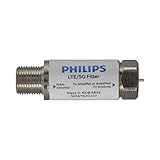
- FILTER 4G 5G LTE SIGNAL NOISE – This filter's TruAmp Technology blocks unwanted 4G/5G LTE cell phone and transmitter frequencies that can cause intermittent channel loss, pixilation and overall reception disruption while allowing lower 5-608MHz frequencies to pass through.
- COMPATIBLE WITH YOUR DEVICES – Designed to work with any TV, amplified TV antenna, coax cable or coax cable splitter, this LTE filter may be especially helpful in metropolitan and suburban areas with a high number of cell towers and mobile device users.
- NO HARDWARE OR POWER SUPPLY NEEDED - An F-type coax cable jack and port allow for easy in-line installation with your existing antenna setup – no hardware or external power supply is needed.
- WEATHERPROOF DESIGN – This compact filter is built to withstand the elements and can be used with indoor or outdoor antenna installations.
- U.S.-BASED TECHNICAL SUPPORT – Backed by a limited-lifetime replacement pledge and free U.S.-based technical support that is available Monday – Friday, 7AM-8AM, Central Time to assist with any questions or issues.
8. Restart the device and router
For a temporary app or network session problem, power-cycle the viewing device and router:
- Turn off or unplug the TV or streaming device.
- Unplug the router.
- Wait about 30 seconds.
- Reconnect and restart the router.
- Restart the viewing device and test YouTube TV.
This can clear a transient connection problem, but it cannot override a genuine Home area rule, an incorrect account setting, or a program’s geographic rights restriction. Buying a new router, HDMI cable, or streaming stick is not an established fix for this error.
9. Update YouTube TV and the playback environment
Install available updates for the YouTube TV app, television, or streaming device. On a computer, use a current version of Chrome, Firefox, or Safari; Google identifies Chrome as the preferred experience in its troubleshooting guidance.
Recommended Free Tools
Updating matters when the Location menu, verification prompt, or playback session is malfunctioning. It does not make a viewer eligible for home-market local channels while outside the relevant area. Location and content-rights rules still apply.
10. Check whether only one program is affected
If other channels play normally and only one sports event, local program, or network broadcast is unavailable, the problem may be a program-specific restriction rather than an account-wide location failure.
Availability can depend on:
- the viewer’s current or Home area;
- local broadcast rights;
- sports-league rules;
- the device being used; and
- network-partner requirements.
Do not keep changing Home area when the rest of YouTube TV works. Some recordings may become available after a live program finishes, depending on the restriction and whether the program was recorded.
Independent reader supportYour contribution helps us test, update, and keep practical guides available for everyone.11. Check family-group eligibility
For a shared YouTube TV membership, the family manager establishes the Home area. Family members are expected to primarily live in the same household and must periodically use YouTube TV in their home location.
Quick wins for a faster PC:
Repair Windows errors before they cause bigger problemsFix Now →Scan for outdated or missing drivers - takes under a minuteDriver Scan →Clear out junk files and repair common Windows errorsFree Scan →Best Value

- [Full HD Channels]: With our upgraded TV antenna, you'll no longer have to pay huge TV bills! As an advanced tool for life, it allows you to receive channels without paying monthly bill! It can receive full HD Channels like ABC, CBS, NBC, PBS, FOX and so much more. It also supports 4K 1080p, and other digital formats. (BEFORE YOU BUY:FIND CHANNELS THAT WORKSIN YOUR AREA on FCC.GOV The channels you will receive is subject to the signal coverage in your area)
- [Magnetic Base for Indoor/Outdoor Support]: The digital antenna not only supports indoor use, but also can be used in bad weather unaffected by thunderstorms. It also comes with a magnetic base, so you can put it on your car or other iron frame outdoors to keep it stable
- [18FT Reinforced & Thick Coaxial Cable]: It uses thick coaxial cable to make the transmission of 4K signal more stable. It's more solid and more suitable for outdoor use compared to other cables on the market, with stronger and more stable signal transmission
- [Signal Reception with Signal Booster]: The HDTV antenna can reach 180 miles and can be placed anywhere in your home, including on the roof. It also comes with a signal booster that can be turned on (green light on) when the distance exceeds 35 miles
- [Note]: Before you buy, please find out what channels are available in your area. Always rescan channels after moving the HDTV antenna or changing the range button may be better.Reception results may vary depending on your location, proximity to broadcast towers, and surrounding environment. For better reception, please refer to the instruction manual to install the antenna
Travel by a legitimate household member is different from maintaining a family group across separate households. A family member who permanently lives in another state or household should not use the family group as a substitute for an individual subscription. Changing Current playback area does not remove that household requirement.
12. Contact YouTube TV support
Use YouTube TV’s official Contact us flow while signed in to the subscribing account if all of these are true:
- Home area is correct;
- Current playback area is correct or verification will not complete;
- location permissions are enabled;
- VPNs and proxies are disabled;
- you have retried after clearing stale app or browser data; and
- the error remains after restarting the device and network.
Depending on the issue and account, support may offer chat, email, or phone assistance after you describe the problem and complete the troubleshooting prompts.
Prepare this information before contacting support:
- the exact “Outside Your Home Area” message;
- your device model;
- the YouTube TV app version or browser name and version;
- whether you are traveling;
- the Home area shown in the account;
- the Current playback area shown in the account;
- whether a VPN or proxy was enabled;
- whether verification at tv.youtube.com/verify succeeded; and
- whether the problem affects every channel or only one program.
What not to do
- Do not change Home area for a temporary trip. It is intended for a permanent change of residence and is limited to two changes in 12 months.
- Do not use a VPN or proxy to obtain another market’s local channels. YouTube TV may block playback through those connections.
- Do not assume new hardware will solve account geolocation. A router, Ethernet cable, HDMI cable, or streaming device does not change your Home area or content eligibility.
- Do not treat a family group as a workaround for separate households. Family members must primarily live in the same household.
- Do not assume every unavailable program indicates a broken account. Sports and local programming can have separate geographic or device restrictions.
Quick decision tree
| Situation | Best next step |
|---|---|
| You are temporarily traveling in the United States | Keep Home area unchanged and verify Current playback area. |
| You permanently moved | Update Home area while physically present at the new residence. |
| Your phone is in the right place but YouTube TV detects another area | Allow location access, disable VPN/proxy services, and test for an ISP IP-location mismatch. |
| Only one event or channel is unavailable | Check program-specific, sports, local-rights, or device restrictions. |
| A family member lives in another household | Do not use the family group as a location workaround. |
| Everything is configured correctly but the error persists | Contact YouTube TV support with the account, device, location, and verification details. |
Frequently Asked Questions
Usually, yes, while traveling within the United States. YouTube TV may show local networks for the place you are visiting, while national programming and Home-area recordings remain subject to restrictions. International programming access is unsupported.
Can I use YouTube TV while traveling outside my Home area?
No. Home area is for your actual residence and should be changed only after a permanent move. Use Current playback area for temporary travel.
Should I change my Home area when I go on vacation?
The app or browser may lack location permission, a VPN or proxy may be changing the apparent location, or your internet provider’s IP address may be geolocated elsewhere. Check permissions, disable location-obscuring services, and compare verification on the home network with mobile data.
Why does YouTube TV show the wrong location when my phone is in the right place?
Frequent travelers generally need to use YouTube TV in the Home area at least once every three months. MLB viewers may need to use it there at least once every 30 days to help avoid MLB-related restrictions.
How often must I use YouTube TV in my Home area?
The Bottom Line
Most “Outside Your Home Area” errors are resolved by verifying Current playback area and allowing location access—not by changing Home area. Keep Home area tied to your residence, disable VPNs and proxies, check for an ISP location mismatch, and escalate to YouTube TV support if verification still fails.
Quick Recap
Product prices and availability are accurate as of the date/time indicated and are subject to change. Any price and availability information displayed on Amazon at the time of purchase will apply.