Recommended Free Tools
If Twitch shows “The video download was canceled. Please try again. (Error 1000)” or “Media Playback Aborted,” the player could not continue loading or playing the video. Twitch describes error 1000 as a playback-compatibility problem, with possible causes including an outdated browser, an interfering extension, unsupported playback features, or regional availability limits. Try the low-impact checks first, then compare browsers, devices, and networks to isolate the cause.
Start with these quick checks
- Refresh and compare content: Reload Twitch, then try another live channel and a VOD. If just one video fails, the issue may be specific to that stream or VOD.
- Open a private or incognito window: Sign in if needed and retry the affected video. Make sure extensions are not permitted in that window.
- Disable extensions: Test with ad blockers, privacy tools, script blockers, Twitch add-ons, downloaders, and other extensions turned off.
- Update and restart the browser: Install its current update, close all Twitch tabs, and reopen the browser.
- Delete Twitch site data: Remove Twitch cookies and site data, then sign in again and test.
- Temporarily turn off traffic-routing or filtering tools: This includes VPNs, proxies, DNS filters, browser VPN extensions, antivirus web filtering, and router-level ad blocking.
- Compare another browser, network, or device: Each comparison helps identify whether the problem is local to one browser, device, or connection.
- Escalate if it persists: If multiple streams fail across browsers, devices, and networks, check Twitch’s current status and contact Twitch Support with details of your tests.
Twitch’s playback troubleshooting guide recommends testing extensions, updating the browser, clearing data, disabling VPN or rerouting software, and comparing networks and devices.
What Twitch error 1000 means
The message is about playback, not proof that you canceled a download or that Twitch is offering a downloadable video. Video players request media in segments as they stream; an aborted media request can produce wording like “video download was canceled.” A general HTML5 player error reference associates similar wording with MEDIA_ERR_ABORTED, but that does not establish the exact internal cause of every Twitch error 1000.
Twitch lists several possible explanations rather than one confirmed cause for every occurrence. The error can affect live playback or VODs, and it may relate to browser or app compatibility, an extension interfering with player requests, stale site data, a changed network route, a device-specific problem, a stream feature or regional limitation, or a temporary Twitch-side issue.
#1 Best Overall
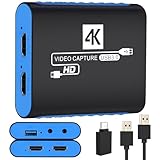
- 【USB3.0 YUY2 1080P 60FPS Recording】: Enjoy crystal-clear, vibrant video recordings with uncompressed YUY2 1080P 60FPS format, ensuring no loss of quality due to compression artifacts.
- 【4K@30Hz Signal Input & Pass Through】: Experience exceptional image quality with a maximum HDMI input and pass-through resolution of 4K@30Hz, free of frame lag, allowing real-time previews without missing any detail.
- 【Plug and Play & Ultra-low Latency】: Effortlessly set up with plug-and-play functionality and no need for a power supply. Benefit from ultra-low latency pass-through signals for seamless video capturing or gaming.
- 【Built-in 3.5mm Audio Input/Output Port】: Capture audio directly from microphones, headphones, or musical instruments without additional converters. Includes a 3.5mm audio port for added convenience.
- 【Seamless Streaming】: Perfect for professional streamers and content creators, this capture card ensures top-notch quality for live gameplay streaming on platforms like Twitch, YouTube, and more.
Fixes to try in order
Use private browsing to test the browser profile
- Open a private or incognito window in your browser.
- Go to Twitch, sign in if necessary, and play the same channel or VOD.
- If it works, return to your normal browser window and disable extensions until you find the one associated with the failure.
Private browsing is a diagnostic test, not necessarily a lasting fix. Some browsers allow extensions in private windows, so confirm that they are actually disabled there.
Check extensions and content filters
Twitch identifies extensions—especially ad blockers—as possible playback problems. Temporarily turn off ad blockers, Twitch-enhancement add-ons, anti-tracking tools, script blockers, user-agent or header modifiers, video downloaders, developer extensions, and security products that inject content into pages. Reload Twitch and try again.
If playback returns, re-enable extensions one at a time to identify the conflict. Disabling privacy or ad-blocking protections can change your browsing experience; if an extension offers a reliable, specific Twitch control, use that rather than leaving protections off across all sites.
Update the browser
Twitch supports the two latest versions of Chrome and Firefox and the latest versions of Edge, Safari, Opera, and Opera GX for desktop web playback. The support page describes relative version limits, not fixed browser version numbers, so check its current supported-browser policy rather than relying on an old version list. Twitch notes that unsupported browsers may work but are not guaranteed to support every feature.
Rank #2

- 【1080P HD High Quality】Capture resolution up to 1080p for video source and it is ideal for all HDMI devices such as PS4, PS3, Xbox One, Xbox 360, Wii U, DVDs, DSLR, Camera, Security Camera and set top box. Note: Video input supports 4K30/60Hz and 1080p120/144Hz. Does not support 4K120Hz/144Hz. Output supports up to 2K30Hz.
- 【Plug and Play】No driver or external power supply required, true PnP. Once plugged in, the device is identified automatically as a webcam. Detect input and adjust output automatically. Won't occupy CPU, optional audio capture. No freeze with correct setting.
- 【Compatible with Multiple Systems】suitable for Windows and Mac OS. High speed USB 3.0 technology and superior low latency technology makes it easier for you to transmit live streaming to Twitch, Youtube, Facebook, Twitter, OBS, Potplayer and VLC.
- 【HDMI LOOP-OUT】Based on the high-speed USB 3.0 technology, it can capture one single channel HD HDMI video signal. There is no delay when you are playing game live.
- 【Support Mic-in for Commentary】Rybozen capture card has microphone input and you can use it to add external commentary when playing a game. Please note: it only accepts 3.5mm TRS standard microphone headset.
These are desktop update paths; labels can vary by operating system and release:
- Chrome:
chrome://settings/help - Firefox: open the About Firefox menu, or visit
about:supportfor troubleshooting information. - Edge:
edge://settings/help - Opera:
opera://update - Safari: use macOS Software Update.
After updating, fully close and reopen the browser before testing Twitch.
Clear Twitch-specific site data
- Open Twitch in the affected browser.
- Select the site-information icon beside the address bar and open the cookies, site-data, or site-settings controls.
- Delete data for Twitch and associated Twitch domains if the browser lists them.
- Close all Twitch tabs, restart the browser, sign in again, and test playback.
Removing Twitch data can sign you out and reset site preferences. If the targeted reset does not help, you can try the browser’s built-in option to clear cached files and cookies more broadly; a full cookie deletion affects other websites too. Browser dialogs differ, so check the selected data categories before confirming.
Temporarily disable VPNs and other routing or filtering tools
Turn off a commercial or corporate VPN, proxy, browser VPN extension, DNS filter or secure-DNS product, antivirus web filter, router-level ad blocker, or Apple Private Relay or similar relay where applicable. Reload Twitch and retry. These services can change your apparent IP address, DNS resolution, route, or request behavior; Twitch advises logging out of VPNs or software that reroutes requests through another IP address.
Crashes, No Sound, or Screen Glitches?
Random freezes, missing sound and display glitches usually trace back to one bad driver. Find and replace yours safely.Free scan · under a minuteWindows Errors? Fix Them Before They Spread
Repair common Windows errors and clear accumulated junk for a smoother, more stable PC - no reinstall needed.Free scan · no reinstallRank #3

- 4K60 Capture: Record in cinematic quality with crisp detail and vivid colors
- HFR Support: Play and capture in 1440p120 or 1080p240
- HDR10 Support: Capture brilliant HDR content with tone mapping on Windows
- Cross-Platform Compatible: Works with PS5, Xbox Series X/S, Switch 2, and more
- Analog Audio In: Capture in-game chat or commentary with 3.5mm input
Use this only as a test: a VPN or relay may be required for work or privacy, and turning it off changes those protections. Buying a VPN is not a general fix; routing tools can add their own playback or regional complications.
Compare another supported browser
Try a current browser from Twitch’s supported list: Chrome, Firefox, Edge, Safari on Apple devices, Opera, or Opera GX. The point is to isolate the fault, not to assume one browser is universally best. If Twitch works in another browser on the same device and network, focus on the original browser’s extensions, profile, site data, or installation.
Compare networks
Try another Wi-Fi network or a phone hotspot; where practical, compare Wi-Fi with a wired connection. You can also restart your router and temporarily disable router-level filtering. If Twitch works on a hotspot but not home Wi-Fi, investigate the home router, DNS, firewall, filtering, or ISP route. If it fails on every network, focus instead on the device, browser, account, stream, or Twitch service.
A router restart that restores playback is useful evidence of a temporary network-state problem, not proof of a Twitch bug.
Free tools Windows power users keep installed
One-click scans. No signup required.
Rank #4

- High-Quality Video Capture, 4K HDMI Capture Card Ready: Capture smooth and vibrant video with this 4K HDMI capture card, engineered for gamers and content creators who demand crisp 1080P 60FPS video quality. Whether you're streaming to Twitch or recording gameplay for YouTube, your footage will look professional and detailed
- Plug-and-Play USB Capture Card, No Drivers Needed: Designed as a USB capture card for streaming, this device works instantly out of the box, just plug into your PC or laptop and start capturing. Fully compatible with popular software like OBS Studio, Streamlabs, and XSplit, making setup quick and stress-free for beginners and pros alike
- Universal Compatibility PS5, Xbox, Switch & More: Stream or record gameplay from virtually any HDMI-enabled device including Nintendo Switch, PS5, Xbox Series X, DSLR cameras, and PCs. The video capture card for gaming supports seamless passthrough so you can play without lag while your audience watches every frame in real time
- Low-Latency Performance for Smooth Streaming: This capture card for streaming minimizes delay between gameplay and broadcast, so you get reliable, low-latency capture that works well for competitive gaming, live broadcasts, and podcast sessions. Suitable for those building their channel with high-quality, engaging content
- Compact & Portable Design for Content Creators: Lightweight and portable, this USB 3.0 capture card works well for creators who travel or switch gaming setups often. Throw it in your bag and stream or record wherever you are, at home, events, LAN parties, streaming or studio sessions
Compare devices and apps
Test the same video in a desktop browser and on a phone, or in a browser and the Twitch app. You can also try another computer on the same network. If playback works on another device connected to the same network, investigate the original device’s browser, app, operating system, security software, or media stack before changing the router.
For the Twitch app, force-close and reopen it, install any available update through its official app store, and sign out and back in. Clear app cache only where the operating system provides that option. Reinstalling is a later step; make sure you can sign back in, and first check whether Twitch also fails in a supported browser.
Optional: test hardware acceleration
If the problem is isolated to one browser or device, disabling hardware acceleration is a reversible advanced test sometimes suggested by third-party troubleshooting coverage. Twitch’s current error-1000 guidance does not list it as a primary fix, so do not treat it as a confirmed Twitch-specific cause. Turn it off in the browser’s settings, fully restart the browser, and retry playback. If there is no improvement—or other video playback worsens—turn it back on; disabling it can increase CPU use.
Optional Windows network reset
These commands are not Twitch-specific and are not a first-line fix for a browser-only problem. On Windows, an administrator can open Command Prompt and run:
Quick wins for a faster PC:
Scan for outdated or missing drivers - takes under a minuteDriver Scan →Repair Windows errors before they cause bigger problemsFix Now →Best Value

- 4K Capture Card for Gaming: Seamlessly capture and stream with PS5, PS5 Pro, Xbox, and Nintendo Switch gameplay to Discord in 1080p or stunning 4K resolution. Perfect for Twitch, YouTube, and video streaming with OBS Studio and Streamlabs.
- 4K60 HDR and VRR Passthrough: Play at up to 4K60, 1440p144 or 1080p240 with HDR and VRR passthrough while recording for smooth gameplay on supported displays.
- VRR Recording and Ultrawide Support: Record VRR up to 1440p60 or 1080p240 with Streaming Center, plus 3440x1440 and 2560x1080 input support for 21:9 gaming.
- 5.1 Audio and OBS Workflow: Capture 5.1-channel audio on Windows with Streaming Center or Streaming Center Plug for OBS through the USB 3.2 Gen 1 Type-C connection.
- Console, PC, Mac and iPad Support: Capture unencrypted HDMI from PS5, Xbox Series X/S, Switch 2 or PC using Windows 10/11, macOS 13/14+ or iPadOS 17+.
ipconfig /flushdns
netsh winsock reset
The first command clears the local DNS resolver cache. The second resets the Winsock catalog and normally requires a restart. Administrator access may be required, and resetting network components can affect VPNs, security software, or custom network configurations. A third-party guide describes these commands for Twitch playback troubleshooting: MundoWin’s Windows instructions.
Independent reader supportYour contribution helps us test, update, and keep practical guides available for everyone.Use the pattern of failures to find the likely cause
| What fails | Likely area to investigate | Next useful test |
|---|---|---|
| Normal browser window, but not private browsing | Extension, cookies/site data, or browser profile | Disable extensions, then remove Twitch site data. |
| One browser, but other browsers work on the same device | That browser’s profile, extensions, site data, or installation | Update it, test a clean profile, or reset Twitch site data. |
| Every browser on one device, but other devices work | Device-level security software, operating system, app, or media playback interaction | Temporarily test web filtering; update the device; use hardware acceleration only as a reversible advanced test. |
| Every device on one network, but a hotspot works | Router, DNS filtering, firewall, ISP path, or network instability | Disable filtering temporarily, restart the router, or contact the ISP if other video services also fail. |
| Multiple devices and networks, across several channels and VODs | Possible Twitch-side, regional, or account-specific issue | Check current Twitch status and contact support if it persists. |
| Only one channel or VOD | Stream-specific availability, VOD processing, regional limits, or broadcaster settings | Try other Twitch content before changing device or network settings. |
When Twitch may be the source of the problem
If several channels and VODs fail on multiple devices and networks, a Twitch-side incident or regional service issue becomes more plausible than a single browser fault. That pattern alone does not confirm an outage. Check Twitch’s current status channels when you encounter the problem; the available support guidance does not establish whether Twitch is down at any particular moment. If only one stream fails, it may be a content-specific issue rather than a general playback failure.
Contact Twitch Support with useful evidence
If multiple streams still fail after browser, extension, site-data, network, and device checks, send Twitch Support enough detail to reproduce and diagnose the issue. Twitch’s supported-browser guidance requests browser and operating-system details, reproduction steps, screenshots, and browser console logs.
- The channel or VOD URL, the exact error text and number, and whether it affects live streams, VODs, or both.
- The date and approximate time of the failure, including your time zone.
- Your browser name and exact version, operating-system name and version, and device model.
- What happened when you tried private browsing, another browser, network, or device.
- A screenshot of the error.
- Console and Network-tab errors, if you can collect them safely.
On desktop, open developer tools with F12 or Ctrl+Shift+I (shortcuts can vary). Select the Console and Network tabs, reload Twitch, and record relevant red errors or failed requests. Do not share passwords, authentication tokens, or other private account data in logs or screenshots.
The Tool Desk
Outbyte PC Repair FREEClear out junk files and repair common Windows errorsFree Scan →Outbyte Driver Updater FREEFix the driver behind crashes, sound loss and screen glitchesFind Drivers →Quick Recap
Product prices and availability are accurate as of the date/time indicated and are subject to change. Any price and availability information displayed on Amazon at the time of purchase will apply.