Some links on this page are affiliate links: if you buy through them we may earn a commission, at no extra cost to you.
Yes, 5.1 surround sound is available on many streaming services—but it is not guaranteed by a subscription, a title listing, or a 5.1 speaker system alone. The program and selected audio track, streaming app, playback device, connection, and receiver or soundbar must all work together. This guide shows how to check each link, choose a reliable connection, confirm what is actually playing, and troubleshoot stereo-only output.
What 5.1 surround sound means
A 5.1 mix has six channels: front left, center, front right, surround left, surround right, and a low-frequency effects (LFE) channel. The “.1” refers to that limited-bandwidth effects channel, commonly routed to a subwoofer; it does not mean every setup must have a separate subwoofer in precisely the same configuration. YouTube’s explanation of 5.1 describes the channel arrangement.
- 2.0 stereo has left and right channels.
- 5.1 has five main channels plus LFE.
- Virtual surround uses processing to suggest sounds are coming from more directions than the physical speakers provide. It is not the same as discrete 5.1 from separate channels and speakers.
- Dolby Atmos is an immersive, object-based format, not simply another name for 5.1. An Atmos mix may include a surround bed, but rendering depends on compatible content and equipment.
A soundbar advertised as “5.1” may use separate rear speakers, virtualize rear effects from the bar, or bundle a subwoofer without rear speakers. Check the actual speaker layout before treating the label as proof of discrete surround.
Services: check the title, not just the brand
“This service supports 5.1” can mean that some titles have a 5.1 track, not that every program, language, device, or app delivers it. Availability may vary by region, subscription plan, title, playback platform, and connection. Before troubleshooting hardware, open the audio or language selector for the program you are watching.
#1 Best Overall
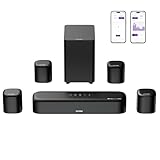
- 7.1ch Dolby Atmos Surround Sound System for TV: This 7.1ch sound bar features 3 main channels for crisp dialogue and 4 surround speakers. Power the rear right surround speaker to pair it wirelessly with sound bar. The setup delivers an immersive surround sound audio experience, making you feel fully engaged in the action. Note: Recommended for space of 108 to 270 ft².
- 4 Surround Speakers for Home Theater Sound System: The Aura A60 Pro soundbar for tv comes with 2 wired front surround speakers and 2 wired rear surround speakers, positioned to create a wide, room-filling soundstage. The rear speakers connect wirelessly with the soundbar, minimizing cable clutter and optimizing space efficiency.
- Dolby Atmos Delivers an Immersive 3D Soundscape: This 7.1ch dolby atmos soundbar enhances your listening experience with multidimensional audio that surrounds you from every direction, upgrading your home theater with powerful, dynamic sound that brings each scene to life.
- 5.25-inch Wired Subwoofer with BassMX Technology: The Aura A60 Pro sound bar comes with a 5.25" wired subwoofer powered by BassMX technology to boost low-frequency performance. An optimized magnetic structure and diaphragm produce deep, powerful bass. Enjoy enhanced low-end sound and experience the impact of every beat.
- Precision Audio Tuning Redefined: Customize your audio experience with the Ultimea App, designed for precise sound control. It provides 121 professionally tuned EQ presets across styles such as Bass, Pop, Classical, and Rock, along with 10-band control and 6 tailored EQ modes including Movie, Music, Voice, Sport, Game, and Night. Using the advanced “Customize” option, you can adjust audio details to suit your personal taste, ensuring every sound is tuned exactly how you prefer.
| Service | What to check | Important qualification |
|---|---|---|
| Netflix | During playback, open the audio and subtitles menu and look for an audio option marked 5.1. | Netflix says many shows and movies offer 5.1, but support depends on the title and device. Do not assume an ordinary 5.1 track has the same plan requirement as Atmos. Netflix: 5.1 surround sound. |
| Disney+ | Check the title’s available audio and the receiving device’s supported format. | The service advertises up to 5.1 and Dolby Atmos where supported; actual playback varies with content, plan, device, and connection. Disney+ plan and audio information. |
| Prime Video | Check the title’s audio options and confirm the device supports the listed format. | Prime Video documents 5.1 and Atmos on supported content and devices; platform support varies. Prime Video help. |
| YouTube | On a compatible video and device, open the player controls and look for the 5.1 surround option. | Many uploads are stereo. The control appears only when the video and playback device support 5.1. YouTube 5.1 playback. |
| YouTube TV | 5.1 can turn on automatically for supported programs and devices. Use the program’s playback diagnostics if unsure. | Not every program or channel has 5.1. Turning it off may restore secondary audio options, including descriptive audio or other languages. YouTube TV 5.1 help. |
For any other service, verify its current help information for your specific device and title rather than inferring support from another app or platform. A service can carry 5.1 in its catalog while a particular episode, live channel, language track, browser, or TV app delivers only stereo.
Understand the format your system is receiving
| Label | What it means in practice |
|---|---|
| Dolby Digital (AC-3) | A compressed surround format common in legacy receivers, optical connections, DVDs, and broadcast systems. Some older equipment handles it but not the newer streaming format Dolby Digital Plus. |
| Dolby Digital Plus (E-AC-3 or DD+) | A more efficient compressed format widely used for streaming. Dolby describes it as supporting up to 7.1 channels and designed for over-the-top delivery. Support must exist across the source, connection path, and receiving device. Dolby Digital Plus overview. |
| PCM | Digital audio that may be stereo or multichannel. “PCM” alone does not tell you the channel count. Apple TV 4K can output multichannel PCM in some configurations, so check the receiver’s channel information rather than assuming PCM means stereo. Apple TV audio-format settings. |
| Dolby Atmos | An immersive format that requires compatible content, playback device, connection path, and soundbar or AVR. Netflix lists Atmos for selected titles and requires a plan supporting Ultra HD; check the service’s current requirements. Netflix Atmos requirements. |
Atmos should not be treated as a guaranteed upgrade to every 5.1 track. A system can play ordinary 5.1 without Atmos, and an Atmos source may be rendered as a more conventional surround signal when some part of the chain does not support Atmos.
Trace the complete equipment chain
A typical path is service and title → app → TV or streaming device → HDMI, ARC/eARC, or optical → soundbar or AV receiver → speakers. Any link can restrict the signal to stereo or require format conversion.
Free tools Windows power users keep installed
One-click scans. No signup required.
- Source: The title must have a 5.1 track and the app must offer it on that device.
- Playback device: The TV app, streamer, or console must support the service’s audio format. Roku, Apple TV, Fire TV, Google TV, compatible smart TVs, and current consoles are common options, but exact capabilities differ by model and app. Roku’s setup guidance and YouTube’s supported-device information illustrate why compatibility is platform-specific.
- Receiver or soundbar: It must decode or accept the format arriving over the chosen input. Some older AVRs decode Dolby Digital but not Dolby Digital Plus. Netflix specifically identifies this as a possible cause of playback trouble. Netflix troubleshooting for Dolby Digital Plus.
- Speakers: The system must have a way to reproduce the channels. TV speakers can process or simulate surround, but they cannot create five discrete physical speaker positions.
Choose the connection that suits your system
Option 1: Streamer directly into the AVR or soundbar
Streaming device → HDMI input on AVR/soundbar → HDMI output → TV
This is often the most reliable route for audio because the receiver or soundbar gets the signal directly instead of relying on the TV to pass it back. It is particularly useful with an older TV and a capable receiver. The trade-off: the AVR or soundbar must also pass through the video formats you need, such as 4K HDR, Dolby Vision, or high-refresh-rate gaming.
Rank #2

- 7.1ch Home Theater Sound Bar for TV: Upgrade your TV audio with a 7.1-channel virtual surround sound system designed for movies, music, sports, and gaming. Poseidon D70 combines a sound bar, 4 surround speakers, and a subwoofer to create a wider, more immersive home theater experience than standard TV speakers.
- 4 Surround Speakers for Room-Filling Sound: This soundbar with surround speakers includes 4 wired surround speakers to help expand the sound field around your room. Place the speakers in front and rear positions to enjoy more detailed surround effects, clearer direction, and a more cinematic TV listening experience.
- Wireless Subwoofer for Deep Bass: The included subwoofer connects wirelessly to the sound bar for audio, adding stronger low-frequency impact for action scenes, music, and games without needing an audio cable back to the soundbar. Please note: the subwoofer still needs to be plugged into a power outlet with the included power cable.
- 410W Peak Power with Deep Bass: With 410W peak power and a dedicated subwoofer, this home theater sound system delivers fuller sound and deeper bass for movies, TV shows, gaming, and music. Enjoy stronger impact from explosions, sound effects, and bass-heavy scenes while keeping dialogue and details clear.
- 7.1 Virtual Surround Sound System: Poseidon D70 uses virtual surround processing with multiple speakers to create a more spacious surround sound experience. It is ideal for customers who want a soundbar with rear speakers and subwoofer for a stronger home theater setup without using a traditional AV receiver.
Option 2: Streamer or TV app to TV, then ARC/eARC to the audio system
Streaming device or TV app → TV → ARC/eARC → AVR or soundbar
This makes sense when the TV is your main app and device hub. ARC can carry common compressed surround formats, but the result depends on the TV, source, receiver, and settings. A combination may pass Dolby Digital Plus, convert it to Dolby Digital, or downmix to stereo.
eARC offers more bandwidth and is the preferred return path for configurations needing high-bandwidth formats such as multichannel PCM or some Atmos implementations. It is not a magic compatibility fix: the TV, receiver or soundbar, source settings, ports, and cable must all support the intended format. Apple says its high-bandwidth form of Dolby Atmos on Apple TV 4K does not work over ordinary ARC. Apple’s Atmos connection guidance.
Option 3: Optical for older equipment
TV or compatible device → optical (S/PDIF) → older AVR or soundbar
Optical is not simply “stereo only”: it can carry compressed Dolby Digital 5.1 when the source and receiving equipment support it. But it generally cannot carry multichannel PCM or the higher-bandwidth formats used by modern Atmos configurations. Streaming often uses Dolby Digital Plus, so a TV or device may need to convert it to Dolby Digital—and some TVs provide only stereo over optical from internal apps or HDMI inputs. If DVDs worked but streaming does not, check whether the old receiver accepts AC-3 but not E-AC-3.
Do these 3 things before closing this tab:
1Scan for outdated or missing drivers - takes under a minute2Clear out junk files and repair common Windows errors3Fix the driver behind crashes, sound loss and screen glitchesSettings to check on common devices
Labels and menu locations can change with model and software version. Treat these as starting points and consult the device’s current help page if the exact wording differs.
Rank #3

- Simplified 5.1ch Dolby Atmos Setup: Enjoy immersive 4D sound with real Dolby Atmos and 5.1-channel audio. Five built-in speakers, including two side-firing drivers, create wide surround without rear speakers. Precision DSP ensures <0.5 ms latency for smooth, theater-like sound. Setup takes less than 1 minute.
- Voice Clarity Enhancement: VoiceMX technology uses advanced DSP algorithms to isolate and enhance vocal frequencies in real time. Dialogue remains crisp and easy to follow by separating speech from background effects and music, even at low volumes or during intense scenes.
- 300W Output with 6-Driver System: Featuring five precision-tuned full-range drivers and a dedicated wired wooden subwoofer, the system delivers up to 300W of peak power for bold, room-filling sound. With a frequency response of 45 Hz–18 kHz and a maximum SPL of 99 dB, it reproduces everything from subtle nuances to explosive cinematic effects.
- 18 mm High-Excursion Driver: Powered by BassMX technology, the wired wooden subwoofer features a 18 mm high-excursion driver, a 5.3L tuned cabinet, and a high-density magnetic circuit. This design delivers deeper, tighter bass with greater air displacement and enhanced low-frequency performance—bringing more realism to every scene.
- HDMI eARC for True Dolby Atmos: HDMI eARC supports up to 37 Mbps of bandwidth, unlocking the full potential of lossless Dolby Atmos 5.1-channel audio. Compared to standard ARC, eARC delivers richer surround effects and greater detail. CEC integration allows the TV and soundbar to work together with unified control.
Roku
- Connect the Roku by HDMI to the TV, receiver, or soundbar.
- Open Settings and find the audio or display-and-audio settings.
- Choose an automatic, passthrough, or compatible surround option that matches the devices in the chain.
- In the streaming app, select a track marked 5.1 if one is available.
- Check the AVR or soundbar’s input information for a multichannel format.
Roku’s surround setup guidance covers compatible players and connected equipment. If the receiver accepts Dolby Digital but not Dolby Digital Plus, a supported TV or Roku configuration may be able to transcode DD+ to Dolby Digital; the exact behavior depends on the model and connection. Roku surround setup · Roku audio and connection guidance.
Apple TV 4K
- Open Settings → Video and Audio → Audio Format.
- Leave Change Format off when the connected system supports the formats being sent.
- If a receiver or soundbar cannot decode the incoming format, turn Change Format on and choose Dolby Digital 5.1 if offered and appropriate for your system.
- For Atmos, confirm that the title, Apple TV, connection path, and receiving device support it. Use eARC where the system requires the additional bandwidth.
Apple documents the available audio-format controls and the use of Dolby Digital 5.1 conversion. Apple TV audio setup · Apple TV Atmos setup.
YouTube
- Play a video on a compatible device.
- Open the player controls and choose the 5.1 surround sound option if it appears.
- Check the receiver or soundbar for multichannel input.
If the control is absent, the video or device may not support 5.1. YouTube’s 5.1 instructions.
Windows Errors? Fix Them Before They Spread
Repair common Windows errors and clear accumulated junk for a smoother, more stable PC - no reinstall needed.Free scan · no reinstallOutdated Drivers Are Slowing You Down
One free scan finds every outdated or missing driver and matches the right update for your exact hardware.Free scan · exact hardware matchYouTube TV
5.1 is generally enabled automatically when a program, app, device, and audio system support it. To disable it if it causes problems, open the YouTube TV app, choose the account avatar, then Settings → 5.1 audio, and switch it off. For diagnostics, play a program, open the player controls, choose More, then the bug icon for Stats for nerds; the codec information may show AC-3 or E-AC-3 when a supported surround stream is being used. Availability varies by program and device. YouTube TV 5.1 help.
Rank #4

- 7.1ch Virtual Surround Sound for TV: Equipped with three dedicated front channels for clear, focused dialogue and four surround speakers, this soundbar system delivers a rich, room-filling soundstage. Powered by SurroundX technology and AI audio tuning, it synchronizes all speakers to create precise sound positioning and lifelike motion for a more immersive home theater experience.
- Stable Hybrid Connection for 4 Surround Speakers: The front surround speakers connect to the soundbar via dedicated FR/FL cables, while the rear speakers connect through a rear surround cable and pair wirelessly with soundbar. If pairing is unsuccessful, press and hold the “SURROUND” button on the remote for 5 seconds until “SUR” flashes, then hold the “PAIR” button on the rear right speaker for 5 seconds until the indicator light flashes and turns solid once connected.
- 4 Adjustable Surround Speakers: The Aura A40 soundbar features 2 front wired surround speakers and 2 rear surround speakers to deliver precise front-to-back sound projection for a more immersive, room-filling experience. With 13 adjustable surround levels, the rear speakers connect wirelessly to the soundbar, minimizing cable clutter and maximizing layout flexibility.
- Ultimea Smart App Control: Control your sound experience with the Ultimea smart app, offering multiple EQ presets, adjustable frequency bands, and sound matrix tuning. Enjoy regular OTA firmware updates to keep your system optimized, delivering a smooth and premium listening experience with your 7.1 virtual surround system.
- 121 Preset EQ Matrices: Access 121 professionally tuned EQ presets in the Ultimea App, designed across four sound styles—Bass, Pop, Classical, and Rock. Fine-tune your audio with precise adjustments to match your personal listening preferences.
How to verify you are getting real multichannel audio
- Inspect the input signal. Look for Dolby Digital, Dolby Digital Plus/E-AC-3, Dolby Atmos, or multichannel PCM in the receiver or soundbar’s information panel.
- Check the app’s track selector. Confirm that the selected language or audio track is marked 5.1, where the service exposes that label.
- Check channel count, not just the codec name. PCM could be stereo or multichannel. Use the receiver’s channel indicators or signal information.
- Distinguish source channels from upmixing. A receiver may spread stereo across several speakers using Dolby Pro Logic, Neural:X, DTS Virtual:X, or an “AI surround” mode. Temporarily disable such processing and inspect the incoming signal. Speaker activity alone does not prove native 5.1.
- Use a reliable channel test. The receiver’s built-in speaker test can verify wiring. A multichannel test video can test a stream, but user-uploaded material may have been converted to stereo; do not treat any upload as definitive by itself.
- Listen for the center channel. Film dialogue is commonly anchored in the center channel in a discrete 5.1 mix. This is a useful clue, but listening alone is not proof of the source format.
Troubleshooting: why is it playing in stereo?
- Does this exact title or program offer 5.1? Check its audio selector. A service’s general support for surround does not guarantee it on every program.
- Does the chosen language track have 5.1? Another language, descriptive audio track, or alternate mix may have a different channel layout.
- Does this app support 5.1 on this device? Compare with another supported device if available; TV, browser, console, and streamer versions of the same app can differ.
- Can the receiver decode the format? If the receiver supports AC-3 but not E-AC-3/DD+, use a supported conversion setting, connect the streamer directly to a capable AVR or soundbar, or use equipment that can decode DD+. Netflix documents DD+ incompatibility as a potential issue. Netflix format troubleshooting.
- Is the connection path suitable? Confirm the cable is in the TV port labeled ARC/eARC if using that return path. Optical may require Dolby Digital conversion and generally cannot carry multichannel PCM.
- Is the output set to pass through or send compatible audio? Check the TV’s digital-audio output, passthrough/bitstream setting, streamer audio format, and receiver input mode. Avoid forcing PCM stereo when the intent is compressed surround.
- Is the correct input active? Verify the soundbar/AVR input, HDMI-CEC/ARC settings, and that the TV is sending audio to the external system rather than its own speakers.
- Is the software current? Restart the app and devices, and check for available app, TV, streamer, and receiver firmware updates.
If the receiver displays only “PCM,” do not conclude immediately that surround is missing. Determine whether it reports two-channel or multichannel PCM. Likewise, a receiver displaying “Dolby Digital” may be receiving a converted signal rather than the original streaming codec; the important question is whether the signal contains the intended channels.
When an equipment upgrade may help
Do not replace working equipment until you have checked the title, app, settings, and connection. If a real limitation remains, address the link that is causing it:
- Consider a dedicated streamer if the TV app lacks 5.1 support or the TV has limited audio controls. A new streamer still cannot overcome an incompatible receiver or badly configured connection.
- Consider a soundbar with rear speakers if you want physical rear-channel playback without a full AVR-and-speaker setup. Check support for Dolby Digital Plus, HDMI ARC/eARC, and the formats you actually need. A bar that virtualizes surround is a different proposition from one with separate rear modules.
- Consider an AVR if you want discrete speakers and broader format and input flexibility. Confirm Dolby Digital Plus decoding, multichannel PCM, desired Atmos support, eARC, and video passthrough for your sources.
- Keep optical when it meets the need. It can remain a practical path for compressed Dolby Digital 5.1 with older equipment. Replace or reroute it only if the format, channel count, or video/audio features you want exceed its limits.
- Use HDMI audio extractors cautiously. They add another compatibility point; confirm support for your exact video format, audio codec, channel count, and device before buying.
For ordinary 5.1, the most important HDMI-cable considerations are a functioning cable and the bandwidth needed for the video and return-audio features in use. Do not pay a premium on the assumption that an “audiophile” HDMI cable improves digital 5.1 sound quality.
Quick Recap
Quick checklist
- The specific title or program offers 5.1, and the selected audio track supports it.
- The app on this particular TV, streamer, or console supports multichannel playback.
- The AVR or soundbar accepts the delivered format, especially Dolby Digital Plus if the source uses it.
- The HDMI, ARC/eARC, or optical path supports that format and is connected to the correct ports.
- The output setting is set for compatible surround or passthrough, rather than stereo downmix.
- The receiver’s input information confirms multichannel audio; speaker activity alone is not enough.
Product prices and availability are accurate as of the date/time indicated and are subject to change. Any price and availability information displayed on Amazon at the time of purchase will apply.

