Some links on this page are affiliate links: if you buy through them we may earn a commission, at no extra cost to you.
Some Blu-ray players can stream Netflix, but only if the exact model has a Netflix app that still works with the service. A network connection or Netflix button alone does not guarantee compatibility. Check your model number in the manufacturer’s manual or support page first; if Netflix is supported, connect the player to your TV and internet, open the app, and sign in.
Check whether your Blu-ray player supports Netflix
Start with the model number, usually printed on the player’s front or rear panel, or listed under Settings. Search that number on the manufacturer’s support site and check its manual, app list, and available firmware. Sony, for example, warns that Netflix compatibility varies by model and recommends checking model-specific support information (Sony’s Netflix compatibility guidance).
A basic Blu-ray player may only play discs. A network-connected model may have Wi-Fi or Ethernet but still lack Netflix. A “smart” or “Netflix-ready” player may have offered the app when it was new, yet no longer support it because of changes to its software, security requirements, region availability, or Netflix service access. A Netflix button on the remote indicates intended access, not a guarantee that the app still works.
Check the player’s Home screen for Netflix under Apps, Internet Apps, Network Services, or a similar heading. Do not assume you can download it from a general app store: many Blu-ray players use closed app platforms that cannot add or restore services. Internet access by itself does not mean the player can run Netflix.
#1 Best Overall

- Enjoy Blu-ray Disc movies in Full HD as well as DVD discs
- Upscale your DVDs to near HD quality
- Easy set-up with included HDMI cord
- Boot up in less than a second with super quick start mode
- Keep things simple with the new user-friendly interface
What you need
- A Blu-ray player with documented, currently available Netflix support.
- A TV with a compatible input, normally HDMI, and an HDMI cable.
- An internet connection, by Wi-Fi or Ethernet.
- An active Netflix membership and its sign-in details.
- The Blu-ray remote; if using Wi-Fi, the network name and password.
For HD or 4K/HDR, the player, Netflix app, TV, cable and HDMI connection must all support the relevant format and copy-protection requirements. Disc playback specifications do not establish what the Netflix app can stream. A USB port is not normally a substitute for the player’s Wi-Fi or Ethernet connection.
Connect the Blu-ray player to your TV
- Turn off the TV and Blu-ray player.
- Connect an HDMI cable from the player’s HDMI OUT port to an available HDMI input on the TV.
- Turn both devices on and use the TV remote’s Input or Source button to select that HDMI input.
- Confirm that the Blu-ray player’s home screen appears.
If your TV has no HDMI input, older analog connections may not provide reliable support for modern streaming formats. A newer TV or a separate streaming device with a compatible connection may be the more practical solution.
Connect the player to the internet
Wi-Fi
- On the Blu-ray player, open Settings, Network, or Network Settings.
- Choose Wireless, Wi-Fi, or Wireless Setup.
- Select your home network and enter its password.
- Run the connection test, if offered, and confirm it succeeds.
Ethernet
- Connect an Ethernet cable from your router to the player’s LAN or Ethernet port.
- Open the network settings and choose wired or automatic setup.
- Run the connection test.
Ethernet is a good option if the player is near the router or Wi-Fi is weak and Netflix buffers. Network menu names and setup steps vary by model; use the player’s manual if the labels differ.
Recommended Free Tools
Open Netflix and sign in
Open Netflix with a dedicated Netflix button on the remote, or find it on the player’s Home screen under Apps or Network Services. If the app opens, choose Sign In. Depending on the model, you can enter the email address or phone number and password for your Netflix account on the TV, or the player may display an activation code and instructions to finish on a phone or computer. Follow the prompts shown by your device; not every player uses the same sign-in flow. Signing in to Netflix is separate from activating the Blu-ray player itself.
Rank #2

- Play Media from External Storage: Plug in an external hard drive to these compact DVD players for TVs to share your favorite movies, photos, and more on a large screen
- Multi-Connectivity DVD Blu Ray Player: HDMI-CEC and USB connectors; interfaces with multiple file formats in video (MKV/MP4) and audio (MP3/FLAC/ALAC/DSD/ WAV)
- Compact Size: Space-saving design allows this Bluray/DVD player for tv to fit neatly in narrow spaces and on thin racks. Dimensions: Approx. 9 5/8" W x 1 1/2"H x 6 7/8"D
- High-Quality Picture Resolution: With full HD support, BD84P-K Panasonic DVD players beautifully up-converts images to high-definition image quality (1080p) video, rendering your favorite movies in fine detail
- High-Resolution Audio Playback: Hear clear, superior audio from this Blu-Ray DVD player in action, adventure, dialogue, and music with Dolby Digital sound for DVDs, CDs, and compatible external files
If Netflix is not listed, check the exact model’s support page and update the player’s firmware if an update is available. If the app still cannot be found, the model’s platform may not offer it or may have lost service access. A generic app-store search or repeated network setup will not necessarily restore it.
Sign out or switch accounts
On many Netflix TV-connected interfaces, press Back to open the menu. If needed, move left to the profile icon, choose Get Help, then Sign out and confirm. Menu wording can vary.
If you cannot find Sign out, Netflix documents this remote sequence: Up, Up, Down, Down, Left, Right, Left, Right, Up, Up, Up, Up. The menu that appears may offer Sign out, Start Over, Reset, or Deactivate; choose the appropriate option for your device (Netflix sign-out and UI-108 guidance). Signing out removes the account from that player; it does not cancel the Netflix membership.
Free tools Windows power users keep installed
One-click scans. No signup required.
Troubleshoot Netflix on a Blu-ray player
Work through the checks that match the symptom. Menu names vary, so use the manufacturer’s instructions for model-specific settings.
Rank #3
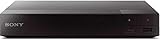
- Multi-Region & Zone-Free – Play Blu-ray and DVDs from any region (A, B, C / 0-6) without restrictions. Compatible with both PAL and NTSC formats for worldwide playback.
- Wi-Fi Connectivity & Streaming – Built-in Wi-Fi allows seamless access to popular streaming services like Netflix, YouTube, and more (subscription required).
- Versatile Connectivity Options – Equipped with 1 HDMI, 1 USB, 1 Coaxial, and 1 Ethernet port for flexible setup with TVs, sound systems, and external storage.
- Full HD 1080p Upscaling – Enjoy sharp, high-definition picture quality with upscaling technology that enhances standard DVDs for a stunning viewing experience.
- Bonus HDMI Cable Included – Comes with a high-speed 6-foot HDMI cable for easy plug-and-play setup right out of the box.
Netflix is missing
- Confirm that the exact player model has internet capability and documented Netflix support.
- Check that it is connected to the internet, then review the manufacturer’s support page for your model and region.
- Install available firmware updates and restart the player.
- If the manufacturer recommends it, restore the player’s original settings. A reset can erase Wi-Fi details and other settings, so record what you will need beforehand.
- Contact the manufacturer if Netflix remains unavailable.
Some older app platforms cannot reinstall a retired app. Netflix’s guidance for deactivated Blu-ray players is to update firmware, restore original settings if appropriate, and contact the manufacturer; if service cannot be restored, use another device (Netflix guidance for Blu-ray players).
Sign-in fails or Netflix shows UI-108
UI-108 can be associated with stored device information or a network problem. First sign out and sign back in. If the app is stuck at an error screen, check for More Details and choose Sign out or Reset; if necessary, use the remote sequence above.
- Turn off the Blu-ray player.
- Unplug the modem and router for about 30 seconds. Reconnect the modem and wait for it to stabilize, then reconnect the router.
- Turn the player on and try Netflix again.
- If the problem continues, improve the Wi-Fi signal or try Ethernet.
Follow Netflix’s UI-108 troubleshooting steps if the error remains.
Netflix freezes, buffers, or stays on a loading screen
- Fully turn off or unplug the player briefly, then restart it rather than leaving it in standby.
- Restart the home network.
- Check whether Netflix works on another device on the same network. If other devices also fail, investigate the network; if only the Blu-ray player fails, focus on its app, firmware, or connection.
- Try another title to see whether the issue is limited to one program.
- Move the player nearer the router or use Ethernet, and install any available firmware update.
Netflix’s loading and freezing guidance recommends restarting the device and checking whether the fault affects one device or the network more broadly. If the player’s app is out of date and no update is available, contact the manufacturer.
Rank #4

- This Certified Refurbished product is tested & certified to work like-new. The product is backed by a 90 day warranty.
- Preloaded Apps: Netflix, Pandora, YouTube, Vudu, Facebook, CinemaNow, Accuweather, Rhapsody, Flingo, Flickr, Twitter, Hulu Plus, and over 100 more on the Opera Apps Store.
- Wi-Fi Built In: With Built in Wi-Fi, you can access all your Smart Blu-ray features and apps wirelessly.
- Video Upscaling (DVD): With HD Upconversion, DVD video is auto-enhanced to bring you near-HD quality.
- The screen mirroring feature allows you to mirror your phone or other compatible mobile device's screen onto the TVs screen wirelessly.
Black screen with sound
- Confirm that the TV is on the HDMI input connected to the player.
- Disconnect and reconnect the HDMI cable; try another TV HDMI input and, if available, another cable.
- Restart the player and TV.
- If an AV receiver or soundbar is between the player and TV, temporarily connect the player directly to the TV.
- Check the player’s video-output resolution and whether the TV, player, and any receiver in the signal path support the required HDCP version.
A black screen with sound can point to the video connection or connected hardware rather than the Netflix account. See Netflix’s black-screen troubleshooting.
Sound is missing, distorted, or out of sync
Check that HDMI or optical cables are fully seated, then test another cable if possible. Review the player’s audio-output mode and try PCM if a receiver or soundbar does not handle the selected bitstream format. Check whether the problem also occurs with Blu-ray discs: if it does, the player, cable, or audio equipment is more likely involved than Netflix alone. The receiver or soundbar must support the format the player sends. Netflix recommends checking connections, restarting the player, and consulting the equipment maker for model-specific settings (Netflix audio troubleshooting).
The screen says Netflix has been deactivated on this device
Treat this as a possible service-compatibility issue, not simply a password error. Install any available player firmware update, restart the player and network, and contact the manufacturer. Consider a factory reset only if the manufacturer recommends it; note Wi-Fi details and settings first. If the manufacturer cannot restore Netflix access, Netflix recommends using another device (Netflix’s Blu-ray-player guidance).
Quick wins for a faster PC:
Repair Windows errors before they cause bigger problemsFix Now →Fix the driver behind crashes, sound loss and screen glitchesFind Drivers →Clear out junk files and repair common Windows errorsFree Scan →Netflix works on another device but not the Blu-ray player
That does not prove the player is compatible: support is device-specific. Check its model, firmware, region, and plan compatibility. Older devices may be limited to the country where they were purchased; consult the manufacturer if the player was bought in another region (Netflix device and regional compatibility information). Casting from a phone is not a guaranteed workaround; it requires a compatible receiving device, and many Blu-ray players are not supported cast targets (Netflix casting guidance).
Best Value
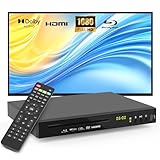
- 【Full HD 1080p Playback】– Watch the latest Blu-ray discs in stunning Full HD quality, with far greater depth and clarity than DVD. Supports Region A/1 Blu-ray discs and DVDs. Also upscales standard DVDs to near HD resolution via HDMI, so your favorite movies look better than ever.
- 【Premium Surround Sound】– Enjoy clear, high-fidelity surround sound with support for DTS Audio, Dolby Digital, Dolby Digital Plus, and Dolby TrueHD. Every fine detail of the original recording is preserved for a true home theater experience.
- 【All-in-One Playback & Wide Compatibility】– This premium blu ray dvd player handles Blu-rays, DVDs, CDs, and USB media files with ease. Supports a wide range of formats including BD, BD-R, BD-RE, DVD-R/RW,DVD+R/RW, DVD-Video, VCD, CD, and CD-R/RW. Easily play digital files via USB flash drive or HDD (USB 2.0, up to 128GB), compatible with MP3, WMA, WAV, JPEG, MPEG2, and AVI. Elevate your home entertainment and enjoy your favorite videos hassle-free.
- 【Easy Connection to TV or Projector】– Connect quickly using the included HDMI cable. This player offers three output options: HDMI for Blu-ray video playback, composite AV for TV connection (note: does not support Blu-ray discs), and coaxial audio for connecting to your home sound system. Enjoy a flexible and enhanced entertainment setup.
- 【Reliable & User-Friendly】– Built with high-quality materials, a top-grade drive core, and premium components for reliable daily use. Features progressive scan technology for faster reading and noise reduction, anti-skip protection for smooth viewing, and customizable playback options (skip, fast forward/rewind, zoom, A-B repeat). The modern LCD display adds a sleek and elegant look to your entertainment setup.
Picture quality, 4K, HDR, and audio
A Netflix logo, network port, or 4K Blu-ray disc capability does not guarantee 4K Netflix. Streaming quality depends on the player and its Netflix app, the title, your plan and playback eligibility, the TV, internet performance, output settings, and the complete HDMI/HDCP chain. For Ultra HD, Netflix gives 15 Mbps or higher as a steady connection guideline for supported devices; that is not a guarantee that a particular Blu-ray player can stream in 4K (Netflix Ultra HD requirements).
HDR also requires compatible content, a supported plan and app, and HDR-capable playback equipment and TV. The HDMI path may need HDCP 2.2 or later, depending on the setup (Netflix HDR requirements). Older network Blu-ray players are more likely to be useful for basic HD than for current 4K or HDR streaming. Surround sound likewise depends on the title, player, receiver or soundbar, and output settings.
Plan support can be a separate limitation. On supported TV-connected devices, look in the Netflix app for Get Help or Settings and a Plan Compatibility option. If that option is absent, Netflix says the device cannot be used with an ad-supported experience. Some older players cannot update their app or operating system enough to support that plan (Netflix ad-supported plan compatibility).
Do these 3 things before closing this tab:
1Clear out junk files and repair common Windows errors2Scan for outdated or missing drivers - takes under a minute3Repair Windows errors before they cause bigger problemsKeep troubleshooting or use a separate streamer?
Keep using the Blu-ray player for Netflix if its app opens reliably, it receives updates, basic HD is enough, and its speed and remote suit you. It may be convenient when the player is already connected and you also use it for discs.
A separate streaming device is the more practical choice if Netflix is missing or deactivated, firmware support has ended, the app repeatedly crashes, your plan is unsupported, or you want newer streaming features and better responsiveness. This is often a better-value fix than buying another Blu-ray player solely for Netflix. A dedicated streamer normally plugs into an HDMI input on the TV; it usually does not connect through the Blu-ray player. If every TV HDMI port is occupied, switch cables or use a compatible HDMI switch.
For U.S. buyers, Roku’s official lineup showed these price points on August 18, 2026; prices and promotions can change, so check the current product listing before purchase. A Netflix membership is separate and is not included with the hardware.
- Roku Streaming Stick — $29.99 observed: An HD option for a non-4K TV or a basic replacement. Roku lists a voice remote with TV controls. Check Roku’s product listing.
- Roku Streaming Stick Plus — $39.99 observed: A value 4K/HDR choice. Check the exact listing for supported formats; do not assume Dolby Vision. See Roku’s player lineup.
- Roku Streaming Stick 4K — $49.99 promotional price observed, against a $79.99 list price: A compact option listed with 4K, HDR10+, and Dolby Vision. The observed offer was limited-time. Check the current product page.
- Roku Ultra — $99.99 promotional price observed, against a $149.99 list price: A premium option listed with 4K, Dolby Vision, Dolby Atmos, Ethernet, and a rechargeable backlit remote. It is unnecessary if you only need basic Netflix HD. The observed offer was limited-time. Check Roku Ultra.
Confirm TV compatibility and current features at purchase. A more capable streamer cannot make an incompatible TV or HDMI chain deliver a format it does not support.
Quick Recap
Product prices and availability are accurate as of the date/time indicated and are subject to change. Any price and availability information displayed on Amazon at the time of purchase will apply.

