The most flexible way to convert VHS to digital is to play the tape in a compatible VCR and capture its analog output on a computer. Connect the VCR’s composite or S-Video output and separate red/white audio outputs to an analog USB capture device, record the tape in real time, preserve the resulting video file, and create a DVD afterward only if you need one.
If you only want a physical disc and do not need an editable computer file, a compatible VHS/DVD combo recorder or standalone DVD recorder can dub the tape directly. However, damaged or irreplaceable tapes should not be played as a DIY experiment; professional transfer is safer.
Choose the workflow first
There are two practical ways to convert VHS:
| Goal | Best workflow | What you receive |
|---|---|---|
| A reusable digital file that you can edit, back up, upload, or use to make multiple discs | VCR → analog capture device → computer | A video file on the computer, with DVD creation as an optional later step |
| A disc for playback without setting up computer capture | VCR → compatible DVD recorder, or a VHS/DVD combo recorder | A DVD, subject to the recorder’s supported media, recording modes, and finalization rules |
For most home videos, the computer workflow is the better long-term choice. It creates a reusable file before you make viewing copies. A direct VHS-to-DVD dub is simpler when a playable disc is the only result you need, but it gives you less flexibility and makes the recorder—not your computer—the center of the process.
The basic computer signal chain is:
VHS tape → VCR → composite or S-Video video plus left/right RCA audio → analog USB capture device → computer video file → optional editing and DVD authoring.
#1 Best Overall

- 【Video to Digital Converter】Effortlessly convert and store analog video and audio signals into digital formats, Recording resolution up to 1080P 30Hz. Supports AV/RCA (CVBS+R/L), S-Video, and AUX inputs. Plug and play, No PC, Software, Driver Needed. NOTE: This is a Converter/Recorder/Capture box only, can NOT play with any tapes and DVDs independently.
- 【USB/SD Card for Storage】Equipped with a 3.0" preview LCD and built-in speaker. No capacity limitation for the USB drive or TF card (not included). Enables direct playback of recorded videos and audios, as well as preview snapshots on the capture box. For high-capacity USB storage devices, please ensure using its own power supply.
- 【Video & Audio Format】Store video in MP4 format or audio in MP3 format. Supports NTSC-M/J 3.58, NTSC 4.43, PAL B/G/H/I/D (PAL/N) standard TV formats input. Audio sampling rate up to 48KHz with uncompressed 2-channel LPCM digital audio output. Setup Reminders: Ensure either CVBS R/L (AV input) or AUX-IN (3.5mm) is properly connected. In settings (HOME -> Settings), verify Video-IN-Volume and AUX-IN-Volume are unmuted for the selected input.
- 【Broad Compatibility】Supports recording and digitizing video for VHS, VCR, DVR, DVD, Hi8, camcorders, Mini DV, Cassette Tape Player, and retro gaming consoles.
- 【What You Get】Video Recorder x1(Players Not included, Such as VHS, VCR, Camcorder, VHS, VCR, DVR, DVD, Cassette, Hi8, Mini DV Players, Camcorder, Gaming Consoles ), Power Adapter with USB type A to C Cable x1, Remote Control (2*AAA Batteries Not Included) x1, AV Cable x1, 3.5mm Audio Cable x1, User Manual x1 with a hassle-free 2-year warranty and lifetime technical support. Reach out to our friendly customer service for any questions.
What you need for computer capture
- A working VCR. It must be able to play the cassette’s format and television standard. A standard VHS VCR may not correctly play S-VHS, PAL, SECAM, or other variants.
- An analog USB video-capture device. It should accept composite video and stereo audio; S-Video input is useful when both the VCR and capture device support it. Examples include the Hauppauge USB-Live2 and Elgato Video Capture. These are examples of documented equipment, not claims that either is universally best.
- Video and audio cables. Composite normally uses a yellow RCA plug for video and red/white RCA plugs for right/left audio. S-Video carries video only, so the red/white audio cables are still required.
- A computer with sufficient free storage. Leave room for the original capture, a second viewing copy, temporary files, and any edited exports.
- Capture software. Use the software supplied with the device, or another application that recognizes the device. OBS can work with many capture cards through its Video Capture Device source when the device exposes a compatible driver, but OBS does not provide a universal VHS preset.
- Optional editing or DVD-authoring software. Capture first; decide afterward whether you need trimming, chapters, menus, or a DVD.
- A second storage destination. An external drive or another separate location is preferable to keeping the only copy on the capture computer.
When shopping for cables, look for composite RCA cables and S-Video cable that match the connectors on your VCR and capture device. Cables do not convert VHS by themselves; they only carry the analog signal between compatible equipment.
Composite versus S-Video
Composite combines the video signal into one cable, usually the yellow RCA connection. S-Video separates portions of the video signal and can provide higher clarity when the VCR and capture device both support it. It does not carry sound, so connect the red and white audio outputs separately in either setup.
Composite setup:
VCR yellow video out  → capture device composite video in
VCR red/white audio out → capture device right/left audio in

S-Video setup:
VCR S-Video out → capture device S-Video in
VCR red/white audio out → capture device right/left audio in
Use the VCR’s output connectors and the capture device’s matching input connectors. Do not assume that every RCA socket on a VCR is an output. Check the labels before connecting the cables.
Before you play the tape
Identify the cassette and television standard
Confirm what you have before buying or connecting equipment:
The Tool Desk
Outbyte Driver Updater FREEFix the driver behind crashes, sound loss and screen glitchesFind Drivers →Outbyte PC Repair FREERepair Windows errors before they cause bigger problemsFix Now →- Standard VHS: the familiar full-size cassette.
- VHS-C: a compact cassette commonly used in camcorders. It may require the compatible camcorder or an appropriate adapter, and the playback equipment still has to support the recording.
- S-VHS: a higher-resolution variant that may require an S-VHS-capable VCR for proper playback.
- NTSC, PAL, SECAM, or PAL/60: television standards associated with different regions and recordings. The VCR, capture device, and software must work together; support by one component does not guarantee compatibility across the whole chain.
For example, Hauppauge documents USB-Live2 capture at 720 × 480 for NTSC and 720 × 576 for PAL. Elgato’s documentation lists NTSC, SECAM, PAL, and PAL/60 support for its Video Capture workflow. Check the current documentation for the exact device and operating system before purchase, particularly if the tape was recorded outside the region where you live.
Step-by-step: capture VHS to a computer
-
Prepare the computer and workspace
Install the capture device’s software and driver according to its instructions. Create a clearly named folder for the project, such as
Family_1987_Tape_01, and confirm that the computer has enough free space. Disconnecting the device or allowing the computer to sleep during capture can interrupt the transfer, so use a stable power source and disable automatic sleep for the expected recording period. -
Connect the VCR to the capture device
With the VCR and computer ready, connect either the yellow composite video output or the S-Video output. Then connect the VCR’s red and white audio outputs to the corresponding audio inputs on the capture device. If you use S-Video, do not omit the audio cables: S-Video carries no audio.
Quick wins for a faster PC:
Fix the driver behind crashes, sound loss and screen glitchesFind Drivers →Clear out junk files and repair common Windows errorsFree Scan →Scan for outdated or missing drivers - takes under a minuteDriver Scan →Special offer. See more information about Outbyte and uninstall instructions. Please review EULA and Privacy policy.Avoid adding an HDMI converter unless a particular setup requires one. A VHS VCR normally produces analog composite or S-Video, so a capture device with those analog inputs is the more direct connection.
-
Select the input and video standard
Open the capture application and choose Composite or S-Video to match the cable you connected. Select the television standard that matches the tape and playback equipment. Choosing S-Video in software while the cable is connected to composite, or choosing the wrong regional standard, can produce no picture, incorrect colors, or an unstable image.
Rank #2
 Capture Card, USB Video Capture Card Device, Audio Video Converter Grabber for RCA to USB-Convert VHS Mini DV VCR Hi8 DVD to Digital, for PC TV Tape Player Camcorder, MAC Windows Vista Compatible
- AV TO USB Converter: Capture videos and audios from VHS, VCR, Hi8, DV tapes to a PC, with the help of our USB Video Converter. Save room while digitizing your favorite old memories
- Quality Capture Card: Our USB Video Capture Card converting anolog RCA composite input into HD 720P USB output and capturing audio without any sound card. Advanced signal processing technology provides you with great precision, colors, resolutions, and details.
- Plug and Play: Automatically install the driver once you hook up this RCA to USB Converter to a PC. No external power is needed. User-friendly and easy to operate
- Wide Compatibility: The Video Capture Card can work with video devices with RCA connector or S-Video connector, such as VHS, VCR, Hi8, camcorder, compatible with Windows and Mac OS. Support video formats like NTSC, PAL, and support brightness, contrast, hue, and saturation control
- Note: The Video Converter is used with acquisition software. We recommend OBS Studio or PotPlayer for Windows, and QuickTime Player for Mac. They can be downloaded for free online. Please operate according to the steps in User Manual or contact us if you have any questions
Use the capture device’s native or documented settings rather than upscaling the VHS signal during capture. VHS does not become higher-detail footage merely because it is recorded into a larger modern video frame.
-
Make a short test recording
Insert the cassette, rewind or cue it to a representative section, and press Play. Confirm that the preview shows a picture and that the audio meters move. Listen for both channels and check that the sound stays synchronized with the picture.
Special offer. See more information about Outbyte and uninstall instructions. Please review EULA and Privacy policy.Test a few different moments if possible: a quiet section, a scene change, and a portion where the original tape has tracking problems. Correct the input, standard, audio source, or tracking before committing to the full transfer.
-
Capture the entire tape in real time
Start recording in the capture software, then press Play on the VCR. A two-hour tape generally takes about two hours to capture because the computer is recording the signal as it plays. The exact time depends on the cassette’s length and playback speed.
Do not close the capture application, disconnect the capture device, change inputs, or allow the computer to sleep while the transfer is running. If the tape contains several unrelated recordings, it is usually safer to capture the whole side first and trim a copy later than to stop and restart repeatedly.
Hauppauge documents USB-Live2 as recording MPEG-2 files and supplying capture software. Elgato’s guided workflow saves captured movies to the computer’s Movies or Videos folder. The precise file extension, folder, and available controls depend on the device and software version.
Do these 3 things before closing this tab:
1Clear out junk files and repair common Windows errors2Scan for outdated or missing drivers - takes under a minute3Repair Windows errors before they cause bigger problemsSpecial offer. See more information about Outbyte and uninstall instructions. Please review EULA and Privacy policy. -
Save the original capture
When the tape reaches its end, stop the recording and close it cleanly so the software can finish writing the file. Give the file a descriptive name containing the tape number, subject, date if known, and capture standard—for example,
Tape_01_Birthday_1987_NTSC_original.mpg.Keep this first complete capture unchanged. If you need to remove blank sections, commercials, damaged starts, or unwanted scenes, create an edited copy rather than overwriting the original. Also retain a convenient viewing export if the original file is large or uses a format that your preferred player does not handle well.
Rank #3
 VHS to Digital Converter 4" Screen,Convert VCR to MP4,No Computer Needed
- 【No Computer Needed-Standalone VHS to Digital Converter】Convert analog video and audio to digital MP4 with up to 1080P resolution-no computer,no software,or no drivers required.Just connect your VHS,VCR,Camcorder,or Hi8 player and press record to preserve precious memories.One-click recording, the simplest option for a beginner. Note:This converter box does not play tapes or DVDs independently;a working VCR or camcorder is required.
- 【4"LCD Preview & Large-Capacity USB/TF Storage】Built-in 4-inch preview screen and speaker let you watch recordings in real time.HDMI output connects to your TV or monitor for shared viewing.Supports USB drives and TF cards up to 512G each (not included).Files may auto-split by length or size with no impact on playback quality.
- 【Multi-Function Recording & Smart System Settings】 The high-performance video converters supports independent video recording (S‑Video/CVBS) and audio recording (R/L/AUX), plus screenshot and timed recording. Resolution can be set to 1080P or auto-detect (NTSC/PAL compatible), with multiple output formats available. This vcr to digital converter also includes a built-in USB/TF speed test function for stable recording with your vhs player and mini dv player.
- 【Wide Compatibility with Vintage Video Devices】 As a full-featured vhs to digital converter, it digitizes video and audio from vhs player, vcr player, mini dv player, DVD players, DVRs, camcorders, Hi8, retro game consoles, tapes, and more. (Note: Working vcr player, camcorder, or tapes are required).
- 【Complete Accessories & Reliable After-Sales Support】 Package includes: 5V/1A power adapter, USB‑A to Type‑C cable, AV cable, AUX cable, user manual, and remote control. Converter Built with an ABS plastic shell for a lightweight and durable design. Size: 6.5" x 2.83" x 1.04", making it easy to install and store. Includes 2-year warranty and lifetime technical support. If you have questions about using it, contact us anytime and we will reply within 24 hours.
-
Review the result
Play the whole file or inspect it at regular intervals. Pay particular attention to the beginning and end, scene changes, sections with visible tracking errors, and any point where the capture preview appeared unstable. Confirm that the file opens on a second device or computer before erasing anything from the tape or capture computer.
How to preserve the digital video
A capture is not protected merely because it is digital. Keep at least two copies on separate storage devices; for irreplaceable family material, keep one copy in a different physical location or a reputable backup system. A single computer drive, USB stick, or burned disc should not be the only copy.
Recommended Free Tools
Keep the original capture and record basic information in a text file or spreadsheet:
- tape label and original format;
- known recording date, event, or people shown;
- VCR and capture device used;
- NTSC, PAL, SECAM, or other selected standard;
- capture date and software;
- file name, wrapper, codec, resolution, frame rate, and bitrate;
- audio channels and sample rate, when available;
- any tracking, dropouts, missing sections, or other problems.
Preservation guidance from FADGI discusses wrappers and encodings including MXF, AVI, MOV, Matroska, MPEG-2, uncompressed video, FFV1, and JPEG 2000. Those options are relevant to institutional preservation, but they do not mean that a consumer capture automatically becomes an archival master. For a home project, the practical priorities are to retain the untouched capture, document what was done, and maintain multiple copies.
Creating a DVD from the captured file
Decide which kind of DVD you want before burning anything.
Video DVD for a conventional DVD player
A playable video DVD must be authored into DVD-Video structure. Simply copying an MP4, MPG, or other video file onto a disc creates a data disc, not necessarily a disc that a living-room DVD player can play.
DVD-authoring software may create the required structure and can provide menus, chapters, and title selection. The source file may need to be converted to the DVD format and standard expected by the authoring software. Disc capacity, menu behavior, chapter support, and compatibility depend on the software and blank media.
Hauppauge documents the ability to burn recordings to DVD through its workflow, but its product information also states that disc-burning software is not included. Plan on supplying compatible authoring or burning software separately.
Rank #4

- This Video Capture Card Can transfer video and audio from VHS, VCR, DVD, Hi8, DV tapes, camcorders, or other video source devices with RCA or S-Video interfaces to your PC or Mac synchronously.
- Convert analog RCA/S-Video audio and video signal input to high-definition 1080P/30fps USB-A/USB-C output, digitize and save your good memories with your friends and family on your computer, share with your friends and family, leaving precious memories
- Plug and play, easy to operate, just connect the RCA or S-Video interface of your video recorder to the USB-A/USB-C interface of your computer or notebook and it can be used without any driver. Note: It needs to be used with the acquisition software
- Compatible with USB-A/USB-C interfaces, not limited by computer interfaces, compatible with Windows and Mac OS, supports NTSC, PAL and other video formats, and supports brightness, contrast, hue and saturation control
- Note: This video converter needs to be used with capture software, which can be downloaded free of chargge . We recommend OBS Studio or PotPlayer for Windows and QuickTime Player for Mac. Please feel free to contact us if you need technical support.
Data DVD containing a video file
A data DVD is simply storage for a digital file. It can be useful for transferring a file to a computer with an optical drive, but it is not automatically playable in a standard DVD player. Label it clearly so nobody mistakes it for a DVD-Video disc.
Neither type of DVD should be treated as the sole preservation copy. Optical discs can be scratched, lost, become difficult to read, or require hardware that is no longer common.
PC Slower Than It Used to Be?
A free scan shows the junk files, broken settings and background clutter dragging Windows down - then fixes them in one click.Free scan · Windows 10 & 11Outdated Drivers Are Slowing You Down
One free scan finds every outdated or missing driver and matches the right update for your exact hardware.Free scan · exact hardware matchDirect VHS-to-DVD without a computer
If you only need a disc, use either a VHS/DVD combo recorder with a dubbing function or a VCR connected to a DVD recorder’s analog line input.
- Connect the VCR’s composite or S-Video output and red/white audio output to the DVD recorder’s matching analog line input. A combo unit may already have the internal connection.
- Insert a blank disc supported by the recorder. For this workflow, check the requirements for blank recordable DVD discs, including whether the unit accepts DVD-R, DVD+R, rewritable media, or another type.
- Select the correct line input or the recorder’s VHS-to-DVD dubbing mode. Input labels such as L1, L2, Line 1, or AV may vary by model.
- Start recording on the DVD side, then start playback on the VHS side—or use the combo unit’s dedicated dubbing command.
- Wait for the tape section to finish. Do not eject the disc while it is being written.
- Finalize the disc if the recorder requires finalization before the disc can play in other DVD devices.
Sony’s support documentation confirms that compatible DVD/VHS recorders must use the appropriate line input for VHS-to-DVD dubbing and directs users to the model-specific operating instructions. Exact menus, recording modes, supported media, and finalization steps are not universal, so the recorder manual is essential.
Troubleshooting VHS capture
No picture
- Confirm that the VCR is powered on and the tape is actually playing.
- Check that the cable is connected to the VCR’s video output rather than an input.
- Make sure the capture device is connected to the computer and recognized by its software.
- Set the software to the physical input you used: Composite or S-Video.
- Try the other supported analog input if both are available, then make a short test recording.
- Confirm the NTSC, PAL, or SECAM selection.
Picture but no sound
- Check both red and white audio connections.
- Make sure left/right audio is connected to the capture device’s audio input, not an unrelated output.
- Confirm that the software is monitoring the capture device’s audio source and that its input is not muted.
- Remember that S-Video carries video only.
Wrong colors, rolling picture, or unstable image
Check the television-standard selection first. An NTSC/PAL/SECAM mismatch can cause an unusable picture. Confirm that the VCR can play the tape’s format and try the other analog input if the equipment supports it. Hauppauge documents software and hardware picture-adjustment controls, including color-related controls, but adjustment cannot solve a fundamental format or playback incompatibility.
Stuttering, dropped frames, or a broken capture
- Stop other demanding computer tasks and avoid using the machine for unrelated work during capture.
- Check the capture device driver and confirm that the software still recognizes the device.
- Make another short test recording before restarting the full tape.
- If using OBS, review the capture device’s buffering and format controls. The available settings vary by operating system, driver, and hardware.
- Keep the VCR and capture device connected directly where possible; unnecessary adapters add more potential failure points.
Audio and video gradually lose synchronization
Stop and test a short segment rather than letting the entire tape finish. Recheck the selected standard, driver, capture format, and audio source. If the issue appears only on one damaged or unstable section, note the problem in the project record; repeated playback may worsen a deteriorating tape.
The tape is a commercial copy or displays a copy-protection problem
Do not assume that a consumer capture setup can or should defeat copy protection. Sony’s analog dubbing instructions exclude copy-protected media from supported copying. Copyright and circumvention rules vary by jurisdiction, so do not promise a technical or legal bypass. For material you do not own or have permission to reproduce, obtain the necessary rights before copying or sharing it.
Independent reader supportYour contribution helps us test, update, and keep practical guides available for everyone.DIY or professional VHS transfer?
DIY makes sense when the tape plays normally, the format is familiar, the equipment is available, and you have time to monitor a real-time transfer. It is especially useful when you want to make several edits, backups, or DVDs from the same original capture.
Best Value
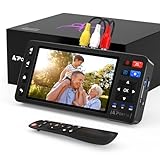
- 【Simple VHS to Digital Conversion】Easily convert your old VHS, Hi8, Mini DV, DVD, or camcorder footage into MP4 files—Connect, record, and preserve your memories in Full HD 1080p at 60fps.
- 【5-Inch HD LCD Preview Screen】Built-in 5" high-definition screen for real-time preview and playback—See what you’re recording instantly and ensure every moment is captured perfectly.
- 【Customizable Image Settings】Adjust brightness, contrast, and saturation directly from the screen for the best image quality. Fine-tune colors and lighting to make every frame vivid and clear.
- 【Flexible Storage Options】Save your videos directly to USB flash drives, TF cards, portable HDDs, and SSDs. Flexible storage ensures longer recording sessions and easy file transfers.
- 【Format & Device Compatibility】Supports AV (CVBS) and S-Video video inputs with R/L stereo audio and PAL, NTSC, and SECAM formats—compatible with VHS players, VCRs, DVRs, DVD players, camcorders, and retro gaming consoles.
A professional provider is usually the safer choice when the tape is damaged, unique, moldy, unusually formatted, recorded in a different television standard, or part of a large batch. The Library of Congress recommends choosing a provider experienced with the specific original format rather than treating all videotapes as interchangeable.
Commercial examples advertise delivery through USB drives, DVDs, cloud downloads, or digital files. Kodak Digitizing advertises several VHS delivery options, while Memory Recovery Lab advertises VHS transfer to USB or DVD and MP4 output. These are examples rather than endorsements; verify service area, current pricing, turnaround time, format handling, original-tape return policy, and how the provider protects your files before sending irreplaceable material.
Free tools Windows power users keep installed
One-click scans. No signup required.
Ask a service these questions:
- Can you handle this exact cassette format and television standard?
- What file format, resolution, and audio format will I receive?
- Will you provide the complete capture as well as a viewing copy?
- How are originals labeled, stored, and returned?
- What happens if the tape is moldy, broken, or too unstable to play?
- Are the files delivered by download, USB drive, DVD, or more than one method?
- Can you provide a short sample before processing the entire batch?
After conversion: editing and sharing
Make edits from a duplicate, not the preserved original. Common safe edits include trimming blank material, separating multiple events into files, correcting orientation metadata, adding descriptive filenames, and creating a shorter family-viewing version.
If you want to share digitized videos online, use a private or unlisted platform and share only footage you own or are cleared to broadcast. A cloud streaming service such as StreamNeo describes continuous streaming from a recorded video file, but that is an optional sharing step after conversion—not part of the VHS capture itself—and its stated use is limited to content that you own or have permission to broadcast.
Share a Digitized Video as a YouTube Live Stream
StreamNeo can turn an owned or licensed prerecorded video into a YouTube Live broadcast after you upload the video and paste your YouTube stream key. The stream runs in the cloud while your PC stays off, so you do not need to leave a capture computer or encoder running.
StreamNeo checks stream health every 30 seconds and automatically restarts a dropped stream. A 24-hour 720p/30fps trial is free with no card at signup, giving you a practical way to test a finished digitized video before committing to a longer broadcast.
What’s actually slowing this PC down?
Pick the symptom - the matching free tool is one click away.
Final VHS conversion checklist
- Identify the tape as VHS, VHS-C, S-VHS, PAL, SECAM, NTSC, or another format.
- Do not play visibly moldy, wet, sticky, cracked, or severely creased tape.
- Use a compatible VCR and an analog capture device with composite or S-Video input.
- Connect red and white audio separately, including when using S-Video.
- Select the correct physical input and television standard.
- Make a short test recording and check picture, sound, and synchronization.
- Capture the tape in real time without interrupting the application.
- Preserve the first complete capture before editing.
- Store at least two copies on separate storage devices or locations.
- Choose DVD-Video authoring for a conventional DVD player; a data DVD is only file storage.
- Finalize a directly recorded disc when the recorder requires it.
- Use a specialist service for damaged, unique, or difficult-to-play tapes.
Frequently Asked Questions
What equipment do I need to convert VHS to digital?
A working VCR, an analog USB video-capture device, composite or S-Video and red/white RCA cables, a computer with adequate free storage, capture software, and a second storage destination. DVD-authoring software and blank recordable discs are optional.
Can I copy VHS directly to DVD without a computer?
Yes, but only with compatible hardware. Use a VHS/DVD combo recorder or connect a VCR to a DVD recorder’s analog line input. Select the correct dubbing or line-input mode and finalize the disc if the recorder requires it.
What is the difference between a video DVD and a data DVD?
Not necessarily. A video DVD must be authored into DVD-Video structure for conventional DVD-player playback. Copying an MP4 or MPG file onto a disc creates a data DVD, which may only work on computers or compatible media players.
How long does it take to digitize a VHS tape?
A two-hour tape generally takes approximately two hours to capture because it must play in real time. Leave additional time for setup, testing, rewinding, file processing, review, and backups.
Recommended Free Tools
What should I do if my VHS tape is moldy or damaged?
Do not repeatedly play it or put it into a VCR. Mold, moisture, sticky surfaces, cracks, and severe creases can cause further damage to the tape and equipment. A professional audiovisual preservation or VHS transfer provider is the safer option.
The Bottom Line
Bottom line: For the most flexible and safest DIY workflow, connect a compatible VCR to an analog USB capture device, record the tape in real time to a computer, preserve the untouched file in multiple locations, and author a DVD only if you specifically need a conventional DVD-player disc. Use a professional transfer provider for damaged, irreplaceable, or format-incompatible tapes.
Quick Recap
Product prices and availability are accurate as of the date/time indicated and are subject to change. Any price and availability information displayed on Amazon at the time of purchase will apply.