Recommended Free Tools
Clearing Prime Video’s cache can fix corrupted temporary files, app freezes, crashes, slow menus, and some storage-related problems. It will not make a slow internet connection faster or resolve an Amazon-side outage. The correct method depends on whether you are using Fire TV, Android, iPhone, a smart TV, a streaming box, Windows, macOS, or a web browser.
Start with force-closing Prime Video and restarting your device. Then clear the cache only. Use Clear Data, Reset, or reinstalling only if the problem continues, because those options can remove settings, sign you out, and delete offline downloads.
When clearing the cache is worth trying
Cache clearing is most relevant when Prime Video is malfunctioning on one device. Try it if:
- Prime Video freezes while launching or playing a title.
- Menus are unusually slow or unresponsive.
- The app crashes or returns to the home screen.
- A title repeatedly fails to start while other apps work.
- An interface element remains stuck after an update.
- Your device reports low storage.
- Prime Video works on another device using the same account.
Cache clearing is unlikely to solve buffering across every streaming service, poor or unstable Wi-Fi, a title-specific availability problem, an unsupported device, an Amazon service disruption, or an HDMI/HDCP compatibility failure.
#1 Best Overall

- 【No Liquid】 Our VHS Head Cleaner Tape for VCR is a non-abrasive, dry cleaning solution designed to remove dust, dirt from your VHS player heads. With no liquid involved, it offers a quick and efficient cleaning process.
- 【Easy and Convenient to Use】 Simply insert the Vcr Cleaner into your VCR, press “PLAY,” and let it run until it stops and pops out. This easy step-by-step process ensures cleaning and allows for up to 30 reuses. Keeping your VHS player in optimal condition has never been easier!
- 【Enhance Video Playback Quality】 Dirty heads can lead to unstable playback and sound loss, affecting your viewing experience. Regularly cleaning your VCR player with our video head cleaner can help optimize the video playback, ensuring clear and smooth visuals with improved sound quality.
- 【Safe for VHS Player】 Clean dust, dirt, and contamination that can build up on your VHS player heads. Not suitable for fixing mechanical problems.
- 【24-HOUR Customer Service】 12-MONTH Replacement. The professional after-sales team is on call 24 hours a day to solve your problems. Please reach out to us whenever necessary.
Cache, app data, and downloads: what is the difference?
| Action | What it removes | Likely consequences |
|---|---|---|
| Clear cache | Temporary files such as thumbnails and other app-generated data | Usually low risk. The first launch may be slower while files are recreated. |
| Clear data/storage | Local app state, preferences, login information, and potentially offline content | You may need to sign in again and reconfigure the app. |
| Uninstall and reinstall | The app installation and associated local data, depending on the platform | Requires a new download, login, and possibly redownloading offline titles. |
| Factory reset | Device-wide accounts, settings, apps, and downloaded content | Major data loss. Reserve it for a final resort. |
Purchases and watch history are generally associated with your Amazon account rather than one device. However, local downloads and app settings are separate and should not be assumed to survive clearing data, resetting an app, reinstalling it, or resetting the device.
Fire TV and Fire TV Stick
Clear the Prime Video cache
- From the Fire TV home screen, open Settings.
- Select Applications.
- Select Manage Installed Applications.
- Choose Prime Video.
- Select Clear Cache.
- Reopen Prime Video and test the title that failed.
Amazon also provides a Clear all Application Caches option, but clearing only Prime Video is the more targeted and safer first step. Menu labels can vary slightly by Fire OS version, device generation, and television manufacturer. See Amazon’s Fire TV cache and app-data instructions.
If clearing the cache does not help
Force-stop Prime Video through Settings → Applications → Manage Installed Applications → Prime Video → Force Stop, when that option is available. Relaunch the app afterward.
For a more disruptive reset, use Clear Data from the same screen. Confirm the prompt, reopen Prime Video, and sign in again if requested. Clearing data can remove local app information and offline downloads, so do not use it as the first step.
The Tool Desk
Outbyte PC Repair FREERepair Windows errors before they cause bigger problemsFix Now →Outbyte Driver Updater FREEFix the driver behind crashes, sound loss and screen glitchesFind Drivers →Amazon recommends restarting Fire TV for crashes and loading problems. Restart through the device menu, or disconnect the power adapter briefly and reconnect it. Also check for Fire OS updates and restart the modem and router if Prime Video will not stream. Its Fire TV streaming guide covers these steps.
Rank #2

- Non-abrasive, dry cleaning system quickly and easily cleans VHS video players and recorders
- Safely removes dust, dirt, and other build-up to optimize VHS playback
- Easy cleaning process — just insert into VHS device
Fire TV storage behavior
Amazon says Fire TV can automatically clear application caches when an app has not been used for more than 30 days and the device is low on storage. This background optimization cannot be disabled, and it does not guarantee that every Prime Video problem will correct itself. If storage is nearly full, remove unused apps, downloads, or other unnecessary content.
Android phones and tablets
- Open Settings.
- Tap Apps, Applications, or App management.
- Select Prime Video.
- Open Storage or Storage & cache.
- Tap Clear cache.
- Reopen Prime Video and test playback.
Labels differ among Samsung, Pixel, Motorola, OnePlus, Xiaomi, and other Android devices. If you see Clear storage, Clear data, or Delete app data, treat it as a full local reset—not as the equivalent of clearing temporary files. It may sign you out and remove downloads.
Android may also offer Force stop. Use it when the app is frozen, then reopen Prime Video. Battery restrictions, mobile-data permissions, and download-storage settings are secondary checks rather than routine cache-clearing steps.
Outdated Drivers Are Slowing You Down
One free scan finds every outdated or missing driver and matches the right update for your exact hardware.Free scan · exact hardware matchWindows Errors? Fix Them Before They Spread
Repair common Windows errors and clear accumulated junk for a smoother, more stable PC - no reinstall needed.Free scan · no reinstalliPhone and iPad
iOS generally does not provide a universal, user-facing Clear cache button for an individual Prime Video app. Use this sequence instead:
- Open the app switcher by swiping up from the bottom edge, or using your device’s app-switching gesture.
- Find Prime Video and swipe it away to force it closed.
- Reopen the app.
- Restart the iPhone or iPad if the problem remains.
- Update Prime Video through the App Store.
- Delete and reinstall the app if necessary.
Deleting Prime Video can remove offline downloads and require another sign-in. Do not describe iOS offloading as identical to clearing a cache: offloading and deleting have different effects on local data. Amazon’s Prime Video troubleshooting guidance includes force-closing and reinstalling for freezing, stopping, and buffering problems.
Rank #3
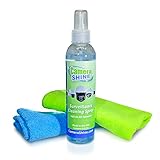
- COMPLETE STREAK-FREE PACKAGE | The CameraShine security camera cleaning kit includes carefully selected materials that allow you to clean the dust, grime, smudges, and fingerprints on the camera lens or dome without damaging them.
- TWO PLUSH MICROFIBER CLOTHS | Our optical quality, professional-grade microfiber towel is made of a super soft material, allowing you to get rid of dust and particles lodged on the sensor’s surface and other hard to reach areas without scratching them.
- MULTIPURPOSE | The CameraShine lens cleaning kit is safe and effective on all types of security camera models and designs. Ideal for indoor/outdoor dome cameras, PTZs, thermal, megapixel, panoramic, IP, analog, bullets, and more.
- 100% SAFE | For your safety, our product is formulated using a non-toxic, ammonia-free formula, and its powerful cleaning abilities won’t harm any of your optical quality coated lenses and domes.
- EASY TO USE | Spray a few sprays of our cleaning solution on to the microfiber towel and gently wipe away the dirt and grime from your cameras.
Android TV and Google TV
The usual route is:
- Open Settings.
- Select Apps.
- Choose See all apps or System apps.
- Select Prime Video.
- Choose Force stop, then select Clear cache.
- Reopen Prime Video.
Some televisions place the control under Apps → Prime Video → Storage & cache. If no cache control exists, restart the television, update its software, or reinstall Prime Video rather than searching for a hidden universal setting.
Samsung, LG, Roku, and Apple TV
These platforms do not all expose an Android-style per-app cache button.
Do these 3 things before closing this tab:
1Repair Windows errors before they cause bigger problems2Scan for outdated or missing drivers - takes under a minute3Clear out junk files and repair common Windows errorsSamsung TVs
Try a cold boot, update the TV software, and update or reinstall Prime Video. Resetting Smart Hub can be more disruptive because it may affect app sign-ins and settings, so reserve it for later troubleshooting.
LG TVs
Exit and relaunch Prime Video, restart the TV, update webOS, check available storage, and reinstall the app if necessary.
Roku
Roku generally relies on device restart, system updates, network reset, or removing and reinstalling the channel rather than offering a Prime Video cache button.
Rank #4
- Wet-Dry System
- For Video Players and Recorders
- Wet Cleaning System
- High Quality Cleaning Ribbon
- Special Cleaning Liquid
Apple TV
Force-close Prime Video from the app switcher, restart Apple TV, install available tvOS and app updates, and reinstall Prime Video if the problem continues.
Windows, Mac, and web browsers
Windows Prime Video app
Where supported by your Windows version and installed app:
- Open Settings.
- Select Apps, then Installed apps or Apps & features.
- Find Prime Video.
- Open Advanced options.
- Choose Repair first.
- Use Reset only if repair fails.
Windows labels and available controls vary. Resetting can remove local app data and offline downloads.
Browser playback
If you watch Prime Video in Chrome, Edge, Firefox, or Safari, the relevant cache belongs to the browser rather than a native Prime Video app:
- Close the Prime Video tab.
- Open the browser’s privacy or history settings.
- Clear cached images and files.
- If necessary, clear cookies or site data for Amazon and Prime Video.
- Sign in again and test playback.
Try a private or incognito window. If Prime Video works there, stale site data, an extension, or a permission may be responsible. Disable ad blockers, privacy extensions, VPNs, or proxies one at a time for testing; do not permanently reduce your security settings without a reason.
Quick wins for a faster PC:
Fix the driver behind crashes, sound loss and screen glitchesFind Drivers →Clear out junk files and repair common Windows errorsFree Scan →Scan for outdated or missing drivers - takes under a minuteDriver Scan →Best Value

- 【What Can It Do】Running in the equipment through the VHS cleaning tape can improve and maintain the sound quality or screen clarity for you. And it can also increase the loading speed.
- 【Simple Operation】 Insert it into VHS or VCR player and press “Play” to make it run. Rewind when cassette stops, and eject.
- 【FULL PATH CLEANER】It will gently wipe the head, pinch wheel and winch. Remove stains and magnetic particle dust without damaging the heads(Please note that it is not suitable for fixing mechanical problems.)
- 【Reusable】This is not a one-time use product. It can be reused up to 50 times. The use record label on the product can help you record the number of uses.
- 【What Will You Receive】VHS Cleaning Tape *1, Instruction manual *1, and a team of after-sales professionals who are ready to provide you with after-sales service 24 hours a day.
On a Mac, use the browser-specific procedure. If you use a separately distributed app, update or reinstall that app rather than deleting unexplained system folders or relying on unsupported commands.
What to test after clearing the cache
The first launch may take longer as Prime Video rebuilds temporary files. Menus and thumbnails may reload, and playback may briefly buffer again. Cache-only clearing may leave you signed in, while clearing data or reinstalling usually requires a fresh login.
Test in this order:
- Replay the same title.
- Try a different Prime Video title.
- Try another streaming service.
- Test Prime Video on another device using the same account.
If only one movie or episode fails, do not keep clearing the cache. Check its regional availability, subscription or channel entitlement, rental or purchase status, and whether the issue is limited to that title.
If Prime Video still buffers, freezes, or crashes
- Identify the scope: determine whether the issue affects one title, all titles, one device, every streaming service, or multiple devices.
- Force-close the app: reopen it after it has fully stopped.
- Restart the device: this clears temporary system state that app-cache clearing may not address.
- Clear the cache: use the platform instructions above.
- Update software: check Prime Video, the device operating system, and the browser. On Fire TV, check Fire OS updates.
- Check the network: restart the modem and router, test Ethernet where possible, move closer to Wi-Fi, and pause other high-bandwidth activity.
- Test VPN and proxy settings: disable them temporarily if playback or authentication fails only while they are active.
- Check date and time: incorrect device time can interfere with authentication and playback.
- Clear data or reinstall: use these only when the less disruptive steps fail.
- Contact support: provide the device model, operating-system and app versions, exact error message, affected title, and results from testing another device.
For a black screen or failed UHD/HDR playback, inspect the entire HDMI chain. Amazon lists HDCP requirements of HDCP 1.4 for HD and HDCP 2.2 for UHD/HDR on compatible Fire TV setups. The device, cable, receiver, and display must support the required standard; clearing the cache cannot repair an incompatible connection.
Should you factory-reset the device?
Only as a last resort, after updates, restarts, network checks, cache clearing, app-data resets, and reinstalling have failed. Amazon warns that a factory reset removes account information and downloaded content from apps across the connected device—not just Prime Video. Back up or record anything important first.
Quick Recap
Quick decision guide
| Symptom | Best first action |
|---|---|
| Prime Video is frozen or unresponsive | Force-close the app, restart the device, then clear its cache. |
| Only Prime Video has glitches on one device | Clear the app cache and check for updates. |
| Every streaming service buffers | Investigate Wi-Fi, the router, ISP stability, and device location. |
| The app still fails after cache clearing | Try clearing data or reinstalling, while expecting sign-in and download loss. |
| Only one title fails | Check title availability and account entitlement before resetting the app. |
| Black screen or UHD failure | Check HDMI, HDCP, receiver, cable, and display compatibility. |
Product prices and availability are accurate as of the date/time indicated and are subject to change. Any price and availability information displayed on Amazon at the time of purchase will apply.