Free tools Windows power users keep installed
One-click scans. No signup required.
Blind and low-vision people use smartphones through a combination of accessibility features rather than one universal method. A built-in screen reader—VoiceOver on Apple devices or TalkBack on Android—speaks interface content and lets a person move through controls with touch gestures. Depending on usable sight, context and preference, that speech may be combined with magnification, enlarged text, voice input, braille, an external keyboard and visual-assistance apps.
The same phone can therefore support reading, messaging, calls and on-device navigation without requiring the user to see every control. Learning the gestures takes practice, and the best setup depends on the person, the operating system and the apps they need.
What accessibility looks like on a smartphone
Blindness and low vision describe a wide range of visual experiences. Someone with no useful vision may rely mainly on speech or tactile braille; someone with usable central or peripheral vision may enlarge text, increase contrast or use speech only for selected items. Accessibility settings are adjustable, so two people with the same diagnosis may use the same phone differently.
The main access layer is the operating system’s screen reader. Be My Eyes Help Center, updated July 1, 2026, describes the built-in programs as VoiceOver on Apple devices and TalkBack on Android devices. Apple Support’s February 19, 2024 description is precise: “VoiceOver is a screen reader that describes what’s happening on your device so you can navigate by listening and performing gestures.” Google describes TalkBack as spoken feedback and descriptions of what the user touches.
What’s actually slowing this PC down?
Pick the symptom - the matching free tool is one click away.
#1 Best Overall

- 20-cell braille display: Brailliant BI 20X gives blind users a compact 20-cell refreshable braille display with cursor routing keys for reading, writing, and screen reader access.
- Portable multi-device connection: connect to 5 Bluetooth devices and 1 USB device at the same time, making it easier to switch between a phone, tablet, computer, or other compatible device.
- More than a display: use onboard KeySoft Lite apps including Editor, Braille Editor, Calculator, Date and Time, Online Libraries, Victor Reader, and Terminal.
- Built for braille reading: access participating online libraries including Bookshare, NLS BARD, and NFB Newsline, with DAISY support and unprotected audio playback.
- Compact daily companion: HumanWare thumb keys, 8-dot Perkins keyboard, text-to-speech in supported languages, USB-C charging, 16GB internal storage, and up to 20 hours of battery life.
VoiceOver and TalkBack
After the screen reader is enabled in the device’s Accessibility settings, the user can explore the display by touching it. The screen reader announces the item under a finger—such as an app, heading, button or text field—and a gesture can move focus, activate the item or move through content. The exact gesture set, verbosity controls and setting names vary by operating-system version, so a tutorial for one release should not be treated as a universal rule.
This is eyes-free interaction: the person builds a mental model of the screen from spoken labels and the order in which focus moves. A control that is unlabeled, out of logical order or incompatible with the screen reader can still be difficult to use. Accessibility therefore depends not only on the phone’s operating system but also on how well each app exposes its controls.
Reading the screen and documents
Screen readers can read interface labels, messages, web pages and other text that an app exposes to the operating system. A typical reading sequence is:
- Move focus. Touch the screen or use a navigation gesture to place focus on an item.
- Listen to the announcement. The reader speaks the item’s name, role and sometimes its state, such as “selected” or “button.”
- Activate or continue. Use the platform’s activation gesture, or move to the next item, heading or line.
- Change the reading granularity when needed. Screen readers offer ways to move through larger or smaller units, but labels and gestures differ by version.
For a long article, a person may move by headings or paragraphs rather than listening to every control. In a message, the reader can announce the sender, subject, body and attachments if the app provides those labels. Poorly tagged documents, image-only PDFs and unlabeled buttons may produce little or no useful speech; an accessible alternative or human assistance may then be needed.
Reading print and objects
A camera-based assistance app can supplement, rather than replace, the screen reader. A user might point the phone at a package, sign or document and listen to an attempted description or text reading. A 2024 preprint evaluated Seeing AI, Supersense, Envision and Lookout with blind and low-vision participants across accuracy, response time, reliability, accessibility, privacy, energy efficiency and usability. Its abstract reports meaningful limitations and says these apps were generally not the preferred choice. Recognition can fail because of glare, unusual layouts, poor focus, small print, low contrast or ambiguous scenes, so important information should be checked another way.
Rank #2

- 40-cell braille display: Brailliant BI 40X gives blind users a 40-cell refreshable braille display with cursor routing keys for reading, writing, and screen reader access.
- Reliable multi-device connection: connect to 5 Bluetooth devices and 1 USB device at the same time, with Bluetooth 5 technology for faster, more stable wireless use.
- More than a display: use onboard KeySoft Lite apps including Editor, Braille Editor, Calculator, Date and Time, Online Libraries, Victor Reader, and Terminal.
- Built for braille reading: access participating online libraries including Bookshare, NLS BARD, and NFB Newsline, with DAISY support and unprotected audio playback.
- Comfortable daily use: HumanWare thumb keys, 8-dot Perkins keyboard, text-to-speech in supported languages, USB-C charging, 32GB internal storage, and up to 20 hours of battery life.
Typing, dictation and communication
Sending a text, email or social message usually combines screen-reader focus with one of several input methods. There is no single method that all blind people prefer.
On-screen typing with speech feedback
A user can swipe or touch across an on-screen keyboard, hear each key and activate the chosen letter. VoiceOver can announce typed letters and words, autocorrections, capitalization and word predictions, according to Apple Support. The person can review the text before sending it, which helps catch recognition or spelling errors.
Voice input
Dictation can be faster for a long message. The user places focus in a text field, starts the phone’s voice-input function and speaks, then reviews the transcription with the screen reader. Accents, background noise, names, punctuation and private information can reduce accuracy. A short confirmation pass is important before sending a message or entering a sensitive command.
Braille entry and output
Android’s TalkBack includes a braille keyboard input option, and Google documents support for most refreshable braille displays. A display’s pins form braille characters that can be read by touch; its physical keys can also be used to navigate and interact with the device. Compatibility depends on the display, Android version, connection method and app, so check the current support list before buying hardware. A refreshable display is optional: many users communicate effectively with speech, touch gestures or a conventional keyboard.
External keyboards
Bluetooth or wired keyboards provide physical keys for composing and editing. In a 2021 Microsoft Research field study, eight expert Android smartphone users with visual impairments were followed for four weeks. The participants used voice and external keyboards alongside extensive gesture-based practices. That small, expert sample illustrates possible workflows; it does not establish how common any one method is among all blind users.
Rank #3

- Package Details: You will get 1 Braille Alphabet Board, which can help you feel the Braille structure more intuitively, accelerate the learning process, and meet different age groups and learning needs.
- Awesome Materials: This Braille alphabet board is mainly made of reliable aluminum-plastic plate, which is strong and durable, comfortable to the touch, and ergonomic, providing educators with richer teaching resources.
- Size Details: The size of this braille alphabet board is 19x12cm/7.48x4.72in, which is moderate in size and lightweight, so you can carry it with you for your study.
- Useful Tools: Our braille alphabet board features tactile raised dots and clear and concise diagrams, making it suitable for children just beginning to learn braille, adults improving their skills, or the visually impaired.
- Widely Used: Our Braille alphabet board is suitable for visually impaired people of any age, and can also be widely used in schools, classrooms, libraries or homes, it is a practical educational tool.
Low-vision settings: when speech is not the main channel
Many low-vision users keep some visual access and enlarge or simplify what they see. Be My Eyes notes that zoom, magnification and larger text can make a phone usable without full-time speech. Apple documents three related tools:
- Magnifier: uses the camera to enlarge nearby objects such as labels or controls.
- Zoom: enlarges all or part of the device screen.
- Display and text adjustments: change text size and visual presentation for easier viewing.
Android provides screen magnification, display and text controls, contrast and color options, and Select to Speak for reading selected content aloud. A person may combine high contrast with a larger type size, use speech in a dim room, or switch to magnification only for a small label. These choices can change with fatigue, lighting and the task, so “low vision” should not be treated as one fixed setup.
Recommended Free Tools
Using a phone to navigate its interface
In this context, navigation primarily means moving through the phone’s interface: locating an app, finding a control, reading a page, changing a setting or returning to a previous screen. The screen reader supplies an audible map, while touch and directional gestures move focus. The user learns the order of controls, listens for state changes and activates the selected item without needing to look at the display.
Gesture-heavy use can be demanding at first. A 2021 study of eight expert Android users observed extensive directional gestures and combinations of voice and external-keyboard input. The finding shows how skilled users develop efficient routines; it is not a population-wide measurement. Beginners may need structured instruction, repetition and occasional sighted help while they learn the phone’s gesture vocabulary.
Physical wayfinding is a separate question
A smartphone can provide maps, location information or spoken directions, but the sources available here do not establish a safe, step-by-step method for outdoor travel, street crossings or obstacle avoidance. Phone directions should not be equated with independent or safe travel. A person planning a journey may need mobility training, a cane or guide dog, environmental awareness and a trusted backup plan in addition to any phone feature.
Rank #4

- Braille learning tool:On this braille number board, each alphabet, number, and symbol with raised shape that corresponds to braille writing. The simple and touchable way is suitable for anyone, such as blind people, braille beginners, etc.
- Carefully design: These raised dots and alphabets, numbers, symbols, providing a comfortable braille tactile learning experience, while the clear printing, so that people with normal vision can also recognize and learn braille, touch and feel the unique braille.
- Handy size:Each braille alphabet board measures about 7.5x5x0.12 inches, which is lightweight and portable, you can put it in your bag without taking up too much space. It can help you learn or teach braille anytime and anywhere.
- Quality material: Our braille alphabet board is made of quality acrylic, with smooth rounded corners, no burrs, safe to touch, compact and not easily broken, non-fading, and will not deform after long-term use.
- Widespread use: Suitable for learning braille anywhere, this braille board is suitable for people of any age to use in schools, libraries, and homes. After receiving guidance from the teacher in class, people can use it to practice and meet the learning needs of braille.
How the main options fit together
| Need | Common tool | What it provides | Important qualification |
|---|---|---|---|
| Read controls and text without looking | VoiceOver or TalkBack | Spoken labels, focus movement and gesture-based activation | Gestures and settings vary by platform and version; app labeling affects results. |
| Enlarge visual content | Zoom, magnification and larger text | A bigger view of the screen or nearby objects | Useful vision and preferred scale differ by person and situation. |
| Compose a message | On-screen keyboard, dictation, braille or external keyboard | Several ways to enter and edit text | Speech recognition, keyboard layout and privacy needs affect the choice. |
| Read tactile braille | Refreshable braille display | Physical braille output and navigation keys | Android support is documented, but device and version compatibility must be checked. |
| Understand a visual scene | Camera-based assistance app | Attempted descriptions or text recognition | Accuracy, reliability, privacy and energy use vary; outputs are not infallible. |
Apple and Android: compare the setup, not a winner
The evidence supports two platform examples—VoiceOver on Apple devices and TalkBack on Android—but it does not establish one as the best phone for everyone. A practical comparison should use the person’s actual needs:
- Screen-reader interaction: Which gesture model and speech settings feel learnable?
- Typing and braille: Does the preferred keyboard, dictation method or braille display work with the device and version?
- App compatibility: Are the banking, messaging, work, school and travel apps accessible?
- Support: Is there a knowledgeable family member, instructor or technical-support route for that platform?
- Familiarity: Existing experience can matter more than a specification sheet.
Before switching platforms, test the tasks that matter most—answering a call, reading a message, editing text, attaching a file and changing an accessibility setting—rather than relying on a general “best” list.
Independent reader supportYour contribution helps us test, update, and keep practical guides available for everyone.A practical setup sequence
- Enable the built-in reader or visual tools. Open the phone’s Settings app, choose Accessibility, then select VoiceOver on Apple devices or TalkBack on Android. Low-vision users can also enable magnification, text-size and display controls in the same area; labels vary by release.
- Set speech and gesture behavior. Adjust speech rate, verbosity and feedback until announcements are understandable. Practice moving focus, activating an item and returning to the previous screen.
- Test core communication tasks. Open the phone, contacts, messaging and email apps. Read an incoming message, create a short reply, review it and send it.
- Choose an input mix. Compare on-screen typing, dictation, braille entry and an external keyboard. Keep more than one method available for noisy, private or low-battery situations.
- Add tactile output only if it solves a real problem. If braille is preferred, verify the display’s compatibility with the phone and the apps used most often before purchasing.
- Evaluate visual-assistance apps cautiously. Try them on non-critical objects first, review privacy permissions and do not rely on an uncertain description for safety, medication or financial decisions.
- Build a recovery route. Know how to pause or restart the screen reader, reach Accessibility settings and contact a trusted helper if an app becomes unusable.
Common friction and ways to reduce it
Steep learning curve
Touch gestures do not provide visible confirmation, so a new user can lose focus or activate the wrong control. Short, repeated practice on a small set of tasks is more effective than memorizing every gesture at once. An accessibility instructor or experienced user can explain the platform’s current gesture model.
Unlabeled or changing app controls
An update can rename, move or expose controls differently. If the reader says “button” without a useful name, look for an app update, an alternate accessible route or a support channel. Do not assume that a screen-reader problem means the person performed the gesture incorrectly.
Speech privacy and social disruption
Prior research has reported privacy concerns, frequent need for assistance and audio prompts that disrupt work or social situations. Use headphones or a paired braille display when appropriate, lower speech volume in public and review notification previews. These are reported challenges, not a claim that every user experiences them in the same way.
PC Slower Than It Used to Be?
A free scan shows the junk files, broken settings and background clutter dragging Windows down - then fixes them in one click.Free scan · Windows 10 & 11Crashes, No Sound, or Screen Glitches?
Random freezes, missing sound and display glitches usually trace back to one bad driver. Find and replace yours safely.Free scan · under a minuteBest Value
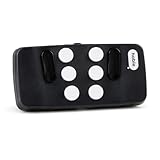
- Broad Smartphone & Tablet Compatibility: Connects easily to your iPhone and Android smartphones and tablets, allowing you to navigate and type accurately with its 8 tactile buttons.
- Intuitive & Easy to Learn: No prior Braille knowledge is needed to use the keyboard, and you get access to free onboarding calls and tutorials to help you master it quickly.
- Highly Portable & Private: The device is small, compact, and easy to carry, letting you type and access private information while your phone stays securely in your pocket or bag.
- Seamless Voice & Screen Reader Control: Enhances accessibility by working with your phone's built-in screen reader and allowing for easy use of voice commands like Siri or Dictation.
- Exceptional Battery Life: Features a long-lasting rechargeable battery with over one month of battery life on a single charge, ensuring reliable use for your on-the-go lifestyle.
Voice-input mistakes
Dictation can mishear names, punctuation or numbers. Read the result with the screen reader before sending it, especially for addresses, passwords, medical details and financial amounts. Switch to a keyboard or braille when the environment is noisy or the content is confidential.
Unreliable visual descriptions
Camera assistance can return a confident-sounding but incorrect label. Improve lighting and framing, try again and seek a second source when the consequence of an error is high. Treat these apps as supplementary information, not as a replacement for screen-reader skills, mobility training or human judgment.
What effective smartphone use can look like
For reading, a person might enable VoiceOver or TalkBack, move by headings through a web page and use magnification only for a diagram. For communication, they might dictate a draft, listen to the transcription, correct a name with the on-screen keyboard and send it. A braille user could read the same message on a refreshable display and use its keys to move between fields. Someone with partial sight might enlarge the keyboard, increase contrast and turn on speech for notifications.
These are combinations, not prescriptions. The useful question is not whether a blind person can use a particular gesture or app, but which combination gives that individual reliable access with an acceptable level of effort, privacy and confirmation.
Quick wins for a faster PC:
Fix the driver behind crashes, sound loss and screen glitchesFind Drivers →Repair Windows errors before they cause bigger problemsFix Now →Quick Recap
Product prices and availability are accurate as of the date/time indicated and are subject to change. Any price and availability information displayed on Amazon at the time of purchase will apply.






Say something about this film