Do these 3 things before closing this tab:
1Fix the driver behind crashes, sound loss and screen glitches2Clear out junk files and repair common Windows errors3Scan for outdated or missing drivers - takes under a minute“Hidden” on Roku usually means overlooked, not undocumented. The five features below can make a Roku TV, player, Streambar, or remote substantially more useful, but availability varies by model, Roku OS version, country, and accessory. Before following the steps, check Settings > System > About for your model and software information.
Quick reference
| Feature | Best for | Main requirement | Start here | Main limitation |
|---|---|---|---|---|
| Mobile Headphone Mode | Quiet viewing and multiple listeners | Free Roku app and same Wi-Fi network | App > Remote > Headphone | Not supported on every Roku |
| AirPlay and screen mirroring | Showing phone or computer content | Compatible device and local network | AirPlay, Smart View, or Win + K | DRM and model restrictions |
| Guest Mode | Visitors, rentals, and guest rooms | Roku PIN and supported region | Settings > Guest Mode | Guest data is cleared at sign-out |
| Advanced Roku Voice | Faster navigation and settings access | Compatible voice support | Hold the microphone button or use the app | Commands vary by device and region |
| Dynamic home-screen shortcuts | Reaching frequent destinations quickly | 2026 Roku OS experience | Press Left from Home | Rollout and layout are version-dependent |
1. Mobile Headphone Mode: private listening without a special remote
Roku now generally calls this Headphone Mode; older guides may call it private listening. It routes Roku audio to headphones connected to a phone or tablet, so you can watch late at night or let several people listen privately without replacing the player.
Turn it on
- Install the official, free Roku mobile app.
- Put the phone or tablet and Roku on the same Wi-Fi network.
- Open the app and tap Remote.
- Tap the Headphone icon.
- Connect wired headphones to the phone, or pair Bluetooth headphones with it.
- Set a safe volume before putting on the headphones.
- Tap the Headphone icon again to stop Headphone Mode.
Roku documents the complete procedure at its Headphone Mode support page. Up to four mobile devices can listen simultaneously. TV speakers are muted while the mode is active, and it also works with live digital over-the-air television when a compatible HDTV antenna is connected.
Know which headphone method you are using
- Mobile Headphone Mode: headphones connect to the phone or tablet running the Roku app.
- Direct Bluetooth Headphone Mode: headphones pair with selected Roku hardware. Roku lists Streaming Stick models 3840 and 3830, Roku Ultra models 4800, 4802, and 4850, Ultra LT 4801, Streambar products, and selected Roku TVs. Roku Express, Premiere, Streaming Stick 4K, and Streaming Stick 4K+ are listed as unsupported for direct Bluetooth pairing; see Roku’s compatibility list.
- Remote Headphone Mode: headphones plug into a compatible Roku voice remote.
Mobile Headphone Mode and headphone output from a compatible voice remote cannot run at the same time. Plugging headphones into the physical remote deactivates mobile mode.
#1 Best Overall

- Easy voice search & control: Quickly search across thousands of top channels, play entertainment, control your streaming, and more with your voice
- No more juggling remotes: Power up your TV, adjust the volume, control your Roku device, switch inputs on your Roku TV, and more—all in a tap
- Pre-set channel shortcuts: Pre-set channel shortcuts let you launch popular streaming channels with the push of a button, all without having to scroll
- Simple setup: Simply turn on your Roku device and pull the battery tab on the back of the remote and it should pair automatically
- Works with your Roku device: Roku Voice Remote works with all Roku TV models, Roku audio products, and most Roku players*
If it fails
- No headphone icon: update the Roku app. If it is still absent, the Roku may not support mobile mode.
- Audio-video delay: update the app and use Roku’s Headphone Mode troubleshooting controls.
- Dropouts: keep both devices on the same, stable network; congested Wi-Fi can interrupt audio.
- Streambar limitation: on a Streambar, Streambar Pro, Streambar SE, or Smart Soundbar, Headphone Mode applies only to the soundbar’s built-in Roku player, not an attached console, cable box, Blu-ray player, phone, or computer.
2. AirPlay and screen mirroring: make Roku a wireless display
These features let you show photos, browser pages, presentations, personal videos, or apps that do not have a Roku channel. They are related but not identical: casting sends supported content from an app, while mirroring duplicates the entire device screen. Casting normally requires the relevant app on both devices; mirroring can display unsupported apps but is more vulnerable to latency and DRM blocks.
From an iPhone, iPad, or Mac
On a compatible Apple device, open AirPlay or Screen Mirroring, select the Roku, and approve the request on the television if prompted. AirPlay can stream, control, and mirror content on compatible combinations; see Roku’s Apple instructions.
From Android
- Pull down the phone’s status bar.
- Tap Smart View (Samsung’s example).
- Select the Roku.
- Approve the request on the television.
Other manufacturers may label the control Wireless Display, Quick Connect, SmartShare, AllShare Cast, Display Mirroring, or Cast. Google-branded Android devices may not support Roku’s Miracast-style mirroring even when other Android phones do.
Rank #2

- 【NO volume control. NO power button. NO headphone jack. NO pairing button. NO voice search. 】If your original remote has pairing button, please do NOT buy it. It does NOT have the headphone jack to plug in your earphone
- 【 NOT for any Ro-ku Stick or TV】This remote is Only compatible with Roku Box, for Roku Express, for Roku Player, for Roku Premiere, for Roku 1 2 3 4
- 【 4 Shortcuts】It is a IR replacement remote which features 4 shortcut buttons to popular streaming channels - Netflx, sling, hulu, Disny+
- 【 Work out of Box】Without any programming, just insert batteries(2* AAA) and it is all good to go
- 【 Package】Coming with 2x remotes and 1x user manual. Long distances transmitting(8m/26ft), respond in 0.2s to your tvs.
From Windows
- Windows 10: open Action Center, choose Connect, select Roku, and approve the request.
- Windows 11: press Win + K, choose Connect to a wireless display, select Roku, and approve.
Android and Windows procedures and model exceptions are covered at Roku’s screen-mirroring guide.
What’s actually slowing this PC down?
Pick the symptom - the matching free tool is one click away.
Protect the connection
When a device requests access, Roku can offer Always allow, Allow, Block, or Always block. On a shared network, choose a one-time option instead of automatically allowing every future connection. Both devices should be on the same local network. Most current Roku players and TVs support mirroring, but older Express and Express+ models are exceptions. DRM-protected services may show a black screen or refuse playback; use the service’s Roku app, supported cast button, or AirPlay instead. Wireless latency also makes mirroring a poor choice for fast-action gaming. Roku’s casting explanation is at this support page.
3. Guest Mode: let visitors use their subscriptions safely
Guest Mode is designed for guest rooms, rentals, dorms, and visitors. Guests sign in with their own services while the owner’s accounts, saved payment method, and recommendations remain separate. It is a privacy and turnover feature, not a separate guest Wi-Fi network.
Rank #3

- HD streaming made simple: With America’s number 1 TV streaming platform,* exploring popular apps—plus tons of free movies, shows, and live TV—is as easy as it is fun. *Based on hours streamed—Hypothesis Group
- Compact without compromises: The sleek design of Roku Streaming Stick won’t block neighboring HDMI ports, and it even powers from your TV alone, plugging into the back and staying out of sight. No wall outlet, no extra cords, no clutter.
- No more juggling remotes: Power up your TV, adjust the volume, and control your Roku device with one remote. Use your voice to quickly search, play entertainment, and more.
- Shows on the go: Take your TV to-go when traveling—without needing to log into someone else’s device.
- TV, simplified: With setup that only takes minutes, a simple-to-navigate Home Screen, and an uncluttered remote control that does all you need—Roku makes it easier to watch the TV you love.
Enable it on the Roku
- Press Home.
- Select Settings.
- Select Guest Mode (called Auto Sign Out on some OS versions).
- Select Enter Guest Mode.
- Enter the Roku PIN.
- Select OK and confirm.
Roku’s current instructions are at the Guest Mode support page. Guests use their own app accounts and subscriptions, cannot access the owner’s logins or make purchases with the owner’s saved payment method, and do not alter the owner’s recommendations. Apps they add are removed when they sign out, and they can select a sign-out date that clears their logins and subscriptions.
Sign a guest out remotely
- Sign in at my.roku.com/account.
- Scroll to My streaming devices & TVs.
- Select the relevant Roku.
- Choose Sign Guest Out and confirm.
Guest Mode requires a PIN and clears game data stored on the device. Roku lists availability in the United States, Canada, United Kingdom, Latin America, France, Mexico, and Australia; Germany is listed as unavailable. If Guest Mode is missing under Settings, Roku says the feature is not available in that region.
The Tool Desk
Outbyte PC Repair FREERepair Windows errors before they cause bigger problemsFix Now →Outbyte Driver Updater FREEFix the driver behind crashes, sound loss and screen glitchesFind Drivers →4. Roku Voice is more than title search
On compatible hardware, voice can replace several menu steps. Press and hold the microphone button on a compatible voice remote, speak clearly, and release it. In the mobile app, tap Remote and then Voice, or tap the Search box followed by the microphone; the app needs microphone permission the first time.
Rank #4

- 【PLEASE NOTE】NO pairing button. NO volume control. NO voice search. NO power button. It does NOT have the headphone jack to plug in your earphone.Not for Roku stick or built-in Roku smart TV or Roku game. voice search and game.【NOT includes batteries】
- 【TRUE TRANSMITTING TEST】No setup,no pairs that to work directly after 2*AAA Alkaline batteries inserted.Expecting in testing mainly the transmits for your own accurate reference. An outstanding response between TV and remotes,5 Meters is the best distance. At a maximum distance 10 Meters available.
- 【BUTTONS AND MATERIAL】A remote control has its limited life which Affected in all aspects which including external material,chips,buttons and the way we use it. Unpredictable damages. An exact test must support each button clicking between minimum 3000 clicks and maximum 5000 clicks. ABS Material keep itself anti-fall,anti-water and also keep us anti-radiation.
- 【FOUR EXTRA SHORTCUTS】More convenient operation and fastest response to your favorite channels oriented 4 extra popular streaming buttons with NFLX, Dis+,App TV+,Paramount+.
- Coming with 2x remotes If you have any query regarding your order, please reach out to us directly and we will get back to you within 12 hours during the work week
Useful commands
- “Pause.”
- “Turn captions on.”
- “Turn off the TV.”
- “Play classic rock.”
- “Show me the news.”
- “What is [movie] about?”
- “How are the reviews?”
- “Is [movie] suitable for teenagers?”
Roku says voice can answer movie, show, and actor questions, including follow-ups in the same interaction. Results, languages, and supported commands vary by device, app, region, and language. Roku’s current command guidance is at its Voice support page.
Jump directly to settings
Roku TV documentation describes “Voice for settings,” allowing compatible TVs and remotes to open destinations such as screensavers, wallpapers, system updates, Guest Mode, and screen mirroring by voice. Not every Roku device supports every setting shortcut; the Roku TV User Guide describes the TV implementation.
Hands-free voice and audio with the screen off
The Voice Remote Pro (2nd Edition) supports hands-free commands. Slide its side switch to green, then say “Hey Roku” followed by a command. Roku recommends keeping it roughly 10 to 12 feet away and speaking toward the remote. Hands-free operation is convenient but has a different privacy profile from push-to-talk; use the physical microphone or hands-free control when you want it muted.
Best Value
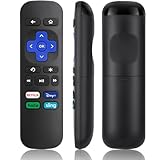
- Compatible Devices: Universal Remote Compatible with R0KU Express, Premiere, Box and Player, for R0KU 1/2/3/4 (HD, LT, XS, XD, XDS).
- Important Note: NOT work for RokuStick, Ultra, Game. Not for RokuTV. NO headphone jack. NO pairing button. NO volume control. NO voice search. NO power button.
- No Setup Required: Work right out of the box without programming or setup. You only need to install 2*AAAbatteries to get it work (2*AAAbatteries are not included).
- Shortcut Buttons: Designed with 4 shortcut buttons, with NETFILX, DisneyPlus, HuluAPP and SlingButtons to access your favorite show in one click.
- Key Features: Made of upgraded ABS and siliconeMaterial, making it very comfortable to hold and control, it will respond quickly in 0.5 seconds, available directly use within 33FT and it supports over total 160,000 clicks for all buttons via approved tests.
On compatible Roku TVs with Fast TV Start enabled, supported services such as Pandora, TuneIn, and iHeartRadio can play music, live radio, or podcasts while the display is off. Compatible Roku devices connected to a TV may also support Bluetooth audio from a phone, tablet, or computer with the screen off. These options depend on hardware, software, and service support.
Independent reader supportYour contribution helps us test, update, and keep practical guides available for everyone.5. The 2026 home screen’s dynamic shortcuts
Roku began rolling out a redesigned U.S. home screen on May 27, 2026. It adds a left-side menu for Home, Live TV, Sports, Subscriptions, Search, and other destinations, plus personalized rows for shows, movies, and live events. Frequently used apps, hubs, and actions can appear near the top, including Sleep Timer, Headphone Mode, Save List, and Continue Watching.
Find the shortcuts
- From Home, press Left on the remote to expand the navigation menu.
- Check the upper personalized and shortcut areas.
- Select a tile instead of searching through Settings or individual destinations.
The shortcuts adjust based on use, so they are not a fixed toolbar that every reader will see in the same order. Arrange apps normally when you need a stable app order; do not assume every generated tile can be pinned or removed. Roku also provides an updated Quick Tips experience explaining newly launched OS features.
The layout is still rollout- and version-sensitive. Menu labels can differ by device, account region, and usage history. If the new experience is absent, check for a system update, while recognizing that Roku may not have enabled it on that device yet. Details are in Roku’s new OS features announcement.
Recommended Free Tools
Which feature should you enable first?
- Quiet household: start with Mobile Headphone Mode.
- Frequent visitors or a rental: enable Guest Mode and protect it with a PIN.
- Phone or laptop sharing: use AirPlay, Android mirroring, or Windows wireless display, choosing casting when DRM blocks mirroring.
- Accessibility or faster navigation: learn Roku Voice commands and the available setting shortcuts.
- Daily Roku use: check the redesigned Home screen and Quick Tips for shortcuts that have appeared for your account.
If a feature is missing, first confirm the Roku model, OS version, region, app version, and same-network connection. Most of these capabilities are free with hardware you already own; buy a new player or Voice Remote Pro only when a compatibility gap—not curiosity—requires it.
Quick Recap
Product prices and availability are accurate as of the date/time indicated and are subject to change. Any price and availability information displayed on Amazon at the time of purchase will apply.