Crashes, No Sound, or Screen Glitches?
Random freezes, missing sound and display glitches usually trace back to one bad driver. Find and replace yours safely.Free scan · under a minuteWindows Errors? Fix Them Before They Spread
Repair common Windows errors and clear accumulated junk for a smoother, more stable PC - no reinstall needed.Free scan · no reinstallSome links on this page are affiliate links: if you buy through them we may earn a commission, at no extra cost to you.
Open the Music app, open the playlist, tap Share, choose Messages, Mail, AirDrop, or another available app, and send the playlist link. If your friends should add, remove, or reorder songs, use Collaboration instead.
Share a finished playlist with one or more friends
- Open Music on your iPhone.
- Open the playlist you want to send.
- Tap the Share button.
- Choose Messages, Mail, AirDrop, or another available app.
- Select the recipient and send the generated playlist link.
You can send the link in a group message or email it to several people. AirDrop is convenient for someone nearby with an Apple device; Messages or Mail is usually better for remote recipients or mixed-device groups.
The share sheet may also show apps such as Facebook, Instagram, or Snapchat, but the available destinations depend on the apps installed on your iPhone and on regional availability. If the app you want is not shown, swipe across the share-sheet apps and tap More.
What’s actually slowing this PC down?
Pick the symptom - the matching free tool is one click away.
Ordinary sharing sends a playlist link. It does not automatically give recipients permission to edit the playlist. Apple’s instructions describe recipient playback and library behavior as dependent on factors such as Apple Music access, account status, and region, so do not assume that every recipient can fully play every shared playlist without a subscription.
#1 Best Overall
![Aux Cord for iPhone,[Apple MFi Certified] Lightning to 3.5 mm AUX Cable for Car Stereo, Speaker, Headphone, Auxiliary Audio Cable Compatible with iPhone 14 13 12 11 XS XR X 8 7 3.3FT White](https://m.media-amazon.com/images/I/31-wL8EQhaL._SL160_.jpg)
- 【2026 Upgraded Version】The Seulliya iPhone audio cable features an Apple MFi certified chip for stable connectivity, allowing effortless linking to car stereos, home audio systems, speakers, or any device with a 3.5mm AUX port. Enjoy high-quality music without "accessory not supported" errors
- 【Premium Sound Transmission】This auxiliary car audio cable features a built-in advanced DAC (Digital-to-Analog Converter) chip and high-purity copper wires to ensure stable, lossless audio signal transmission. It delivers flawless music playback and clear Hi-Fi sound quality. Enjoy high-quality music by connecting your iPhone to your car stereo, home audio system, headphones, Hi-Fi equipment, computer speakers, and more
- 【Ultra Durability】15,000+ bend lifespan is several times longer than most aux cords, soft TPE making this 3.5mm audio cable to iPhone a flexible and long-lasting cable. It's lightweight and convenient to take around. No worry about the winding, knot, or kink
- 【Plug and Play】No need for any driver or external power, just plug and play. Easy to connect and use. The aux for iPhone allows you to enjoy high-quality music anytime and anywhere. Great for home & travel
- 【Wide Compatibility】The Seulliya Lightning to 3.5mm Car Audio Cable offers broad compatibility with a wide range of Apple devices, including iPhone 14/13/12/11/XS/XR/X/8/7, iPod touch, and iPad Mini/Air/Pro models. Enjoy seamless connectivity and clear audio in your car, perfect for music, navigation
Apple’s playlist-sharing instructions document the standard Share workflow and available share-sheet options.
Make the playlist collaborative
Use collaboration when everyone should contribute to a party, road-trip, workout, or event playlist.
- Open the playlist in Music.
- Tap the Collaboration button at the top.
- Turn on Approve Collaborators if you want to review people before they join.
- Tap Start Collaborating.
- Choose Messages, Mail, AirDrop, or another available sharing method, then send the invitation.
Apple says collaboration requires an Apple Music subscription for the owner and participants, an up-to-date iPhone or Apple Music app, and a region where the feature is available. Children under 13 cannot collaborate. Apple also says approval is enabled by default for users aged 13–17.
Recommended Free Tools
With collaboration enabled, approved participants can add, remove, and reorder songs and react to songs with emoji. This is different from sending a normal playlist link.
Rank #2
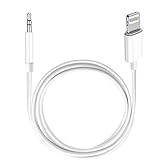
- Multi-function Dongle: This Seulliya Apple MFi Certified Aux Cord for iPhone can easily connect your Lightning devices to car stereo, home stereo, speaker, headphones or any device with standard 3.5mm audio jack or Aux-in port and offers you the freedom of listening to music
- Trusted Apple MFi Certified: Apple MFi Certified Auxillary Cable Cord for iPhone With 15000+ bend lifespan. This 3.5mm aux cable covered with soft .Has good resilience, no snagging and bending, and it is not easy to tangle or crease. Your smartphone without taking off your phone case.
- Impresive Sound Quality:If you have this Apple MFi Certified AUX cable, you can enjoy superb sound quality. The 24K gold-plated contacts ensure the purest sound possible, and the stereo audio is transmitted seamlessly to obtain high-quality sound. You will enjoy music easily.
- Plug and Play:For a wider range of applications, Apple MFi Certified 3.5mm audio cable allows you to easily connect iPhone to car audio, earphones, Bluetooth speakers, Hi-Fi, computer audio or any device equipped with a standard 3.5mm audio jack auxiliary port.
- MFI Certified Chip,Widely Compatibility:Apple MFi Certified Aux cable connector for car iphone compatible with all devices having regular or recessed 3.5mm audio jacks including smartphones, tablets, laptops, computers, mp3 players, headphones and portable speakers. Compatible for iPhone 13/13 Mini/13 Pro/13 Pro Max/12/12 Mini/12 Pro/12 Pro Max/SE 2020/11/11 Pro/11 Pro Max/XS/XS Max/XR/X 8 7 6.
See Apple’s guide to collaborating on playlists for the current controls and requirements.
How a friend joins
- Open the collaboration invitation.
- Tap Join Playlist.
- If approval is required, tap Request to Join.
- Wait for the playlist owner to approve the request.
Opening the invitation alone is not enough: the recipient must join the playlist. If the owner has enabled approval, the playlist will not become editable for that person until the request is accepted. The joining experience can vary with the recipient’s device, Apple Music app version, subscription, account, and region.
Apple’s recipient instructions are available in its guide to joining a collaborative playlist.
Free tools Windows power users keep installed
One-click scans. No signup required.
Add, remove, reorder, and react to songs
After joining, a collaborator can edit the playlist as follows:
Rank #3

- Multi-function Dongle: This Seulliya Apple MFi Certified Aux Cord for iPhone can easily connect your Lightning devices to car stereo, home stereo, speaker, headphones or any device with standard 3.5mm audio jack or Aux-in port and offers you the freedom of listening to music
- Trusted Apple MFi Certified: Apple MFi Certified Auxillary Cable Cord for iPhone With 15000+ bend lifespan. This 3.5mm aux cable covered with soft .Has good resilience, no snagging and bending, and it is not easy to tangle or crease. Your smartphone without taking off your phone case.
- Impresive Sound Quality: If you have this Apple MFi Certified AUX cable, you can enjoy superb sound quality. The 24K gold-plated contacts ensure the purest sound possible, and the stereo audio is transmitted seamlessly to obtain high-quality sound. You will enjoy music easily.
- Plug and Play: For a wider range of applications, Apple MFi Certified 3.5mm audio cable allows you to easily connect iPhone to car audio, earphones, Bluetooth speakers, Hi-Fi, computer audio or any device equipped with a standard 3.5mm audio jack auxiliary port.
- MFI Certified Chip,Widely Compatibility: Apple MFi Certified Aux cable connector for car iphone compatible with all devices having regular or recessed 3.5mm audio jacks including smartphones, tablets, laptops, computers, mp3 players, headphones and portable speakers. Compatible for iPhone 13/13 Mini/13 Pro/13 Pro Max/12/12 Mini/12 Pro/12 Pro Max/SE 2020/11/11 Pro/11 Pro Max/XS/XS Max/XR/X 8 7 6
- Open the collaborative playlist.
- Tap More, then Edit.
- Tap Add Music to add songs.
- Use the remove control and tap Delete to remove a song.
- Drag the reorder control to change a song’s position.
To react, open the currently playing song, open Now Playing, tap the Reactions control, and choose an emoji. Apple documents these editing and reaction features in its Apple Music collaboration support article.
Control who can join
When you create or manage a collaborative playlist, the Approve Collaborators setting determines how open the invitation is:
- On: people must request access, and the owner approves or declines each request.
- Off: anyone who obtains the collaboration link may be able to join. Apple also notes that people collaborating on the playlist can share its link.
For a private group, leave approval enabled. For a casual event where convenience matters more than control, disabling approval is simpler but makes the link easier to pass along.
Invite more people later
- Open the collaborative playlist.
- Tap Manage Collaboration or the Collaboration button.
- Tap Share Invite Link.
- Send the invitation through the desired app.
Depending on the interface, you may also be able to display a QR code for nearby people to scan with an iPhone. Apple’s current labels can differ by iOS release and account state; the relevant controls are documented in its collaboration guide.
Rank #4
![Aux Cord for iPhone, [2Pack/3.3ft] iPhone 3.5mm headphone Jack Aux Cord](https://m.media-amazon.com/images/I/41ken-7N69L._SL160_.jpg)
- 【Perfect Compatibility】- This iPhone aux cord is compatible with iPhone 14/14 Plus/14 Pro/14 Pro Max/13/13 Pro/13 Pro Max/13 Mini/12/12 Mini/12 Pro/12 Pro Max/SE 2020/11/11 Pro/XS/XR/X/8/8 Plus/7/7 Plus, iPad Pro 10.5"/Pro 9.7"/Mini(2019)/Mini 3/Mini 2/Air, iPod Touch 7th/6th/5th/4th gen, iPod Nano 7th/6th, and other IOS versions. You can easily play your iPhone audio to your car stereo, headphones, speakers with a 3.5mm aux port, or other 3.5mm compatible audio output devices.
- 【Hi-Fi Sound Quality】- The aux to lightning cable is built with a certified chip to ensure better contact and lossless sound transmission and make the sound pure. Enjoy your fantastic music trip by using this aux cord for your iPhone.(Please note: NOT support for phone call and charging)
- 【Apple MFi Certified】- Apple aux cord has completed MFi certification requirements, ensure complete and secure connect your Apple devices to car/home stereos, speakers, headphones, Hi-Fi, or anything else with a 3.5mm input jack.
- 【Super Durability】- Lightning aux cable With 20,000+ Times bend tests, the nylon braided cord is more flexible. Covered with superior aluminum housing and a braided-nylon jacket make the cable more durable, and also protect against physical stresses.
- 【What You Get】- You will get 2Pack 3.3ft lightning to 3.5mm Aux cord (White, Black) with 7x 24 Hours friendly customer service, A Worry-free 1-year warranty. If you have any questions, please feel free to contact us.
Remove a collaborator, stop collaboration, or leave
As the owner: open the playlist, tap Manage Collaboration or Collaboration, swipe left on a person’s name, and tap Remove. To end collaborative access entirely, use the same controls and tap Stop.
As a participant: open the collaboration controls and tap Leave to remove yourself from the playlist.
Independent reader supportYour contribution helps us test, update, and keep practical guides available for everyone.Share a playlist through your Apple Music profile
Profile sharing is separate from sending a private link. It is useful when you want followers or other Apple Music users to discover selected playlists through your profile or Apple Music search results.
- Open Music.
- Tap the account button, profile photo, or initials.
- Tap Music Profile or Set up Profile.
- Tap Edit.
- Select the playlists you want to show on your profile and in Apple Music search results.
- Tap the check mark to save.
To hide a playlist later, return to the profile editing controls and deselect it. Apple says changes to hidden music may take up to 10 minutes to disappear from followers’ views. For more information, see Apple’s guide to sharing music with friends.
Best Value

- 【Trusted Apple MFi Certified】: Ensures a secure connection with Apple devices, free from warning messages, using original terminals and chips
- 【Hi-Fi Quality & DAC Chip】: Features a built-in DAC Noise Reduction Chip for stable, high-fidelity audio with support up to 24bit/96kHz
- 【5X Flexible & Sturdy】: Nylon braided with reinforced SR design withstands 15,000+ bends; aluminum alloy casing for added durability
- 【Universal Compatibility】: Works with most Apple devices, including iPhone 14/13, iPod touches (6th Gen), iPad Mini/Air/Pro; not compatible with AirPods Max or Beats Solo Pro
- 【Multi-Application】: Connects Apple devices to car stereos, home audio systems, portable speakers, headphones, and more with a 3.5mm jack
Which option should you use?
| Goal | Use | What it does |
|---|---|---|
| Send a finished playlist | Share | Sends a playlist link without setting up group editing. |
| Build a playlist together | Collaboration | Lets eligible participants add, remove, reorder, and react to songs. |
| Help people discover your playlists | Apple Music profile | Shows selected playlists on your profile and in Apple Music search contexts. |
What to do if sharing or collaboration is missing
The Share button is missing
- Make sure you opened the playlist itself, not an individual song or album.
- Update iOS, then close and reopen Music.
- Touch and hold the playlist to check its context menu.
- Confirm that the destination app is installed.
- Swipe across the share-sheet apps and tap More.
The Collaboration button is missing
First update the iPhone or Apple Music app. Then check whether the owner has an Apple Music subscription, whether collaboration is available in the country or region, and whether age or account restrictions apply. Collaboration is not available in every situation where an ordinary playlist link can be shared.
A friend cannot join
- Have the friend open the invitation in a compatible device or Apple Music app.
- Make sure they tap Join Playlist, not just the preview.
- Check whether the owner must approve a pending request.
- Confirm the required Apple Music access and current app software.
An unexpected person joined
This usually means approval was not enabled or the collaboration link was forwarded. Open the collaboration controls, enable approval if available, remove unwanted participants, and share a new invitation only with the intended group.
The playlist is not visible on the profile
Open the account area, go to Music Profile, tap Edit, select the playlist, and save with the check mark. Profile visibility and follower updates may take a short time to appear.
Quick wins for a faster PC:
Clear out junk files and repair common Windows errorsFree Scan →Scan for outdated or missing drivers - takes under a minuteDriver Scan →Repair Windows errors before they cause bigger problemsFix Now →Apple can change button names and layouts between iOS releases. If the controls described here do not appear, updating iOS is the first practical check.
Quick Recap
Product prices and availability are accurate as of the date/time indicated and are subject to change. Any price and availability information displayed on Amazon at the time of purchase will apply.

