The Tool Desk
Outbyte Driver Updater FREEScan for outdated or missing drivers - takes under a minuteDriver Scan →Outbyte PC Repair FREEClear out junk files and repair common Windows errorsFree Scan →Bad Bunny’s February 8, 2026, Super Bowl LX halftime show put Apple Music in front of a huge audience—and may have prompted some listeners to switch services. The good news: you can usually move eligible playlists without rebuilding them manually. Start with Apple Music’s built-in transfer tool, then review the results before cancelling your old subscription.
Start with Apple’s built-in transfer tool
If Bad Bunny’s Super Bowl LX halftime performance on February 8, 2026, made you consider moving your listening to Apple Music, you probably do not need to rebuild your library song by song. Apple’s current transfer feature can import eligible songs, albums, playlists, and liked or loved tracks from a supported music service. It matches those items to Apple Music’s catalog rather than copying audio files.
The best first option is Apple Music’s built-in transfer tool. It is available in the Apple Music app on iPhone, iPad, and Android, and through Apple Music on the web. The exact services and feature availability depend on your source service and country or region.
What you need before starting
- An active Apple Music subscription.
- An iPhone or iPad with current software, an Android device running the current Apple Music app, or a browser with access to
music.apple.com. - Sign-in or authorization access for the service you are leaving.
- Sync Library enabled so your Apple Music library can appear across your Apple devices.
Keep your old music subscription active while the transfer runs and while you check the results. The transfer does not remove your original playlists or library from the source service.
Outdated Drivers Are Slowing You Down
One free scan finds every outdated or missing driver and matches the right update for your exact hardware.Free scan · exact hardware matchWindows Errors? Fix Them Before They Spread
Repair common Windows errors and clear accumulated junk for a smoother, more stable PC - no reinstall needed.Free scan · no reinstall#1 Best Overall
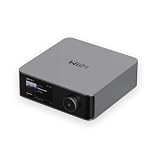
- Looks Good, Sounds Great: The WiiM Ultra redefines your audio experience with its sleek aluminum design and premium components. This all-in-one music streamer boasts a ESS ES9038 Q2M DAC, a vibrant 3.5” touchscreen, state-of-the-art Wi-Fi 6, and Bluetooth 5.3 connectivity. Engineered for excellence, it delivers outstanding audio clarity with a THD+N of -116dB and an SNR of 121dB, making it a perfect addition to any sound system.
- Versatile Connectivity Options: The WiiM Ultra offers versatile audio integration with its wide array of connection options. It features USB, Optical, Coaxial, RCA, a dedicated headphone output; HDMI ARC, and inputs for RCA, Phono, and Optical. It seamlessly integrates with both digital and analog sources, offering unparalleled flexibility for any audio setup.
- Home Theater Magic, Made Easy: Quickly enhance your entertainment with the WiiM Ultra's HDMI ARC and Subwoofer Out. Experience rich stereo sound for movies, shows, and games. Customize your sound experience with tailored EQ settings. Add a powered subwoofer for deep, cinematic bass. The WiiM Ultra ensures your home audio setup is both powerful and straightforward, bringing superb sound quality with minimal effort.
- Seamless Multiroom Audio: Effortlessly create a unified sound system across your home using the WiiM Ultra with existing Amazon Echo, Google Home, and WiiM devices. Easily manage music streaming throughout your space with the intuitive WiiM Home App—control volume, synchronize speakers, save your favorite tunes, set alarms, and customize settings, all from one central hub.
- Hi-Res Sound Shaped by You: Stream crystal-clear music up to 24-bit/192 kHz from platforms like Spotify, Amazon Music, TIDAL, Qobuz, or your own library. Enjoy gapless playback and superior sound quality. Personalize your audio with advanced room correction and independent EQ settings tailored to your space.
How to move your playlists to Apple Music
On an iPhone or iPad
- Open the Apple Music app and sign in to the Apple Account associated with your subscription.
- Open the account area.
- Choose Transfer Music from Other Services.
- Select the source music service and sign in or authorize access when prompted.
- Choose the library items and playlists you want to move.
- Tap Add to Library to begin the transfer.
On Android
- Open Apple Music and sign in.
- Tap More, then Settings.
- Select the music-transfer option.
- Choose the service you are leaving and complete its sign-in or authorization screen.
- Select the content to transfer and confirm with Add to Library.
On the web
- Go to
music.apple.comand sign in. - Open the account menu.
- Select Transfer Music.
- Choose the source service, authorize it, select your content, and start the transfer.
Apple describes this as a third-party-provided service presented within Apple’s interface. That means the transfer can still be affected by the source account, the catalogs available in your region, and the matching service behind the feature.
What transfers—and what does not
| Content | What to expect |
|---|---|
| Songs and albums | Eligible items are matched to corresponding entries in the Apple Music catalog. |
| Playlists you created | These are the strongest candidates for transfer, including personal workout, road-trip, party, and listening playlists. |
| Liked or loved songs | Eligible favorites can be added to Apple Music’s Favorite Songs playlist. |
| Editorial or algorithmic playlists | Playlists made by the source service itself do not transfer. You may need to find an Apple Music equivalent or recreate one manually. |
| Audio files | Apple’s documented workflow matches music to its catalog; it does not copy the source service’s audio files into Apple Music. |
A playlist that you saved from a service’s editorial section can be especially confusing. If it was created and maintained by the service rather than by you, it may not qualify as a user-created playlist. Save a list of its tracks or look for a comparable Apple Music editorial playlist before cancelling the old subscription.
Why some songs may be missing
The transfer is a catalog-matching process. Apple looks for a corresponding Apple Music entry, using the information available from the source service. A transfer can finish while still asking you to review music for which Apple found no exact match but did find possible alternatives.
For each suggestion, you can:
- Accept the proposed alternate version.
- Ignore the suggestion and leave the item unresolved.
- Wait for an exact match if the item is temporarily difficult to identify, then review it before the review period ends.
Apple says you have 30 days from the initial transfer to review unmatched music and select alternatives. If neither a match nor an acceptable alternate exists, the item is shown as unavailable.
Do these 3 things before closing this tab:
1Scan for outdated or missing drivers - takes under a minute2Clear out junk files and repair common Windows errors3Fix the driver behind crashes, sound loss and screen glitchesRank #2

- 【Mini Portable Media player】-- Fits into the palm of your hand, It is a perfect travel partner for those short on space and sockets. Also compact and easy multifunction HD media player for office work and home entertainment;Made of aluminum alloy, it has better protection during carrying
- 【1080P MP4 Player】-- Full HD 1080p supports most video decoding formats: RM, RMVB, AVI, DIVX, MKV, MOV, HD MOV, MP4, M4V, PMP, AVC, FLV, VOB, MPG, DAT, MPEG, TS, TP, M2TS, WMV, (H.264,H.263,WMV9/VC-1,MPEG1/2/4),Not support VPR files. Note: Please use our 4K player to play some videos taken with smart phones, ASIN: B07WPY8VKL
- 【HDMI or AV Output】-- Supports 1080p HDMI output, allowing you to transmit crisp, clear video and audio in a pure digital format to an HDTV; it also supports composite AV output for use with analog TVs. An analog AV cable is included. While using HDMI video output, you can also connect external speakers via the AV output. However, video cannot be output via both AV and HDMI at the same time.
- 【USB 2.0/3.0 Compability】-- Drive external USB 2.0/3.0 storage devices such as SD card(up to 128G)/USB flash(up to 512G) and hard drive(partition should be MBR, up to 8TB), you can also delete or copy files in the USB drive(FAT or FA32) directly, Also plays subtitle files as well as loop videos
- 【Support Multiple Formats of Files and Playback Modes&Multi-functional Remote Control】-- Supports most video, audio, and image formats on the market, supports random playback of video and image modes, and supports loop playback. Supports repeat, zoom, fast forward, fast rewind, rotation, breakpoint playback method, start from scratch playback method and time selection playback method. It is also equipped with a convenient remote control for easy navigation of menu screens (ASIN: B0C9PZPFL8)
Pay particular attention to:
- Live recordings versus studio versions.
- Deluxe, anniversary, and remastered editions.
- Clean and explicit versions.
- Remixes, acoustic versions, and soundtrack edits.
- Regional releases and songs whose artist name or title is formatted differently.
Those checks are practical consequences of catalog matching, not a guarantee that any particular version will be available in your country.
Before you cancel the old service: a verification checklist
- Check the biggest playlists first. Open your most-used playlists and compare their track counts and ordering.
- Review the transfer’s unmatched-items area. Resolve alternatives while the 30-day review period is still open.
- Search for version errors. Confirm that live, explicit, clean, remix, and deluxe tracks are the versions you intended.
- Check Favorite Songs. If liked or loved tracks were imported, confirm that Apple Music’s Favorite Songs playlist contains the expected items.
- Test another device. Make sure the library appears on the iPhone, iPad, Android device, Mac, or web player you actually use.
- Keep the old service available temporarily. Do not treat a completed transfer notice as proof that every playlist and track was reproduced perfectly.
If Apple’s transfer option is missing or fails
The transfer menu is not visible
Update Apple Music and your device software, then sign out and back in if necessary. Confirm that you have an active Apple Music subscription and that Sync Library is enabled. Apple does not offer the feature in every country or region, and the transfer is unavailable in mainland China, Myanmar, and Russia. Apple Music’s broader availability and the list of supported source services can also vary by region.
The source service cannot be selected
The built-in tool supports only the services made available for your account and region. Check that you are signing in to the correct source account—not a second account with a different email address—and complete any authorization or security prompt in the source service.
The transfer finishes but songs are absent
Open the transfer results and review unmatched items. Search Apple Music manually for alternate editions, particularly live recordings, remixes, clean or explicit versions, and regional releases. If Apple has no suitable catalog entry, the item may remain unavailable.
Recommended Free Tools
Rank #3

- Wireless 4K Display Adapter enables screen mirroring of photos, videos and documents from compatible devices to TVs, monitors and projectors for home, office and presentations.
- Dual Casting Modes: Direct Mirror and DLNA mode. Direct mode supports fast screen mirroring, DLNA mode works via router for stable extended use.
- Easy Plug & Play Setup: No app or Bluetooth required. Connect the adapter to your display and power it via USB port for quick setup.
- Dual-band 2.4G and 5G WiFi ensures stable screen mirroring for presentations, video and online meetings.
- Note: Some subscription-based video apps may be restricted due to copyright protection. 4K output depends on both source device and display capability.
Your library appears on one device but not another
Confirm that every device uses the same Apple Account for Apple Music and that Sync Library is enabled. Allow time for the library to synchronize, then reopen Apple Music. Avoid starting a second migration until you know whether the first one is still processing.
Third-party playlist-transfer services
Apple’s tool should be the first attempt because it is built into the destination service. A separate service can make more sense when you are moving between several platforms, need batch operations, have an exported playlist file, or want a detailed unmatched-track report. These services are independent of Apple; their availability, pricing, and supported features can change.
Soundiiz
Soundiiz supports playlist transfers involving Apple Music, Spotify, YouTube Music, Amazon Music, TIDAL, Deezer, Qobuz, YouTube, SoundCloud, and other services. Its advertised free plan supports eligible one-at-a-time playlist transfers, while paid plans add batch and advanced transfer features. It is a sensible option for a large collection or for someone who regularly moves playlists between several services. Check the current plan limits and synchronization features before paying.
Tune My Music
Tune My Music is particularly useful if your playlists can be exported or represented as a file. Its documented workflows support source-to-destination transfers, playlist and library selection, matching by title, artist, album, and identifiers such as ISRC, plus downloadable reports for unmatched tracks. It also describes CSV import for rebuilding playlists in Apple Music and optional synchronization. That reporting can be more useful than a simple success message when you need to audit a large migration.
Rank #4

- 【SCREEN MIRRORING VIDEO/AUDIO to BIG SCREEN】 Wireless hmdi transmitter and receiver supports video resolution up to 1080P@60Hz resolutions,Built-in chip can prevent delay and lag caused by signal interference, you can enjoy clear and vivid images in a large screen. This Mirroring Dongle is perfect for learning, business meeting, family party and playing games and gives you a great screen experience.
- 【MORE ADAPTATIONS】Additional features include a mini adapter and a portable USB C to HDMI adapter (1080P@ 60Hz), USB-C (4K HDMI), suitable for MacBook Pro, Air, iPad pRPelbook, XPS, Galaxy, and more. Make this kit perfectly compatible with your commonly used machines and also compatible with more products.
- 【PLUG & PLAY】HDMI wireless transmitter and receiver No drive or APP needed, without messy wires, it’s easy to connect and pair TV and will not affect other wireless devices,Wirelessly mirror and share all contents on the big screen,include: pictures,videos,online game,online movies,web browsing,online shopping,documents and more.
- 【POWERFUL FUNCTION】HDMI Wireless adapters support stream 1080P@60Hz 3D movies,TV shows, video, games, presentations wirelessly from your Laptop,PC,Mac,Smartphone,Satellite Box,HDSLR Camera to HDTV,Projector or Monitor.
- 【50M/165FT LONG RANGE TRANSMISSION】The hdmi sender and receiver wireless allow for stable signal transmission at a distance of up to 165FT/50M by utilizing an updated wireless frequency band with multiple channels.This ensures that you won't experience signal interruptions even at long distances. This means you don't have to buy a long HDMI cable to extend video signals.NOTE:If in different rooms, or on different floors, where the rooms are separated by cement walls, the signal transmission may be affected,and the transmission distance may be reduced to 3-5Meters.The extent of the impact will depend on the thickness of the cement walls.Therefore,this distance is only for reference.
FreeYourMusic
FreeYourMusic advertises Apple Music transfers from services including Spotify, YouTube Music, TIDAL, Amazon Music, Deezer, SoundCloud, and Pandora. It offers apps for Windows, macOS, Linux, iOS, and Android and says it uses each service’s official sign-in flow. Where supported, it advertises preservation of playlist names, order, liked songs, and saved albums. Its free limits and one-time Premium offering should be checked before purchase because commercial terms and supported features may change.
Independent reader supportYour contribution helps us test, update, and keep practical guides available for everyone.Which method should you choose?
| Your situation | Best starting point |
|---|---|
| You have a normal collection and a few personal playlists | Apple’s built-in transfer tool. |
| You need to move many playlists at once | Apple first; consider Soundiiz if batch transfer is supported for your services and plan. |
| You have a CSV or exported playlist file | Tune My Music, because its documented workflow includes file import and missing-track reports. |
| You want a desktop or mobile app across several operating systems | FreeYourMusic, after checking current platform support and pricing. |
| You are trying to save a service-curated playlist | Look for an Apple Music equivalent or recreate the playlist manually; no transfer tool can promise that an editorial playlist will be portable. |
Do not give a third-party transfer service more account access than you understand. Use the provider’s official sign-in or authorization flow, read the permissions shown, and revoke access later if you no longer need the connection.
The practical answer after the Super Bowl
Bad Bunny’s Super Bowl LX performance gave Apple Music a major visibility boost, and Apple reported a sharp rise in listening afterward. If that moment—or any artist discovery—has you considering a switch, start with Apple’s own transfer workflow rather than rebuilding your library manually.
Expect a match-based migration, not a perfect file copy. Your personally created playlists are the most likely to come across; Apple Music or other editorial playlists generally are not. Review alternate versions and unavailable tracks within 30 days, verify Sync Library on your devices, and keep the old service active until your essential playlists have passed inspection.
Quick wins for a faster PC:
Scan for outdated or missing drivers - takes under a minuteDriver Scan →Repair Windows errors before they cause bigger problemsFix Now →Fix the driver behind crashes, sound loss and screen glitchesFind Drivers →Best Value

- Unleash Premium Sound: The WiiM Amp Pro is our most advanced streaming amplifier yet, featuring PFFB technology, Wi-Fi 6, an innovative thermal design, and a premium DAC for superior audio performance. It delivers 60W per channel power for 8 ohms, and 120W per channel power for 4 ohms. It incorporates the latest Wi-Fi 6 and BT 5.3 with two antennas, offering rock solid wireless audio streaming.
- Does It All Like Magic: Master your audio universe with the WiiM Home App. Stream from top music services and manage your system effortlessly, room by room. Adjust volume, sync speakers, save favorites, set alarms, and tweak settings—all in one place. Prefer your go-to music app? No problem, play straight from it. Plus, go hands-free with voice commands. Whether you're using Alexa, or Google Assistant, control is just a word away, even with the included voice remote.
- Home Theater Magic, Simplified: Elevate your entertainment experience effortlessly with the WiiM Amp Pro's HDMI ARC port. Plug in your TV and immerse yourself in rich stereo sound for shows, movies, and video games. Craving that extra oomph? Simply add a powered subwoofer to take your audio to cinematic levels. With minimal setup required, the WiiM Amp Pro offers a seamlessly integrated AV system that turns your living room into a home theater paradise.
- Seamless Multiroom Audio: Effortlessly create a unified sound system across your home using the WiiM Amp Pro with existing Amazon Echo, Google Home, and WiiM devices. Easily manage music streaming throughout your space with the intuitive WiiM Home App—control volume, synchronize speakers, save your favorite tunes, set alarms, and customize settings, all from one central hub.
- Hi-Res Sound Shaped by You: Stream crystal-clear music up to 24-bit/192 kHz from platforms like Spotify, Amazon Music, TIDAL, Qobuz, or your own library. Enjoy gapless playback and superior sound quality. Personalize your audio with advanced room correction and independent EQ settings tailored to your space.
Frequently Asked Questions
Does Apple Music copy my music files or playlists exactly?
Apple Music matches eligible songs, albums, and playlists to its own catalog. It does not copy audio files from the old service. Personal playlists are the strongest candidates, while service-created editorial and algorithmic playlists do not transfer.
How long do I have to fix missing songs after transferring?
Apple says unmatched items and suggested alternatives can be reviewed for 30 days from the initial transfer. After that, unavailable items may remain unresolved.
Is Apple Music’s transfer tool available everywhere?
No. Apple’s transfer feature is unavailable in mainland China, Myanmar, and Russia, and availability can vary elsewhere by country, region, source service, and account.
The Bottom Line
Bottom line: Use Apple Music’s built-in transfer tool first. It can move eligible songs, albums, favorites, and playlists you created, but it cannot guarantee an exact match for every track and does not transfer service-created editorial playlists. Check the results—especially alternate versions and unavailable songs—within Apple’s 30-day review window before cancelling your old subscription.
Quick Recap
Product prices and availability are accurate as of the date/time indicated and are subject to change. Any price and availability information displayed on Amazon at the time of purchase will apply.