To stream a prepared Telugu podcast playlist on YouTube Live, create a live event in YouTube Studio, connect an encoder on your laptop using the stream details shown in Studio, and send the playlist’s audio and visuals through that encoder. Test the preview before going public, confirm you have permission to rebroadcast every element, and monitor the stream while it runs.
Before you set up the stream
Check that your channel can go live
YouTube says a channel must be verified and must not have had live-streaming restrictions in the past 90 days. Its general live-streaming guidance also says streamers must be at least 16 years old. Enable live streaming in advance and check that Live Control Room is available to your channel: YouTube’s guide to getting started with live streaming.
Choose an encoder for a prepared playlist
YouTube offers webcam and encoder workflows. Webcam is a quick computer-based route for a camera-led broadcast; an encoder is a better fit when you want to send prepared audio and visuals, add overlays, or connect external equipment. For a playlist-first stream, use encoder software on the laptop. YouTube does not prescribe a particular media player or provide a dedicated playlist-streaming feature in the guidance cited here, so how you queue and play the episodes is an implementation choice.
You do not need to buy a microphone, mixer, capture card, or other gear just to play a prepared playlist. Those may be useful for live commentary or external audio inputs, but YouTube says expensive equipment is not necessary.
Windows Errors? Fix Them Before They Spread
Repair common Windows errors and clear accumulated junk for a smoother, more stable PC - no reinstall needed.Free scan · no reinstallCrashes, No Sound, or Screen Glitches?
Random freezes, missing sound and display glitches usually trace back to one bad driver. Find and replace yours safely.Free scan · under a minute#1 Best Overall

- Gradient RGB Symphony Lights: Cyclic and gradient RGB lights, in line with your live broadcast aesthetics. Bring you an immersive gaming experience and awaken all your senses. There's also a palpable sense of security, and when the COCONISE microphone is muted, the RGB lights go off to let you know you're working. Prevent accidents when you forget to mute your PC microphone for gaming.
- Practical and convenient function: It is equipped with a one-button mute touch sensor. When you want to close the microphone, you only need to touch it lightly to mute the sound, and the RGB light will go out to inform you that the microphone has been successfully closed. Equipped with a rotary control volume button at the bottom. There is a 3.5MM headphone jack in the middle, you can plug in the headphones to monitor your own voice in real-time and make adjustments in time when recording.
- Cardioid Polar Pattern: This microphone features a cardioid polar pattern that captures crisp, smooth, and clear sound in front of the microphone, reducing side pickup so it can focus on your voice. At the same time, it is equipped with a 25mm ultra-large capacitor diaphragm capsule, which can capture a wider range of audio with a sampling rate of up to 192kHz, and the pickup is delicate and noise-free.
- SOLID FIT: With a weighted carbon steel base, your big movements won't knock the mic down, even during intense gaming sessions. The detachable metal anti-splash screen is adopted. Compared with the sponge, the metal anti-splash screen can filter the plosive sound more effectively. And the rubber elastic band is firmly clamped on the shock mount, which can reduce the vibration noise caused by violent keyboard tapping and mouse clicking.
- Plug and Play:PC gaming microphone for streaming, compatible with PS4/PS4pro/PS5 desktop and laptop. You can quickly enter the game chat. The 180CM long detachable USB data cable can be extended from the back of the computer host to the main body of your gaming USB microphone without limitation.
Prepare the playlist and clear its rights
Check every part of every episode
Before scheduling the stream, confirm that you have permission to rebroadcast each episode and every included element: speech, music beds, clips, guest contributions, and artwork. Having a podcast episode available online—or having created the recording—does not by itself establish that you can rebroadcast all of its contents in a live stream. Rights depend on the specific material and permissions; this article cannot determine the status of any particular Telugu podcast.
YouTube says, “All live streams are scanned for matches to third-party content, including copyrighted content in the form of another live broadcast.” If a match is detected, YouTube may replace the stream image with a placeholder and warn you. If the identified material continues, the stream may be interrupted or terminated. A licensed work may still cause an interruption unless its rights holder adds your channel to the Content ID allowlist. Archived streams may also receive Content ID claims after the live broadcast ends. See YouTube’s live-streaming copyright guidance.
Rank #2

- [Natural Audio Clarity] Operated with frequency response of 50Hz-16KHz, the podcasting XLR mic delivers balanced audio range, likely to resonate with your audience. Directional cardioid dynamic microphone corded will not exaggerate your voice, while rejects unwanted off-axis noise for vocal originality and intelligibility during your PS5 gaming streaming video recording. (Tips: Keep the top of end-addressing XLR dynamic microphone AM8 facing audio source, and suggested recording range is 2 to 6 in.)
- [XLR Connection Upgrade-Ability] To use XLR connection, connect the podcast microphone to an audio interface (or mixer) using a separate XLR cable (NOT Included) . Well-connected and smooth operation improves audio flexibility to make you explore various types of music recording singing. The streaming mic isolates the pristine and accurate sound from ambient noise with greater no interference and fidelity. (RGB and function key on mic are INACTIVE when using XLR connection.)
- [USB Connection with Handy Mute] Skip the hassle of setting something up and plug the cable to play the dynamic USB microphone directly, which suits for beginner creators or daily podcast. You can quickly control the gamer mic with tap-to-mute that is independent of computer/Macbook programs to keep privacy when live streaming. LED mute reminder helps you get rid of forgetting to cancel the mute. (RGB and function key are only available for USB connection, but NOT for XLR connection)
- [Soothing Controllable RGB] RGB ring on the desktop gaming microphone for PC, with 3 modes and more than 10 light colors collection, matches your PC gears accessories for gaming synergy even in dim room. You can control the RGB key button of the dynamic microphone USB directly for game color scheme gaming or live streaming. Configured memory function, the streaming microphone RGB no need to repeated selections after turnning off and brings itself alive when power on. (Only available for USB connection)
- [More Function Keys] Computer microphone with headphones jack upgrades your rhythm game experience and gets feedback whether the real-time voice your audience hear as expected. Get the desired level via monitoring volume control when gaming recording. Smooth mic gain knob on the PC microphone gaming has some resistance to the point, easily for audio attenuation or boost presence to less post-production audio. (Only available for USB connection)
Make the visuals fit an audio-first broadcast
Choose a visual layer that you have rights to use, such as an episode title card or information about the podcast. Check that it remains legible and corresponds to the episode playing. Telugu-language content does not have a special encoder or stream-key requirement in the cited YouTube setup guidance; the general live-streaming workflow applies, while rights checks apply regardless of language.
Set up YouTube Studio and the laptop encoder
- Create the event. In YouTube Studio, open Live Control Room and create or schedule a stream. Enter the title and description, and choose the intended privacy setting. Labels and layouts can change; follow the current controls shown in Studio.
- Connect the encoder. Select an encoder workflow in Studio and use the stream details displayed there to connect your laptop’s streaming software. Keep the stream key private: anyone who obtains it may be able to send video to your event. Do not paste it into public notes, screenshots, or messages.
- Prepare the playlist output. In the laptop’s encoder setup, route the podcast audio and your chosen visuals into the stream. Use a player or playlist method that can advance through the episodes as intended. YouTube’s encoder instructions do not mandate a particular player or playlist automation method; verify that your chosen setup moves from one episode to the next without silence, overlap, or an unintended desktop view.
- Check the Studio preview. Wait for the encoder feed to appear in Live Control Room. Confirm that the image is correct and the audio is present at a sensible level before starting the event.
- Run a test. YouTube recommends testing before a real broadcast. Use a private or unlisted test, then check both the Studio preview and the viewer-facing page. Listen for missing, distorted, doubled, or unexpectedly quiet audio; confirm the visuals match the episode and the playlist advances as planned.
- Start and monitor the broadcast. Once the rights and test checks are complete, start the scheduled or public event. Keep an eye on the preview and listen to the output while live. When the YouTube event is finished, stop the encoder.
YouTube’s official encoder guidance covers connecting an encoder, checking the preview, and monitoring the live output: Get started with live streaming. A Google production guide also describes creating a stream in Live Control Room, copying stream information into an encoder, reviewing the preview, and starting the event; because that guide may be older, use the current Studio interface if labels differ: YouTube live production guide.
Rank #3

- 【Studio-Grade Sound Quality】This podcast bundle features Smart Noise Reduction System and 360° omnidirectional capture technology for vocal precision. ual-layer defense: Outer metal mesh filters plosive sounds, while inner windproof foam eliminates ambient noise. Integrated with professional DSP audio processing chip, it delivers studio-quality sound with real-time optimization.
- 【Plug & Play】Professional DJ mixer console seamlessly integrates podcasting functions with hybrid controls for real-time audio optimization. Includes 2 broadcast-grade condenser mics with anti-vibration suspension arms. USB-C interfaces enable instant connectivity across PC/smartphones/iPad, enable immersive creation anytime.
- 【Rich sound effects】The audio interface mixer has 4 sound variations(Female、Male、Child and Monster)and can produce 10 sound effects.It contains almost all of the commonly used functions.Four sound modes and 13 functions are not only made for live streaming,which is designed for recording,podcasting,tiktok live streaming,ect.
- 【Powerful Compatibility】Pro-grade compatibility ecosystem,supporting Smartphones/PC/PS5/Xbox and more.It can be compatible with Windows|Mac OS|Android|iOS|Chrome OS.Plug and play zero configuration direct connection technology, one click integration of cross platform creation ecology, suitable for 12+professional scene needs such as live streaming/recording/esports/remote work
- 【Multi instrument access】This product can directly connect electric guitars/bass/electronic drums without damage, retaining the original dynamic response.Whether live-streaming, recording, or hosting a radio show, you can directly input instrument audio to deliver pristine sound quality that authentically captures your performance
Choose between an encoder and webcam workflow
| Workflow | Best suited to | What to expect |
|---|---|---|
| Encoder | A prepared playlist with custom visuals, overlays, or external hardware | More control over the audio-and-visual mix; you connect streaming software to the event using stream details from Studio. |
| Webcam | A straightforward broadcast where you present live on camera | A quick computer-based route that requires a webcam; it is less adaptable for a prepared playlist presentation. |
These are YouTube’s general workflow options, not Telugu-specific modes. A webcam can still suit a creator who introduces or discusses episodes live, while an encoder gives more control over a playlist’s prepared audio and visuals.
Troubleshoot common stream problems
The encoder feed does not appear in Studio
- Check that you selected the intended event and entered its current stream details in the encoder.
- Confirm that the encoder is actively sending a feed and that the laptop is connected to the internet.
- If you exposed the stream key, replace or reset it in Studio before reconnecting.
Audio is missing, distorted, or doubled
- Confirm that the playlist player’s output is routed into the encoder’s audio input.
- Check for duplicate audio capture paths, such as capturing the same player output twice.
- Replay the test from the viewer-facing page and listen there, rather than relying only on the laptop’s local playback.
The stream drops frames or the connection indicator changes color
OBS says increasing dropped frames and a yellow or red connection indicator can indicate that the connection to the streaming service is unstable or cannot sustain the configured bitrate. Start with OBS’s Auto-Configuration Wizard for basic settings, then test again; it is a starting point, not a guarantee of a stable stream. Connection capacity and laptop performance vary. See OBS streaming connection troubleshooting.
Rank #4

- Cardioid Pick-up: Cardioid pickup pattern that captures clear and crisp voice in front of the mic and suppresses unwanted background noise. Design for chatting, teleconferencing, recording, podcast
- For Podcast: Equipped with a non-slip stand that adds stability while occupying a small desktop area. One-click mute and volume control for easy operation during the recording. The shock mount and pop filter can prevent recordings from being disturbed by vibration
- Strong Compatibility: TC-777 is multi-device and program compatible, you can use it on Windows, MAC, PS4 and 5. It can also be quickly recognized by Zoom, Skype, Discord, allowing you to start creating or communicating immediately. (Not compatible with Xbox)
- Plug & Play: With a USB 2.0 data port, the TC-777 is plug and play, with no additional drivers or assembly process required. The angle of both microhone and pop filter can be adjusted as needed to achieve the best audio effect
- What's In the Box: 1 x Microphone with Power Cord(1.9m), 1 x Foldable Mic Tripod, 1 x Mini Shock Mount, 1 x Pop Filter and 1 x Manual
YouTube interrupts the broadcast
Check Live Control Room for a copyright warning or placeholder and review the material currently playing. Stop or replace any identified content you are not authorized to stream. For licensed material, ask the rights holder whether your channel can be added to its Content ID allowlist; possessing a license may not prevent a live interruption if the channel is not allowlisted.
Independent reader supportYour contribution helps us test, update, and keep practical guides available for everyone.Or let it run in the cloud
If you want the Telugu podcast playlist to keep looping on YouTube without leaving the laptop on, StreamNeo runs the stream from the cloud: upload the recording or build a playlist, add your YouTube stream key once, and go live. Nothing has to stay on at home. Every slot streams the uploaded video as made, up to 4K 60fps, at one flat price per slot, with automatic recovery if YouTube drops the stream. The first day is free with no card; it is one free day per account. Monthly service is $9.99 per month. UPI and cards are available in India; card checkout is available worldwide. StreamNeo plays uploaded videos and streams to YouTube only. For Telugu podcasts, make sure you have cleared rights for every episode and included element before uploading or going live. Start your free StreamNeo day.
Recommended Free Tools
Best Value
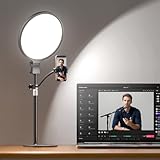
- 1300 Lumens Full-Panel Light, 2.8X Brighter Than Standard Ring Light — Compared to a standard ring light with stand under 500 lumens, this 10" full-screen podcast light delivers 1300 lumens of shadow-free, evenly spread light with a wide coverage area, keeping your face and background bright and clear for a professional on-camera appearance. Ideal for zoom meetings, video calls, remote work, podcast recording, live streaming, and content creation
- Softer, Eye-Friendly Lighting with Side-Lit Technology— Edge-lit design with upgraded guide panel creates 3× smoother, softer illumination than traditional desk ring lights. With uniformity ≥0.7 and UGR <14, it delivers evenly balanced, glare-free lighting that’s gentle on the eyes. Perfect for close-up lighting, it minimizes harsh shadows and helps reduce eye strain during all-day meetings and extended recording sessions
- CRI 98+ with 30 Lighting Options — Capture true-to-life skin tones and natural colors with a CRI of 98+. Fine-tune your look with 3 color temperatures and 10 brightness levels (30 total combinations) — from warm cozy tones to daylight clarity, ideal for podcasters, influencers, streamers, home office professionals and content creators
- Ultra-Stable Base & 360° Flexible Phone Holder — A wider, reinforced base and aluminum stand keep your desk setup rock-solid for computer, laptop, and phone use. The extended phone mount fits devices up to 3.54 in, rotates freely for vertical or horizontal shots. Built with aluminum alloy and ABS for durability, ensuring long-term stability and reliable performance
- Professional Lighting for Work & Creation — Plug-and-play design works with laptops and desktops, helping you look professional on every call while delivering studio-quality lighting for creative projects. Premium packaging plus responsive support make this video conference lighting a smart investment for serious creators — and a thoughtful gift for professionals
Frequently Asked Questions
Does a Telugu podcast need a special YouTube Live setup?
No Telugu-specific encoder or stream-key setting is identified in YouTube’s general setup guidance; use the normal encoder workflow and check rights for the content.
Can I use a webcam instead of encoder software?
Yes, if you are presenting live on camera. For a prepared playlist with custom audio and visuals, an encoder gives more control.
Quick Recap
Product prices and availability are accurate as of the date/time indicated and are subject to change. Any price and availability information displayed on Amazon at the time of purchase will apply.