For cartoons that simply need to repeat on your own screen, open the YouTube playlist and turn on Loop; you do not need an encoder or a livestream. To broadcast cartoons continuously to viewers on a public YouTube channel, you need an eligible channel, a streaming encoder such as OBS, upload bandwidth that can sustain the stream, and the rights to show the cartoons. A low-RAM computer may or may not manage that workload—there is no universal RAM figure that guarantees 24/7 streaming.
First decide: local playback or a public livestream?
| What you want | Setup | What it does |
|---|---|---|
| Repeat cartoons on your own computer | Open the playlist and enable Loop in the playlist box. | Repeats playback locally; it does not broadcast to viewers. |
| Broadcast continuously on YouTube | Use an eligible channel, YouTube Live Control Room and a streaming encoder. | Sends a public live stream, subject to computer, connection, rights and uptime limits. |
YouTube documents playlist repeat controls for computers and repeat controls for TVs and consoles. If local playback is all you need, turn on Loop and stop here. The remaining steps apply only to a public broadcast. YouTube Help: loop videos or playlists.
Before setting up a public 24/7 stream
Check that the channel can go live
YouTube’s current live-streaming guidance says a channel must be verified and must not have had live-streaming restrictions in the preceding 90 days; it also specifies an age requirement. Check access for the actual account in YouTube Studio before installing or configuring an encoder, since eligibility is account-specific. YouTube Help: get started with live streaming.
Confirm the rights to the cartoons
Being able to watch a cartoon on YouTube does not by itself establish permission to rebroadcast it. Before starting a public stream, confirm that you have the necessary rights for the specific cartoons and that your use follows applicable YouTube rules. The rights status of any particular cartoon cannot be determined without details about the material and permissions; this is not a legal determination.
#1 Best Overall

- 【WHY CHOOSE CORE i3-5005U - Better single-core performance:】Powered by the Intel Core i3-5005U processor, it provides a stable and efficient platform for daily essential tasks that rely on fast single-core performance (e.g., web browsing, office apps), it handles light multi-threaded tasks like multitasking with multiple browser tabs and office applications efficiently, ensuring a smooth workflow for budget-conscious professionals.
- 【Up to 16GB RAM and 512GB SSD】 Installed with 8GB DDR RAM (expandable up to 32GB) and a responsive 512GB M.2 2280 SSD for quick boot times and fast file access. Need more space? The mini desktop PC supports M.2 SATA/NVMe SSD expansion up to 2TB and an additional 2.5-inch SATA SSD/HDD slot with cable which up to 2TB, providing up to 4TB total storage for photos, videos, business files, media libraries, and backups.
- 【7*24 Hours Stable Operation】Engineered with an optimized cooling fan designed for low-TDP processors. This mini PC is optimized for 7x24 hours industrial and commercial use, such as digital signage, thin client setups, or home media servers. The low-power (TDP: 15W) architecture ensures energy efficiency without compromising the steady performance needed for long-term operations. Its capabilities make it well-suited for multi-monitor workstations, retail POS displays, and real-time monitoring terminals.
- 【Comprehensive Port Layout & Connectivity】 Simplify your desktop setup with a robust array of ports. It features 2x USB 3.2 Gen1 (5Gbps) and 1x USB Type-C (Data only) on the front panel for fast external drives, plus 2x USB 2.0 on the back for legacy peripherals like printers. The built-in Gigabit Ethernet (RJ45), Wi-Fi 5 (802.11ac), and Bluetooth 5.0 ensure you stay connected to both wired and wireless networks effortlessly.
- 【Quiet Operation & Space-Saving Design】 Engineered with an optimized cooling fan designed for low-TDP processors, the C3 operates quietly even during long study or work sessions, maintaining a peaceful environment in your home office or bedroom. Weighing under 1kg, its ultra-compact form factor can easily be tucked away on any desk, helping you reclaim your workspace while maintaining a minimalist aesthetic.
Assess the actual computer, not just its RAM number
OBS can be used as the encoder, but there is no reliable universal minimum RAM figure for continuous streaming. CPU load varies with encoder, resolution, frame rate and scene complexity, and a machine’s overall capability depends on more than memory. The OBS Project cautions that meeting its basic system requirements does not guarantee a computer can stream or record. Use OBS’s Auto-Configuration Wizard, keep the scene simple and test the actual machine before committing to a long broadcast. OBS Project: System Requirements.
Set up the do-it-yourself livestream
- Verify access in YouTube Studio. Sign in to the channel you intend to use and check that live streaming is available. Complete verification or resolve any restriction before proceeding.
- Prepare the source video and a simple OBS scene. Add the cartoon video or playback source you are authorized to stream. Keep overlays, browser sources and other scene elements to a minimum on a constrained computer. Run OBS’s Auto-Configuration Wizard, then test the chosen settings on that computer.
- Set output to fit the connection. Use YouTube’s current encoder settings table to choose a bitrate for the resolution and frame rate you actually intend to send. Do not copy a high bitrate without checking the available upload speed. YouTube says total stream bitrate must not exceed available upload bandwidth and recommends 20% headroom. That 20% is YouTube’s general guidance, not a guarantee about any Indian ISP or connection. YouTube Help: encoder settings, bitrates and resolutions.
- Check upload stability. Run an upload speed test and select settings that the connection can sustain, leaving room for normal variation. If Wi-Fi is unstable and both the computer and router support it, try an Ethernet connection; YouTube says a wired connection may help. Close unnecessary tabs and programs to reduce competing load. YouTube Help: streaming tips.
- Connect OBS to YouTube Live. In YouTube Studio, open the Live Control Room and use the stream key and connection instructions shown for the broadcast. Treat the stream key like a password: do not publish it or share it. Enter it in the encoder’s streaming settings, and use the current YouTube and OBS labels shown in your account rather than relying on outdated menu directions.
- Preview and test before announcing the stream. Start the encoder, check the Live Control Room preview, confirm the broadcast is accessible as intended, and listen and watch for audio or video problems. YouTube recommends preparing the encoder in advance and checking the preview. A successful short test does not demonstrate uninterrupted 24/7 operation; keep monitoring the stream. YouTube Help: streaming tips.
Low-RAM troubleshooting
- OBS stutters, overloads or drops frames: Reduce output demands using YouTube’s current bitrate guidance, simplify the scene and close unneeded applications. If OBS offers a supported hardware encoder, test it; OBS lists examples such as NVIDIA NVENC, Intel Quick Sync and AMD VCE. Availability depends on the actual hardware and drivers. Hardware encoding may reduce CPU work, but it does not fix insufficient RAM, weak upload, overheating, power cuts or rights problems.
- The stream disconnects or becomes unstable: Check whether sustained upload capacity is adequate for the selected bitrate and preserve the recommended headroom. If the connection is unreliable over Wi-Fi, try wired networking where available. A speed test is only a check of conditions at that time, not proof that the connection will remain stable indefinitely.
- YouTube does not accept the stream: Check channel eligibility in YouTube Studio, confirm that the current stream key and encoder connection settings match the Live Control Room, and review any account restriction or setup notice.
- The preview works but the long broadcast fails later: A short successful test cannot establish 24/7 reliability. Monitor the actual broadcast and consider the computer’s sustained workload, network variability and power interruptions. No particular hardware upgrade or backup system can be recommended without knowing the setup.
- The channel receives a copyright complaint or restriction: Stop and review the rights for the specific cartoons and the platform’s notice. Public availability is not proof of rebroadcast permission.
Or let it run in the cloud
If a low-RAM computer or home connection cannot stay running reliably, StreamNeo is a cloud option for keeping uploaded videos live on YouTube. Upload the recording or build a playlist, add your YouTube stream key once, and go live; StreamNeo loops the uploaded material in the cloud, so your computer does not have to stay on. It is for uploaded videos, not live camera feeds.
Rank #2

- 【Beelink Intel S12-N95 Processor】The newly upgraded Mini S12 N95 Mini pc features an Intel Processor Alder Lake-N95(4C/4T, up to 3.4GHz) processor,Intel's Alder Lake-N series processors are low-cost, low-power chips designed for entry level PC systems. The Mini S12 N95 processor is an upgraded version of the N5105 processor that runs faster and performs better
- 【 8GB DDR4 RAM/480GB SATA3 SSD 】 The mini computer is equipped with high-speed 8GB DDR4 (up to 16GB with single-channel support) and 480GB SATA3 SSD(up to 4TB with dual-channel support, not included).8GB DDR4 memory, making your entire system respond quickly without delay or jumping. The main purpose of this Intel mini computer is to improve daily productivity and some creative content creation, with powerful storage that will not cause serious pressure on its system resources
- 【Ultra HD Graphics & Dual HDMI】Beelink mini pc equipped with Intel UHD graphics processor (1.20GHz, 16EU) supports 4K video playback,bring you smooth and gorgeous visual effectsor connects to a projector as a home theater to enjoy a variety of entertainment. Dual HDMI n95 mini pc allows you to connect two monitors simultaneously, simplifying and doubling your productivity. This minisforum mini pc is great for zoom meetings and allows Office/ Web surfing and streaming video at the same time
- 【Meeting deep needs】Small form factor pc is about 4.52x 4.04x 1.54 inches.N95 small computer adopts high efficiency cooling fan,large area air duct, quiet control chip design, no noise heat dissipation, heat dissipation performance improved by 40%, stable operation. Our N95 mini pc supports wifi5,Bluetooth 4.2 and 2.5G LAN, high-speed wireless connection technology and reliable and efficient transfer speeds to provide a faster Internet experience for browsing,streaming media and gaming
- 【Auto Power On & Beelink Technical Support】If you want to auto power on, please send us the barcode at the bottom of the machine first, and we will send the corresponding tutorial file. All our products have obtained FCC,CE ROSH certification. We also provide lifetime technical support, 7 Day/24 hours service
- Nothing has to stay on at home.
- Uploaded video streams as made, up to 4K 60fps, at one flat price per slot.
- Automatic recovery if YouTube drops the stream.
- The first day is free with no card; one free day per account.
The same product is included on every plan; only the billing period changes. Monthly: $9.99 per month. See StreamNeo for details, or start the free day.
Independent reader supportYour contribution helps us test, update, and keep practical guides available for everyone.What a 24/7 setup can and cannot promise
A local playlist loop repeats playback on the device. An encoder-based broadcast is a public stream that depends on channel eligibility, the computer’s sustained ability to encode, upload reliability, power and content rights. Even careful setup, preview checks and monitoring do not prove a stream will remain uninterrupted for 24 hours a day. Choose the workflow that matches the goal, test it on the real account and equipment, and do not announce continuous availability until you are satisfied it is working in practice.
Quick Recap
Best Value

- Powerful Performance: Intel Core i5 Hexa Core processor for reliable multitasking and smooth computing.
- Fast & Efficient: 16GB DDR4 RAM and 250GB SSD for quick startup and performance.
- Windows 11 Pro: Modern operating system with professional-grade tools and enhanced security.
- Compact Design: Space-saving mini chassis fits neatly on or under your desk.
- Renewed Quality: Professionally tested and renewed to perform like new; may show minor cosmetic wear.
Rank #4
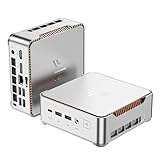
- 【AMD Ryzen 4300U True 4-Core CPU: Outperforms N95 & i3-10110U】KAMRUI P2 Mini PC is equipped with true 4-core AMD Ryzen 4300U processor built on advanced 7nm Zen2 architecture,This means you get consistent, unthrottled performance for hours on end, whether you’re running multiple browser tabs, streaming 4K content, or managing virtual machines. Compare that to Intel N95 (4 efficiency cores that throttle under load) or Intel i3-10110U (only 2 cores total), and the difference is night and day: The KAMRUI P2 AMD Ryzen 4300U (28W) is 40% faster than the Intel i3-10110U and 25% faster than the Intel N95 in multi-core tasks, ensuring smooth, lag-free performance even during heavy workloads.
- 【Large Storage Capacity, Easy Expansion】KAMRUI Pinova P2 mini computers is equipped with 16GB LPDDR4 for faster multitasking and smooth application switching. 512GB M.2 SSD ensures fast startup, fast file transfers and plenty of storage space,eliminating slow loading times and ensuring fast responsiveness. the two storage slots (1x M.2 2280 SATA/NVMe PCIe3.0 slot, 1x M.2 2280 SATA slot) can be combined to provide up to 4TB of total storage(Not included). This gives you enough space for all your projects, media and data.
- 【Integrated AMD Radeon Graphics: 2.5X Stronger for Tri 4K】The KAMRUI P2 AMD 4300U Mini PC have unlocked the full potential of the built-in AMD Radeon Vega 5 graphics with 28W power delivery, making it 2.5 times stronger than the Intel UHD graphics found in the N95 and i3-10110U. This means you can enjoy Tri 4K@60Hz displays without a single stutter, perfect for productivity setups, home theaters, or even light photo/video editing and casual gaming. While the Intel N95/i3-10110U struggle to run a single 4K display without lag, The KAMRUI AMD 4300U Mini PC handles Tri 4K effortlessly, turning your workspace into a high-efficiency hub or your living room into a premium entertainment center.
- 【4K Triple Display】KAMRUI Pinova P2 4300U mini desktop computers is equipped with HDMI2.0 ×1 +DP1.4 ×1+USB3.2 Gen2 Type-C ×1 interfaces for faster transmission, Triple 4K@60Hz Display, KAMRUI P2 mini computer is ideal for visual home entertainment, home office, conference rooms, etc. USB3.2 Gen2 Type-A port ×2 with a transfer speed of up to 10 Gbps (21 times faster than USB 2.0) for efficient data transfer. Ideal for seamless multitasking between spreadsheets, browsers and presentations, or for an immersive entertainment experience.
- 【USB3.2 Gen2 Type-C 10Gbps, Versatile connectivity】KAMRUI P2 mini desktop pc fast and versatile connectivity! The USB3.2 Gen2 Type-C port offers a data transfer rate of 10Gbps and simultaneously supports DisplayPort 1.4 video output. The P2 AMD Ryzen 4300U Mini PC is complemented by Gigabit LAN, WiFi and Bluetooth, so nothing stands in the way of a productive working environment.
Rank #3

- 【AMD Ryzen 7330U】 – The Efficiency-Tuned Powerhouse,AMD Ryzen 7330U (Zen 3, SMT, 4C/8T) in KAMRUI P2 mini PC crushes rivals: Intel i3-10110U (2C/4T, 2019) and N95 (4 efficiency cores, no HT, single-channel memory). Vs predecessor Ryzen 3 4300U (4C/4T): ~50% faster single-core, ~46% multi-core, 8MB L3 cache (vs 4MB). Beats both Intel chips hugely in multi-core, making heavy multitasking, coding, data work smooth at just 15W TDP. High-end power in a cool, efficient box.
- 【AMD Radeon Graphics】– Triple 4K Vision & Fluidity,The integrated Radeon Graphics (based on the modern Vega architecture with 6 CUs) is a visual beast, outclassing the iGPU offerings from both AMD's prior generation and Intel. The Intel UHD Graphics (i3-10110U/N95) struggles with single-channel memory and low execution units, crippling its gaming performance and barely handling basic 4K video without stuttering. While the older Radeon Vega 5 (4300U) was decent, our 7330U's Radeon Graphics (6 CUs) pushes the boundaries, delivering higher graphics clock speeds (up to 1.8GHz) and significantly better rendering capabilities. It can drive triple 4K@60Hz displays with zero lag, edit photos/videos.
- 【Generous Storage & Easy Expansion】The KAMRUI Pinova P2 mini desktop computers comes with 16GB LPDDR4X RAM (higher frequency, lower power) for buttery‑smooth multitasking, and a 256GB M.2 SSD for blazing fast boot‑up, quick file transfers, and no more long loading screens. It also features two storage expansion slots (1x M.2 2280 SATA/NVMe PCIe 3.0 slot + 1x M.2 2280 SATA slot), supporting up to 4TB total (not included). You’ll have all the space you need for projects, media, and important data.
- 【Triple 4K Display Output】The KAMRUI Pinova P2 mini desktop pc is equipped with HDMI 2.0 ×1 + DP 1.4 ×1 + USB 3.2 Gen2 Type‑C ×1 (with DP Alt Mode), enabling simultaneous triple 4K@60Hz output. Whether for home entertainment, remote work, or conference room presentations, it delivers an immersive visual experience. Two USB 3.2 Gen2 Type‑A ports (up to 10Gbps – 21x faster than USB 2.0) make data transfers and device expansion a breeze.
- 【USB 3.2 Gen2 Type‑C: 10Gbps & Versatile Connectivity】The USB 3.2 Gen2 Type‑C port on the KAMRUI P2 small pc supports 10Gbps data transfer speeds and can also output DisplayPort 1.4 video. Together with Gigabit LAN, Wi‑Fi, and Bluetooth, you get a fast, flexible, and productive connected environment – wired or wireless.
Product prices and availability are accurate as of the date/time indicated and are subject to change. Any price and availability information displayed on Amazon at the time of purchase will apply.



