In OBS, add a short audio file as a Media Source in the scene where you want the sting or jingle to play, then set its restart and loop behavior and test the mix before going live. Use audio cleared for both the live broadcast and any archived replay: YouTube scans live streams for third-party matches, and a licensed track may still interrupt your stream unless its rights holder has allowlisted your channel.
Choose a cue and confirm its rights
For a quick, downloadable cue, YouTube Studio’s Audio Library offers searchable music and sound effects. Search by keyword and download the item as an MP3. YouTube says Audio Library tracks are known to it as copyright-safe; if you choose a Creative Commons track, include the required artist credit in the video description. Eligible YouTube Partner Programme creators can monetize videos using Audio Library material. See YouTube’s Audio Library guidance.
For an original or third-party jingle, check the license itself—not just a “free” or “royalty-free” label. Make sure it covers your YouTube live use and any retained replay. YouTube warns that music described online as free can still be flagged by Content ID; a credit or disclaimer in your description does not grant rights. Its guidance on finding safe music points creators to the Audio Library, original music, Creator Music in certain regions, or third-party music whose license they have checked.
If you have permission to use third-party content, ask the rights holder to add your channel to its Content ID allowlist before broadcasting. YouTube says a live stream can still be interrupted when the channel is not allowlisted, even if you have a license or restrict the broadcast geographically. An archived live stream can also receive a Content ID claim after the broadcast ends. Read YouTube’s live-stream copyright guidance.
Recommended Free Tools
#1 Best Overall

- 18 Programmable Keys Macro Keypad: This stream controller deck comes with 18 customizable macro keys (15 LCD visual keys + 3 physical buttons). Users may program single actions or multi-step sequences for daily operation. The keys support in-game combos, app launch and media playback control for multiple usage scenarios. Each LCD key accepts JPG, PNG and GIF images and animations to mark separate functions
- Single Tap Control: This USB macro keyboard pad supports single tap commands for quick operation. Users can trigger pre-set macros, input text, open files and web pages, adjust media playback, or switch OBS scenes with one tap. The straightforward layout fits gaming, live streaming and professional office task setup
- One Tap Multi-Shortcut: This macro controller pad streaming deck supports multi-shortcut macro programming for gamers and content creators. Custom shortcuts simplify game combo inputs, video editing, music production and photography workflows. The Operation Follow function runs multiple macro steps in custom order or simultaneous execution for adjustable task control
- Adjustable RGB Surround Light Ring - VSD M18 gaming streaming deck features an outer RGB light ring with auto color cycle mode. Custom RGB tones are available via device firmware upgrade. The light ring offers adjustable visual lighting for dim gaming, streaming and night work setups.
- Wide System Compatibility: This VSDinside macro control board works with Windows 11 and newer, macOS 11.0 and newer systems. Connect via USB-C cable for immediate use. It is compatible with mainstream software including OBS, Streamlabs, YouTube, Twitter, Discord, Excel, Word and Photoshop for daily production work. Native Linux system plug-and-play support is not available, while SDK development documents are provided for custom secondary development
Add a one-shot sting in OBS
The steps below use OBS as the documented example; other streaming software may use different names or controls. OBS Media Sources support MP3, AAC, OGG, and WAV files. Its Media Sources guide, dated January 11, 2022, documents the relevant playback controls: OBS Media Sources.
- Prepare the audio file. Save the sting locally in a supported format. Keep the cue short enough for its intended purpose and listen to the whole file for unwanted silence, clipping, or a cut-off ending.
- Select the target scene. In OBS, choose the scene in which the sting should play—for example, an opening scene or a scene used for transitions.
- Add the source. In the Sources panel, add a Media Source, create or select the source, and browse to the local audio file.
- Set playback behavior. Leave Loop off for a one-shot sting. Turn on Restart playback when source becomes active if you want the cue to start from the beginning each time that source becomes active. Enable looping only when you intentionally want continuous background audio.
- Check the mix. Play the cue and use the OBS audio mixer to balance it against speech and other program audio. There is no universal level that suits every voice, recording, or sting, so listen to a test recording or private/unlisted stream before using it live.
Play a scene-change sound or manage several cues
For a cue tied to a scene
Place the Media Source in the scene where the sound belongs and use the restart setting to control whether it begins again when that source becomes active. Test the actual scene transition: confirm the cue starts at the intended moment, is audible without overpowering speech, and does not repeat unexpectedly. If you want a single sting rather than a sound that restarts whenever the scene is revisited, account for that behavior in how you trigger or arrange the source.
Rank #2
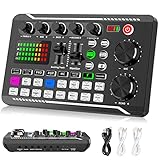
- 【Multi-Function Podcast Audio Mixer】-- 7 Independent volume knob adjustments and 2 fader button adjustments, covering bass, alto, treble, backing track and monitoring, etc, the breathing light can follow the volume to change synchronously. The digital sound mixer supports 16 kinds of personalized sound effects. These features make a live stream or a podcast more entertaining and meet more live recording needs, enough to meet the needs for podcasting beginner.
- 【Entry-Level Podcast System】-- Using digital DSP intelligent processing chip, the audio signal is stable and clear, and intelligent noise reduction has no delay. USB audio interface. Independent Bluetooth switch key, support Bluetooth wireless accompaniment. Built-in 1200 mAh capacity battery, there is no need to frequently plug in the power source, this soundcard adopts a compact portable design, does not take up too much space, and is easy to carry.
- 【Born for Live Streaming】-- Integrate audio and sound card mixing equipment into a comprehensive solution. Supports up to 2 people and 3 devices to broadcast live at the same time. Compatible with IOS, Android, ipad, Mac OS and Windows systems. If you are looking for an audio equipment for recording, gaming, podcasting, and live streaming, adding it to your setup is a good choice.
- 【Wide Applications】-- Suitable for PS4/ PS5 microphone recording studio, home studios recording, DJ mixer, music recording, guitars, condenser microphones, karaoke, podcasts, live broadcasts, gaming, TikTok, Facebook and YouTube streaming. Plug and play.
- 【Package Included】-- The introductory podcast kit for live broadcast includes: sound mixer board, data cable, audio cable x2, instruction manual. It is an ideal choice for beginners or intermediate podcasts. Easy to use. The design of soundcard sound effects and button panel makes it simpler.
For a playlist of cues
OBS’s VLC Video source can manage a playlist, which is useful when you want several files together rather than one local cue. It requires VLC to be installed. For a single sting, a Media Source is the simpler option. See the OBS documentation for source behavior and supported setup details.
Test before you broadcast
- Play the cue while speaking at your normal level; check that words remain clear and the sting is not startlingly louder than the program audio.
- Test the scene change that should trigger the sound, including returning to the scene if that can happen during your show.
- Listen to a recording or private/unlisted test stream on the kind of speakers or headphones your audience may use.
- Verify that the license permits live streaming and an archived replay, and complete any required attribution before going live.
- If a third-party rights holder licensed the cue, confirm that the channel has been allowlisted in Content ID; a license alone may not stop a live interruption.
Troubleshoot common problems
The sting does not play
- Check that the Media Source points to the correct local file and that the file is in a supported format: MP3, AAC, OGG, or WAV.
- Confirm the source is in the scene you are showing and that it is not muted in the OBS audio mixer.
- Revisit the source’s restart and playback settings. Test again with the source active in the intended scene.
The cue plays more than once or starts at the wrong point
- Turn off Loop for a one-shot sting.
- If it should restart at the beginning when activated, enable Restart playback when source becomes active. If you do not want it to restart on each activation, review that setting and test the scene behavior.
YouTube interrupts the live stream
YouTube scans live streams for matches to third-party content. When it detects a match, it may replace the stream with a placeholder and warn you to stop using the content; continued use can temporarily interrupt or terminate the stream. If you have a license, ask the owner to allowlist your channel. Remove the cue if you cannot resolve a match during the broadcast. See YouTube’s guidance on copyright issues with live streams.
Rank #3

- 【EASY AUDIO CONTROL】 Take control of your audio without constantly switching software windows. This gaming audio mixer features four physical faders for independent Microphone, Accompaniment, Speaker and Headset volume control, plus dedicated mute buttons for quick adjustments during gaming, streaming and live chat.
- 【READY FOR XLR MICS】 Upgrade from a basic headset or USB mic setup with support for dynamic and condenser XLR microphones. The built-in high-gain preamp supports mic sensitivity down to -65 dB, while 48V phantom power works with compatible condenser microphones. With 85 dB SNR and THD below 0.1%, your voice stays clean and clear for streaming, gaming and recording.
- 【ONE-TAP NOISE REDUCTION】 Reduce distracting keyboard clicks, PC fan hum, room chatter and other background noise with a dedicated noise reduction button. One press helps keep your voice clearer for Discord chat, online gaming, livestreaming and everyday content creation without complicated software settings.
- 【PLAY MUSIC WITH BLUETOOTH】 Connect a compatible phone through Bluetooth to bring background music and other audio into your setup. Easily add music while gaming, livestreaming or creating content, giving first-time streamers a simpler way to build a more complete audio setup.
- 【VOICE EFFECTS & SOUND PADS】 Add personality to your content with 6 voice effects, 12 Auto-Tune levels, reverb and echo, plus 4 customizable sound pads for reactions, intros and sound effects. Colorful RGB lighting keeps controls easy to identify while completing your gaming desk or streaming setup.
The stream is clear, but the replay receives a claim
Check the archive’s Content ID notice and the cue’s license terms. YouTube says archived live streams may receive claims after the broadcast. A license for live use should not be assumed to cover a retained video; confirm both uses with the rights holder.
Independent reader supportYour contribution helps us test, update, and keep practical guides available for everyone.Or let it run in the cloud
Stingers are only one part of a live setup. If you want a pre-recorded YouTube stream to keep running without leaving a computer on, StreamNeo runs uploaded videos and playlists from the cloud. Upload your recording or build a playlist, add your YouTube stream key once, and go live. It does not stream from a camera.
Rank #4

- [XLR Mic Input] One XLR microphone input interface is set on the gaming audio mixer, which is great to up your audio quality with your XLR setup. The XLR mixer is a stepping stone to upgrade your live streaming. Audio mixer offered built-in 48V phantom power which opens up more choices for mics. Directly use it with your condenser microphone but do not solve added peripherals. (NOT available for USB mic)
- [Individual Channel Control] Gaming audio mixer for one mic recording with smooth volume slider fader take your streaming recording to a whole new level with full pleasure. Four independent channels set on the DJ mixer give audio volume of the MICROPHONE, LINE IN, HEADPHONE, and LINE OUT channels individual control. Configurable on the PC audio mixer instead of just operating on your game or streaming software.
- [Mute and Monitor] The front mute and monitor buttons but not at the back, make it easier to get the audio interface use. Ability to mute audio, the audio mixer for streaming prevents background noise from damaging your live broadcast. Real-time feedback between speaking and hearing will not distract your attention, which encourage you to speak more confidently. The sturdy-built control button allow you to operate freely and easily during live streaming.
- [Sound Effects] The computer sound mixer supports four pre-recorded customized button that can be recorded and activated at the press of button to post production. 6 kinds of voice changing modes change your output style. 12 auto tune changes the tone of your voice. The podcast mixer being able to add different and fun effects is a huge bonus for your streaming or game voice.
- [Controllable Vibrant RGB] RGB button on the audio mixer DJ meets different live streaming themes. Lights on the video mixer is vibrant but not harsh on your eyes. Flowing or frozen RGB color rotation in a decent pace presents a greatly strong impression as a "light show" to your audience. Even a streaming equipment accessory will not be dull looking when video production.
- Nothing has to stay on at home: your computer and home connection can be off while the cloud stream runs.
- Each slot streams your upload as made, up to 4K 60fps, at one flat price per slot; there are no quality tiers or re-encoding.
- StreamNeo automatically recovers if YouTube drops the stream.
- The first day is free, with no card required; it is one free day per account.
- Every slot includes one always-on stream, 10 GB storage per slot pooled across active slots, looping and playlists, and support from the StreamNeo team. The same product is on every plan; only the billing length changes.
- Monthly: $9.99 per month.
To try the cloud workflow, start your free StreamNeo day.
Quick Recap
Best Value

- The sound board use intelligent noise reduction chip, audio processing is faster and more stable,so that the input voice is clearer and without delay. NOTE:The soundboard incompatible gaming devices,like PS5.
- The sound effects machine supports bluetooth-compatible connection, you can transmit accompaniment music through mobile phones, get rid of the shackles of wires.
- This sound mixer board with LED light, bright light, a variety of color changes, increase the indoor atmosphere.The size of the sound board is 7.48 x4.65 x1.10 inches.Easy to set up and easy to put back. Doesn't take hardly and space.
- This sound board for streaming can be used for DJ, music studio recording, condenser microphone, karaoke online, podcast, mic, singing, k song, live stream,and YouTube streaming, guitar, Facebook, anchor, voice mixing , home audio recorder.
- The audio mixer for streaming has strong compatibility, suitable for mobile phones/computers. Home K-araoke, Voice Chat, Live, Facebook, Periscope, Livestream, Wechat, Smule and more, Plug and Play.
Product prices and availability are accurate as of the date/time indicated and are subject to change. Any price and availability information displayed on Amazon at the time of purchase will apply.