Do these 3 things before closing this tab:
1Clear out junk files and repair common Windows errors2Fix the driver behind crashes, sound loss and screen glitches3Repair Windows errors before they cause bigger problemsYou can watch a genuine 3D movie on a smart TV only when the television has built-in stereoscopic 3D support. The most dependable setup is a 3D Blu-ray player, a Blu-ray 3D disc, a High-Speed HDMI connection and glasses that match the TV. “Smart,” 4K, HDR or having a Netflix app does not add 3D capability to an ordinary television.
What counts as a 3D movie?
Genuine stereoscopic 3D sends separate images to your left and right eyes through compatible glasses or a headset. Several formats can look similar on a file list but are not interchangeable:
- Side-by-side (SBS): left- and right-eye views sit next to each other in one frame.
- Top-and-bottom (over-under): the two views are stacked vertically.
- Frame-packed 3D: a disc or player sends a standardized stereoscopic signal that the display recognizes.
- Anaglyph: red/cyan images viewed through colored glasses; this is not the same system used by most 3D televisions.
- 2D-to-3D conversion: the TV estimates depth from a flat image rather than displaying a film mastered in stereoscopic 3D.
A normal TV may show an SBS or over-under file as two squashed pictures, but it cannot necessarily combine them into 3D.
First, check whether your smart TV is 3D-capable
- Find the exact model number on the rear label, in Settings, or on the original paperwork.
- Use the manufacturer’s specification page or manual and search for “3D,” “Active 3D,” “Passive 3D,” “3D format,” “frame packing,” “side-by-side,” or “top-and-bottom.” Sony advises checking the model manual because 3D technology and glasses requirements vary by set: Sony’s 3D setup guide.
- Look for a 3D button on the remote or a 3D option in the picture menu. This is a clue, not a substitute for the model specification.
- Confirm that compatible glasses are available. Active-shutter glasses need the correct synchronization system; passive polarized glasses must match the TV’s polarization design.
Do not infer 3D support from 4K resolution, a 120-Hz panel, HDR, Dolby Vision, a large screen, a current operating system or “cinema” branding. Some 4K 3D televisions also refuse 3D when the source is outputting 4K, so resolution compatibility is model-specific.
#1 Best Overall

- [Cinema 3D Glasses] Circular polarized non-flashing passive 3D glasses, polarized to reduce glare and improve picture clarity. Suitable for all passive Real technology compatible screens - the most common 3D technology on the market. A pair of glasses that supports 3D TV and cinema.
- [Better 3D Experience] The 3D movie glasses in theaters are public glasses, hygiene cannot be guaranteed. And being used by people for a long time may cause damage to the lenses affecting the viewing of 3D images. Bring your own glasses can bring you a more comfortable experience.
- [Compatible with Multiple Devices] 3D glasses can be used in all Real format cinemas, non-flashing polarized 3D TVs, polarized 3D computer monitors and polarized 3D projectors.
- [Note] The following are not available: IMAX 3D、 MasterImage 3D、 Red-blue 3D movies/regular TVs, monitors and projectors、 Active shutter 3D TVs, monitors and projectors、Cell phones. Please confirm that the product matches your TV or monitor before purchase, if you are not sure, you can ask the seller's service center.
- [Reliable After-sales Service] Our company offers a 12-month warranty. If there is any problem with the product, please feel free to contact us. We will try our best to help you. Free replacement or 100% refund.
The easiest reliable method: Blu-ray 3D
Equipment checklist
- 3D-capable TV or projector
- 3D Blu-ray player
- Blu-ray 3D disc (not the ordinary 2D edition)
- Correct active-shutter or passive glasses
- High-Speed HDMI cable
- Optional receiver or soundbar that can pass the video signal
Sony’s documented arrangement uses a 3D source, a compatible display, matching glasses and a High-Speed HDMI connection: Sony’s 3D movie instructions.
Connection and playback steps
- Connect the player directly to a compatible HDMI input on the TV.
- Insert the Blu-ray 3D disc and select that HDMI input.
- Start playback and put on the matching glasses.
- Allow the TV to switch to 3D automatically. If it does not, open the picture or 3D menu and select the format indicated by the disc or player.
- If a receiver is between the player and TV, bypass it temporarily. Direct player-to-TV testing shows whether the receiver, splitter or capture device is blocking the 3D signal.
Physical discs avoid uncertain app catalogs, licensing restrictions and wireless casting behavior, which is why this remains the highest-probability solution for a confirmed 3D television.
Playing a 3D video file from a computer or media device
You can use a computer over HDMI, a compatible player’s USB or network playback, or a local media server. The file must be genuinely 3D and encoded in a format your TV and player understand.
Rank #2

- COMPATIBILITY: Universal design fits for most 3D movies, TV shows, and video games using red-blue anaglyph 3D technology
- PACKAGE CONTENTS: Set includes 4 pairs of classic red and blue 3D viewing glasses for group entertainment
- CONSTRUCTION: Lightweight frame with durable plastic construction and red-blue filtered lenses for optimal 3D viewing
- VERSATILE USE: Compatible with red-blue 3D content across various media including DVDs, gaming consoles, and television programming
- DESIGN FEATURES: Simple, comfortable frame design suitable for extended viewing sessions with minimal eye strain
- Identify whether the file is SBS, top-and-bottom or frame-packed, and check its codec and resolution.
- Connect the source directly to the TV by HDMI.
- Play the file and select the TV’s matching 3D mode.
- Put on the correct glasses and check that the two views merge into a single image.
LG’s instructions describe selecting the HDMI input, playing the file, pressing the TV’s 3D control and choosing the matching shape: LG’s external-device guide. LG also warns that codec, resolution, file extension and other properties can prevent playback even when a computer opens the file. USB support differs by model, a computer may default to a 2D output mode, and subtitles can be misplaced unless the player supports stereoscopic subtitle positioning.
Can Netflix, YouTube or Google TV stream 3D?
| Service or source | Normal smart-TV 3D? | Practical verdict |
|---|---|---|
| Netflix | Not a dependable general-purpose 3D mode | Use a disc or a confirmed model-specific source |
| YouTube | Model-, app- and format-dependent | Test only when the TV manual documents 3D |
| Google TV purchases | 3D version restricted to Android XR in current documentation | Other Google TV devices play the 2D version |
| Local file over HDMI | Sometimes | Depends on the TV’s 3D format and codec support |
Netflix
Netflix’s supported-device pages cover standard, HD, 4K and HDR playback, not a universal smart-TV 3D mode: Netflix supported devices. Sony specifically states that 3D videos in Netflix are unsupported on the applicable televisions, so having the Netflix app does not establish 3D playback: Sony’s model-specific support page.
YouTube
Some model-specific Sony Android TV documentation lists YouTube 3D while excluding Netflix 3D. Uploads may be demonstrations, trailers, low-resolution clips or incorrectly formatted files, so treat YouTube as an experiment rather than a movie-library solution.
Rank #3
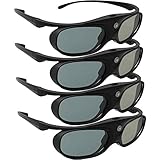
- Next generation super fast 144Hz refresh rate, ahead of other 120Hz or 96Hz product's level
- Fashion design, beautiful color stands out among other dull black ones. Lightweight and portable to take, comfortable for long time wearing. Please note we don't support 3D TV
- 178° wide viewing angle enables you to watch large screen movies without distortion, providing you a superior 3D visual experience
- Built-in high capacity rechargeable batteries allows you playing up to 30 hours continuously. Indicator Light for showing Battery status
- Easy Operation: Simple One Button Operation with Auto 5 seconds Stand by and 5 minutes Shut Off, detailed user manual included
Google TV
Google’s current help page says certain purchased titles can include a 3D version, but that version plays only on an Android XR device; other Google TV devices continue to play the 2D version. The page refers to eligible purchases made after October 21, 2025, with availability dependent on title, licensing, account and device: Google TV 3D guidance. This does not turn a conventional television into a 3D display.
Casting and screen mirroring
Google’s casting procedure requires the source and TV to use the same Wi-Fi network and a compatible app or Chrome browser: Google TV casting instructions. Casting is not automatically stereoscopic:
Free tools Windows power users keep installed
One-click scans. No signup required.
- Phone screen mirroring normally sends one flat 2D image.
- Casting an SBS or over-under file may send both views, but the TV still has to offer a manual 3D mode.
- A streaming app commonly outputs 2D because that app/device combination exposes no 3D signal.
- Direct HDMI from a computer generally gives more control over resolution, refresh rate and 3D mode.
If your TV does not support 3D
Use a 3D projector
A projector can replace the TV for a large-screen setup, but verify Blu-ray 3D or frame-sequential input support, the required glasses system, brightness in 3D mode, throw distance and HDMI/receiver compatibility.
Rank #4

- 👓UNIVERSAL COMPATIBILITY: These 3D glasses work with most 3D-ready TVs, movies, DVDs, and gaming systems that use red/blue anaglyph 3D technology
- 🎮PACKAGE CONTENTS: Set includes 4 pairs of classic red and blue lens 3D glasses for shared viewing experiences with family and friends
- 📺LIGHTWEIGHT DESIGN: Simple frame construction ensures comfortable viewing during extended movie sessions or gaming periods
- 🎬VERSATILE USE: Compatible with various 3D content including printed materials, videos, games, and television programs using anaglyph technology
- 📽️EASY TO USE: Simply put them on and enjoy instant 3D effects with compatible content - no batteries or power source required
Use a headset
An Android XR or other compatible headset is a separate, personal display. It may access newer digital 3D ecosystems, but it does not upgrade the existing television and is not a shared-room replacement.
Consider used hardware carefully
Used or refurbished 3D televisions and players may be available, but check the exact 3D specification, working glasses and chargers, panel defects or burn-in, HDMI inputs, firmware condition and a real 3D test before buying. App support on an older set may be obsolete even when its 3D panel still works.
Independent reader supportYour contribution helps us test, update, and keep practical guides available for everyone.Fix common 3D problems
The screen shows two images side by side
- Confirm whether the source is SBS or top-and-bottom.
- Open the TV’s 3D settings and select that exact format.
- Check that active glasses are powered and paired, or that passive glasses match the panel.
“3D signal not detected” appears
- Connect the player directly to the TV.
- Set the player to Auto or 1080p output and enable 3D output.
- Try another HDMI input and a compliant High-Speed HDMI cable.
- Test a known Blu-ray 3D disc and confirm the disc is not the 2D edition.
- Consult both manuals. On some Sony 4K models, 3D is unavailable while the input is 4K: Sony’s compatibility note.
The picture is 2D
The title may have only a 2D license, the app may not support television 3D, the source may be outputting 2D, or the TV may not support 3D. Google’s Android XR-only titles also remain 2D on ordinary Google TV devices.
Best Value
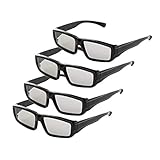
- 4x Polarized Passive 3D Glasses for Passive Polarized 3D TVs Projectors RealD Cinema!
- Please confirm the 3D type of your device!
- The Device manual or nameplate Must be Passive or Polarized 3D!
- Not Active Shutter 3D Glasses, Not Compatible with 3D active Shutter TVs and Projectors!
- Includes: 4 Pairs of Polarized Passive 3D Glasses, 4 glasses bags
Glasses do not work
Charge and pair active glasses, verify the exact model technology, or use passive glasses designed for that TV. “Universal 3D glasses” are not reliably universal.
The smart-TV app is missing
Netflix recommends checking the TV home screen or app store, updating system software and consulting the manufacturer for older devices: Netflix TV guidance. App availability still says nothing about 3D capability.
Quick Recap
Which option should you choose?
- Best overall: a confirmed 3D TV with a 3D Blu-ray player and Blu-ray 3D discs.
- Best no-disc option: a legitimate local 3D file over HDMI, provided the TV supports its format and codec.
- Worth testing: YouTube on a model whose manual explicitly documents 3D.
- For a non-3D TV: replace the display with a compatible projector or use a headset; a streaming stick cannot add stereoscopic hardware.
Product prices and availability are accurate as of the date/time indicated and are subject to change. Any price and availability information displayed on Amazon at the time of purchase will apply.