Free tools Windows power users keep installed
One-click scans. No signup required.
Some links on this page are affiliate links: if you buy through them we may earn a commission, at no extra cost to you.
If the ebooks were bought from Amazon, register the second Kindle to the same Amazon account and download them from its Library. You usually do not need to copy ebook files from the old Kindle.
The method changes for personal documents, USB-sideloaded files, books on another Amazon account, and unsynchronized notes. This guide explains what comes back automatically, what must be transferred manually, and how to fix missing titles.
Before you start
- The old Kindle, if it still works
- The new Kindle
- The Amazon login used on the old device
- A Wi-Fi connection
- The original files for books or documents copied directly by USB
If you plan to sell, give away, or reset the old Kindle, synchronize it first. Unsynchronized notes, highlights, reading progress, and locally stored documents may not be recoverable afterward.
Transfer Amazon-purchased ebooks
- Turn on the new Kindle and select its language and region.
- Connect it to Wi-Fi.
- Register it to the same Amazon account used by the old Kindle.
- Open Library.
- Select All, not only Downloaded.
- Tap a book cover to download it to the new device.
Amazon stores purchased Kindle content in the account’s cloud library, so both Kindles can remain registered to the same account. Do not deregister the old Kindle merely because you are adding a second one. Deregister it only when removing it from your account, selling it, or giving it away.
#1 Best Overall
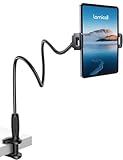
- 【Innovative Unique Tapered Flexible Arm】 Lamicall gooseneck ipad holder built with a wider clamp base grips firmly to desks, beds, and tables, reducing shaking compared to standard holders. The reinforced tapered aluminum arm improves durability, supports up to 800g, helps this tablet holder for bed prevent wobbling or bending over time. Due to its robust structural stability, adjusting the angle of the arm requires a moderate amount of physical effort.
- 【360° Adjustable & Easy to Bend】 Easily bend the flexible arm to your comfortable viewing angle—no tools needed. The 360° rotating clamp lets you switch between portrait and landscape, perfect for use as an iPad holder for bed, desk, or couch.
- 【Ultra-Stable Clamp & Quick Mount】 This enlarged base clamp of gooseneck clamp can be mount to places, fits all flat surfaces with a thickness of 0.2~3.15"(0.5~8cm). Please note: Insert the longer edge of the device into the clamp opening, with the shorter edge facing outward. Like bed headboard, desk or table next to your favorite chair, any other sessions you want, fully freeing your hands in all daily use.
- 【Wide Compatibility】 This tablet holder & iPad stand for bed fits devices from 4.7–13 inches, such as 2026 iPad Air, 2025 / 2024 / 2022 iPad Pro 11, 10.9, iPad 10th generation, iPad Air 6 5 4 3, iPad mini 2 3 4 5 6, iPad Pro 9.7, 10.5, 2021 iPad Pro 11, iPhone Air 17 Pro Max, iPhone 17e, iPhone 16 Pro Max, iPhone 15 Pro Max, iPhone 14 Pro Max, iPhone 13 Pro Max, iPhone 12 Pro Max, iPhone 11 Pro Max, Galaxy Tab A8 A7, Galaxy Tab S8 S7, Galaxy Tab E, Switch, Kindle scribe.
- 【Ergonomic & Protective Design】Adjustable to eye level for a proper viewing distance, for ipad holder for bed effectively relieves neck strain and protects your eyesight. Non-slip TPE pads on the clamp and base prevent device scratches and furniture scuffs, while the secure half-wrapped clamp stops accidental falls even when facing down.
See Amazon’s Kindle library guidance and Kindle setup instructions.
Send selected books to the new Kindle
You can deliver individual titles from Amazon instead of downloading them one by one on the device:
- Sign in to Amazon and open Manage Your Content and Devices.
- Open the Content tab.
- Filter for Books, if necessary.
- Select the title.
- Choose Deliver or Deliver to Device.
- Select the new Kindle.
- Connect the Kindle to Wi-Fi and use Sync or Sync and Check for Items.
Labels can vary slightly by country, account interface, or Amazon redesign. Amazon documents the delivery controls here.
Quick wins for a faster PC:
Clear out junk files and repair common Windows errorsFree Scan →Scan for outdated or missing drivers - takes under a minuteDriver Scan →Repair Windows errors before they cause bigger problemsFix Now →Rank #2
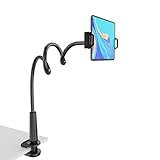
- 【Firm Support for Hands-Free Viewing】Gooseneck tablet holder built with a firm reinforced aluminum arm, significantly minimizing wobbling and sagging. This tablet holder helps keep your screen at a comfortable viewing angle for reading, streaming and video calls. The arm is intentionally stiff for support—use both hands when bending it
- 【Ultra-Stable Clamp for Firm Surfaces】 Attach the tablet stand to a solid bed headboard, desk or table edge from 0.2–3" (0.5–8 cm) thick. EVA non-slip pads improve grip and help protect furniture, while TPE pads cushion your device inside the holder
- 【Fits 4.7–13" Tablets & Device】 The bed tablet holder compatible with a wide range of iPad Pro/Air/Mini, Galaxy Tab, Kindle, Fire HD, Switch and device. For a secure grip, device thickness should not exceed 0.78" (2 cm); bulky protective cases may need to be removed before mounting
- 【30-Inch Reach & 360° Viewing】 The flexible arm measures about 30 inches when fully extended, giving you room to position the screen where it is comfortable to see. Rotate the holder 360° for portrait or landscape viewing—ideal for reading in bed, watching videos, video calls, recipes and other hands-free viewing
- 【Use It the Right Way】 Gooseneck tablet stand holder may move slightly when you tap or swipe the screen. For better stability with a larger or heavier tablet, bend the arm into an “S” or loop shape instead of keeping it fully extended. Best suited for hands-free reading, movies and video calls rather than frequent typing, drawing or repeated screen interaction
Transfer reading progress, notes, and highlights
Before moving to the new Kindle, connect the old one to Wi-Fi and choose Sync or Sync and Check for Items from Quick Actions or the device menu. Leave it online long enough to upload pending data. Then register and synchronize the new Kindle.
Amazon’s sync system can make the furthest page read, text-based notes, and highlights available across compatible Kindle devices and apps connected to the same account. This is account synchronization, not a file-copy operation. If the old Kindle was reset or failed before syncing, its latest local changes may be lost.
Kindle Scribe handwritten annotations require extra caution: Amazon specifically describes cross-device access for handwritten Scribe annotations across Kindle Scribe devices. Do not assume that handwritten notebooks will appear on every Kindle model. See Amazon’s sync guidance.
Rank #3

- Compatibility: 2Packs Universal hand strap holder fit 6 - 8" E-Reader and tablet, including Fire Tablet/Kindle/Kobo/Lenovo/Voyaga/Sony/Tolino tablet, etc. (Note: Please measure your e-book readers or tablets before purchase.)
- For One-hand-use: Kindle strap have high-elasticity band helps to tight the devices around your hand in a secure way, allowing you to use devices by one hand without the worries about accidentally dropping.
- Easy to Attach: The anti-slip silicone coat of the jaws helps to fix the hand-strap on the devices while it can avoid leaving scratches and marks on the devices.
- Case-friendly: The jaws of the plastic bracket may be slightly prised open to fit thicker devices. It is friendly to using with a slim case on.
- Easy-Carrying: Simple, slim and lightweight. kindle strap holder will add minimal bulk and weight to your devices, which is very convenient for you to hold and carry it.
Transfer personal documents
Documents sent through Send to Kindle
If a document was sent through Send to Kindle with Add to your library enabled, it can generally be downloaded on another Kindle linked to the same account:
Do these 3 things before closing this tab:
1Repair Windows errors before they cause bigger problems2Scan for outdated or missing drivers - takes under a minute3Clear out junk files and repair common Windows errors- Register the new Kindle to the same Amazon account.
- Open Library and select All.
- Use the Docs or personal-documents filter if it is available.
- Download the document.
Amazon lists formats including EPUB, PDF, DOC, DOCX, TXT, RTF, HTML, and image files. Its current guidance states that wireless Send to Kindle files can be up to 200 MB each. Details are available in Amazon’s library-document instructions and file-transfer guidance.
Files copied directly by USB
A file dragged directly into the old Kindle may exist only on that device and may not be backed up to Amazon’s cloud. Transfer it from the original source or the old Kindle:
Rank #4

- 10W USB Power Adapter, with 6Ft USB to Micro-USB and USB-C Nylon Braided Cable. Note : Two different ends, one is the micro-usb tip for old model. The other one is usb-c tip for new model
- Compatible with All old and new Fire Tablet and Kindle eReaders:Fire HD 8, Fire 7, Fire HD 10 Tablet, Fire Kids Edition Tablet, Paperwhite Voyage Oasis E-reader, Fire Phone, Echo Dot 2nd Generation,Fire TV Stick, Fire HD HDX 7” 8.9” Tablet, All Micro USB Powered Phone Tablet.
- Aslo Compatible with All new Fire HD 8 8Plus 10 10Plus,Fire 8 10 Kids/Kids Pro/Kids Edition,All-new Fire 7 tablet, Kids, Fire Max 11,Kindle Colorsoft.All USB-C Charging Port Tablets.
- Model:M050200-S86USU. Input: 100-240V, 50-60HZ. Output: 5.2V 2A /10W. Power adapter are made of high quality materials, ensure efficient and stable transfer rate, and kept in low temperature to charge safely.
- AC Adapter are UL listed, FCC certified. Build in IC Smart Chip and Isolating transformer, Adopte thickened metallic pins and Anti-fall outer shell. Provide your adapter as efficiently as the original 10W Kindle Fire Charger Power Supply and with overcharge Protection System/Short circuit/Overload protection/Over-heat protection
- Connect the old Kindle to a computer.
- Open its storage and locate the Documents folder.
- Copy compatible personal files to the computer.
- Connect the new Kindle.
- Copy the files into its Documents folder.
- Safely disconnect the Kindle.
Do not treat this as a universal way to move Amazon-purchased, DRM-protected books. Use Amazon account delivery for Kindle Store purchases, and do not attempt to remove DRM or bypass device restrictions.
Independent reader supportYour contribution helps us test, update, and keep practical guides available for everyone.Using USB: Windows and Mac differences
On Windows, a Kindle will generally appear as external storage in File Explorer. Amazon’s current USB guidance says that Kindle Scribe and Kindle models released in 2024 require the Send to Kindle Mac application for USB file management on Mac. The USB File Manager supports Intel and Apple M1–M3 Macs running macOS 12 or later.
Amazon also says transfers of more than 2,000 files at once are unsupported. For large libraries, transfer in smaller groups. Wireless Send to Kindle remains the simpler option for compatible personal documents.
Best Value

- Compatibility: Universal hand strap holder with high durability and elasticity to fit 6 - 8" E-Reader and tablet, including Fire Tablet/Kindle/Kobo Nia/Kobo Clara HD/Lenovo tab M7/tab M8/Voyaga/Sony/Tolino tablet, etc. (Note: Please measure your e-book readers or tablets before purchase.)
- For One-hand-use: High-elasticity band helps to tight the devices around your hand in a secure way, allowing you to use devices by one hand without the worries about accidentally dropping. Friendly to using it while laying down or commuting.
- Easy to Attach: The anti-slip silicone coat of the jaws helps to fix the hand-strap on the devices while it can avoid leaving scratches and marks on the devices.
- Case-friendly: The jaws of the plastic bracket may be slightly prised open to fit thicker devices. It is friendly to using with a slim case on.
- Easy-Carrying: Simple, slim and lightweight. It will add minimal bulk and weight to your devices, which is very convenient for you to hold and carry it.
When the Kindles use different Amazon accounts
Books do not automatically appear on a second Kindle just because the devices belong to members of the same family. The cleanest options are:
- Register both devices to the same account, when appropriate.
- Use Amazon Household or Family Library for eligible sharing between household members.
- Repurchase or borrow a title when account sharing is unsuitable or unavailable.
Amazon Household supports one additional adult and up to four children, subject to account and marketplace rules. Changing the registered account can affect access to the original account’s purchases, subscriptions, and personal documents, so do not switch accounts casually. See Amazon’s Household and Kindle sharing explanation.
What will and will not transfer automatically?
| Content | What to do | Important limitation |
|---|---|---|
| Amazon-purchased Kindle books | Register the new Kindle to the same account and download them | They become available in the cloud library; they are not ordinary EPUB or PDF files |
| Send to Kindle documents | Download them from Library > All | They must have been added to the account’s library |
| USB-sideloaded files | Copy the original files or retrieve them from the old Kindle | They may never have been stored in Amazon’s cloud |
| Reading position, text notes, and highlights | Sync the old and new Kindles | Unsynced changes may be lost |
| Handwritten Scribe notes | Use compatible Scribe devices and sync | Do not promise availability on every Kindle model |
| Collections and local organization | Check the new Library and reorganize if needed | Local sorting, filenames, covers, and sideloaded metadata may differ |
Fix missing books and documents
- Check the account. Confirm that the email address or phone number is exactly the same as on the old Kindle. Check Amazon’s Manage Your Content and Devices page.
- Check the Library filter. Open Library > All, rather than only Downloaded. For documents, check Docs if that filter is present.
- Force synchronization. Connect to Wi-Fi and choose Sync or Sync and Check for Items. Restart the Kindle if necessary.
- Check the source. A title downloaded from a website, copied by USB, exported from another reading app, managed in Calibre, or downloaded through a browser may not be in Amazon’s cloud library. Find the original EPUB, PDF, MOBI, or compatible file.
- Check the marketplace and region. A title may be unavailable after changing country, marketplace, or account ownership. Amazon provides a separate process for country or region changes.
- Check whether the title was deleted. A book permanently removed from the account will not reappear through synchronization.
Common causes include registering the new Kindle to the wrong account, confusing cloud availability with local download status, failing to sync the old device, and assuming that every personal document is cloud-backed.
What’s actually slowing this PC down?
Pick the symptom - the matching free tool is one click away.
Before selling or giving away the old Kindle
- Connect it to Wi-Fi and synchronize it.
- Copy any USB-only personal documents to a computer.
- Confirm that important books, notes, highlights, and reading progress are available from the account.
- Use Amazon’s factory-reset option only after checking the backup.
Amazon says a factory reset removes personal data, downloaded content, and unsynchronized content, and deregisters the device. Follow its factory-reset instructions.
Quick Recap
Product prices and availability are accurate as of the date/time indicated and are subject to change. Any price and availability information displayed on Amazon at the time of purchase will apply.

