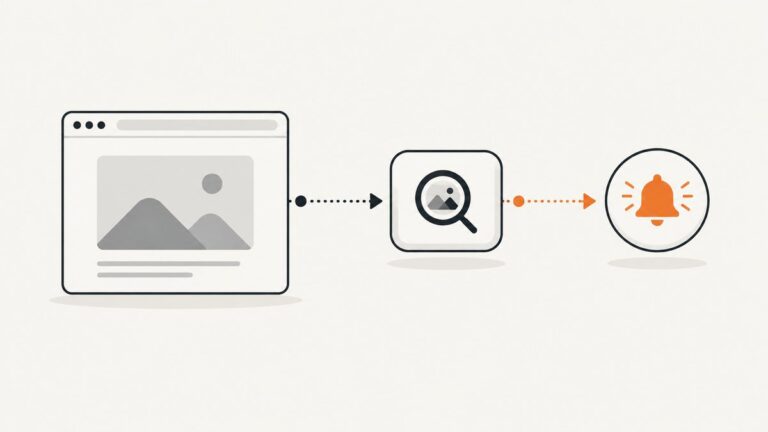
YouTube Restricted Mode is an optional content filter. It is designed to screen out some videos that may contain mature themes, such as graphic violence, sexual material, drugs or alcohol, or disturbing coverage of war, crime, terrorism, and serious injury. It is turned off by default, but it can be enabled separately on different browsers, apps, devices, profiles, and networks.
Restricted Mode is not an age-verification system and is not the same as an age restriction placed on an individual video. It is also not a guarantee that every mature video will be blocked. YouTube’s filtering systems can make mistakes, and parents, schools, employers, and network administrators may impose additional controls.
| # | Preview | Product | Price | |
|---|---|---|---|---|
| 1 |

|
TP-Link Deco M5 Mesh Dual Band Gigabit Wireless Router, Deco M5 1-Pack | $56.99 | Buy on Amazon |
| 2 |
|
TP-Link Deco M5 Mesh WiFi System Deco M5 3-Pack | $129.75 | Buy on Amazon |
| 3 |

|
TP-Link Deco S4 Whole Home Mesh WiFi System, Deco S4(2-Pack) | $79.97 | Buy on Amazon |
How YouTube Restricted Mode works
YouTube uses several signals to identify material that may be unsuitable for viewers who prefer a more filtered experience. These can include a video’s title, description, metadata, language, Community Guidelines reviews, and existing age restrictions. Some decisions are automated, while others may follow review by YouTube personnel.
Potentially filtered material can include:
- Graphic or detailed violence
- Some sexual discussions or depictions
- Content involving drugs or alcohol
- Mature coverage of terrorism, war, crime, or political conflict involving death or serious injury
This is not a complete or perfectly predictable list. Filtering quality can also vary by language because cultural expectations and sensitivities differ.
Recommended Free Tools
#1 Best Overall
- Expandable Whole Home Mesh WiFi System – TP-Link Deco Mesh WiFi units work together to create a seamless mesh network. Add additional Deco units anytime to expand coverage and create a stronger connected home experience.
- AC1300 Dual-Band WiFi Speeds – Dual-band WiFi delivers combined speeds up to 1300 Mbps (400 Mbps on 2.4 GHz + 867 Mbps on 5 GHz) for streaming, browsing, gaming, and connecting multiple devices.
- Flexible Coverage with Expandable Mesh Technology – Expand coverage by adding additional Deco M5 units when needed. Deco creates a unified network with a single WiFi name and password for a smoother connection experience.
- Built-In Network Security and Parental Controls – TP-Link HomeCare helps protect connected devices with security features, parental controls, and Quality of Service tools for managing your home network.
- Smart Features + Voice Control Support – Supports Guest WiFi, QoS, Beamforming, IPv4 and IPv6 compatibility, and works with Alexa for convenient voice control options.
When Restricted Mode is active, comments are unavailable on videos being watched. Music and videos in YouTube Music are filtered too; explicit music may still appear in search or lists but can be skipped when playback is attempted.
Enable or disable Restricted Mode on a computer
- Sign in to YouTube.
- Select your profile photo in the upper-right corner.
- At the bottom of the account menu, select Restricted Mode.
- In the panel that opens, turn Activate Restricted Mode on or off.
The desktop control applies to the current browser or device context, not automatically to every browser you use. If a computer has multiple browser profiles or user profiles, check each profile that needs the setting.
For example, enabling Restricted Mode in Chrome does not necessarily enable it in Firefox on the same computer. Similarly, changing the setting on a home computer does not automatically change it in the YouTube app on a phone or on a television.
Enable or disable Restricted Mode in the Android app
- Open the YouTube app and sign in.
- Select your profile photo.
- Select Settings, then General.
- Turn Restricted Mode on or off.
Enable or disable Restricted Mode on iPhone or iPad
- Open the YouTube app and sign in.
- Select your profile photo.
- Select Settings, then General.
- Turn Restricted Mode on or off.
The current official path for iPhone and iPad is the same as the Android path. YouTube can change labels or menu placement, so look for the profile photo, Settings, General, and Restricted Mode if the wording differs slightly.
What’s actually slowing this PC down?
Pick the symptom - the matching free tool is one click away.
Use Restricted Mode on the YouTube mobile website
If you are using YouTube in a mobile browser at m.youtube.com:
- Select your profile photo.
- Select Settings, then Account.
- Turn Restricted Mode on or off.
This setting may not match the setting in the native YouTube app. Check both if you use YouTube in both places.
Android TV
On Android TV, sign in and open YouTube from the Home screen’s Apps row. Open Settings, select Restricted Mode or Safety Mode, and choose On or Off.
The Android TV control affects Restricted Mode on that TV device. It does not necessarily change the setting on your phone, computer, or another television.
Smart speakers and smart displays
For a compatible smart speaker or smart display, use the Google Home app:
- Select the device.
- Open Settings.
- Select Notifications & digital wellbeing.
- Select YouTube Settings.
- Manage Restricted Mode for the device.
The device user can control Restricted Mode for themselves. A device manager can control it for other users. This is a device-level setting, so changing it does not necessarily alter Restricted Mode elsewhere on the account.
Why Restricted Mode will not turn off
If the normal YouTube switch is unavailable, keeps returning, or appears to have no effect, the setting may be controlled outside the ordinary YouTube menu. Use the following checks rather than repeatedly reinstalling the app or changing random settings.
Rank #2
- Whole-Home Mesh Wi-Fi Coverage up to 5,500 sq. ft. – Replace your traditional router and range extender setup with a seamless mesh Wi-Fi system. Three Deco M5 units work together to deliver strong, reliable coverage throughout your home and help eliminate dead zones.
- Seamless Roaming with One Network Name – Unlike traditional Wi-Fi extenders that create multiple network names, Deco M5 keeps you connected with a single Wi-Fi name and password, allowing uninterrupted roaming as you move from room to room.
- Fast, Stable Connections with Adaptive Routing – TP-Link Adaptive Routing technology automatically selects the best path for each connected device to optimize performance and maintain stable connections throughout your home.
- Built-In Network Security and Parental Controls – Includes a free lifetime subscription to TP-Link HomeCare, featuring advanced antivirus protection, powerful parental controls, and Quality of Service (QoS) tools to help manage and secure your network.
- Simple Setup in Minutes + Alexa Compatible – Set up your network quickly using the TP-Link Deco app. Plug in your units, follow guided instructions, and get connected in minutes. Works with Alexa for added convenience.
1. The current browser, app, device, or profile has its own setting
First, check the profile-photo menu in the exact place where the problem occurs. Confirm whether Restricted Mode is enabled in the desktop browser, mobile app, mobile website, TV, or smart display.
Free tools Windows power users keep installed
One-click scans. No signup required.
Settings are not necessarily universal. A household may therefore have different results on a laptop, phone, cellular connection, and smart TV without anything being broken.
2. Family Link or another parent-managed account controls it
A parent using Google Family Link can enable Restricted Mode for a child’s account in situations where the child is not using an eligible supervised YouTube experience. When Family Link imposes the setting, the child cannot change Restricted Mode on devices where that child is signed in.
The parent or family manager must review the child’s YouTube and Google family settings. Reinstalling YouTube or signing out generally does not give the child control over a parent-managed restriction.
3. A school, employer, library, or public network enforces it
Schools, universities, libraries, workplaces, and other institutions may configure YouTube restrictions through their network, managed devices, Google Workspace settings, or approved-video policies. Google Workspace for Education administrators can configure restricted or approved-video access for organization users and school networks.
If the restriction belongs to an institution, an ordinary viewer generally cannot override it from YouTube’s menu. Contact the organization’s administrator, or use an unrestricted personal network and account only when that is permitted by the organization’s rules. Do not attempt to bypass school, workplace, library, or public-network controls.
4. A mobile provider or DNS filter is restricting content
Some mobile-network providers offer content filters. A restriction can therefore appear on cellular data but not on home Wi-Fi, or work on one permitted network and not another.
Use YouTube’s content-restrictions checker to determine whether the limitation is associated with your account, an administrator, or the network. If it reports a moderate or strict DNS restriction, the network is applying content filtering; contact the mobile provider or network administrator about its policy.
Switching between home Wi-Fi, cellular data, and another permitted network can be a useful diagnostic comparison. It is not, by itself, proof of which party imposed the restriction. Do not assume that clearing cookies, changing DNS, or using a VPN will reliably remove a carrier or administrator policy.
The Tool Desk
Outbyte PC Repair FREERepair Windows errors before they cause bigger problemsFix Now →Outbyte Driver Updater FREEFix the driver behind crashes, sound loss and screen glitchesFind Drivers →5. YouTube is disabled for a Google Workspace account
A message saying that YouTube access is restricted by an administrator can refer to a broader issue: the Google Workspace domain administrator may not have enabled YouTube as a service for the account.
This is different from Restricted Mode. Restricted Mode filters some content while YouTube remains available; a disabled Workspace service can prevent the account from accessing YouTube altogether. Ask the domain administrator whether YouTube has been enabled for the account.
Rank #3
- A New Way to WiFi: Deco Mesh technology gives you a better WiFi experience in all directions with faster WiFi speeds and strong WiFi signal to cover your whole home.
- Better Coverage than traditional WiFi routers: Deco S4 2 units work seamlessly to create a WiFi mesh network that can cover homes up to 3,800 sq. ft. No Dead Zone anymore.
- Seamless and Stable WiFi Mesh: Rather than wifi range extender that need multiple network names and passwords, Deco S4 allows you to enjoy seamless roaming throughout the house, with a single network name and password.
- Incredibly fast 3× 3 6Stream AC1900 speeds makes the deco capable of providing connectivity for up to 75 devices.
- With advanced Deco Mesh Technology, units work together to form a unified network with a single network name. Devices automatically switch between Decos as you move through your home for the fastest possible speeds
A practical troubleshooting sequence
- Check the local control: open the YouTube profile menu and confirm Restricted Mode in the browser, app, device, or profile where the issue occurs.
- Check YouTube’s content-restrictions page: use the checker to look for account, administrator, and network/DNS restrictions.
- Compare permitted connections: test home Wi-Fi and cellular data, or another network you are authorized to use. Different results can indicate network-level filtering.
- Ask the family manager: if the account is managed with Family Link, the parent must review the child’s YouTube settings.
- Contact the institution: for a school, employer, library, or other managed network or device, ask its administrator for clarification.
- Check Workspace service access: if YouTube itself is unavailable, ask the Google Workspace administrator whether YouTube is enabled.
Restricted Mode compared with other YouTube controls
| Control | What it does | Where it applies | Can it be changed by the viewer? |
|---|---|---|---|
| Restricted Mode | Filters some potentially mature content and hides comments while active. | Depending on the setting, a browser, app, device, profile, account context, or network. | Usually yes, unless a parent, administrator, or network provider controls it. |
| Age restriction on a video | Limits an individual video to appropriately aged, signed-in viewers. | The specific video. | No. Turning off Restricted Mode does not remove an age restriction. |
| YouTube Kids | Provides a separate child-focused app and its own content settings. | The YouTube Kids app and its profiles. | Parents manage the available settings. |
| Supervised YouTube experience | Uses age-oriented content settings such as Explore, Explore more, or Most of YouTube. | A supervised child account. | The parent or family manager controls the experience. |
| Family Link or organization controls | Can impose account, device, app, or service restrictions beyond YouTube’s ordinary menu. | The managed account, device, or organization network. | Normally only the parent, family manager, or administrator. |
These systems overlap in purpose but are not interchangeable. Restricted Mode is a filtering layer; it does not replace YouTube Kids, supervised accounts, Family Link, or device- and network-level parental controls.
What Restricted Mode does not guarantee
- It does not block every mature or disturbing video.
- It does not verify the viewer’s age.
- It does not remove an age restriction from an individual video.
- It does not guarantee identical results in every language.
- It does not necessarily apply to every browser, app, device, profile, or network you use.
- It does not mean that every filtered video violates YouTube policy.
YouTube says its automated systems can make mistakes, and a video may be unavailable while systems review it. Conversely, material that one viewer considers mature may not be filtered by the system.
Do these 3 things before closing this tab:
1Clear out junk files and repair common Windows errors2Fix the driver behind crashes, sound loss and screen glitches3Repair Windows errors before they cause bigger problemsFor documentary viewers and creators
Documentaries often cover war, crime, terrorism, political conflict, death, injury, drugs, or other subjects that can trigger content filtering even when the purpose is educational or journalistic. Restricted Mode availability and monetization are separate matters: YouTube says a video can remain monetized while being unavailable to viewers who have Restricted Mode enabled.
For viewers, the setting may explain why a documentary, historical report, interview, or news segment is missing from search results or cannot be played. For creators, it means that a video’s Restricted Mode availability should not be treated as a direct statement about whether the video is monetized or whether it violates YouTube’s rules.
Frequently Asked Questions
Does Restricted Mode block all adult content on YouTube?
No. Restricted Mode is a filtering system, not a guarantee. It uses signals such as metadata, language, reviews, and age restrictions, and YouTube acknowledges that automated decisions can be incorrect.
Why can I watch a video on Wi-Fi but not on mobile data?
A mobile provider may apply a content filter or DNS restriction. Compare only networks you are authorized to use, check YouTube’s content-restrictions checker, and contact the provider if it reports moderate or strict network filtering.
Quick wins for a faster PC:
Fix the driver behind crashes, sound loss and screen glitchesFind Drivers →Repair Windows errors before they cause bigger problemsFix Now →Can I turn off Restricted Mode if my parent enabled Family Link?
Not from the ordinary YouTube menu when Family Link controls the setting. The parent or family manager must review the child account’s YouTube settings.
Is Restricted Mode the same as an age-restricted video?
No. Restricted Mode is an optional filtering layer that can affect many videos. An age restriction is applied to a particular video and requires an appropriately aged, signed-in viewer.
Why are YouTube comments missing?
Comments are unavailable on videos being watched while Restricted Mode is active.
The Bottom Line
Use the profile-photo menu to manage Restricted Mode on the specific browser, app, device, or profile where you watch YouTube. If the switch cannot be changed, diagnose the source with YouTube’s content-restrictions checker: Family Link, an organization, a managed device, or a mobile/DNS provider may be enforcing the policy. Those restrictions must be reviewed by the responsible parent, administrator, or network provider.
Quick Recap
Product prices and availability are accurate as of the date/time indicated and are subject to change. Any price and availability information displayed on Amazon at the time of purchase will apply.