Free tools Windows power users keep installed
One-click scans. No signup required.
OBS Studio is the best free software to investigate first if your church wants to play a recorded sermon as a YouTube Live broadcast from a computer it can keep running. OBS is free, open-source software with no watermark or feature limits, according to the OBS Project Help Portal. A local setup depends on the computer and internet connection staying available, so test the complete playlist and stream privately or unlisted before using it for a public service.
What you need to know before choosing
- OBS Studio: free desktop software for a church that has a suitable computer, a stable connection, and someone who can check the broadcast.
- A cloud service: an alternative when you do not want a local computer to run the stream. Cloud services are not necessarily free for continued use; check their current pricing and limits.
- Permission to rebroadcast: a recorded service may contain music, lyrics, images, clips, or contributions from other people. A religious or nonprofit purpose does not automatically grant rights to rebroadcast those materials.
“Free software” means the software license does not cost money. It does not remove possible costs for electricity, a computer, internet access, or the time needed to set up and monitor a stream.

Why OBS Studio is the best free starting point
The OBS Project Help Portal describes OBS as open-source software released under GPLv2, free to use without watermarks or feature limitations, including for commercial use. OBS sends a stream from the computer directly to the streaming service. That makes it a practical first option if your church already has a computer and can leave it on for the broadcast.
OBS is not a cloud host: if the computer shuts down or loses its connection, the local broadcast can be affected. OBS says increasing dropped frames can mean the internet connection cannot keep up with the selected bitrate. The Help Portal information reviewed here does not establish minimum hardware requirements, so test on the actual computer and network you plan to use.
What’s actually slowing this PC down?
Pick the symptom - the matching free tool is one click away.
#1 Best Overall
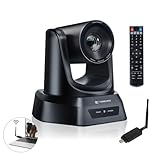
- AI AUTO TRACKING CAMERA FOR PRESENTATIONS & WORSHIP The built-in AI human detection automatically tracks the speaker and keeps them centered as they move across the room. Ideal for church sermons, classroom lectures, and business presentations where hands-free camera operation is essential. This intelligent tracking creates a professional viewing experience for livestreams, hybrid classes, and online meetings.
- UPGRADED 5.8GHZ WIRELESS SYSTEM WITH BUILT-IN RECEIVER The latest TONGVEO wireless PTZ camera features a built-in signal receiver on the camera side, simplifying setup and improving stability. Just connect the included antenna receiver to your computer’s USB port to establish a reliable 5.8GHz wireless connection up to 50 ft. Perfect for conference rooms and churches where running long cables is inconvenient.
- SMOOTH 1080P 60FPS VIDEO WITH 3X OPTICAL ZOOM Capture clear and fluid video with Full HD 1080P resolution at 60 frames per second. The 3X optical zoom allows you to focus on speakers or presentation areas without image distortion, while automatic white balance keeps colors natural in different lighting conditions. Ideal for online teaching, worship services, and professional meetings.
- PLUG-AND-PLAY WIRELESS SETUP WITH EASY CONNECTION GUIDE No drivers or complex configuration required. Simply plug the USB WiFi dongle into your computer and power on the camera to start a wireless video conference. The dongle indicator shows status: Red solid (power on), Red flashing (searching), White fast flashing (connecting), White slow flashing (connected), White solid (working normally). Then open your video software and select the TONGVEO camera to start video output. Compatible with Windows, macOS, Zoom, OBS, WebEx, and Teams. Wireless range up to 10 m (33 ft).
- QUIET PTZ MOVEMENT WITH FLEXIBLE MOUNTING OPTIONS The precision motor delivers smooth and quiet PTZ movement with wide pan and tilt coverage, allowing you to capture the entire room without distracting noise. Multiple mounting options—including wall, tripod, desk, or ceiling installation—make it easy to integrate into classrooms, conference rooms, or church environments.
How to loop a prerecorded sermon on YouTube Live with OBS
The exact OBS controls can vary by version and setup. Use these steps as a workflow, then confirm the relevant source and looping controls in the OBS version installed on your church computer. YouTube’s current account-specific livestream requirements should also be checked in YouTube Studio.
- Confirm livestream access. Sign in to the church’s YouTube channel and create or schedule a broadcast in YouTube Studio. Check the channel’s current eligibility and setup prompts; activation requirements and timing are not established here.
- Prepare the recording or playlist. Keep the sermon video files accessible on the computer that will run OBS. In OBS, create a scene for the broadcast and add the video source or sources you intend to play. If the service will contain multiple recordings, arrange them in the intended order and confirm how your OBS version handles looping and transitions.
- Connect OBS to YouTube. Configure OBS using the stream destination and current stream-key workflow shown for the broadcast in YouTube Studio. Treat the stream key as private account access information: do not show it on screen or share it with people who do not need to operate the stream.
- Run a private or unlisted test. Check framing, audio levels, the beginning and end of each recording, and the transition from one sermon to the next. Confirm that the loop behaves as intended before scheduling a public broadcast.
- Watch stream health. During the test, check OBS for dropped frames and YouTube Studio for stream-health warnings. If frames are dropping, the connection may be unstable or unable to sustain the selected bitrate; reduce the load or improve the connection, then test again.
- Plan who will respond. Decide who will monitor the broadcast and what they should do if the computer, connection, stream health, or a copyright warning requires attention. Confirm the current YouTube guidance for scheduling and ending the broadcast rather than assuming a stream or archive will remain available indefinitely.
Protect the church’s recording and music rights
YouTube Help says live streams are scanned for matches to third-party content. A match can cause a placeholder, interruption, or termination; even licensed material may be interrupted if the rights holder has not allowlisted the channel through Content ID.
Rank #2

- 4K UHD RESOLUTION WITH 10X OPTICAL ZOOM FOR MEDIUM TO LARGE ROOMS- Deliver true 4K UHD video clarity for professional meetings, classrooms, and worship spaces. The 10X optical zoom captures speakers clearly from 30–50 ft without digital distortion, making it ideal for corporate conference rooms, training rooms, and remote education where faces, gestures, and whiteboard details must remain sharp.
- AI AUTO TRACKING CAMERA FOR CHURCH, STAGE & PRESENTATIONS - Built-in AI human recognition automatically tracks a pastor, teacher, or presenter as they move across the stage or classroom. Once enabled, the camera keeps the speaker centered without manual control, making it ideal for church worship services, lectures, keynote speeches, and live streaming on YouTube or Facebook.
- USB 3.0 & HDMI DUAL OUTPUT – TRUE PLUG AND PLAY SETUP- No IP configuration or technical expertise required. Connect via USB 3.0 for instant use as a webcam with Zoom, Microsoft Teams, OBS, and other conferencing platforms, while simultaneously outputting HDMI to TVs, projectors, or video switchers. Ideal for hybrid meetings, webinars, and live events.
- SMOOTH & QUIET PTZ MOVEMENT FOR PROFESSIONAL VIDEO PRODUCTION- Motorized pan, tilt, and zoom provide smooth, precise camera movements without sudden jumps or mechanical noise. Ideal for boardrooms, classrooms, and worship environments where quiet operation and distraction-free transitions between speakers are essential.
- PRESET POSITIONS & RELIABLE HARDWARE FOR DAILY USE- Save and recall multiple preset camera angles for fast switching between speakers, audience views, and presentation areas using the included remote. Built with a professional-grade 1/2.8" image sensor for stable, long-term operation in churches, schools, offices, and training centers.
Before broadcasting, check rights for the sermon recording itself and for every embedded worship song, backing track, lyric display, photograph, illustration, video clip, and guest speaker contribution. YouTube identifies permission, applicable copyright exceptions, public domain, and Creative Commons terms as possible routes for using other people’s work, but none guarantees that a claim or strike will not occur. Its fair-use guidance also notes that nonprofit status is not an automatic defense, and copyright rules vary by jurisdiction. This is general information, not a legal determination.
When a cloud service makes more sense
A cloud-hosted stream can avoid having a church computer run the broadcast. Streamloop, for example, describes cloud playlist streaming for prerecorded material, including sermons, to YouTube or other RTMP platforms. Its site says use consumes credits based on stream quality, frame rate, and duration, so treat it as a paid option for sustained use and confirm current costs, limits, account access, and recovery behavior. Those are vendor claims; the available information does not establish a comparative benchmark for uptime, support, video quality, or ease of use.
Rank #3

- Smart Auto Light Correction – Powered by advanced Smart Auto Light Correction Technology, this webcam automatically adjusts brightness, contrast, and color in real time. Whether you’re in a dim office, under harsh lighting, or backlit by a window, your image always looks professional—ideal for webcam for PC, webcam for laptop, or web camera for desktop computer.
- Crystal-Clear 2K Wide-Angle with Autofocus – Enjoy sharp, vibrant visuals with 2K Full HD resolution (30fps) and autofocus technology. Designed for streamers, teachers, and professionals, this streaming camera delivers a wider field of view and higher clarity than traditional Logitech webcam models.
- Dual Noise-Canceling Microphones – Equipped with dual built-in mics featuring advanced noise reduction, this webcam with microphone ensures your voice comes through crisp and natural—even in noisy environments. Perfect for camera for computer, online meetings, webinars, and live streaming.
- Plug & Play, Broad Compatibility – Works instantly via USB 2.0/3.0/3.1 and OTG—no drivers required. Compatible with Windows XP/7/8/10/11, Vista, Mac OS, and Linux (UVC or later). Comes with a 5ft USB cable for easy setup. Works seamlessly as a USB camera, PC camera, or USB webcam for desktops and laptops.
- Privacy Cover for Peace of Mind – Includes a convenient slide cover to block the lens when not in use, ensuring complete privacy and protection. A professional and secure choice for both computer camera for desktop and laptop camera users.
For YouTube-only looping from uploaded videos, StreamNeo is the cloud alternative to try first: it runs continuously from the cloud, accepts uploads at any quality up to 4K 60fps for one flat price per slot, and offers the first day free.
Or let it run in the cloud
- Upload the sermon recording or build a playlist.
- Add your YouTube stream key once.
- Go live; StreamNeo loops the video from the cloud, so your computer and home connection do not have to stay on.
There is no computer to leave running at home, uploads stream at any quality up to 4K 60fps at one price per slot, and StreamNeo automatically recovers if YouTube drops the stream. The first day is free with no card. Monthly pricing is $9.99 per month. Start your free day with StreamNeo.
Independent reader supportYour contribution helps us test, update, and keep practical guides available for everyone.Common problems and what to check
- The stream drops frames: OBS identifies this as a possible sign that the connection is unstable or cannot keep up with the selected bitrate. Check the connection and stream-health indicators; adjust the setup and run another test.
- The next sermon does not start as expected: Recheck the source order and looping behavior in your OBS version, then test the transition through the end of one recording into the next.
- Audio is missing or uneven: Check the scene’s audio sources and levels, then listen through the full test broadcast rather than only checking the opening.
- YouTube interrupts the live stream: Review any copyright notice in YouTube Studio. Confirm permissions for the matched material and, where relevant, ask the rights holder about Content ID allowlisting.
- The broadcast stops when nobody is at the church: A local OBS stream relies on the computer and connection running. Assign someone to monitor and respond, or consider a cloud workflow if the computer cannot remain on.
Which option should your church choose?
| Option | Software or service cost | Does the local computer need to run? | Best fit |
|---|---|---|---|
| OBS Studio | Free software, according to the OBS Project Help Portal | Yes, for a local broadcast | A church with a suitable computer, reliable connection, and an available operator |
| Streamloop | Credit-based use; check the vendor’s current pricing and limits | No, according to the vendor’s description of its cloud service | Unattended playlist streaming when avoiding a local always-on computer justifies an ongoing fee |
| StreamNeo | Per-slot subscription; first day free with no card | No; the stream runs from the cloud | A church that wants uploaded sermons looped to YouTube without leaving a computer on |
For a free desktop workflow, start with OBS and test it end to end. If the church cannot keep a computer and connection available, compare the current terms of cloud services before choosing one.
Quick Recap
Best Value

- 40X Zoom and 2K Video: The 1-pack includes a VM33 camera. Stream in 1080p; record in 1440p. Use 40X hybrid zoom (10x optical + 4x digital) to frame subjects 100 feet away. A 1/2.8-inch CMOS sensor supports low-light detail for sports, worship, and lectures.
- 6-Hour Battery and Flexible Connections: Stream for up to 6 hours over Wi-Fi or AP hotspot mode, use USB-C webcam mode, or connect by Ethernet with a USB-C adapter (not included). Select the mode for mobile, studio, or venue use.
- RTMP, RTSP, and NDI Streaming: Stream with one tap from the NearStream app to YouTube, Facebook, or Twitch, or use a custom RTMP destination. RTSP and NDI connect with compatible software such as OBS for production and monitoring.
- App Control, Multicam, Scoreboard, and Cloud: Adjust resolution, zoom, audio, and image in the NearStream app. Control up to 3 VM33 cameras, add sports scores, and use 20GB cloud storage for automatic recording backup and replay.
- 8-Mic Array with AI Noise Suppression: Eight MEMS microphones capture 360-degree sound within 16 feet, while AI noise suppression helps clarify speech. Connect a compatible microphone or wireless receiver through 3.5mm or USB-C.
Product prices and availability are accurate as of the date/time indicated and are subject to change. Any price and availability information displayed on Amazon at the time of purchase will apply.
Quick wins for a faster PC:
Scan for outdated or missing drivers - takes under a minuteDriver Scan →Clear out junk files and repair common Windows errorsFree Scan →Fix the driver behind crashes, sound loss and screen glitchesFind Drivers →