Free tools Windows power users keep installed
One-click scans. No signup required.
For a direct GoPro-to-YouTube broadcast, use the GoPro Quik app: select your camera, open Live Stream, choose YouTube, sign in and authorize access, then configure and start the stream. First, make sure YouTube live streaming is enabled for your channel; first-time activation can take up to 24 hours. Test the connection and preview before the event.
Before you set up the GoPro
- Check YouTube eligibility. YouTube says a channel must be verified and have no live-streaming restrictions in the preceding 90 days. First-time activation may take up to 24 hours, so do not leave this until the event day. See YouTube’s live-streaming requirements.
- Check the GoPro model. GoPro’s support instructions describe the Quik workflow but do not provide an exhaustive current compatibility list. Confirm that your exact camera is supported in GoPro’s current live-streaming guidance before relying on it for an event.
- Plan for the network at the filming location. Run an upload-speed test there, not just at home. YouTube advises leaving 20% of upload bandwidth unused as headroom; other people and devices sharing the connection can reduce what is available to the stream. Its streaming tips recommend testing and monitoring the broadcast.
- Prepare power and framing. Choose a stable camera position and check that the lens, microphone and scene suit the broadcast. For a long event, plan for the camera’s power needs; the cited GoPro workflow does not establish a particular battery, mount or cable as required.
Set up a direct YouTube stream in Quik
- Open the GoPro Quik app and select or pair the camera you plan to use.
- Open the camera menu and tap Live Stream.
- Choose YouTube. Continue to Google sign-in, select the account connected to the intended channel, and authorize GoPro when asked.
- If Quik prompts you to choose Wi-Fi, select the network and enter its password.
- Complete Set Up Live Stream. Review the available stream options, including quality, before you start.
- When ready, use Quik’s live controls to begin. GoPro’s instructions also identify pressing the camera’s shutter button as a way to start.
GoPro’s support article states that its mobile YouTube route requires 50 subscribers. Treat that as a workflow-specific statement rather than a permanent rule for every YouTube live-streaming method: requirements can vary or change, so check the current YouTube and GoPro guidance for your account and setup before the event.
| # | Preview | Product | Price | |
|---|---|---|---|---|
| 1 |

|
GoPro Media Mod (HERO13 /12/11 /10 /9 Black) - Official Accessory | $69.00 | Buy on Amazon |
| 2 |
|
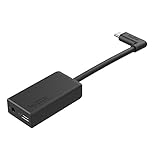
GoPro Pro 3.5mm Mic Adapter for (All Hero Cameras) - Official Accessory | $69.99 | Buy on Amazon |
Test picture, sound and connection before going public
Where the available controls allow it, make an unlisted or private test first. YouTube recommends testing with representative movement and audio, checking the Live Control Room preview, and watching stream health during the event. Confirm that the camera is pointed correctly, voices are clear, and the upload connection remains stable while the scene is moving—not only when the camera is idle.
- Run the test from the actual broadcast location and on the connection you intend to use.
- Check the preview and listen for clean audio before sharing a public link.
- Keep a margin in upload bandwidth instead of setting a stream that consumes the full measured upload capacity.
- If the connection is weak or shared, select a lower stream quality and test again. GoPro recommends 1080p for quality and says 720p may suit a mobile hotspot; it also says bitrate automatically lowers if the data connection weakens.
- During a live event, monitor YouTube’s stream health where available and be prepared to reduce quality or move to a more stable connection.
Choose Quik YouTube or a custom RTMP/RTMPS URL
| Route | Best for | Setup | Important limitation |
|---|---|---|---|
| Quik’s integrated YouTube option | A straightforward GoPro-to-YouTube broadcast | Sign in and authorize the Google account, then configure the stream in Quik | Check channel eligibility and exact camera compatibility |
| Custom RTMP/RTMPS URL in Quik | A stream-key workflow or another platform that accepts RTMP | Get the server URL and stream key from the platform, combine them as directed, and enter the full URL in Quik | GoPro’s live-stream function supports RTMP and RTMPS URLs, not RTSP or HLS |
For a custom YouTube stream, create or schedule the stream in YouTube’s Live Control Room and copy the server URL and stream key shown there. Follow the platform’s instructions for combining them; GoPro’s support page gives a slash-separated example. Treat the stream key like a password: do not post it, show it on screen, or share it with anyone who should not be able to broadcast to your channel. YouTube’s encoder setup guidance explains the server URL and stream-key workflow.
#1 Best Overall
- Built-in directional mic highlights voice audio and reduces ambient noise
- Tough, weather-resistant construction withstands the elements
- 2 cold-shoe mounts to attach your favorite lights, mics or LCD screens
- 3.5mm mic port lets you add an external mic for enhanced audio
- HDMI-out port to monitor or play back your footage
GoPro documents RTMP and RTMPS for custom URLs. A URL beginning with a different protocol, such as RTSP or HLS, is not supported by the GoPro live-stream function. If you are using a platform other than YouTube, confirm it accepts the URL type that GoPro can send.
Resolution, bitrate and encoder settings
In the direct Quik workflow, use the quality controls actually shown in the app; do not assume it exposes every advanced encoder setting. GoPro recommends 1080p for quality, with 720p as an option that may suit a mobile hotspot. Its support page says the stream bitrate automatically lowers if the data connection weakens. Lower quality can improve stability on a constrained connection, but it also reduces detail—especially noticeable in fast movement or wide outdoor scenes.
For encoder-based streams, YouTube recommends testing the settings before the event, using a resolution and frame rate that suit the connection, and using RTMPS where available. Its listed RTMP/RTMPS guidance recommends H.264 video, AAC or MP3 audio, constant bitrate (CBR), and a 2-second keyframe interval, not more than 4 seconds. These are YouTube encoder recommendations, not a claim that Quik exposes those controls for its direct camera workflow. Consult YouTube’s encoder settings and bitrate guidance when configuring a separate encoder.
Rank #2
- Enables high-quality audio capture when using a pro-level external mic.Mounting Type: Usd
- USB-C power and data extension with 90° connector
- Connects a wide range of external 3.5mm mics
- Enables stereo mic and line input for external audio sources like an audio recorder or mixer
- 106dB stereo analog-to-digital converter
GoPro Labs: an advanced QR-based option
GoPro Labs documents an alternative RTMP setup using a QR code for Labs-enabled HERO8–13 and BONES cameras. The documented prerequisites include pairing the camera once with the GoPro app, storing Wi-Fi credentials on the camera, and storing the RTMP address. This is an advanced Labs workflow, not the ordinary Quik setup described above. The GoPro Labs live-stream setup page was updated September 10, 2024; check it for current details before using this route.
Copyright and YouTube live-stream rules
Before broadcasting, make sure you have the rights to the footage, music and other material in the stream. A live broadcast can be interrupted or restricted if it includes material you are not authorized to use. YouTube’s channel eligibility rules also apply independently of the camera setup. For documentary filming, consider permissions for people, locations, archival clips and background music, and avoid revealing private or sensitive information unintentionally. Do not treat a successful technical test as confirmation that content is cleared for publication.
Troubleshoot common GoPro-to-YouTube problems
| Symptom | Likely cause | What to check or do |
|---|---|---|
| YouTube does not appear in Quik, or authorization fails | Live streaming is not enabled, initial activation is pending, or the wrong Google account is selected | Confirm the intended channel is verified and eligible, allow up to 24 hours for first activation, then sign in with the Google account for that channel and authorize access again. |
| The camera or Live Stream option is missing | The camera is not selected or paired, or the exact model may not support the current workflow | Reconnect or select the camera in Quik and check current GoPro support guidance for the exact model. |
| A custom URL will not connect | The protocol, server address or stream key is incorrect | Use an RTMP or RTMPS URL, verify the server URL and key against the platform, and check that they are combined in the expected format. Replace a key if it has been exposed. |
| The stream buffers, drops or looks degraded | Upload capacity is too low or shared, or the signal is unstable | Test upload speed at the location, reduce quality, limit competing network use, and retest. Leave YouTube’s recommended 20% bandwidth headroom. |
| The picture is stable but viewers cannot hear clearly | Audio was not checked under real filming conditions | Include representative speech and ambient sound in a private or unlisted test, then review the preview and audio before the public broadcast. |
Or let it run in the cloud
The GoPro method above is for broadcasting a live camera view. If your goal is instead to keep a YouTube channel live with uploaded, pre-recorded video, StreamNeo is a different option: upload a recording or build a playlist, add your YouTube stream key once, and go live. It loops uploaded videos from the cloud, so nothing has to stay on at home. It does not broadcast a live camera feed.
Quick Recap
- Any uploaded quality up to 4K 60fps streams as made, at one flat price per slot with no re-encode or quality tiers.
- Automatic recovery is included if YouTube drops the stream.
- The first day is free with no card required, one free day per account.
- Monthly: $9.99 per month.
Start your free StreamNeo day.
Product prices and availability are accurate as of the date/time indicated and are subject to change. Any price and availability information displayed on Amazon at the time of purchase will apply.