Quick wins for a faster PC:
Fix the driver behind crashes, sound loss and screen glitchesFind Drivers →Repair Windows errors before they cause bigger problemsFix Now →Scan for outdated or missing drivers - takes under a minuteDriver Scan →To monitor chat and recent events while gaming on one screen, enable Game Overlay in Streamlabs Desktop, choose which components to show, set hotkeys, and run the game in borderless-windowed or windowed-fullscreen mode. Streamlabs says the overlay does not work in fullscreen mode.
Set up Game Overlay in Streamlabs Desktop
- Open the overlay settings. In Streamlabs Desktop, go to Settings > Game Overlay.
- Enable the in-game overlay. Select whether you want chat, recent events, or both to appear over the game.
- Position and tune the components. Use Toggle Positioning Mode to move the overlay elements. Adjust opacity so the information remains legible without obscuring too much of the gameplay.
- Assign hotkeys. In Settings > Hotkeys, set controls for toggling the overlay and entering or leaving positioning mode. Set these before you start playing so you can control the overlay without switching away from the game.
- Change the game’s display mode. Choose borderless-windowed or windowed-fullscreen in the game’s display settings. Streamlabs’ support guide says Game Overlay will not work in fullscreen mode.
Streamlabs describes the overlay as a way to keep chat and recent events visible while streaming with one monitor, rather than switching away from gameplay to check activity. The exact game and system compatibility is not specified in its setup guidance, so the instructions should not be read as a guarantee for every game.
Choose what to keep on screen
| Overlay selection | Useful when | Trade-off |
|---|---|---|
| Chat | You want to follow viewer messages while playing. | It takes up some of the game display; positioning and opacity help limit distraction. |
| Recent events | You want to see stream activity without keeping chat visible. | It still occupies part of the gameplay view. |
| Chat and recent events | You need both kinds of activity visible at once. | This uses more screen area than showing one component, so arrange both carefully. |
If the overlay does not appear
- The game is in fullscreen mode: switch to borderless-windowed or windowed-fullscreen, the modes named in Streamlabs’ support guide.
- The overlay is hard to control during play: check that you assigned hotkeys for both toggling the overlay and positioning mode in Streamlabs Desktop’s Hotkeys settings.
- Chat or recent events are missing: return to Settings > Game Overlay and confirm the desired component is selected.
- An element blocks too much of the game: enter positioning mode to move it and adjust its opacity.
Streamlabs’ published setup instructions do not list supported games, graphics APIs, operating-system versions, or every possible conflict, so a failure outside these checks may depend on the particular game or setup.
Or let it run in the cloud
Streamlabs Game Overlay is for viewing chat or recent events over a game while you stream. If your goal instead is to keep an uploaded video running as a 24/7 YouTube livestream, StreamNeo is a separate option: upload a recording or build a playlist, add your YouTube stream key, and go live. It keeps the stream running from the cloud, so nothing has to stay on at home; it streams your upload as made, up to 4K 60fps, at one price per slot regardless of quality, and automatically recovers if YouTube drops the stream. The first day is free with no card. Monthly service is $9.99 per month. See StreamNeo or start the free day.
Quick Recap
Rank #4

- 【Universal Clip-On Design for Laptop & Desktop Screens】 This ring light for computer can attach smoothly to screens ≤ 2.5cm (0.98in) thick, perfect for laptops and desktop monitors. Clip light sturdy clip keeps it stable for calls, online work,streaming, or content creation, no extra stands needed.
- 【360° Rotation & 170° Tilt Flexibility】 The light for video recording easily rotate 360° sideways and tilt 170° up/down to adjust the lighting angle. Webcam light perfect for vertical videos, makeup,studio photoshoot,or vlogging—set it exactly how you need.
- 【High CRI, Adjustable Lighting】 Ring light for laptop featuring 64 high-CRI97+ LEDs, this clip on ring light ensures lifelike colors for professional use. Easily adjust brightness (5 levels) and switch between warm (2600K) to cool (6500K) white light for Tiktok/Youtube video recording.,Zoom call or Facetime.
- 【Plug-and-Play USB Convenience】 Desk ring light connect to computer designed for simplicity, photography lights have 2m (79in) USB cable with Magic tape ensures a tidy workspace. Works with any 5V 2A (10W) USB port—zero setup. Powered via USB.
- 【Perfect for Video Calls & Content Creation】 This ring light for desk upgrade your video conferences, webcam footage, and live streams with studio-like lighting.Light for Video Recording delivering professional clarity and flawless visibility for every frame.
Rank #3

- Application: Fits most flat panel monitor up to 34” and supports weight up to 22lbs. Mount plates detachable and height adjustable for mounting holes 75x75mm and 100x100mm
- Multiple Options: Two-stage locking system C-Clamp and 3.5” diameter Grommet-Base, both systems applied to 3” thick desk
- Multiple Adjustment: The high-grade arms extend and retract, +/-90° tilt and swivel to change reading angles, and 360° rotate from landscape to portrait mode
- Double Benefits: Monitor arm is easily adjustable on the 31.5” height pole. Double efficiency and productivity by opening up desk space allow working in a more comfortable, ergonomically correct position to reduce neck and eye strain
- Keep Your Desk Organized: By lifting your monitor off the desktop, this single monitor stand opens up valuable space for your keyboard, notebook, docking station, or a simple, clutter-free work area, while its built-in cable management guides wires along the arm to keep cords out of sight and out of the way, creating a tidy, organized workstation. Package includes: 1 x WALI Extra Tall Single Monitor Mount (Black), 1 x Mounting Hardware Kit, 1 x User Manual
Rank #2
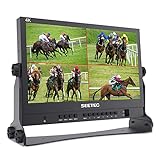
- 【4 X 4K HDMI Input and Output】ATEM156 can realize multi-view monitoring, which can be used with switcher, like ATEM Mini. During live broadcast, you can preview the screen and switch the required screen to the screen.
- 【Sharper and More Detailed Image】The SEETEC ATEM156 equipped with a 15.6 inch IPS LCD panel. The IPS LCD panel itself has a resolution of 1920 x 1080, a contrast ratio of 800:1, and an LED backlight with a brightness of 250cd/m², giving you an accurate reproduction of video. It combines a wide 170° viewing angle in both horizontal and vertical directions. Easy viewing is ensured by reducing color changes due to the viewing angle.
- 【Improve the Shooting Efficiency】SEETEC ATEM156 has set up professional monitoring functions according to the actual needs of pre-shooting and post-production. It contains focus-checking functions, such as Peaking Focus, False Color, and Pixel to Pixel, to assist in getting sharp images.
- 【Easy Button Operation】It is equipped with a simple control panel, you can customize the shortcut key functions and quickly call them out. You can use the 12V DC power input and V- mount battery plate to power monitor.
- 【Package Include】1× ATEM156 Monitor, 1× Mini/ Micro HDMI to HDMI Cable, 1× V-mount Battery Plate, 1× 3A Power Adapter, 1× U-shaped Bracket【Note: battery not include】. If input the signal with HDCP, please use the " HDMI Splitter" to strip the HDCP signal from the HDMI signal.
#1 Best Overall

- For optimal and consistent performance, power this USB ring light with a 5V/2A+ adapter or power bank - not a laptop USB port (typically 5V/1A). Required specs: exactly 5V voltage, minimum 2A current. Lower-current adapters may cause flickering or unstable operation.
- Studio-Quality Lighting: Elevate your video calls, streams, and content with true-to-life lighting anywhere you go. Featuring 60 high-performance LEDs delivering 450Lux brightness and CRI>97 color accuracy, this webcam light ensures vibrant, natural tones without harsh shadows. The adjustable 3000K-6000K color temperature lets you switch from warm to cool lighting instantly, matching any environment or skin tone. Whether you're in a dimly lit home office or a co-working space, enjoy professional-grade illumination that enhances clarity and keeps you looking your best.
- Customizable Lighting: Tailor your lighting to any situation with 5 lighting modes (warm to cool white) and 10 brightness levels (10%-100%), all controlled with a single-button interface. Need softer lighting for an evening call? Prefer bright, daylight-balanced illumination for makeup tutorials? Adjust in seconds to match your environment, skin tone, or content style. Unlike basic selfie ring lights, this computer camera light offers precise, instant customization, ensuring you always look polished and professional.
- Clip & Go Convenience: No bulky equipment or complicated setups—this ring light for laptop attaches securely to laptops or monitors and includes a mini tripod for standalone use. Perfect for remote workers, streamers, and content creators, it sets up in seconds and travels effortlessly. Whether you're jumping into a last-minute Zoom call, recording a vlog on location, or streaming from a co-working space, enjoy studio-quality lighting without the hassle. The ultra-portable design ensures you always have perfect lighting, anytime, anywhere.
- Pro-Level Adjustability: Unlike rigid ring lights, this video conference lighting offers unmatched flexibility with 170° tilt and 360° rotation. Position it overhead for a soft glow, angle it for side lighting, or adjust it to eliminate glare—full adjustability ensures you always look your best. Perfect for creators, professionals, and streamers who demand precision lighting control in any setup.
Sources
- Streamlabs Support: “Game Overlay for Streamlabs Desktop”, originally dated February 27, 2020 and last updated April 25, 2025.
- Streamlabs: “Streamlabs Game Overlay For Single Monitors”, dated July 2, 2022 and last updated October 2, 2025. Its article describes the feature as experimental.
Product prices and availability are accurate as of the date/time indicated and are subject to change. Any price and availability information displayed on Amazon at the time of purchase will apply.