Grow a 24/7 YouTube sleep music stream by making its promise specific, its music rights clear, and its sound and ad choices consistent with uninterrupted rest. Continuous runtime alone is not identified as a monetization violation, but generic, interchangeable uploads can be ineligible for monetization. YouTube does not publish a sleep-stream formula for recommendations, so focus on a distinctive listening experience and use your own audience data to refine it.
Start with a sleep experience viewers can trust
A sleep stream is not just music that happens to run all night. Tell listeners what they will hear and avoid promising a quality the stream does not deliver. A title and description might specify gentle piano, rain ambience, a steady low-frequency drone, or no sudden transitions—but only when those details accurately describe the audio.
![The Most Relaxing Classical Music In The Universe [2 CD]](https://m.media-amazon.com/images/I/516yfwRNo3L._SL160_.jpg)


Make the channel’s work recognizably original
Explain who composed the music or how it was licensed, what distinguishes one mix from another, and who each stream is for. If the channel publishes several streams or recordings, make their substance meaningfully different rather than uploading interchangeable versions with superficial changes. YouTube’s monetization policy says content should be materially varied and deliver creative, educational, or other value. Its July 15, 2025 clarification renamed “repetitious content” as “inauthentic content.” The policy does not say that a continuous runtime, by itself, makes a stream ineligible.
Do not treat a loop as automatically prohibited—or assume that looping alone makes a channel original. Make the creative contribution and the reason to choose this stream clear to a listener.
Windows Errors? Fix Them Before They Spread
Repair common Windows errors and clear accumulated junk for a smoother, more stable PC - no reinstall needed.Free scan · no reinstallOutdated Drivers Are Slowing You Down
One free scan finds every outdated or missing driver and matches the right update for your exact hardware.Free scan · exact hardware match#1 Best Overall
Set expectations in the packaging
Use a clear title and description that identify the sound, intended sleep context, and any noticeable changes or transitions. Avoid claims such as “no ads” or “no interruptions” unless you can actually guarantee them; YouTube does not guarantee that ad slots will serve or that every viewer’s experience will be uninterrupted.
Clear music rights before the first broadcast
You need the necessary rights for music used in a YouTube livestream. YouTube scans live streams for third-party content, and a track can trigger an interruption even if you have licensed it: the rights owner may also need to add your channel to its Content ID allowlist. YouTube’s live-stream copyright guidance explicitly warns that a licensed stream can still be interrupted if the channel is not allowlisted.
Rank #2
Check the license against the way you will use the music
- Confirm that the license expressly covers livestreaming on YouTube.
- Check the territories covered and whether the rights allow the stream to be available worldwide.
- If you enable an archive or replay, confirm that the license covers that use as well.
- If you plan to monetize, verify that monetization is permitted under the license.
- Ask the rights owner whether your channel must be allowlisted in Content ID, and keep written confirmation.
- Keep the license and any allowlisting confirmation accessible while the stream is running.
YouTube’s livestream terms require creators to have the rights needed to exploit live content on Google services worldwide, including relevant music licensing rights. A license for personal listening or ordinary uploads should not be assumed to cover a continuous live broadcast, replays, every territory, or monetization.
Choose mid-roll settings with sleep in mind
Live ads can interrupt a sleep stream. For monetized live streams, YouTube offers automatic, scheduled, and manual mid-roll controls. No setting guarantees an ad-free or uninterrupted experience for every viewer, and an available ad slot is not guaranteed to serve.
Rank #3
| Control | What it means for a sleep stream | Trade-off |
|---|---|---|
| Automatic mid-rolls | YouTube determines when to insert available mid-roll opportunities. There is a temporary control that delays automatic mid-rolls for 10 minutes. | Less timing control; the delay can help avoid a particularly disruptive moment, but does not prevent later ads. |
| Scheduled mid-rolls | YouTube’s live-control documentation lists intervals of 6, 12, 18, 24, or 30 minutes. | Offers a set interval, but those options are not recommendations for sleep content. More frequent opportunities may be a poor fit for a promise of steady, uninterrupted rest. |
| Manual mid-rolls | The creator chooses when to insert an ad opportunity. | More direct timing control, but requires attention during the broadcast and still does not guarantee that a slot serves. |
If uninterrupted listening is central to your promise, choose the least disruptive available approach and be candid about it. That may mean accepting lower earning potential; it is a programming choice, not a YouTube guarantee. YouTube reported an average “over 20% uplift in instream ad revenue per hour” in a January 2024 comparison across 207 countries of channels that enabled live automatic mid-roll ads versus those that did not. That is an association reported by YouTube, not a guaranteed result for a sleep-music creator or evidence that frequent interruptions improve the listener experience.
Schedule the stream and make it easy to understand
Scheduling can make an upcoming livestream visible in subscriber feeds and lets viewers select “Notify me” before it begins. That can help interested subscribers choose to return at the start, but scheduling is not a promise of more recommendations or growth.
Rank #4
- Use a title and description that accurately identify the audio and listening experience.
- Schedule in advance when an upcoming start and subscriber notification option suit the format.
- Use tags for commonly misspelled terms if useful; YouTube says tags have minimal discovery value otherwise.
- Do not claim that tags, a 24/7 schedule, or any particular sound guarantees recommendation or audience growth.
Can a 24/7 stream be recommended by YouTube?
There is no established sleep-specific recommendation formula or guarantee based on being live continuously. The available guidance does not establish that 24/7 runtime earns a ranking advantage, nor does it say runtime alone violates monetization policy. Treat continuity as a format choice: it can serve listeners who want a stream available whenever they tune in, but it does not replace original content, clear packaging, rights compliance, or a good listening experience.
Review your channel’s own retention, repeat-viewer feedback, chat, and revenue data. Change one meaningful element at a time—such as the sound mix, stream description, or ad approach—and observe how your viewers respond. The available evidence does not establish sleep-specific benchmarks or prove that a small before-and-after change caused a platform-wide result.
Free tools Windows power users keep installed
One-click scans. No signup required.
Best Value
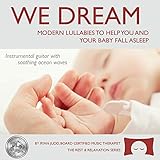
- Calming Sleep Support: Helps you and your baby fall asleep with calming and soothing instrumental guitar music
- Award-Winning Quality: Winner of Parent's Choice Silver Honor Award
- Thoughtful Baby Shower Gift: Gift quality packaging makes this a meaningful present that offers the gift of music and sleep
- Family Relaxation Tool: Helps during fussy times in the car or at home and relaxes the whole family when you need it the most
- Music Therapist Developed: Developed by a board-certified music therapist, with a percentage of profits donated to help kids with cancer
Meet YouTube’s live-stream requirements
Before setting up a live broadcast, check the channel’s eligibility. YouTube’s guidance says a channel must be verified and must not have had a livestreaming restriction in the previous 90 days. YouTube also says creators must be at least 16 to livestream. Encoder-based streaming is one common way to broadcast complex content such as concerts; choose a setup you can reliably operate and monitor for your stream.
Keep the stream running: DIY or cloud
Run it yourself with an encoder
An encoder-based setup requires a computer and a stable connection to remain available while it broadcasts. YouTube’s live-stream setup and control labels can vary by interface, so confirm the current controls in YouTube Studio before going live.
- Check eligibility and rights. Verify the channel, confirm there has been no livestreaming restriction in the past 90 days, and complete the music-rights and Content ID checks above.
- Create or schedule the live stream in YouTube Studio. Enter an accurate title and description, set the stream’s audience and other applicable details, and schedule it if you want the upcoming stream to appear for subscribers with a “Notify me” option.
- Choose your monetization and mid-roll approach. If the stream is monetized, review YouTube’s automatic, scheduled, or manual mid-roll controls and choose settings that fit the listener promise.
- Connect the encoder to YouTube. Use the stream key and connection details provided in YouTube Studio. Treat the key as a credential: do not publish it or share it with anyone who should not control the stream.
- Start the encoder and verify the live feed. Confirm that YouTube is receiving the intended audio and video before leaving the stream unattended. Keep the computer and connection available for as long as the broadcast must run.
- Monitor for interruptions. Check YouTube Studio and the encoder for connection problems, copyright warnings, or changes to the live feed. If YouTube interrupts the stream, address the notice and rights issue before restarting.
Or let it run in the cloud
StreamNeo keeps a YouTube channel live from uploaded videos: upload a recording or build a playlist, add your YouTube stream key once, and go live. Nothing has to stay on at home; it streams the video as uploaded, at any quality up to 4K 60fps for one flat price per slot, and automatically recovers if YouTube drops the stream. The first day is free with no card. Monthly billing is $9.99 per month. StreamNeo plays uploaded video, not a live camera feed, and streams to YouTube only. Start your free day with StreamNeo.
Quick Recap
Common problems and practical fixes
| Problem | Likely cause | What to do |
|---|---|---|
| Stream is interrupted after music starts | YouTube detected third-party content; a license may not include livestream use or the channel may not be allowlisted in Content ID. | Review YouTube’s notice, verify the license covers this use, and contact the rights owner about allowlisting before restarting. |
| Licensed music still triggers a copyright interruption | The rights owner has not allowlisted the channel through Content ID. | Ask the rights owner to add the channel to its allowlist and retain written confirmation. |
| Viewers report ads waking them | Mid-roll opportunities can interrupt, including automatically placed ones. | Review the live mid-roll controls and reduce disruption where possible. Explain the stream’s ad approach honestly; no setting promises every viewer an uninterrupted session. |
| Tags do not appear to increase discovery | Tags have minimal discovery value beyond helping with commonly misspelled terms. | Prioritize accurate titles and descriptions that communicate the sound and experience. |
| Channel cannot start a livestream | The channel may not be verified or may have had a livestream restriction in the last 90 days. | Check channel verification and restriction status in YouTube, then follow the eligibility guidance before trying again. |
| Different uploads feel interchangeable | They may not have enough meaningful creative or other viewer value to distinguish them. | Make the music, mix, purpose, or presentation materially distinct and explain what is different to listeners. |
Product prices and availability are accurate as of the date/time indicated and are subject to change. Any price and availability information displayed on Amazon at the time of purchase will apply.
Quick wins for a faster PC:
Clear out junk files and repair common Windows errorsFree Scan →Fix the driver behind crashes, sound loss and screen glitchesFind Drivers →